How to Install RubyMine on Ubuntu 24.04


RubyMine on Ubuntu 24.04 runs as an integrated development environment (a program workspace that helps you write, test, and fix code) for Ruby and Ruby on Rails. You can install the software in just a few minutes using either a Snap package or a direct download from JetBrains.
Ubuntu 24.04 supports both methods to get the tool running on your desktop quickly. The setup includes built-in coding help and AI assistance to speed up your work.
Install RubyMine using the JetBrains Toolbox App by downloading it from the official website, running the installer, and then clicking “Install” next to RubyMine within the app. Alternatively, use the command sudo snap install rubymine –classic.
Install using the JetBrains Toolbox App
You can install RubyMine Ubuntu using the JetBrains Toolbox App to automatically manage updates for all your developer tools in one place. This method lets you download and set up the IDE without dealing with manual configuration files or command-line shortcuts, making it the easiest choice for most users who run multiple JetBrains programs.
- Go to the official JetBrains website and download the Toolbox App.
- Extract the downloaded file and run the installer.
- Open the Toolbox App once it is installed.
- Find RubyMine in the list and click Install.
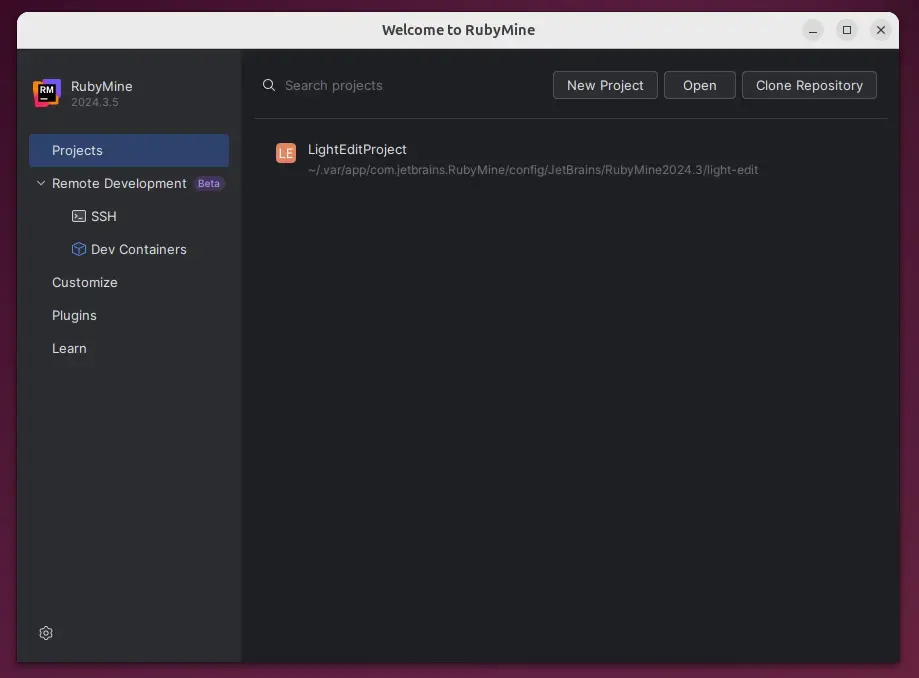
Install RubyMine via Snap
You can install RubyMine Ubuntu using Snap packages if you want a reliable method that handles automatic background updates. Snap comes built into Ubuntu 24.04, so you only need to run a single terminal command to download and set up the complete IDE on your system without any extra setup.
Run this command to install:
sudo snap install rubymine –classic
Launch the application by searching for RubyMine in the applications menu or by typing snap run rubymine in your terminal.
To remove the app, use:
sudo snap remove rubymine
Install RubyMine via Flatpak
You can install RubyMine Ubuntu using Flatpak to run the program in a secure, isolated sandbox environment that separates it from the rest of your system files. This method works well if you already use Flatpak for other software and want to keep your application dependencies neatly contained.
First, install Flatpak if it is missing:
sudo apt update && sudo apt install flatpak
Next, add the Flathub repository:
sudo flatpak remote-add --if-not-exists flathub https://flathub.org/repo/flathub.flatpakrepo
Finally, install RubyMine:
flatpak install flathub com.jetbrains.RubyMine
To remove the app later, use this command:
flatpak uninstall --delete-data com.jetbrains.RubyMine
Conclusion
Installing RubyMine on Ubuntu 24.04 creates a modern development environment. The JetBrains Toolbox App provides an efficient installation method for Ubuntu 24.04. Snap and Flatpak provide alternative package management systems for RubyMine. Completing this installation prepares the system for upcoming development work.
[signed-by=/usr/share/keyrings/jetbrains-ppa-archive-keyring.gpg]
How to install RubyMine?
If you prefer a manual setup, head over to the official JetBrains website to grab the Linux archive directly.
How to run a Ruby program in Ubuntu terminal?
To run Ruby code, type ruby into the command prompt or terminal and press Enter. Users who have not installed Ruby yet can acquire it through Rubyinstaller.org (Windows), Homebrew (Mac), or the Linux system package manager. Check the active Ruby version using the command ruby -v.
How do I install gems on Ubuntu?
Ubuntu users can open the 'Software Center' app from the launcher and type RubyGems (without quotes) into the application search box at the top right, then press [enter]. RubyGems installs immediately after clicking the 'Install' button.
Was this guide helpful?

About the Author
Richard
Tech Writer, IT Professional
Richard, a writer for Geek Rewind, is a tech enthusiast who loves breaking down complex IT topics into simple, easy-to-understand ideas. With years of hands-on experience in system administration and enterprise IT operations, he’s developed a knack for offering practical tips and solutions. Richard aims to make technology more accessible and actionable. He's deeply committed to the Geek Rewind community, always ready to answer questions and engage in discussions.



No comments yet — be the first to share your thoughts!