How to Install Emby Media Server on Ubuntu 24.04


Emby Media Server on Ubuntu 24.04 turns your computer into a private streaming hub for all your home movies, TV shows, and music. This media server software organizes your personal files, downloads cover art and descriptions, and streams your library to smart TVs, phones, tablets, and web browsers.
Setting up Emby on Ubuntu 24.04 gives you total ownership of your media collection without paying for a commercial streaming subscription. You only need a computer running Ubuntu 24.04 and an internet connection to get your personal streaming service up and running in a few simple steps.
Install Emby Media Server on Ubuntu 24.04 by updating your system, installing prerequisites with `apt install`, downloading the latest .deb package from Emby’s site, and installing it using `dpkg -i`. Start the service with `systemctl start emby-server` and enable it with `systemctl enable emby-server`.
Install Prerequisites
Installing prerequisites for Emby Media Server Ubuntu requires you to update your system packages and add essential video playback tools like ffmpeg and hardware drivers before you run the main installer. Open your terminal and run the update command followed by the package installation command to get all required dependencies ready on your machine.
sudo apt update && sudo apt upgrade -y
sudo apt install cec-utils libasound2t64 libatomic1 libc6 libegl1 libgcc-s1 libpulse0 libstdc++6 ffmpeg va-driver-all -y
We install ffmpeg and va-driver-all to help your server handle video playback smoothly using your computer’s hardware.
Download and install Emby
Downloading and installing Emby Media Server Ubuntu involves using a command-line script that automatically fetches the latest software package directly from the official repository. You run this script in your terminal to grab the correct version for your system architecture and set up the server without needing to manually download files.
URL=$(curl -s https://emby.media/community/index.php?/blog/rss/1-emby-announcements/ | grep -o 'https://github.com/MediaBrowser/Emby.Releases/releases/download/[^"]*amd64.deb' | head -n 1)
wget $URL
sudo dpkg -i emby-server-deb_*.deb
Once finished, start the server:
sudo systemctl start emby-server
sudo systemctl enable emby-server
Open your browser and go to http://localhost:8096 to finish the setup.
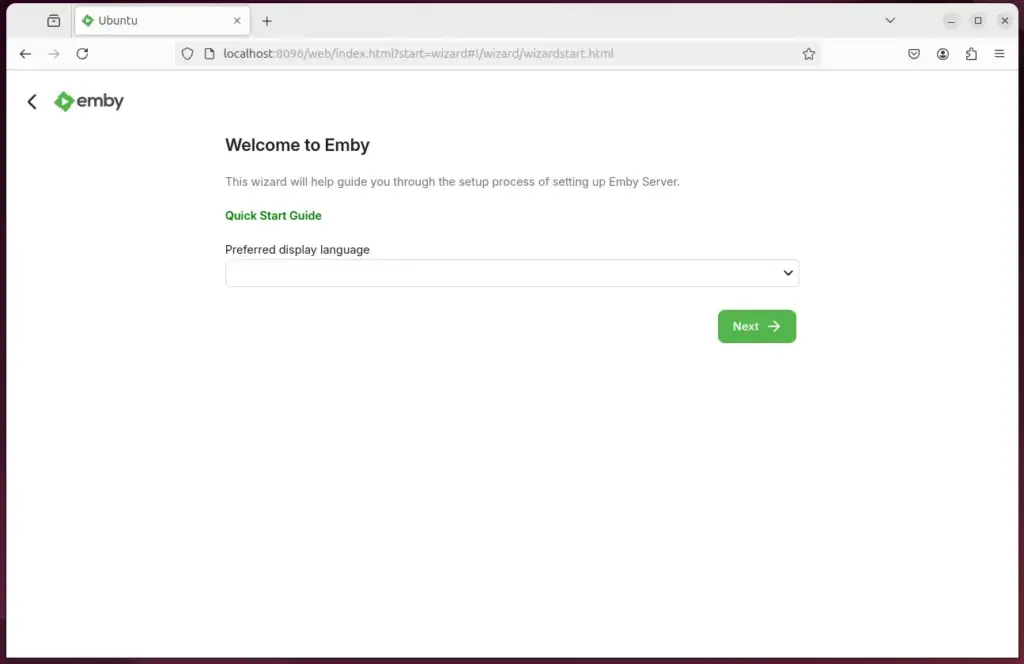
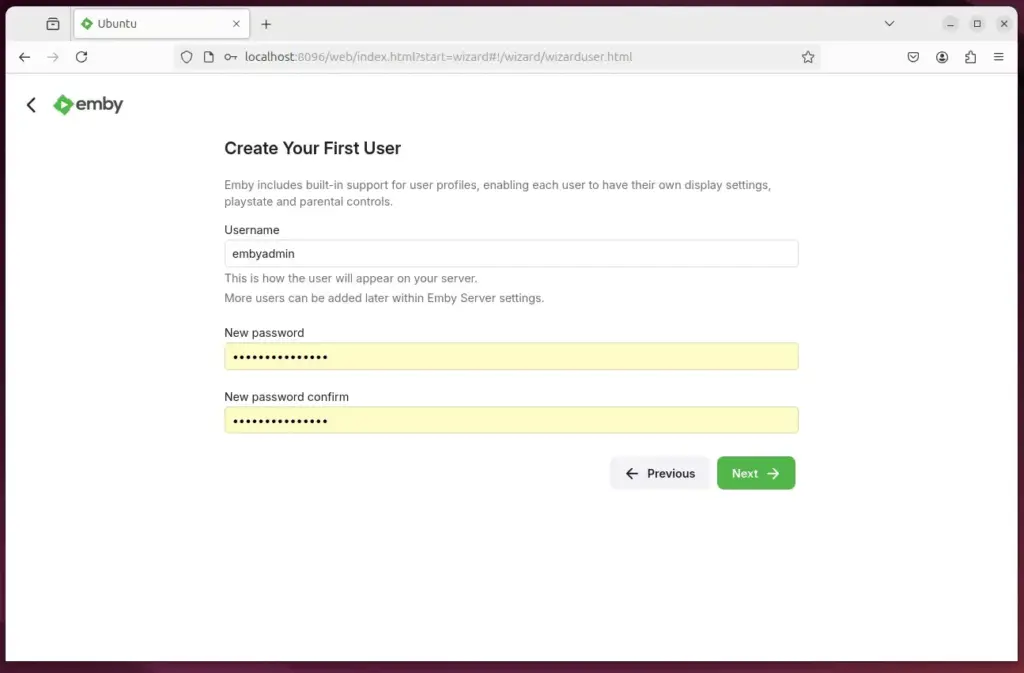
Create and admin account
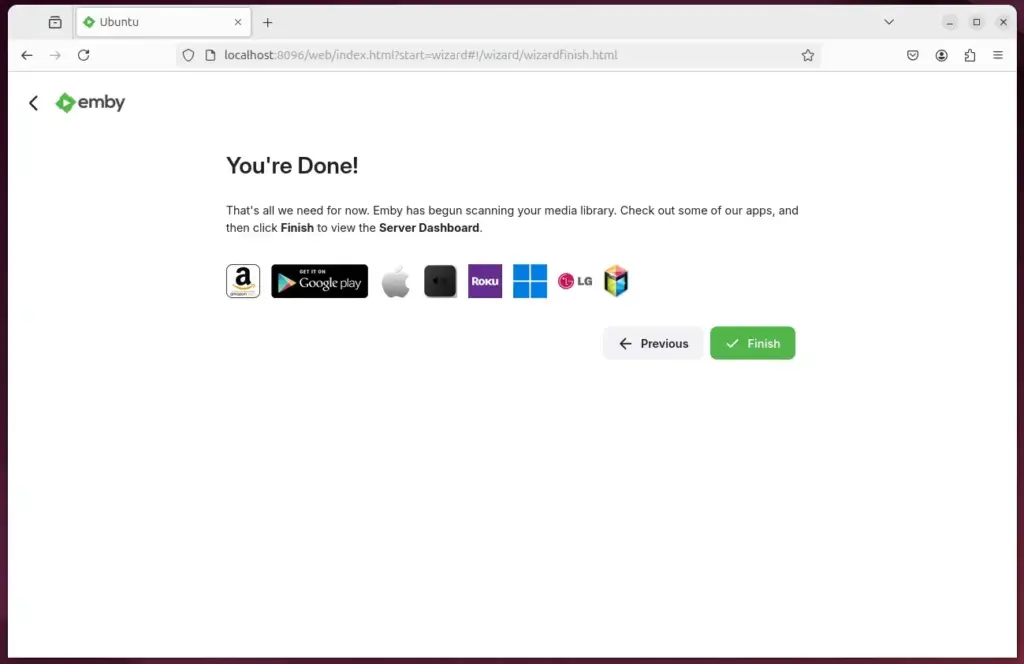
Creating an admin account for Emby Media Server Ubuntu happens through your web browser the first time you load the server interface. You follow the setup wizard prompts to name your server, create your main login credentials, and configure basic library settings before you start adding your movies and shows.
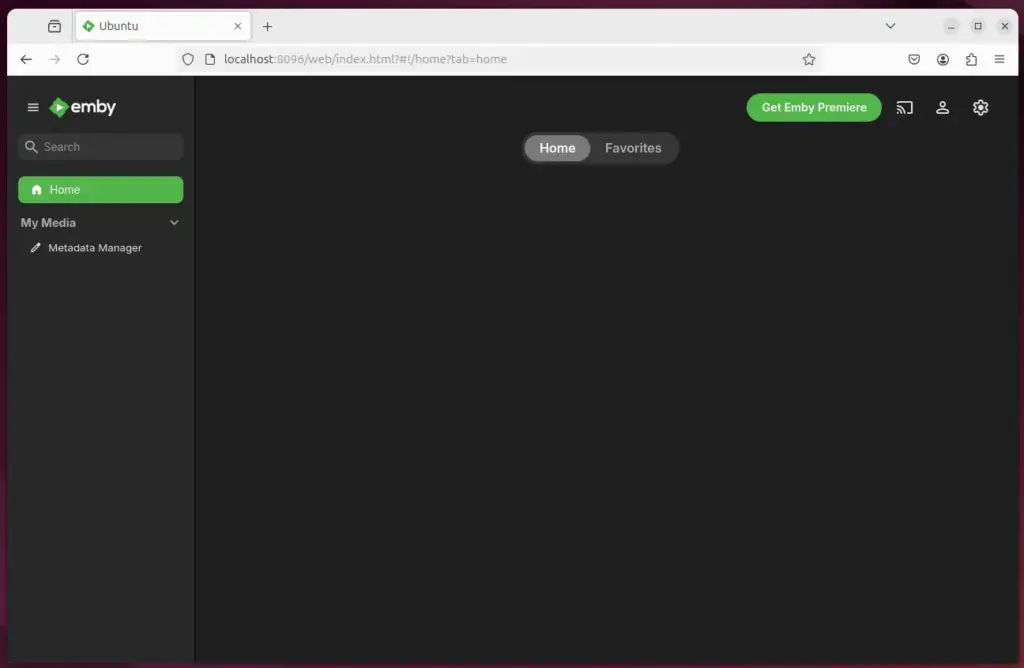
- Two-Factor Authentication: Go to Users Select User Profile. Enable 2FA to keep your account safe from unauthorized logins.
- Hardware Acceleration: Go to Dashboard Playback. Choose VAAPI or NVENC (depending on your hardware) to ensure your server uses the graphics card for faster streaming.
Set up a reverse proxy
Setting up a reverse proxy for Emby Media Server Ubuntu lets you connect to your home media library securely from outside your local network using a custom domain name. You use Caddy to handle the connection routing and automatically manage your security certificates so you can stream safely from anywhere.
Install Caddy, create a file named Caddyfile, and add this simple configuration:
yourdomain.com {
    reverse_proxy localhost:8096
}
Caddy will manage all the security and SSL certificates for you automatically.
Conclusion
You now have a professional media server. Remember these steps:
- Keep your system updated with apt upgrade.
- Use hardware acceleration for better performance.
- Turn on 2FA to protect your account.
- Use Caddy for easy, secure remote access.
Your media is now ready to stream anywhere!
Was this guide helpful?

About the Author
Richard
Tech Writer, IT Professional
Richard, a writer for Geek Rewind, is a tech enthusiast who loves breaking down complex IT topics into simple, easy-to-understand ideas. With years of hands-on experience in system administration and enterprise IT operations, he’s developed a knack for offering practical tips and solutions. Richard aims to make technology more accessible and actionable. He's deeply committed to the Geek Rewind community, always ready to answer questions and engage in discussions.




No comments yet — be the first to share your thoughts!