How to Install NetData on Ubuntu 24.04


NetData is a free monitoring tool that shows live system activity right in your web browser on Ubuntu 24.04. It tracks your processing power, memory, storage use, and network traffic in real time.
Installing NetData on Ubuntu 24.04 helps you spot server slowdowns fast without using up extra system resources. You only need a running server and a few minutes to get it set up.
Install NetData on Ubuntu 24.04 by running the official kickstart script in your terminal: wget -O /tmp/netdata-kickstart.sh https://my-netdata.io/kickstart.sh && sh /tmp/netdata-kickstart.sh. Access the monitoring portal at http://your-server-ip:19999.
Install NetData
Run the official installation script to download and set up NetData. Open your terminal and paste this command:
wget -O /tmp/netdata-kickstart.sh https://my-netdata.io/kickstart.sh && sh /tmp/netdata-kickstart.shUpdate the file
You need to update the netdata.conf configuration file to change how NetData handles network traffic and binds to local IP addresses on Ubuntu 24.04. Open the main settings file in a text editor by running sudo nano /etc/netdata/netdata.conf in your terminal, make your changes, and then restart the background service so the new settings take effect.
Configuration adjustments require opening this specific file:
sudo nano /etc/netdata/netdata.conf
Bind the listening socket to the correct local IP address. Save modifications and restart the background service:
sudo systemctl restart netdata
Access NetData portal
You can access the NetData web portal on Ubuntu 24.04 by typing http://your-server-ip:19999 into your web browser using your actual server IP address. This opens the local dashboard to view real-time system metrics, and you can also link your instance to a NetData Cloud account to manage multiple servers from one place.
http://your-server-ip:19999
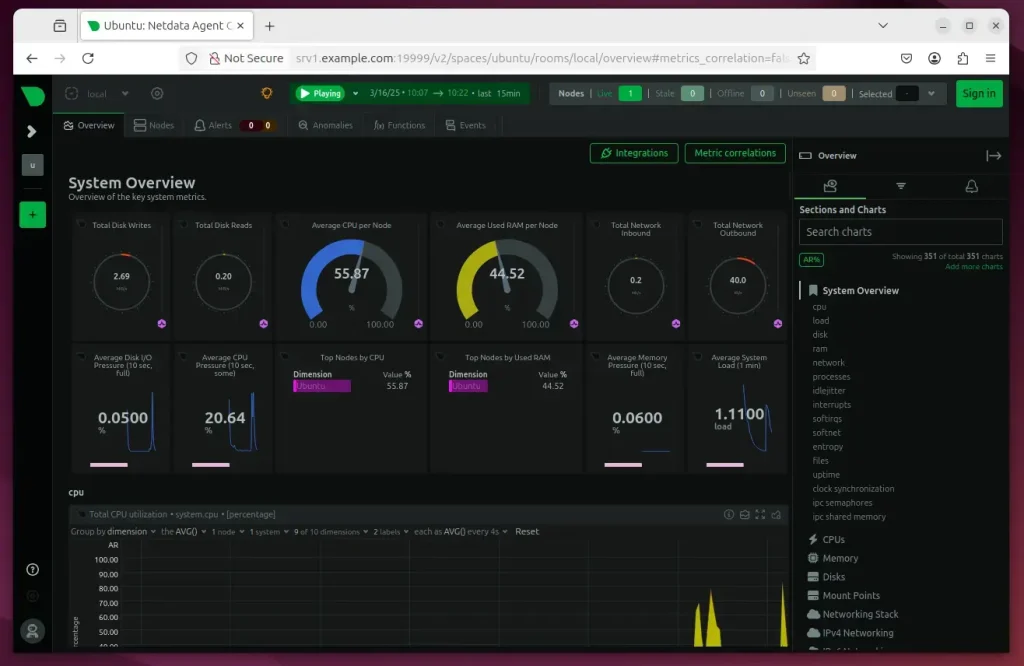
This links your server to your NetData Cloud account so you can manage multiple systems from one dashboard. Access the NetData Cloud interface, select the appropriate space, and execute the "Claim Node" protocol listed in the dashboard.
Conclusion
NetData on Ubuntu 24.04 gives you deep system observability through real-time visuals, health alerts, and eBPF monitoring (a kernel-level tracing technology used to gain deep insights into system and application performance). These features help you track server health and catch performance problems early to keep your system running smoothly over time.
Core capabilities encompass:
- eBPF Monitoring: Get deep insights into your system's kernel and application performance.
- Health Monitoring: Use the integrated alert system to get notified immediately when something goes wrong.
- Real-Time Visuals: See your data change instantly as it happens.
- Centralized Management: Use Netdata Cloud to oversee multiple servers at once.
Maintaining these telemetry practices preserves overall infrastructure reliability.
[global] [web]
Was this guide helpful?

About the Author
Richard
Tech Writer, IT Professional
Richard, a writer for Geek Rewind, is a tech enthusiast who loves breaking down complex IT topics into simple, easy-to-understand ideas. With years of hands-on experience in system administration and enterprise IT operations, he’s developed a knack for offering practical tips and solutions. Richard aims to make technology more accessible and actionable. He's deeply committed to the Geek Rewind community, always ready to answer questions and engage in discussions.


No comments yet — be the first to share your thoughts!