How to Install Ubuntu Linux


Installing Ubuntu Linux lets you run a free, open-source operating system alongside or instead of Windows on your PC. Ubuntu is a popular Linux distribution. Its Long Term Support (LTS) releases get five full years of free security updates.
You start by downloading an Ubuntu ISO file, a single file that holds the entire operating system. You then put it on a blank USB drive or DVD and boot the PC from that. The whole job takes about an hour, including the download.
To install Ubuntu Linux, download the Ubuntu ISO image from releases.ubuntu.com, pick an LTS release, and write it to a USB flash drive of at least 8 GB using a free tool such as Rufus. Restart the PC, press the boot menu key (often F12, F10, F9, Esc or F2), select the USB drive, then click Install Ubuntu.
How to download Ubuntu ISO image
Download the Ubuntu ISO image from the official Ubuntu releases page and save it to your computer. You need this disk image file to install Ubuntu on your machine. Pick an LTS release unless you have a reason not to, because it gets the longest support.
When the download finishes, you must burn or copy the ISO onto a blank USB flash drive or DVD. Your computer will start from that media during setup. The ISO is a few gigabytes, so use a USB drive of at least 8 GB. A newer ISO may not fit on a single-layer DVD, which makes USB the easier choice.
There may be other ways to get a ready-made disc or flash drive, but these can cost money. Making your own is free and takes only a few minutes.
Once your computer is ready, download the Ubuntu Linux ISO image from the link below. If you don’t have a bootable disc or flash drive yet, you need to “burn” the image onto one.
The install options later in this guide can erase the whole disk.
If you are burning a DVD from Windows, follow these steps:
- Insert a blank DVD into your DVD burner.
- Open File Explorer and go to the folder where you saved the ISO file.
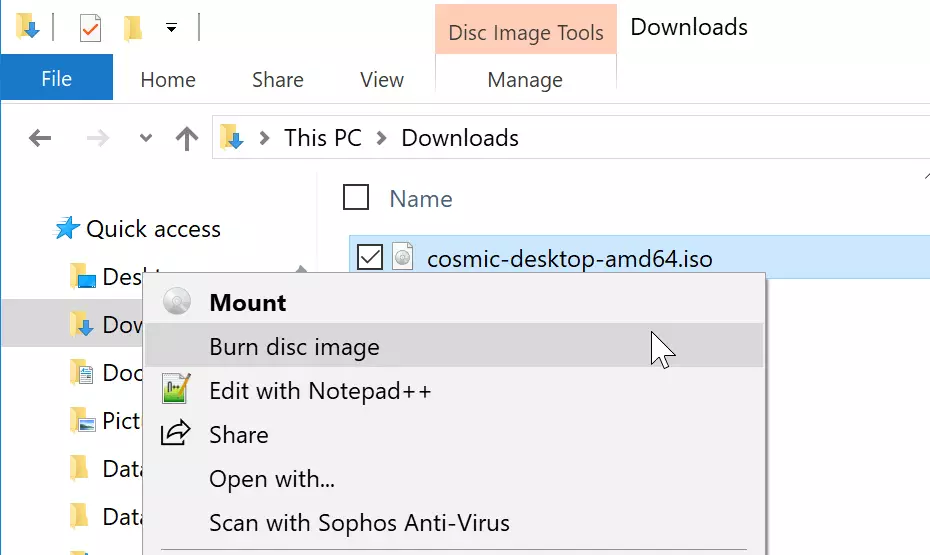
- Right-click the ISO image and select Burn disc image. On Windows 11 you may need to click Show more options first to see it. The image below shows this step.
The burn window then opens. Follow these steps:
- Choose the DVD drive that holds the blank DVD from the Disc burner list.
- Click Burn and wait for the process to finish.
If the PC you are installing on has no DVD drive, skip ahead to the USB method below.
Burning Ubuntu to a USB flash drive needs special software, because you can't just copy the ISO file onto the drive. Free programs such as Rufus make this easy. They create a bootable USB drive, which lets a computer start from the USB drive instead of its hard drive. That is how you start the Ubuntu installer.
Rufus erases everything on the USB drive, so copy off any files you want to keep first.
After burning the image, take the DVD or flash drive to the computer you want to install Ubuntu on. If that is the same PC you just used, leave the media plugged in or inserted and carry on.
How to boot Ubuntu ISO disc to install
To boot from the Ubuntu disc or flash drive, you need your computer's boot menu. Follow these steps:
- Make sure the USB drive or DVD is connected to the PC.
- Restart the computer.
- As soon as the manufacturer logo appears, press your system's boot menu key. It is often F12, F10, F9, Esc or F2, depending on the brand. The key is usually shown on the first screen. If it is not, check your PC's manual.
- Select the USB drive or DVD from the list and press Enter.
This loads the installation media instead of your normal operating system. If Windows starts anyway, restart and try again. Pressing the key a few times as the PC powers on helps, because the window is short.
If the PC refuses to boot from the drive, check the BIOS/UEFI settings. Make sure the boot order allows USB or DVD.
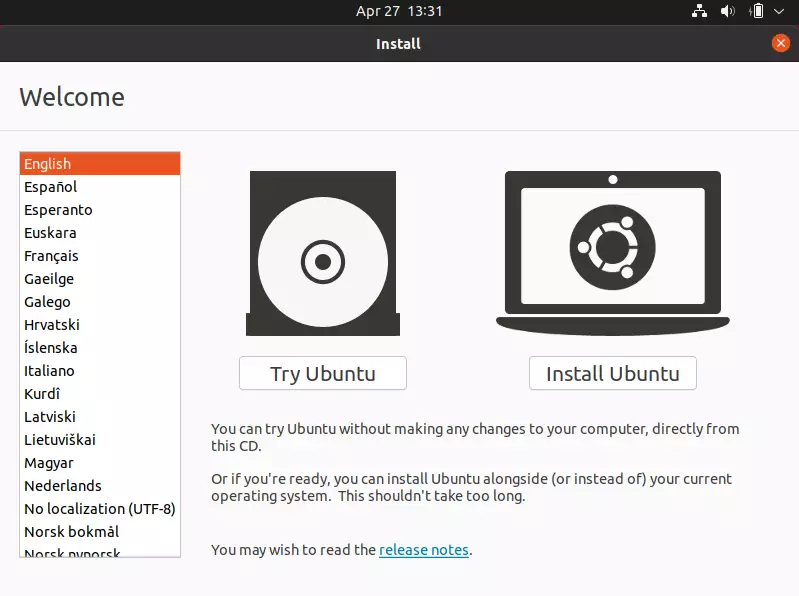
When the Ubuntu welcome screen appears, click the Install Ubuntu button to start the setup wizard.
You should see a screen similar to the one below once the computer has booted from the DVD or flash drive. A black screen with some text may show first for a few moments. That is normal.
You now have two choices. You could select Try Ubuntu, which runs Ubuntu from the drive without changing anything on your computer. It is handy for checking that your hardware works. Our goal is to install Ubuntu, so click Install Ubuntu to continue.
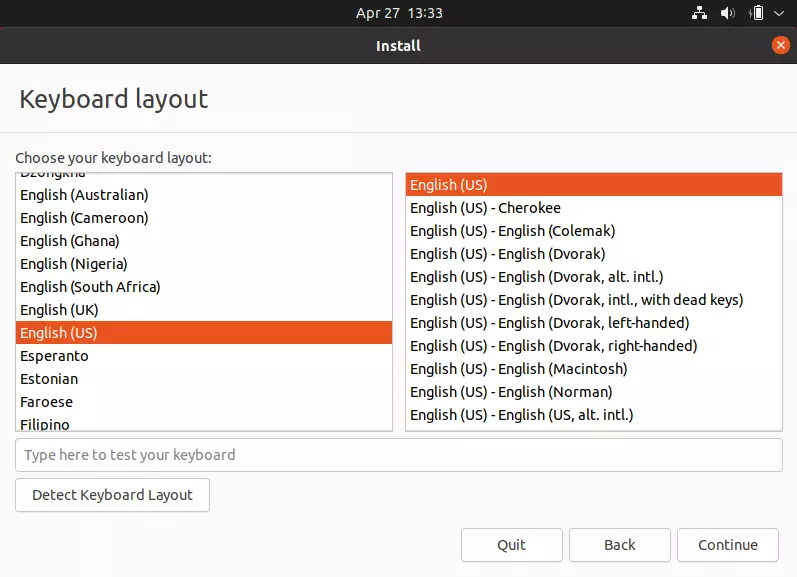
The installer first asks for a keyboard layout. It uses US English by default. Follow these steps:
- Select your language and keyboard layout from the lists, if US English is not the right one.
- Type a few characters in the test box to check that the keys match what you see on the screen.
- Click Continue.
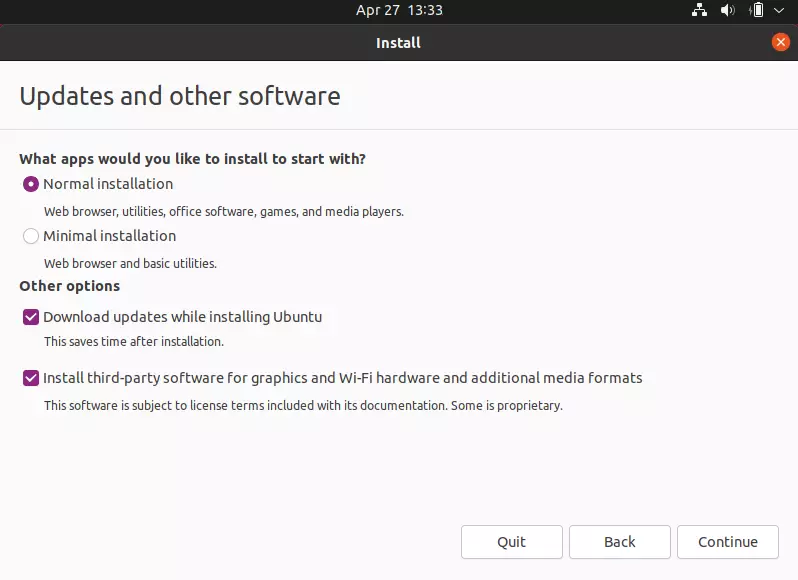
Your system is now preparing to install Ubuntu packages. On the screen below, you can tick Download updates while installing Ubuntu. This saves you time later. You can also tick the option to install third-party software for graphics, WiFi devices and media codecs.
You don't have to tick every box. If you have a stable Internet connection, though, ticking them lets the installer fetch important software packages during setup, such as those for Ubuntu 22.04 LTS. The install takes longer on a slow connection. If your WiFi card or graphics card gives you trouble later, the third-party software option is the first thing to check.
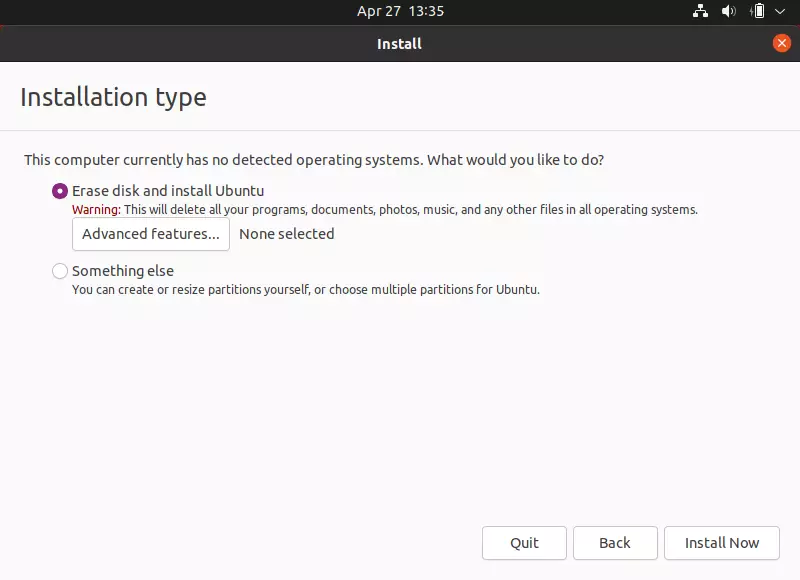
The next screen lists your choices for how to install the operating system. Choosing Erase disk and install Ubuntu works best for most fresh installations. This option erases all data on your hard drive before installing Ubuntu. Make sure you have backed up anything you need.
If the installer finds Windows on the disk, it may also offer an option to install Ubuntu alongside it. That is the choice for a dual-boot setup. This guide covers the full erase.
The second option, Something else, lets you do a custom installation if you're an advanced user. You can encrypt Ubuntu and use other advanced settings here. If you're new to Linux, stick with the first option. Follow these steps:
- Select Erase disk and install Ubuntu.
- Click Install Now to begin installing Ubuntu.
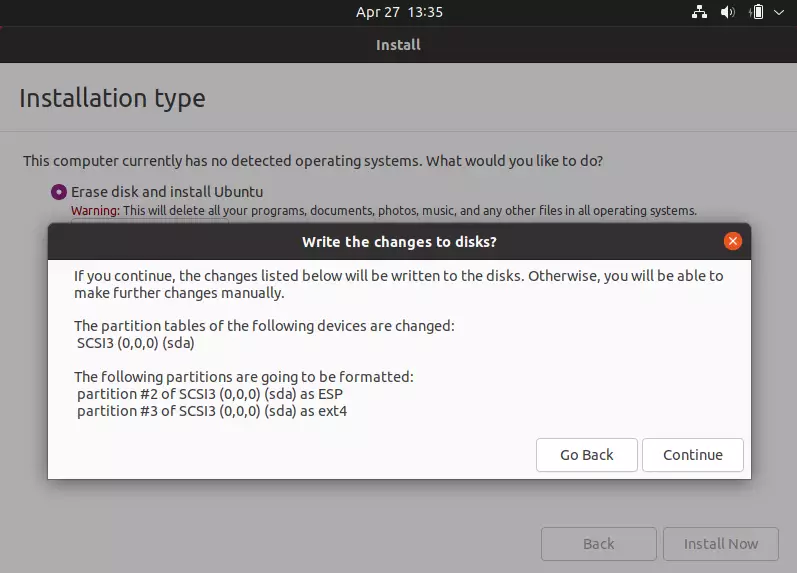
If you haven't clicked Install Now yet, do it now. A confirmation box then appears, as shown in the next step.
The installer warns that it will erase the hard drive and install Ubuntu. This is your last chance to back out. If you are sure, click Continue to move on.
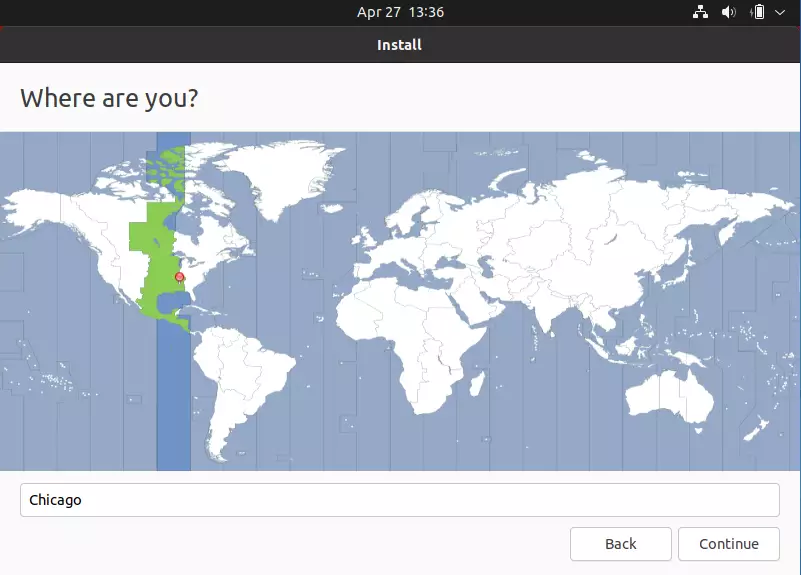
Next, choose your time zone. Follow these steps:
- Type the name of a city in your time zone, or click your location on the map.
- Check that the city shown matches where you are.
- Click Continue.
This sets the correct date and time. A wrong time zone causes problems with updates, logins to some online services and file timestamps. You can change it later in Settings.
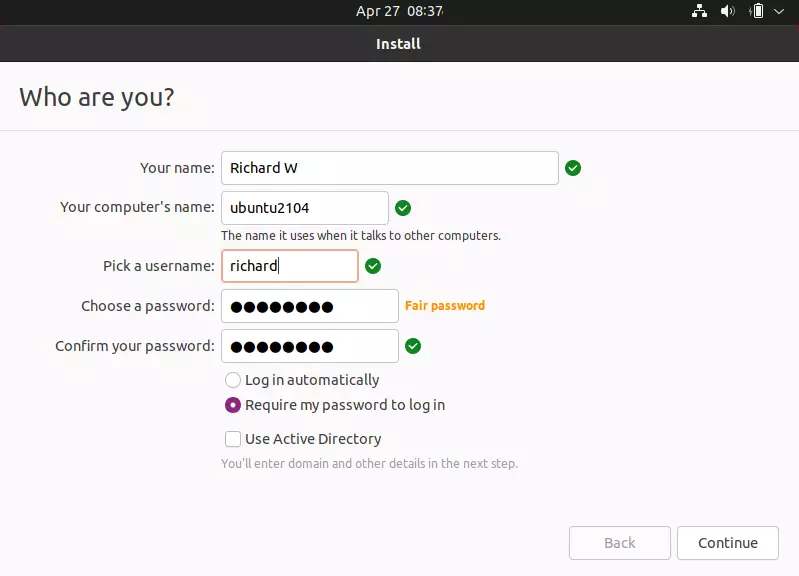
The next screen is where you set up your first user account and name the computer. Follow these steps:
- Type your name.
- Type a name for the computer, or keep the suggested one.
- Type a username.
- Type a password and repeat it in the confirm box.
- Choose whether you always want to type a password to sign in.
- Click Continue.
This first account is an administrator account. Pick a password you will remember, because you need it for installing software and for system changes.
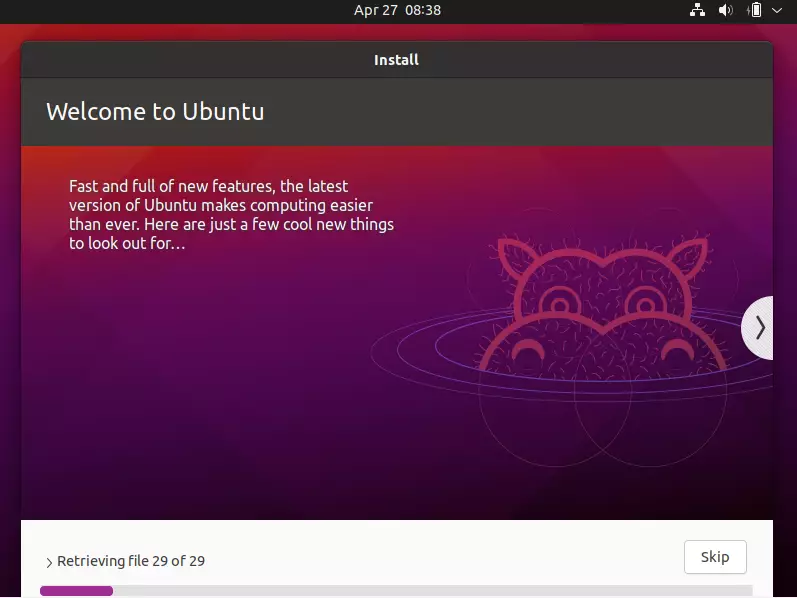
The installer now copies files and sets up the system. On most computers this takes about 7 minutes, depending on the machine's processing power and your Internet speed. If you chose to download updates, it can take longer. When it finishes, the installer asks you to restart the computer.
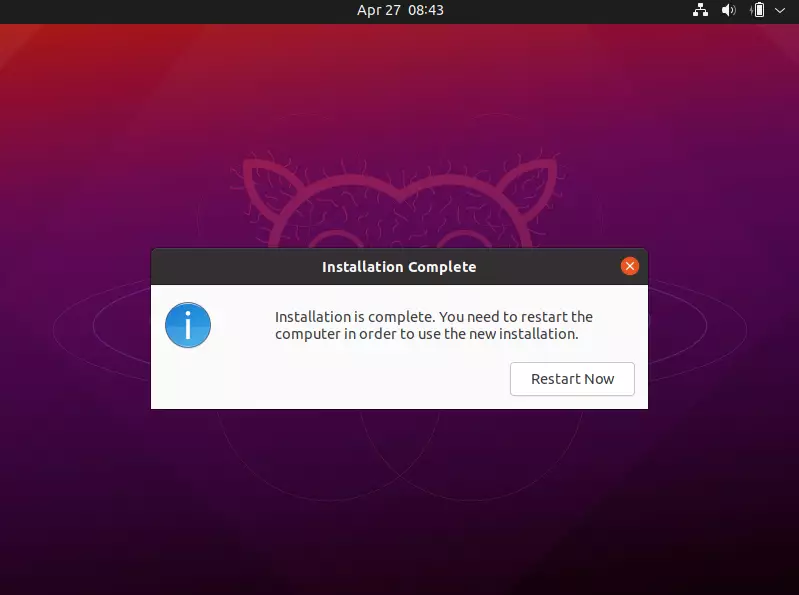
This is the last screen of the installer, and the installation is complete. Follow these steps:
- Click Restart Now.
- When prompted, remove the disc or USB drive and press Enter.
- Let the computer start up.
Removing the media matters. If you leave it in, the PC may boot back into the installer instead of your new system.
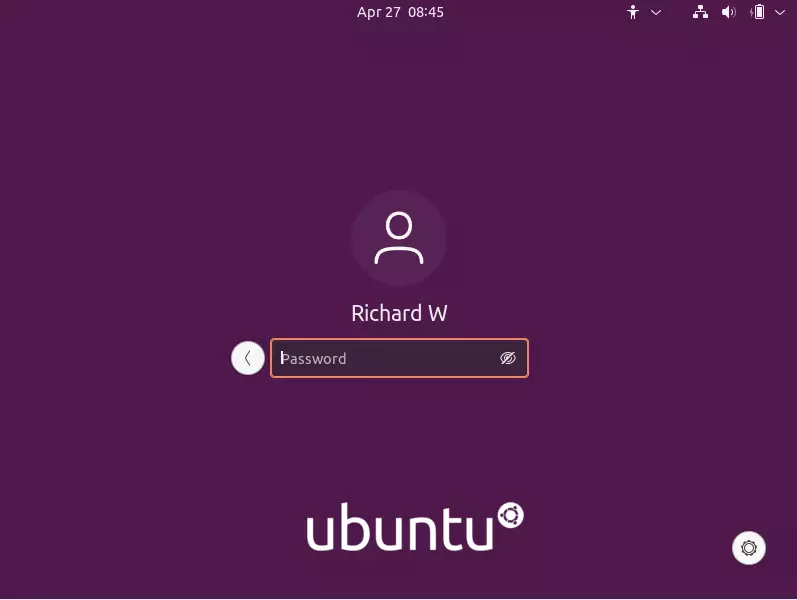
After the reboot you will see the login screen. Click your name and log in with the username and password you created earlier.
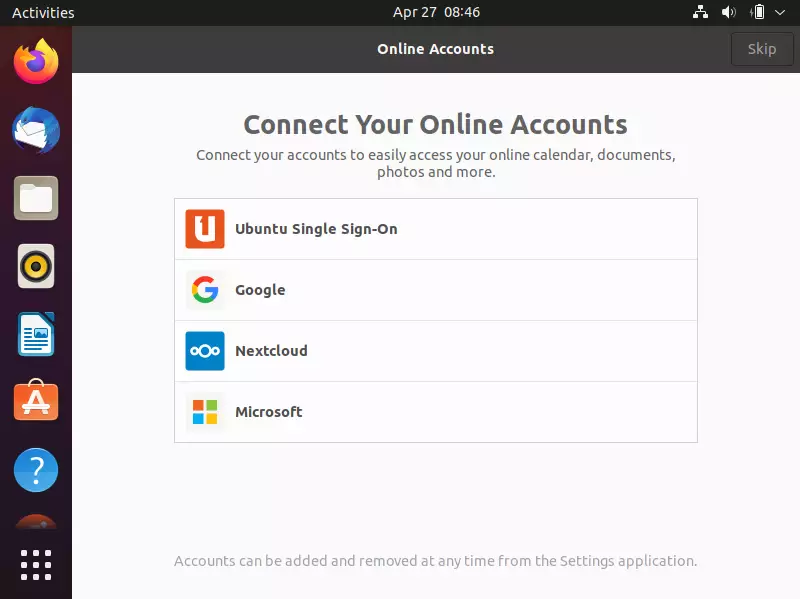
A welcome screen offers to connect online accounts, if you have any. You can connect them now or skip this step and add them later in Settings.
After logging in, your first task should be to update Ubuntu. You may see a prompt offering to install the available updates. Accepting it is fine, and so is using the command line below.
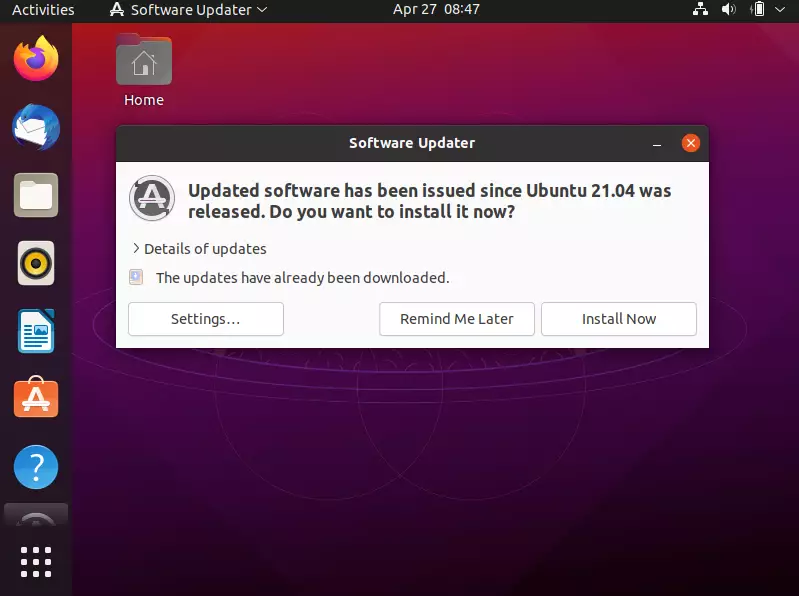
If you see the update prompt, you can continue the update from the command line instead, as shown below. The command line also works if no prompt appears.
Press Ctrl - Alt - T on your keyboard to open the terminal. A window with a command prompt should appear. Then run the commands below to update Ubuntu. Type your password when asked. Nothing shows on screen as you type it, which is normal.
sudo apt update && sudo apt dist-upgrade && sudo apt autoremove
When the updates finish, restart the computer once more, and you should be set. A restart makes sure updated system components, such as the kernel, are actually in use.
Conclusion:
You've now learned how to install Ubuntu Linux, from downloading the ISO to your first update. Please use the comment form below if you find any errors above or have something to add.
Did this guide fix your problem?

About the Author
Richard
Tech Writer, IT Professional
Richard is a writer at Geek Rewind who turns complex IT tasks into clear, step-by-step guides. He draws on years of hands-on experience in system administration and enterprise IT operations, focusing on Windows, Linux and WordPress: the problems people actually run into, and the fixes that work. His server and WordPress guides come from systems he runs himself. Richard builds and maintains the platform behind Geek Rewind, from its Ubuntu servers and Nginx configuration to its custom WordPress plugins. Many new tutorials start with readers' questions, and he's always glad to answer them in the comments.
No comments yet — be the first to share your thoughts!