How to Add Desktop Icons in Ubuntu Linux


Ubuntu 22.04 and newer versions show very little on the desktop by default. A fresh install usually leaves the screen blank apart from the Home folder, so it can look like your shortcuts are missing. Desktop icons let you open apps, folders, and files from the main screen with a double-click instead of digging through the file manager.
You can bring icons back with the built-in Settings app and a bit of work in the Files app. You don’t need the terminal. If you use the GNOME Extensions tool, it only comes into play for the DING desktop-icons extension described below.
To add desktop icons in Ubuntu, find the application’s .desktop file in /usr/share/applications or /var/lib/snapd/desktop/applications. Copy this file to your Desktop folder and then right-click the new icon and select “Allow Launching.
Introduction
Desktop icons give you quick access to apps, files, and folders right from the main screen. A fresh Ubuntu installation shows only a few items there, usually just the Personal folder. Adding shortcuts brings back the traditional desktop workflow, so you can keep the things you use every day within reach.
Pinning apps to the dock is the preferred, more stable way to get quick access in modern Ubuntu. Pinned apps stay put and don’t depend on any desktop extension. If you still want icons on the desktop, the steps below work fine.
Desktop icons on Ubuntu are drawn by an extension called DING (Desktop Icons NG). If your icons vanish or the desktop right-click menu is missing, check that this extension is enabled in the Extensions app. If you can’t find it, your Ubuntu version or flavor may handle icons differently.
Copying .desktop files
A desktop shortcut in Ubuntu is a .desktop file. This is a plain text configuration file that tells the system how to launch a program. To make a shortcut, you copy the program’s .desktop file into your Desktop folder. Standard applications store these files in /usr/share/applications, while Snap packages keep them in /var/lib/snapd/desktop/applications. Copying the right file puts any installed program directly on your screen.
- /usr/share/applications (for standard apps)
- /var/lib/snapd/desktop/applications (for Snap apps)
There are a few ways to get the file onto the desktop:
- Open the Show Applications menu and try dragging the app’s icon straight onto the desktop. This works on some setups but not all.
- If dragging doesn’t work, look for an Add to Desktop option from the DING extension. It is only there if your setup provides it.
- If neither works, open your Files or File Manager and copy the file by hand from one of the folders above into your Desktop folder. The next steps show how.
If you aren’t sure whether an app is a standard app or a Snap, check both folders. The file name usually matches the app name.
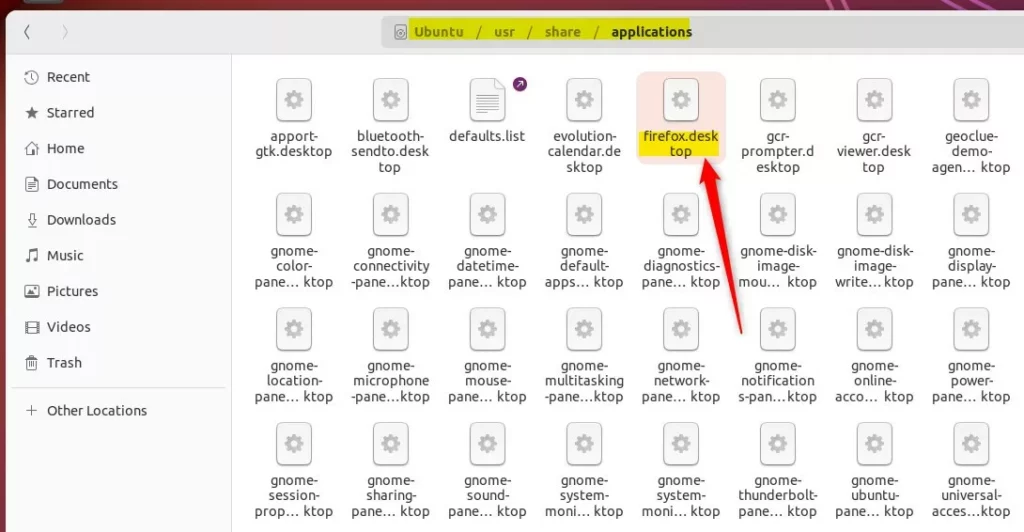
- Click the .desktop file once to select it.
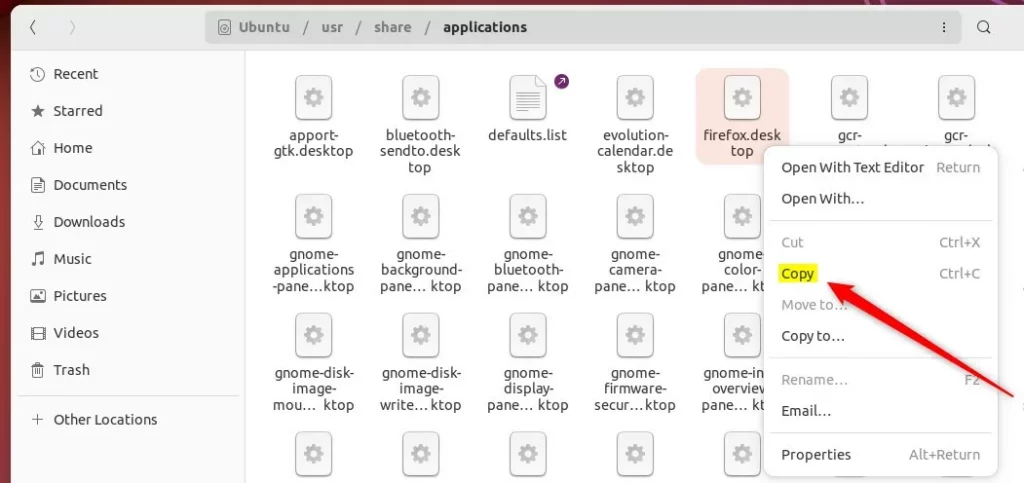
- Right-click it and choose Copy, or press Ctrl+C.
Nothing visible happens, since the file’s data now sits on the clipboard. It stays there until you copy something else.
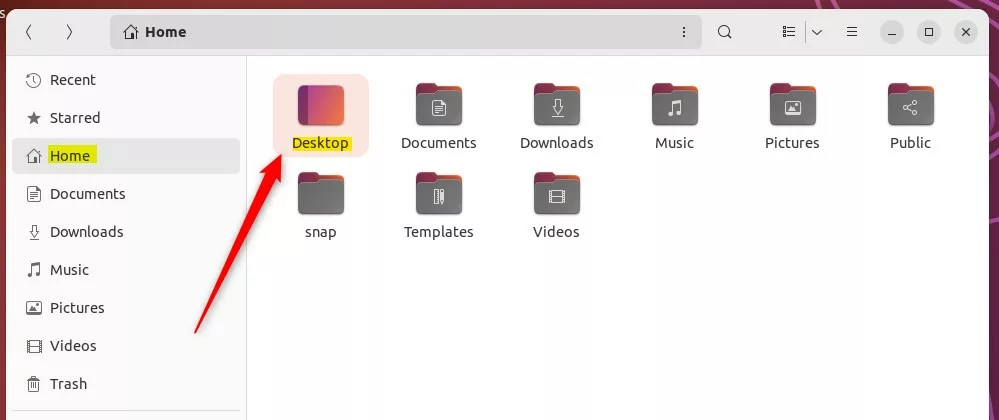
- Open the Files app and go to your Home directory.
- Open the Desktop folder.
The folder shows whatever is already on your desktop. It may be empty on a new install.
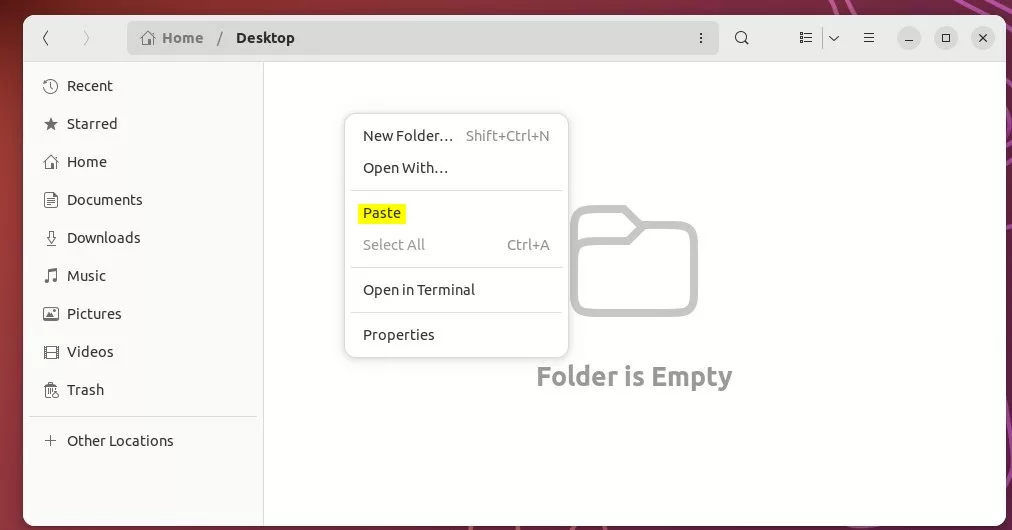
- Right-click an empty spot in the folder and select Paste, or press Ctrl+V.
The file should appear in the folder and on your desktop. It will probably show a generic icon at first, and you will fix that in the next step.
Allow Launching
A copied .desktop file won’t run until you tell Ubuntu to trust it. This is a security measure, so you only have to do it once for each icon.
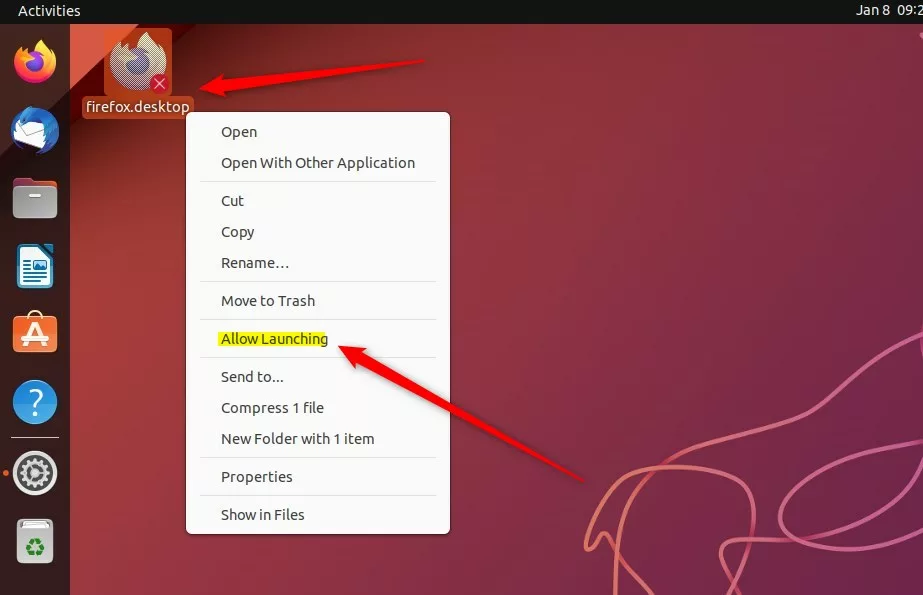
- Right-click the new icon on your desktop.
- Select Allow Launching.
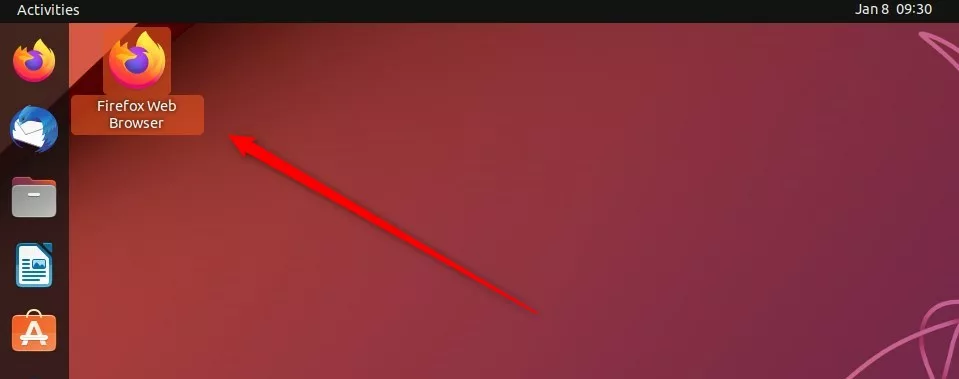
The icon should now show the app's real name and artwork instead of a plain file icon. If you don't see Allow Launching in the menu, the file is probably not a valid .desktop file, or the DING extension is turned off.
The icon is now ready to use. Double-click it to launch the app. To remove it later, right-click the icon and move it to the Trash. This deletes only the shortcut, not the program.
Conclusion
Desktop icons are still possible on Ubuntu, even though the dock is the main way to reach apps in 2026. To get them, use the DING extension, copy the app's .desktop file into your Desktop folder, and turn on the Allow Launching setting for each icon. For apps you open every day, pinning them to the dock is usually the more stable choice.
Have a question about this guide?
Answered by AI from this guide. Good questions may be added to this page — please don't include personal details.
Did this guide fix your problem?

About the Author
Richard
Tech Writer, IT Professional
Richard is a writer at Geek Rewind who turns complex IT tasks into clear, step-by-step guides. He draws on years of hands-on experience in system administration and enterprise IT operations, focusing on Windows, Linux and WordPress: the problems people actually run into, and the fixes that work. His server and WordPress guides come from systems he runs himself. Richard builds and maintains the platform behind Geek Rewind, from its Ubuntu servers and Nginx configuration to its custom WordPress plugins. Many new tutorials start with readers' questions, and he's always glad to answer them in the comments.
[…] will come with a single (Personal) folder icon on the desktop after installation. However, you can add additional icons on the desktop, although it’s not the easiest thing to […]