Using File Manager (Nautilus) in Ubuntu Linux


File Manager (Nautilus) is the default app in Ubuntu 22.04 LTS and newer versions for browsing, organizing, and opening files. It is built into the GNOME desktop environment, so you can manage folders, documents, and photos without installing anything extra.
You can open it from the file cabinet icon on the Ubuntu Dock, or by searching for “Files” in the Activities menu. It handles everyday tasks like copying, moving, renaming, and deleting items. It also connects to network locations, so you can share files with other computers.
Nautilus, the File Manager app built into Ubuntu 22.04 LTS and newer, opens from the Files icon on the Ubuntu Dock, which looks like a file cabinet. You can also press the Super key (the Win on most keyboards), type files, and press Enter. Use the sidebar to reach Home, external drives and Trash, and press Ctrl+H to show hidden files.
How to open File Manager in Ubuntu Linux
There are two quick ways to launch File Manager. Use whichever is closer to your hands.
- Click the Files icon on the left-hand Ubuntu Dock. It is the file cabinet icon, which some screenshots show as a folder icon. A File Manager window opens on your Home folder.
- Or press the Super key (the Win on most keyboards). The Activities overview opens with the search bar ready.
- Type files into the search bar.
- Press Enter. The file browser window opens and shows the contents of your Home folder.
You can also right-click the running Files icon on the Dock and choose to keep it there, so it stays after you close the window.
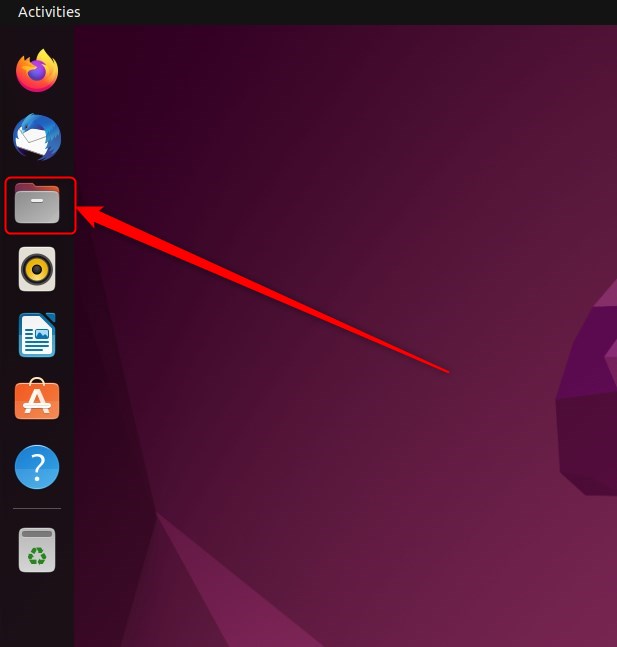
- Click the Files icon on the Dock, as highlighted above. File Manager opens showing your Home folder.
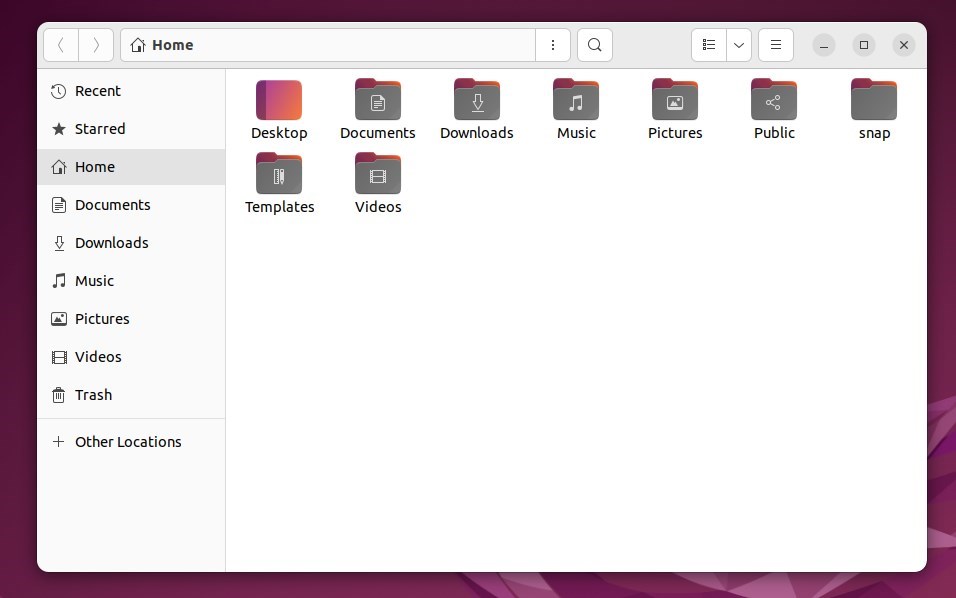
- Click Home in the left sidebar. You should now see your default directories, such as Desktop, Documents, Downloads, Music, Pictures, Public, Templates, and Videos.
The sidebar also lists other places you can jump to, including Recent, Starred, Trash, any connected external drives, and Other Locations.
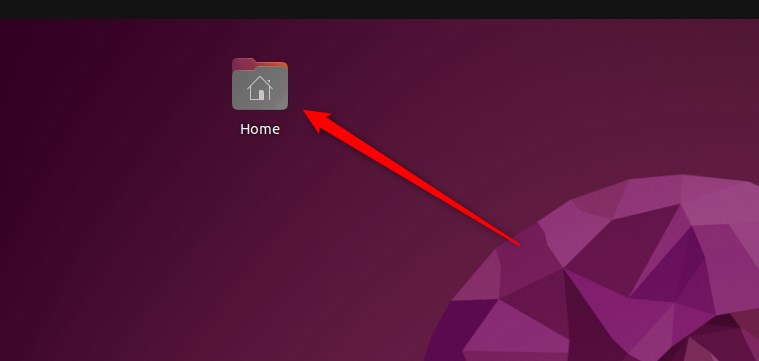
The Home folder icon that Ubuntu often places on your desktop after installation also launches File Manager. Double-click it and the same window opens on your Home folder.
Ubuntu Linux, by default, adds a Home folder to your desktop after installation. Double-click this folder to open File Manager.
If you don’t see the icon, don’t worry. It depends on how your desktop was set up, and the Dock icon or the Super key method works just as well.
How to use File Manager in Ubuntu Linux
Nautilus File Manager Ubuntu lets you organize documents, search for lost files, and connect to network shares from one window. Use the sidebar to move between your Home folder, external drives, and Trash. Use the search icon in the top bar to find items stored anywhere under the folder you are viewing.
Deleting a file moves it to Trash, where you can restore it until you empty it. Pressing Ctrl+Z right after a move, rename, or delete will usually undo it. Files whose names start with a dot are hidden by default. Press Ctrl+H to show or hide them.
- Your search for missing files: How to search for missing or lost files. Open the folder where the file should be, click the search icon in the top bar, and type part of the name. Also check Trash and Recent in the sidebar.
- You can browse network locations: How to share files with Windows. Network shares and servers appear under Other Locations in the sidebar.
- You can share your public folder: How to share the public folder. The Public folder sits in your Home folder alongside the other default directories.
File Manager supports dozens of additional operations beyond basic navigation. These are the ones I use most:
- Right-click an empty area of a folder to create a new folder or document.
- Right-click a file or folder to copy, cut, rename, or move it to Trash.
- Drag items between folders, or between two File Manager windows, to move them.
- Right-click a file and choose Properties to see its size, location, and permissions.
That covers the core workflow: open File Manager, find your way around with the sidebar, search when you need to, and use the right-click menu for everyday file tasks.
Conclusion:
- File Manager (Nautilus) in Ubuntu Linux provides a user-friendly interface for organizing and managing files and folders on your computer and network resources.
- Users can easily create documents and folders, display files and folders, search for and manage files, and open network locations using the File Manager.
- Opening File Manager in Ubuntu Linux can be done by clicking the folder icon on the Dock, searching for "Files" with the Super key, or using the Home folder on the desktop.
- With File Manager open, users can efficiently search for missing files, browse network locations, share public folders, and perform various other tasks.
- This guide has shown how to open and use File Manager in Ubuntu Linux so you can manage your files and folders effectively.
Have a question about this guide?
Answered by AI from this guide. Good questions may be added to this page — please don't include personal details.
Did this guide fix your problem?

About the Author
Richard
Tech Writer, IT Professional
Richard is a writer at Geek Rewind who turns complex IT tasks into clear, step-by-step guides. He draws on years of hands-on experience in system administration and enterprise IT operations, focusing on Windows, Linux and WordPress: the problems people actually run into, and the fixes that work. His server and WordPress guides come from systems he runs himself. Richard builds and maintains the platform behind Geek Rewind, from its Ubuntu servers and Nginx configuration to its custom WordPress plugins. Many new tutorials start with readers' questions, and he's always glad to answer them in the comments.
How do you manage the little number which appears by Nautilus Icon?
What does it signify? How do you use it?