How to Add or Remove Network Locations in Windows 11

- 28 steps
- Needs administrator rights
To add a network location in Windows 11, open File Explorer, right-click This PC, click Show more options, then choose Add a network location. The shortcut appears in the This PC view under Network Location, so you can reach shared folders or web servers without using a drive letter.
Older Windows versions had a My Network Places folder. Windows 11 has no such folder, and the wizard is how you create these shortcuts. This guide covers adding a network location, checking that it works, and removing it later.
To add a network location in Windows 11, open File Explorer, right-click This PC, click Show more options, then select Add a network location. Follow the wizard and type the address, such as \\server\share for a Windows file share. The shortcut appears under Network Location in This PC, with no drive letter used.
What Is a Network Location?
A network location is a shortcut to files stored on another computer or a server. It opens shared folders or websites from File Explorer without using up a drive letter, so File Explorer stays cleaner than it would with several mapped network drives.
A mapped network drive occupies a drive letter, such as Z: or Y:. A network location does not. Either way, files on a remote server appear in File Explorer as if they were on your own PC, so you open and copy them the usual way.
Prerequisites: Preparing Your Network
This setting lets your PC see other devices on the network. Changing it needs administrator permissions, so Windows asks for an administrator password if you are signed in with a standard account.
[ADMIN PRIVILEGES REQUIRED]- Open Settings Network & internet > Advanced network settings Advanced sharing settings. You should see a list of network profiles, such as Private networks and Public networks.
- Expand the profile that matches your current connection. For a home or office network, this is usually Private networks.
- Turn on Network discovery. The switch moves to On.
- Turn on File and printer sharing. Both switches should now show On for that profile.
To undo this later, turn the same two switches off. Leave them off on public networks such as cafe or hotel Wi-Fi, where strangers share the connection.
Mapped Drives vs. Network Locations
Mapped drives and network locations both connect you to network resources, but they work differently in Windows 11. A mapped drive gets its own drive letter, like Z:. A network location is a shortcut for quick access and uses no letter, so the number of free letters on the PC does not limit you.
If you only need to open a share now and then, a network location is usually the lighter choice. If an older program insists on a drive letter, a mapped drive is the better fit.
How to Add a Network Location in 🪟 Windows 11
Step 1Open File Explorer
These numbered steps add a network location to File Explorer, from opening the wizard to entering your sign-in details. The numbering continues after each screenshot.
- Open File Explorer . Click the folder icon on your taskbar , and a File Explorer window opens.
- Select This PC in the left sidebar. Skip this if it is already selected.
Step 2Access the Network Location Menu
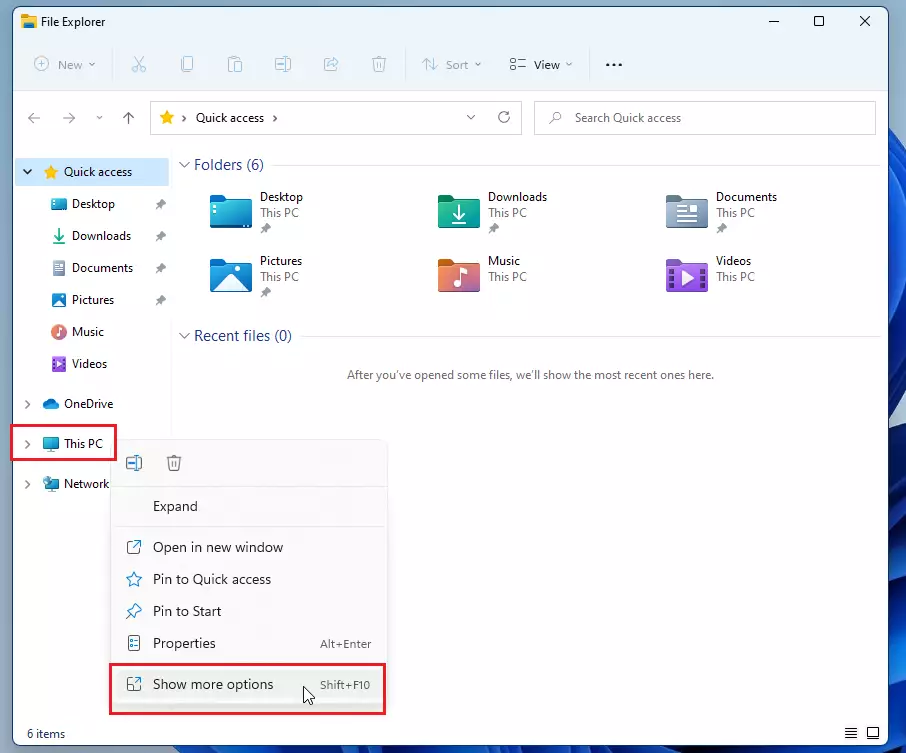
- Right-click This PC in the left sidebar. A short context menu appears.
- Click Show more options. The full classic menu opens. Windows 11 keeps the network options in this older menu.
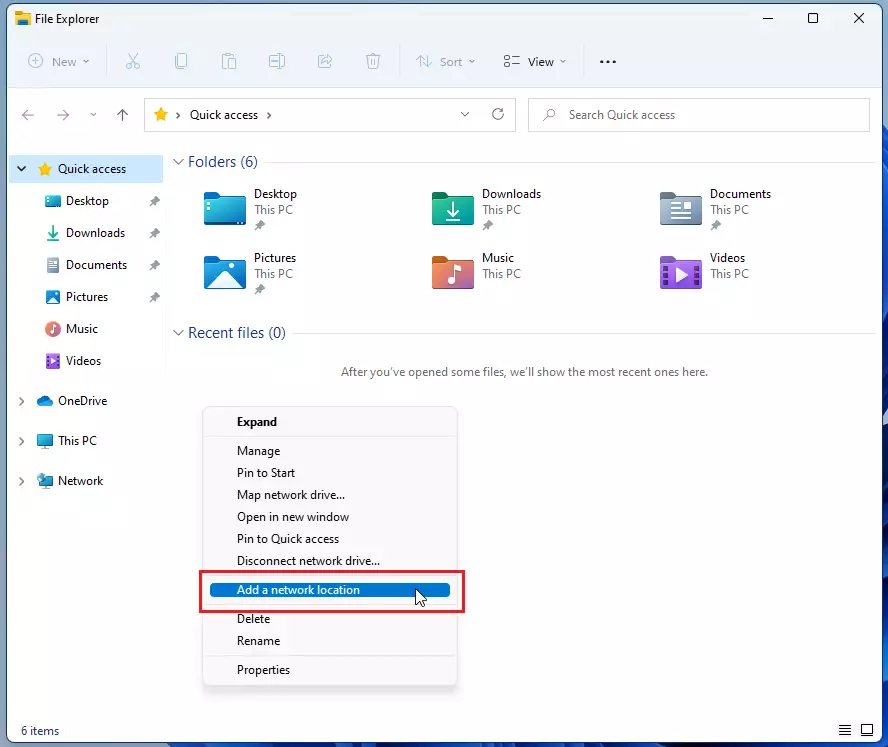
- Select Add a network location. The Add Network Location wizard opens.
If you do not see this option, check that you right-clicked This PC and not a folder or drive.
Step 3Start the Setup Wizard
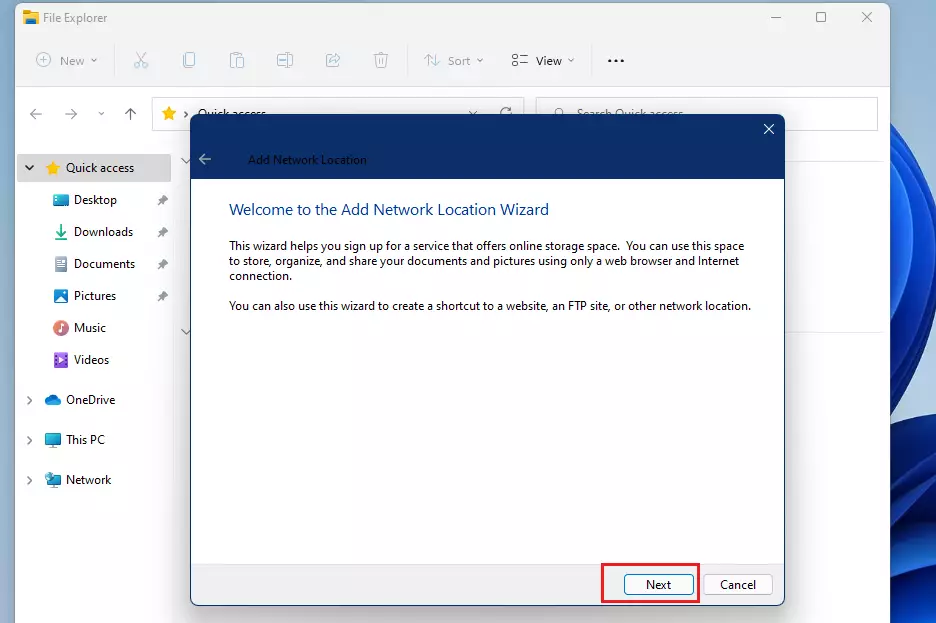
- Click Next on the welcome screen. The wizard moves on to the choice of where to create the location.
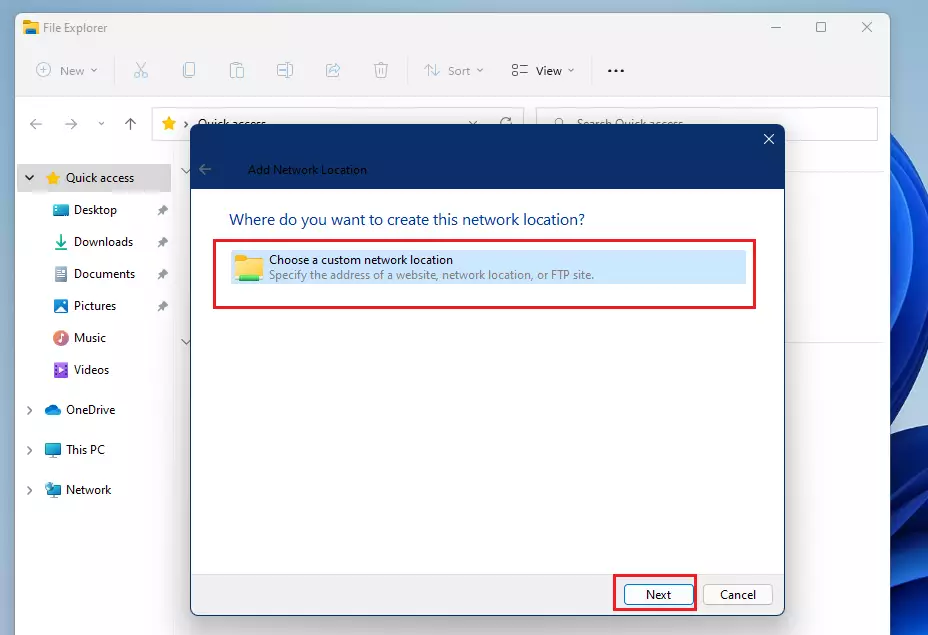
Step 4Choose a Custom Network Location
- Select Choose a custom network location. This is the choice for your own server or share.
- Click Next. The wizard asks for the address of the location.
Step 5Type the Network Address
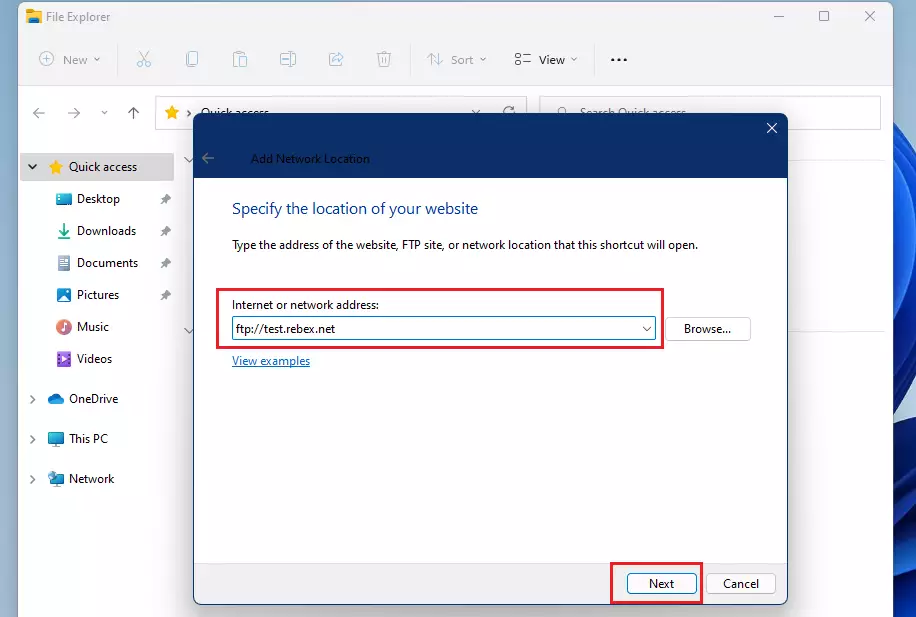
- Enter the network address in the address box. Windows uses this path to connect to FTP sites, websites, or local file shares.
- Use the format that matches the resource. Type
ftp://example.comfor FTP,http://example.comfor websites, or\\server\sharefor Windows file shares. - Click Next. The wizard moves on to the next screen.
Check the address for typos before you continue. A wrong server name or share name is the most common reason the connection fails. A website address works as a folder only if the server supports this kind of access (WebDAV), and an ordinary web page will not open as a folder.
Step 6Log In Information
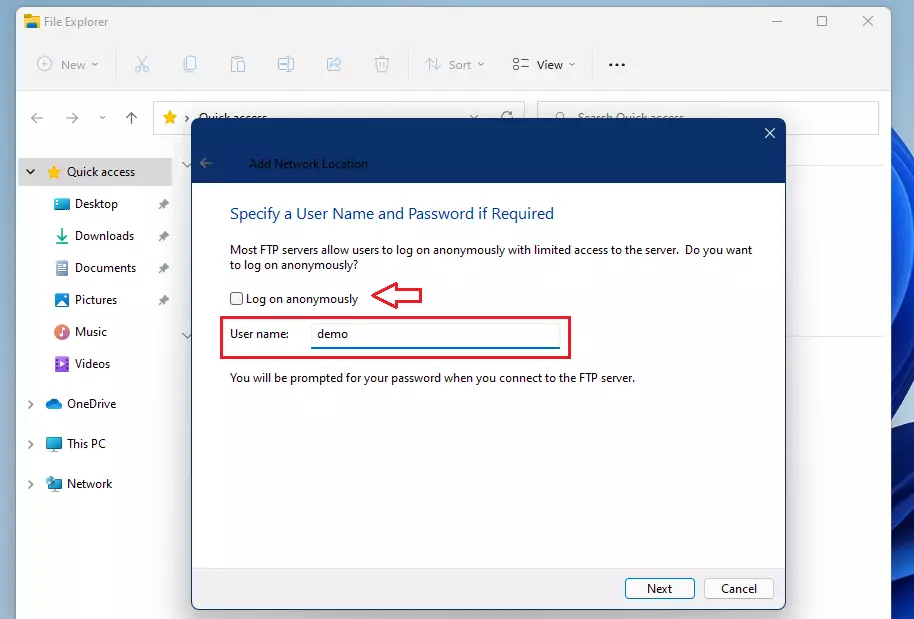
This screen applies mainly to FTP sites, where the wizard asks how you want to log on. Follow whichever of the next two steps matches your server, and skip the other.
- Clear the Log on anonymously check box if the server needs a login. Then enter your user name in the box that becomes available.
- Leave Log on anonymously selected if the server allows public access. This grants access without any login details.
- Click Next. The wizard asks for a name.
Step 7Name Your Location
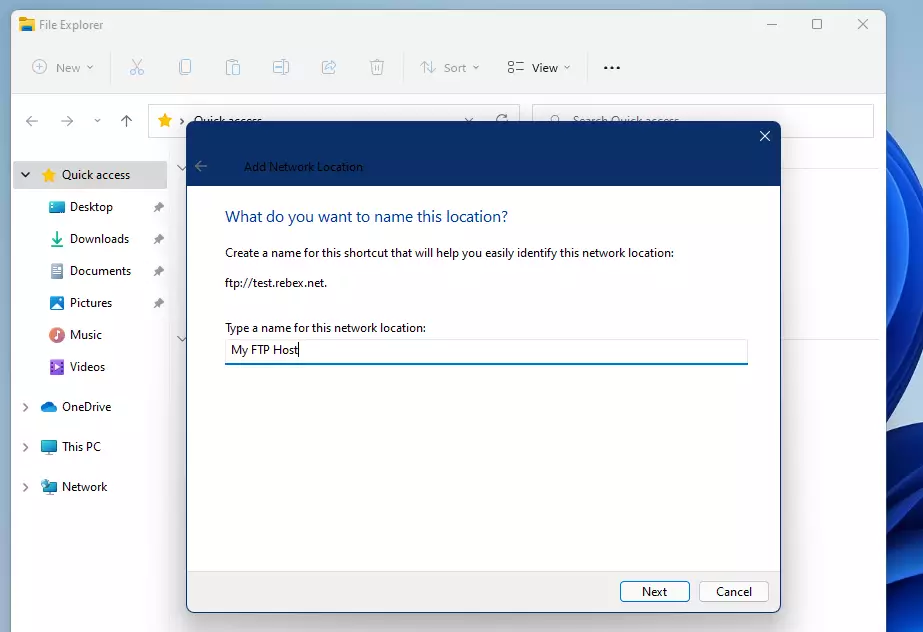
- Type a name for the location in the name box. Pick something you will recognize later, such as the server’s purpose or the department that owns it.
- Click Next. The wizard shows its final screen.
This name only affects how the shortcut appears on your PC. You can change it later without affecting the server.
Step 8Finish Setup
- Click Finish. Windows tries to connect to the address you entered.
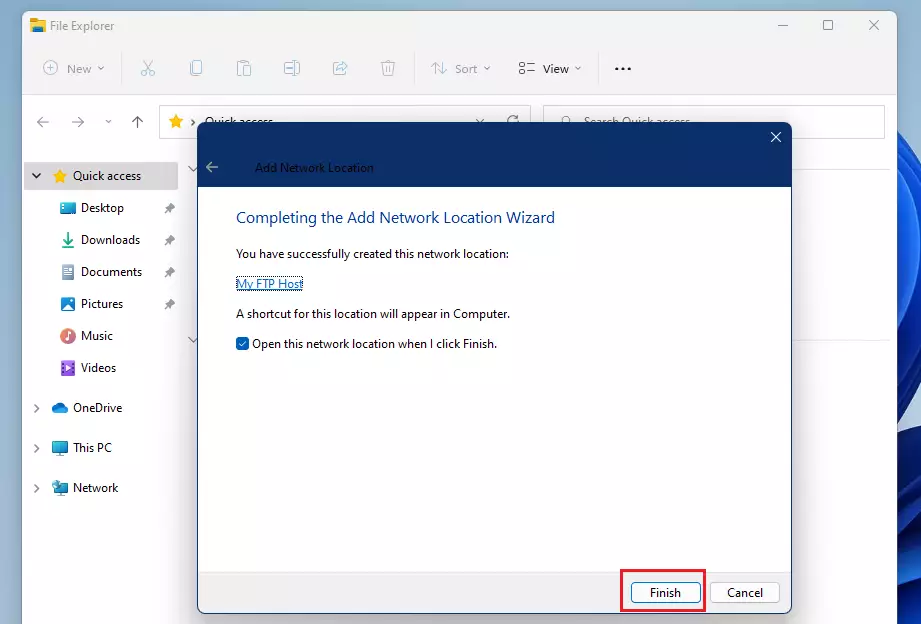
Step 9Log In to the Server
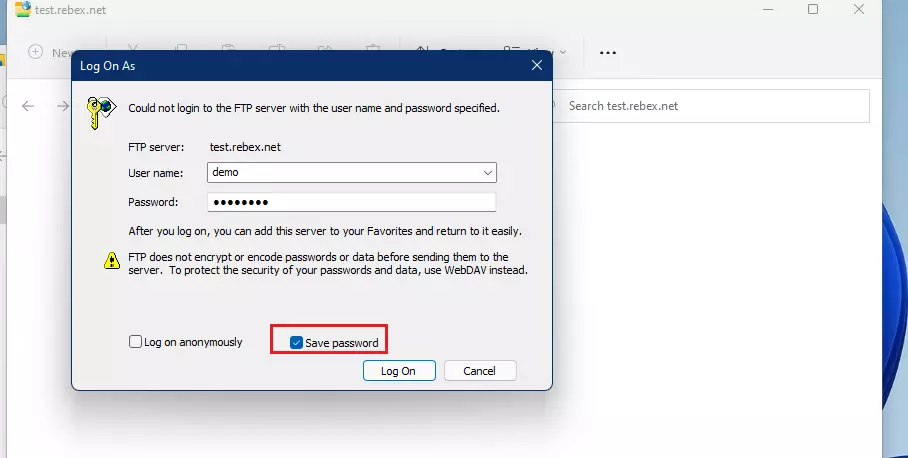
- Enter your username and password when Windows asks for them. A sign-in box appears only if the server needs credentials.
- Select the option to remember your credentials. Do this if you want Windows to sign in for you next time.
- Click OK. The folder opens if the sign-in works.
Windows stores saved login details in Credential Manager, which makes future access to the network location quicker. If your password changes later and the location stops opening, update or remove the saved entry there. If the sign-in keeps failing, check that the account has permission to use that share.
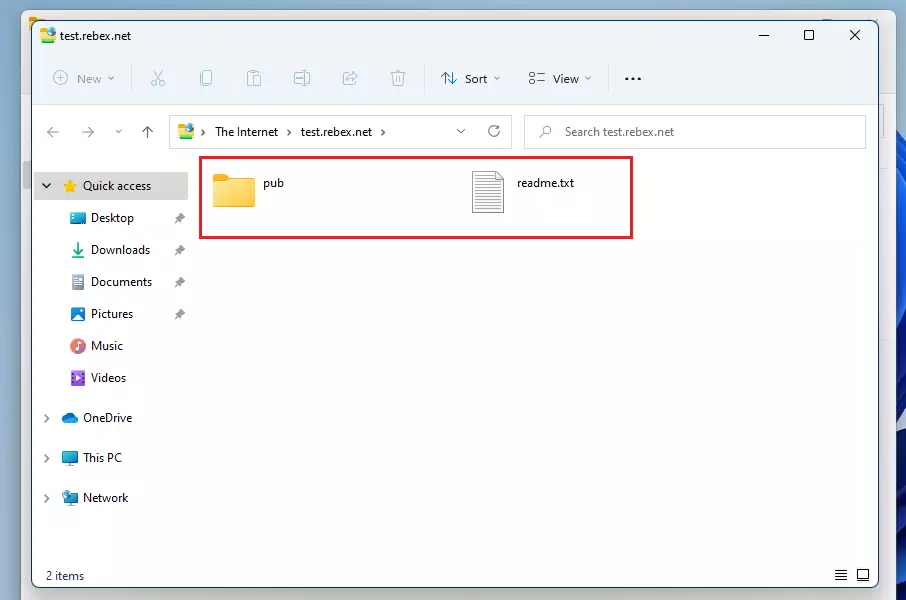
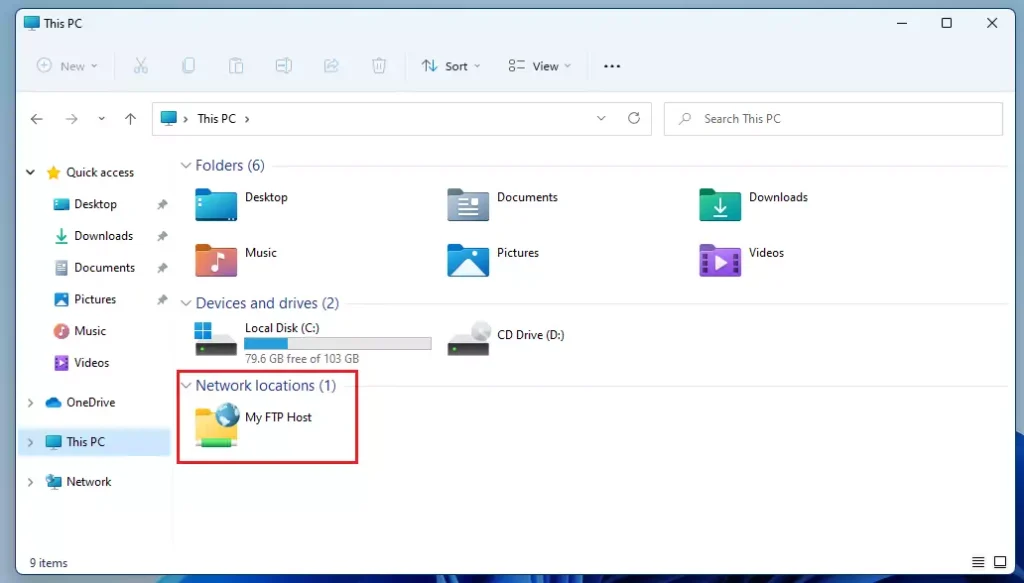
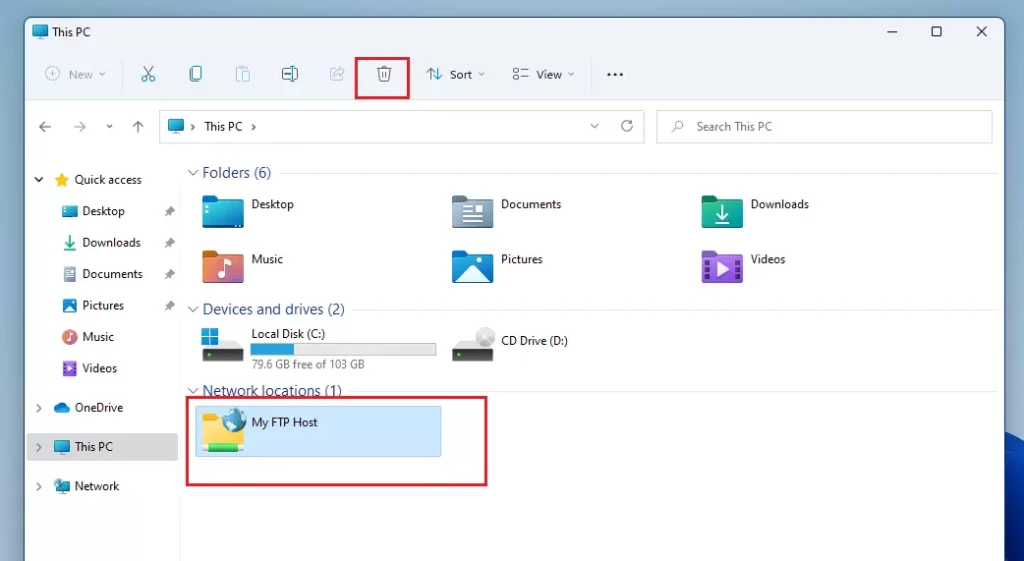
Your new folder appears under Network Location in File Explorer, in the This PC view. This is where Windows 11 keeps your network shortcuts. There is no separate network places folder to look for.
Double-click the shortcut to open the remote files. If it is missing, press F5 to refresh File Explorer.
How to Remove a Network Location
Deleting a network location shortcut in Windows 11 removes only the link to the shared folder, not the files stored on the remote server. The original files remain available from other devices on the network.
- Open File Explorer and select This PC. Your network shortcuts are listed in this view.
- Find the shortcut under Network Location. Check the name so you remove the right one.
- Right-click the shortcut. If the short menu does not list Delete, click Show more options.
- Click Delete. The shortcut disappears from the list.
To undo the removal, run the Add a network location wizard again with the same address.
Summary
Network locations are a good way to reach remote files without giving up a drive letter. Make sure Network discovery is on, at least on trusted private networks. Use network locations for FTP or web shares to keep your computer organized. For more help with sharing, visit the official Microsoft file sharing guide.
Have a question about this guide?
Answered by AI from this guide. Good questions may be added to this page — please don't include personal details.
Did this guide fix your problem?

About the Author
Richard
Tech Writer, IT Professional
Richard is a writer at Geek Rewind who turns complex IT tasks into clear, step-by-step guides. He draws on years of hands-on experience in system administration and enterprise IT operations, focusing on Windows, Linux and WordPress: the problems people actually run into, and the fixes that work. His server and WordPress guides come from systems he runs himself. Richard builds and maintains the platform behind Geek Rewind, from its Ubuntu servers and Nginx configuration to its custom WordPress plugins. Many new tutorials start with readers' questions, and he's always glad to answer them in the comments.
Hi Richard,
Thanks for your article. Very useful with W11 dialogues..
It is not clear in your article how to differentially access FTP and SFTP. I believe this is achieved by using port 21 for FTP and 22 SFTP but windows doesn’t seen to provide you with a port choice. There is a warning on the LogOnAs dialogue box about entering using FTP but I cant see how you can be sure you’re using SFTP. Also what is sFTP?
TQ Paul.
This page claims to show how to connect to SFTP, but does not actually demonstrate an SFTP connection. FTP is not SFTP, it seems the author got those two confused.
[…] The Network icon is included in the File Explorer navigation pane by default. This makes it easier for users to browse their local network locations. […]