How to Change Your Product Key in Windows 11

- 11 steps
- Needs administrator rights
Changing your product key in Windows 11 lets you switch your 25-character activation code without reinstalling the operating system. A product key is a string of letters and numbers that proves your copy of Windows is genuine and licensed for your PC.
You can update this code through the Settings app when you upgrade to a new edition of Windows or replace a generic key. Some PCs use a digital license instead. In that case Windows stays activated through your Microsoft account and you never type a code. If your PC is already activated that way, you only need to change the key if you want to move to a different license or edition.
Before you start, have the new key in front of you and make sure the PC is online. Windows checks the key with Microsoft’s activation servers. You also need an administrator account.
Open Settings, navigate to System, then Activation. Click “Change product key” and enter your new 25-character key. Click “Activate” to complete the process.
Change the Product Key Using Windows Settings
This is the fastest method if you prefer the normal graphical interface to command-line tools. You open Settings, go to the Activation page, and enter the new 25-character key. Windows checks it and updates your license right away.
- Open Settings. Press Win+I to open the Settings app. Or click the Start button and select the gear icon (Settings). The Settings window should open with the System page showing.
- Go to System. In the left menu, click System.
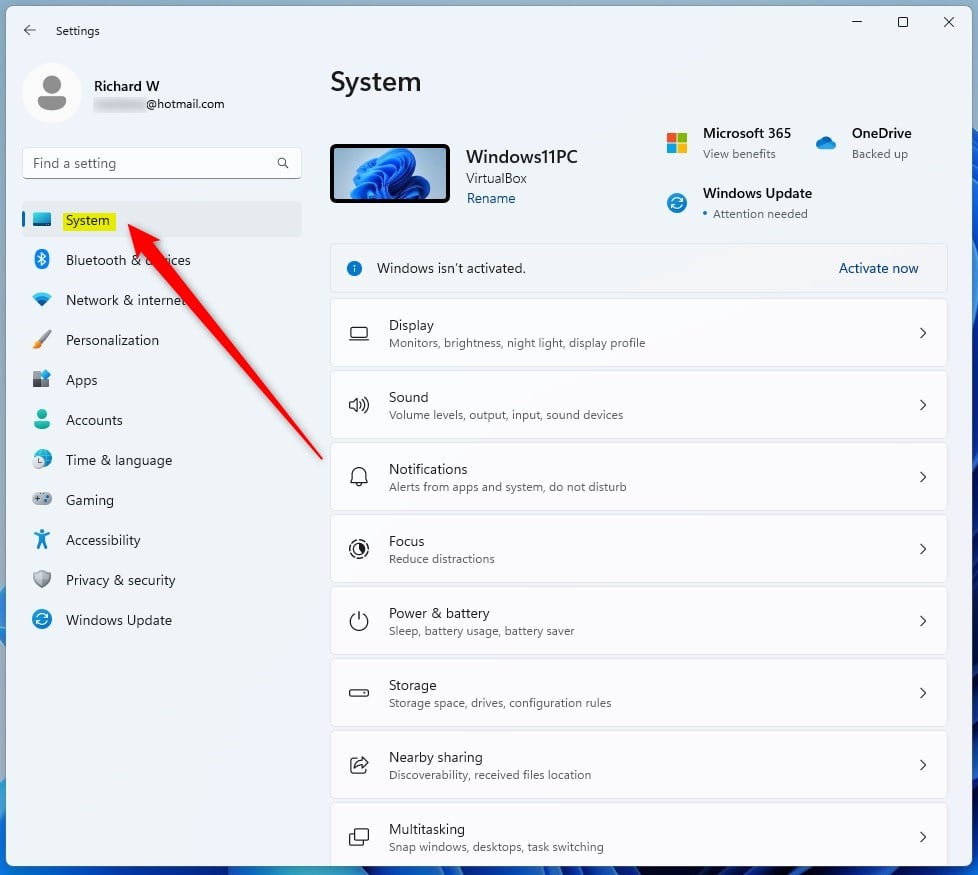
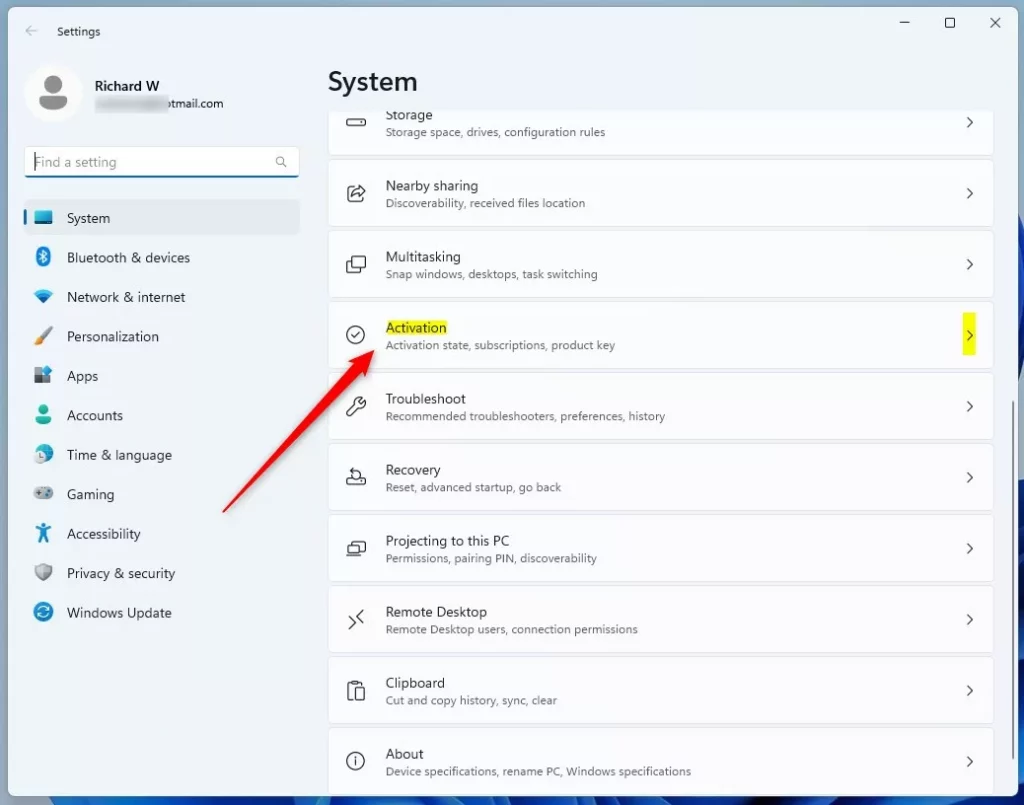
windows 11 system tile - Click Activation. On the right side, scroll down if needed and click Activation. You should see your activation state (for example, Active) and your current edition of Windows.
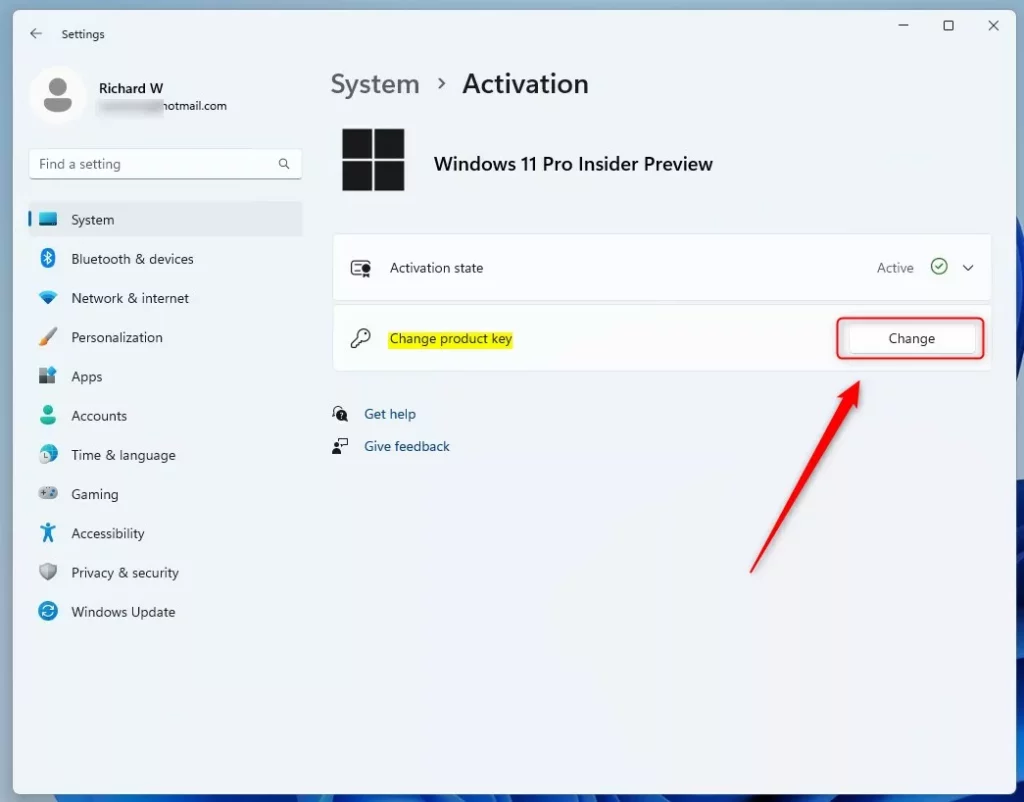
windows activation tile - Click Change product key. Find the Change product key button and click it. If you do not see it, click the arrow next to Upgrade your edition of Windows to expand that section. Windows 11 Home often shows that section first, and the change key option is inside it. If the button is greyed out, make sure you are signed in with an administrator account.
windows change product key button - Enter your new key. If a User Account Control prompt appears, click Yes. A box then asks for a product key. Type your 25-character key into the field. Double-check it, because one wrong character will make Windows reject it.
Need help finding your key?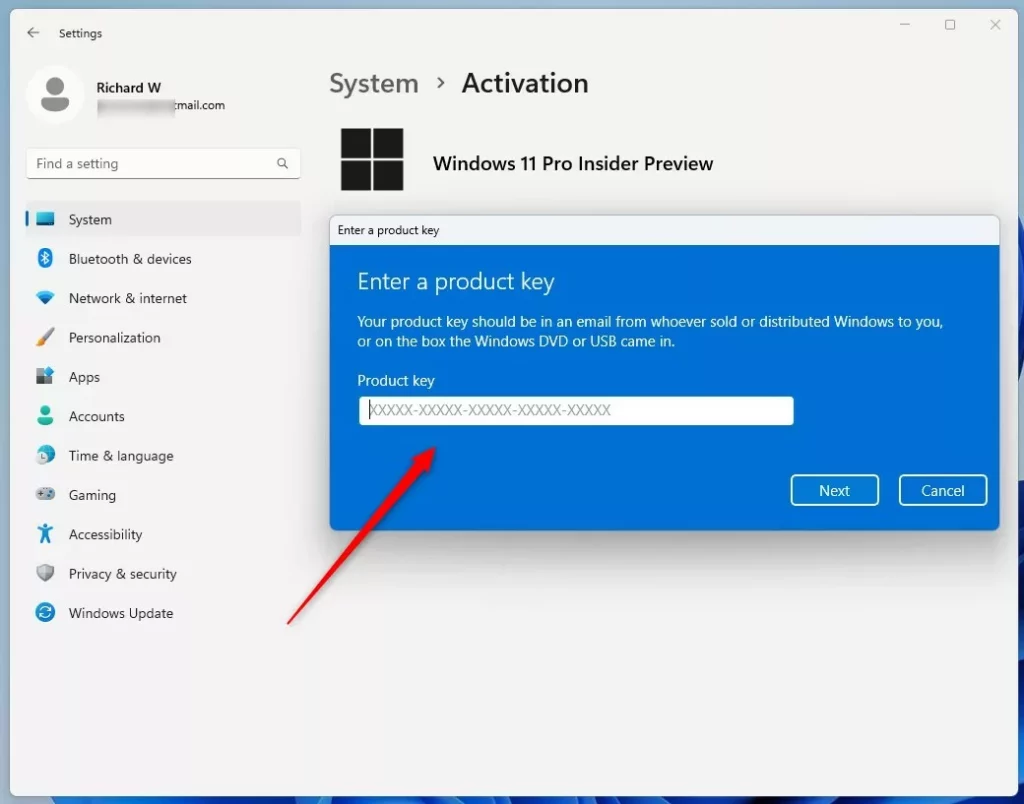
windows change product key enter field - Activate. Click the Activate button (on some builds you click Next first). Windows contacts Microsoft and checks the key. When it works, you should see a message that Windows is activated. If you switched editions, for example from Home to Pro, Windows may ask you to restart. Save your work and restart when prompted.
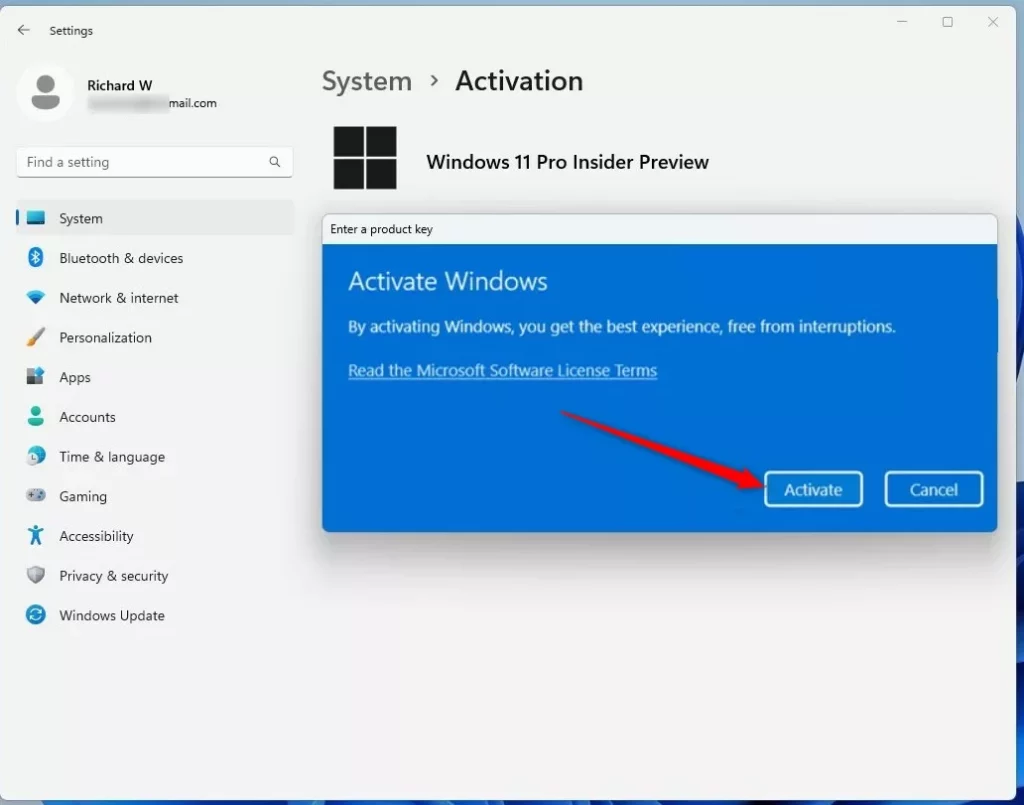
windows change product key activate button - Close Settings. Click Close when you are done. To confirm the change, reopen Settings System Activation and check that the state reads Active.
If activation fails, the usual causes are a typo, a key that was already used on too many PCs, or a key for a different edition than the one installed. A Pro key will not activate Windows 11 Home as a simple key change in the same way a matching key will. To undo the change, enter your previous key the same way.
Change the Product Key Using Command Prompt
Use this method if you prefer the command line. You open Command Prompt or Windows Terminal with administrator rights and run a software licensing command. The command installs the new product key directly into Windows, so you skip the Settings pages. It needs an administrator account, just like the Settings method.
- Open Windows Terminal as administrator. Press Win+X and choose Windows Terminal (Admin). On some builds the entry is named Terminal (Admin). Or search for “Windows Terminal” in the Start menu, right-click it, and choose Run as administrator. Click Yes on the User Account Control prompt. A terminal window should open with a command prompt ready for input.
Learn more about opening Windows Terminal. - Type the command. Enter this command, replacing
XXXXX-XXXXX-XXXXX-XXXXX-XXXXXwith your own product key:Codeslmgr /ipk XXXXX-XXXXX-XXXXX-XXXXX-XXXXX
- Press Enter. Press Enter to run the command. After a moment, a Windows Script Host window should appear.
- Confirm. Read the message in the window. If it says the product key was installed, click OK. If it shows an error, check the key for typos and make sure it matches your edition of Windows.
That’s it! Your product key should now be updated. To check, open Settings System Activation and look at the activation state. If it does not show Active yet, make sure you are online and give it a few minutes.
More Help & Official Info
For full details on Windows activation, visit Microsoft’s official page: Windows 11 Activation Support.
Summary
- Changing your product key helps activate Windows 11 or move it to a different edition.
- The easiest way is through Settings System Activation. A restart may be needed if the edition changes.
- You can also use Command Prompt or Windows Terminal, run as administrator, with the
slmgr /ipkcommand. - The key must match your installed edition, and the PC needs an internet connection to activate.
- Check Microsoft’s official support for detailed guidance.
Frequently asked questions
How to change product key for Windows11?
To change your product key in Windows 11, open Settings, select System, then Activation. Click Change product key, type the new 25-character code, and select Next. Windows checks the key with Microsoft and updates your license. You need an administrator account and an internet connection.
How do I update my 🪟 Windows 11 product key?
Open Settings with Win+I, go to System, then Activation, and select Change product key. Enter the new 25-character key and follow the prompts. Windows contacts Microsoft to confirm it. Your PC must be online, and you must be signed in as an administrator.
How do I change my product key in 🪟 Windows 11?
Open Settings, select System, then Activation, and click Change product key. Type the new 25-character code and select Next. Windows verifies it with Microsoft's activation servers and updates your license. Keep the PC connected to the internet during this step.
Can I set product key 🪟 Windows 11?
Yes, you can set a product key in Windows 11 without reinstalling. Go to Settings, select System, then Activation, and choose Change product key. Enter the key and select Next. Windows needs an internet connection and an administrator account to accept it.
How to removewindows 11 key and add a fresj key?
Removing the current key can deactivate Windows, so have the new key ready before you start. Open Command Prompt as administrator and type slmgr /upk, then press Enter to remove the old key. Next, type slmgr /ipk XXXXX-XXXXX-XXXXX-XXXXX-XXXXX with your new key and press Enter.
How to insert product key?
To insert a product key, open Settings, go to System, then Activation, and select Change product key. Type the 25-character code into the box, select Next, and wait while Windows checks it. Make sure your PC is online and you are signed in as an administrator.
Still have a question?
Answered by AI from this guide. Good questions may be added to this page — please don't include personal details.
Did this guide fix your problem?

About the Author
Richard
Tech Writer, IT Professional
Richard is a writer at Geek Rewind who turns complex IT tasks into clear, step-by-step guides. He draws on years of hands-on experience in system administration and enterprise IT operations, focusing on Windows, Linux and WordPress: the problems people actually run into, and the fixes that work. His server and WordPress guides come from systems he runs himself. Richard builds and maintains the platform behind Geek Rewind, from its Ubuntu servers and Nginx configuration to its custom WordPress plugins. Many new tutorials start with readers' questions, and he's always glad to answer them in the comments.
No comments yet — be the first to share your thoughts!