How to Map Network Shares as Drives in Windows 11

Mapping a network share as a drive in Windows 11 assigns a drive letter, such as Z: or Y:, to a shared folder on another computer. You can then open that folder straight from File Explorer without typing a long network path each time. The files stay on the other machine, but they behave as if they were on your own PC. This works well for a home server, a NAS box, or a shared folder on an office network.
Open File Explorer , click the three-dot menu, and select “Map network drive.” Choose a drive letter, enter the network folder path, and click Finish. Your network folder will then appear as a new drive in “This PC.
Map a network location in 🪟 Windows 11
To map a network drive in Windows 11, you assign a drive letter to a shared folder on another computer or a network storage device. The folder then opens from File Explorer like a regular hard drive. The feature is the same on Home and Pro, so you don’t need a particular edition.
Before you start, make sure of three things:
- The other computer or storage device is switched on and connected to the same network, or reachable through a VPN.
- The folder is already shared on that machine.
- You know the username and password that have permission to open it, if the share is protected.
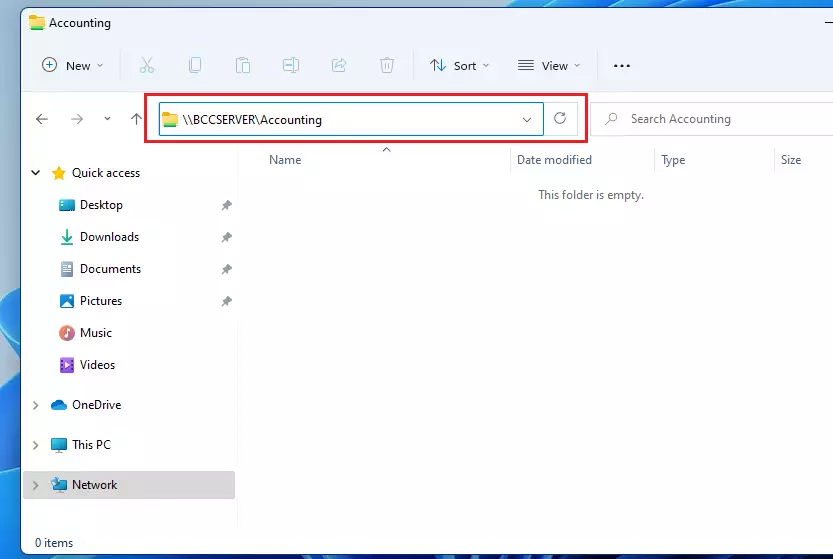
Without mapping, you reach network resources by opening File Explorer and typing the network path of the resource into the address bar, as in the image below:
\\SERVERNAME\SharedResourceName
Some people copy and paste a network folder onto the desktop as a shortcut. That works, but a mapped drive is usually the better choice for shared resources. It gets its own drive letter, shows up in File Explorer next to your local drives, and works with programs that expect a drive letter in a file path.
Follow these steps to map the drive:
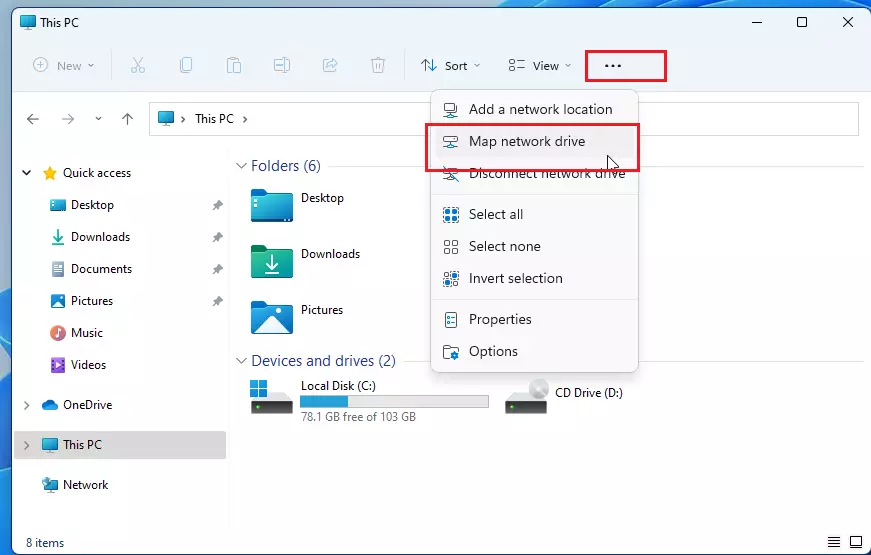
- Open File Explorer and click This PC in the left pane. The map option appears in the toolbar for this view.
- Click the ellipsis (three-dot) button in the toolbar. A menu opens.
- Click Map network drive, as highlighted below. The Map Network Drive window opens.
In the Map Network Drive window, set the following:
- Open the Drive list and pick a letter. Windows suggests Z by default. Only letters not already in use are available.
- If you want to avoid clashes with USB drives or memory cards, choose a letter toward the end of the alphabet. Removable drives usually take the next free letter near the start of the alphabet, so a letter far from those is less likely to conflict.
- In the Folder field, enter the path to the network resource. A network path starts with two backslashes, then the name of the computer or device, then the name of the shared folder. You can also click Browse and select the network location from the list. If the computer you want doesn't appear in the list, type the path by hand.
- Decide whether to tick Reconnect at sign-in. With it ticked, Windows tries to restore the drive each time you sign in. Leave it unticked if you only need the drive for this session.
- Tick Connect using different credentials only if your normal Windows username and password don't give you access to the share. Leave it unticked otherwise.
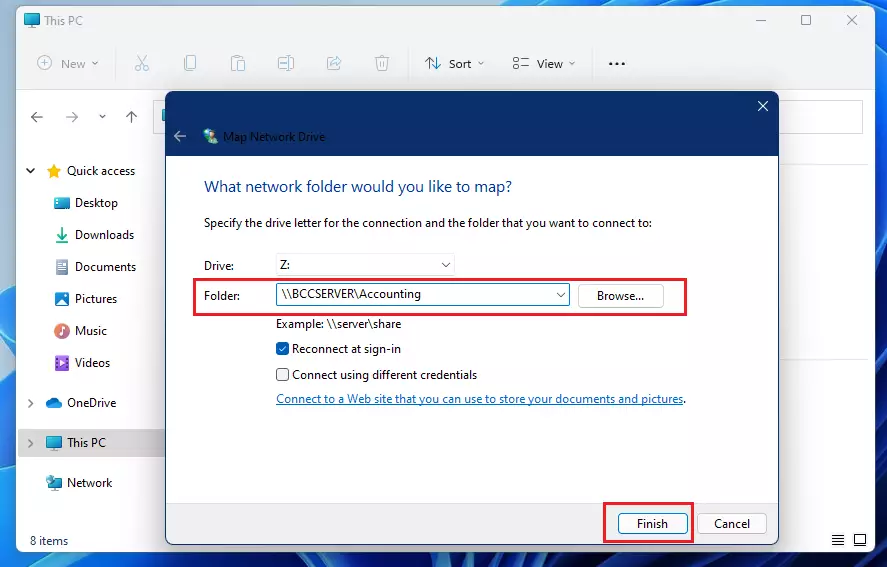
Once you've entered all the details, click Finish.
If you ticked the different credentials box, Windows now asks for a username and password. Enter them and click OK. Tick Remember my credentials if you don't want to be asked again. Only do that on a PC you trust.
A new network drive then appears in File Explorer under This PC, in the Network locations group. Next time you want to open the Accounting folder, open File Explorer and click the Z drive.
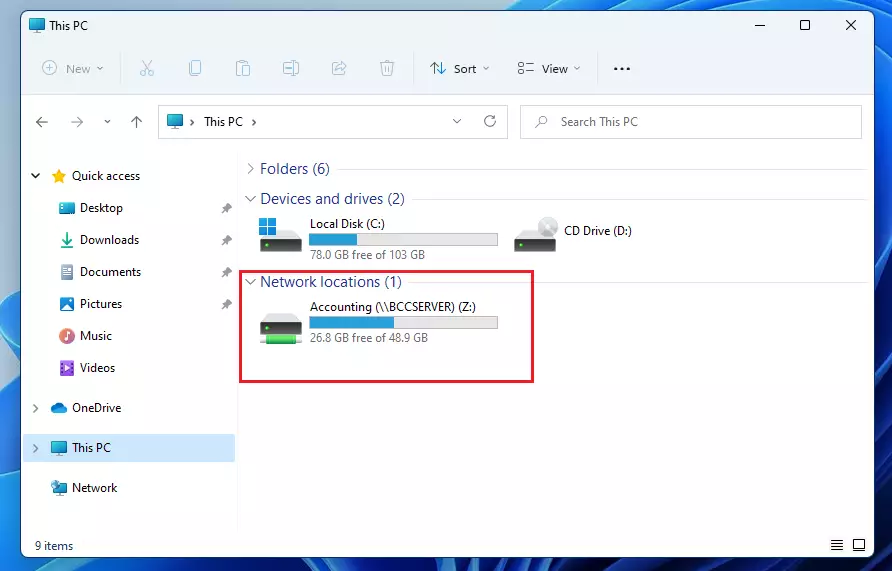
That should do it.
If you later want to remove the mapping, right-click the drive in This PC and choose Disconnect. If you don't see it, click Show more options first. Disconnecting removes only the drive letter. It doesn't delete anything in the shared folder.
If a drive shows a red X, the other computer is probably off, asleep, or unreachable from your network. Check that it's running and that you're on the right network, then open the drive again.
If you can't reach a shared folder at all, you may need to turn on Network Discovery and file sharing. The post below walks through it for Windows 11.
Enable Network Discovery and Sharing in Windows 11 - Website for Students
Conclusion: Mapping a network drive in Windows 11 takes only a minute and saves you from retyping network paths.
- Mapping a network drive gives a shared folder its own drive letter in File Explorer.
- It makes frequently used shared resources quick to reach.
- A mapped drive is usually a better choice than a desktop shortcut to the network folder.
- Pick a drive letter that won't clash with USB drives or memory cards.
- Use Connect using different credentials only when your normal sign-in can't open the share.
- If you can't reach the share, turn on Network Discovery and file sharing, then try again.
Have a question about this guide?
Answered by AI from this guide. Good questions may be added to this page — please don't include personal details.
Did this guide fix your problem?

About the Author
Richard
Tech Writer, IT Professional
Richard is a writer at Geek Rewind who turns complex IT tasks into clear, step-by-step guides. He draws on years of hands-on experience in system administration and enterprise IT operations, focusing on Windows, Linux and WordPress: the problems people actually run into, and the fixes that work. His server and WordPress guides come from systems he runs himself. Richard builds and maintains the platform behind Geek Rewind, from its Ubuntu servers and Nginx configuration to its custom WordPress plugins. Many new tutorials start with readers' questions, and he's always glad to answer them in the comments.
[…] You can map network drives: How to map network drivers […]
[…] or map a network drive or folder in Windows Subsystem for Linux (WSL). In Windows 11, users can map network drives and folders with ease. If you know the path to a shared folder and have access to the location, you should be able to map […]
[…] How to map a network drive in Windows 11 […]
[…] allows users to map network folders as a drive. With some tricks, users can mount or map a local folder as a drive in Windows […]
[…] users can map the shares using the ‘Map network drives‘ […]
[…] local Network, Network Discovery, and File sharing must be turned on. The Network icon also shows mapped network locations in File Explorer if there are […]
[…] How to Map a Network Drive in Windows 11 – Website for Students […]
[…] How to map a network drive in Windows 11 […]
[…] How to map a network drive in Windows 11 […]
[…] are multiple ways you can map or unmap network drives in Windows. You can use File Explorer, the Command Prompt, or PowerShell […]