How to Map Local Folders as Drives in Windows 11


Mapping local folders as drives in Windows 11 assigns a standard drive letter like `Z:` to any folder on your PC so it appears as a separate disk in File Explorer . This built-in method turns deeply buried folders into top-level drives for faster access without installing extra software.
Windows handles this connection through a native command-line tool named `subst`. Anything you save on this new drive goes straight into your original folder, acting like a direct shortcut for your most important files.
Map a local folder as a drive in Windows 11 by creating a shortcut that uses the “subst” command. Type subst [DriveLetter]: “[FolderPath]” into the shortcut’s location, then place the shortcut in your Startup folder to make it persistent after restarts.
How to map a local folder as a drive letter
You can map local folder drive Windows 11 setups by using the built-in command prompt or the create shortcut tool, which assigns any regular folder its own letter like D: or E:. This makes the folder show up right inside This PC in File Explorer so you can open it without clicking through multiple subfolders every time.
- Right-click on a blank area of your desktop.
- Select New, then Shortcut.

In the box that asks for the location, type the subst command. For example, if you want to turn the folder C:\Users\GenericUser\Documents\Supplies into the Z: drive, type this exactly:
subst Z: "C:\Users\Username\Documents\Supplies"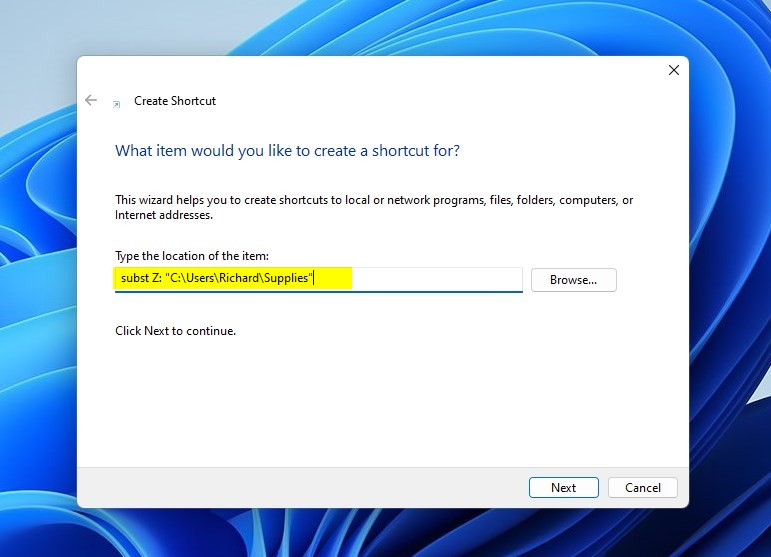
- Click Next.
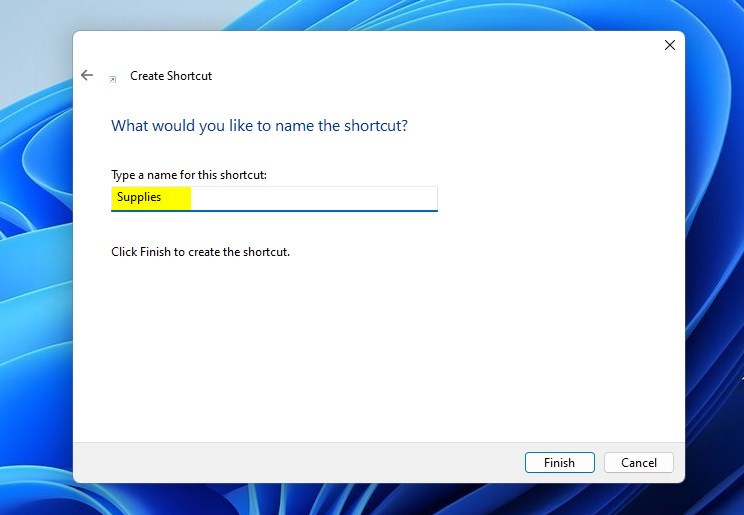
- Give your shortcut a name and click Finish.
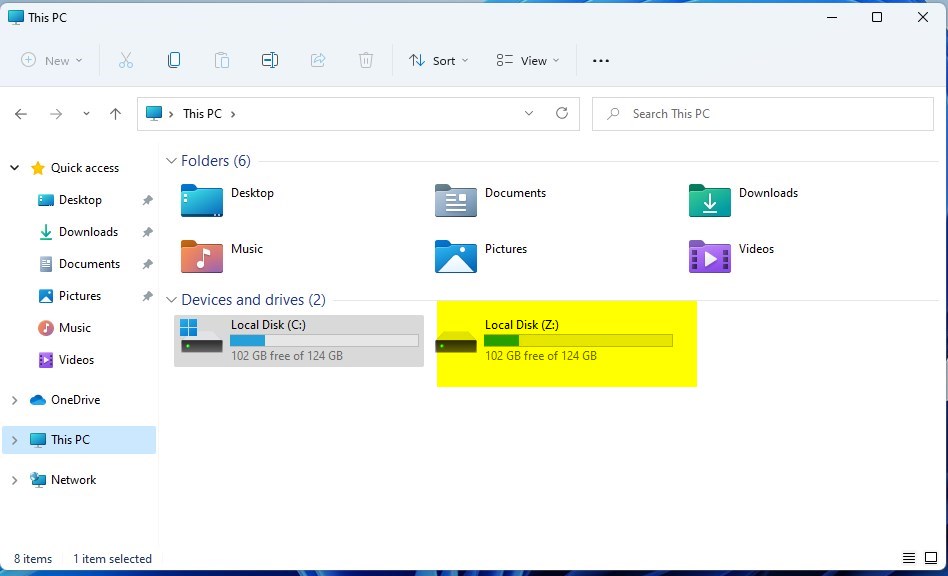
When you double-click this shortcut, a new Z drive will appear in File Explorer . This drive acts like a real hard drive.
Make the drive start automatically
You can make your mapped drive start automatically when you turn on your computer by copying its shortcut into the hidden Startup folder. This forces Windows to run the connection command in the background every time you log in, so your custom drive is always waiting for you without any extra setup steps.
- Right-click the shortcut you created on your desktop and select Copy.

- Press the Windows key + R on your keyboard to open the Run box.
- Type the command below and press Enter:
shell:startup
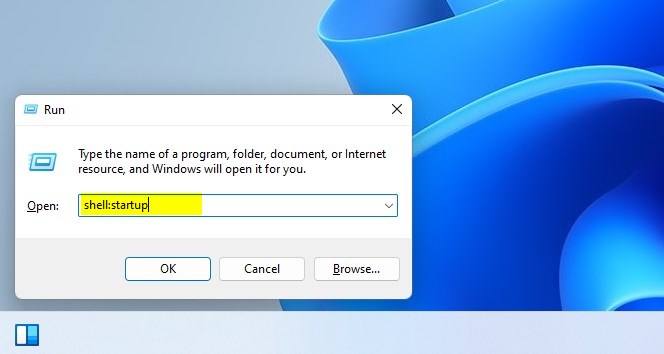
- This opens the Windows Startup folder in File Explorer. Note: This step may require admin privileges depending on your system settings.
- Paste your shortcut into this folder.
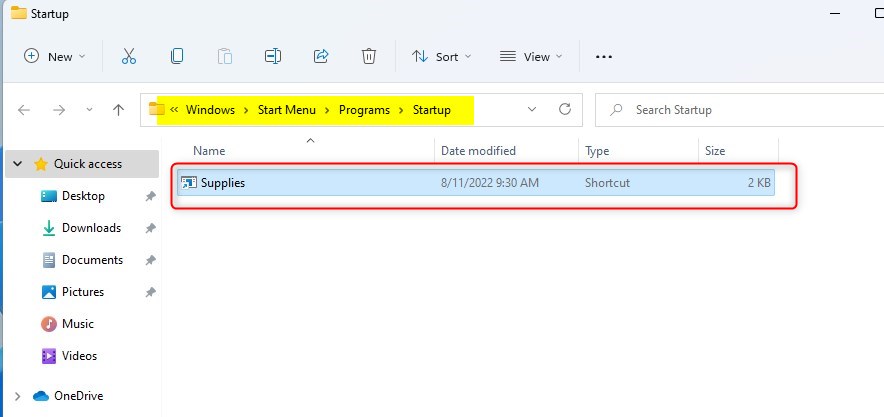
Now, every time you log in, Windows will automatically create your drive for you.
Troubleshooting Connection Errors
If your mapped drive isn't showing up in Windows 11, or if you're running into errors, verify that the folder path is correct and that the drive letter isn't already in use.
Summary
Mapping a local folder as a drive in Windows 11 speeds up file access by assigning a familiar drive letter, and setting it to start automatically ensures it's always ready.
Was this guide helpful?

About the Author
Richard
Tech Writer, IT Professional
Richard is a writer at Geek Rewind who turns complex IT tasks into clear, step-by-step guides. He draws on years of hands-on experience in system administration and enterprise IT operations, focusing on Windows, Linux and WordPress: the problems people actually run into, and the fixes that work. His server and WordPress guides come from systems he runs himself. Richard builds and maintains the platform behind Geek Rewind, from its Ubuntu servers and Nginx configuration to its custom WordPress plugins. Many new tutorials start with readers' questions, and he's always glad to answer them in the comments.

[…] showed you how to mount a folder as a drive in Widows. You can use this method to rename the drive […]