How to Add a Color Profile in Windows 11

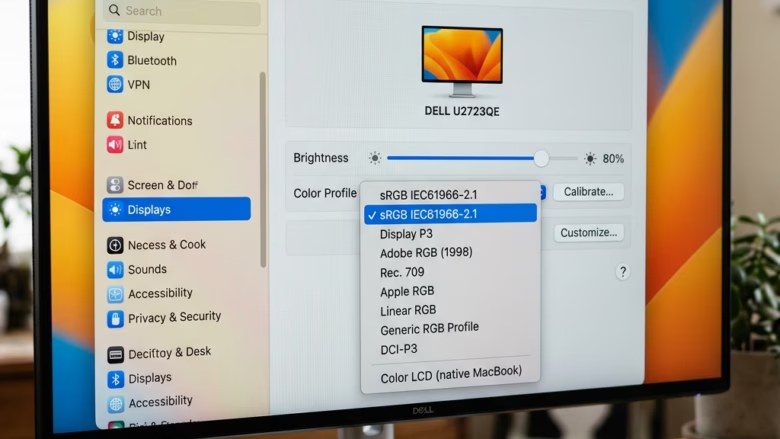
Open Settings System Display Color profile, select your display, click Add profile, browse to your.icm.icc file, then click Set profile to make it the default for that monitor.
Where to Find Color Profile Settings
The color profile controls live in the Settings app, under your display options. The steps below are for Windows 11. Menu layout changes a little between builds, so if a label looks slightly different on your PC, look for the closest match.
- Open Settings . Click the Start button, then click Settings. You can also press
Windows key + Ion your keyboard. The Settings window opens. - Go to Display. Click System in the left-hand list, then click Display. You will see the brightness, scale and resolution options for your screens.
- Find Color profile. Scroll down in the Display settings until you see the Color profile option, then click it.
Older Windows 11 builds put color settings in a different place than newer ones.
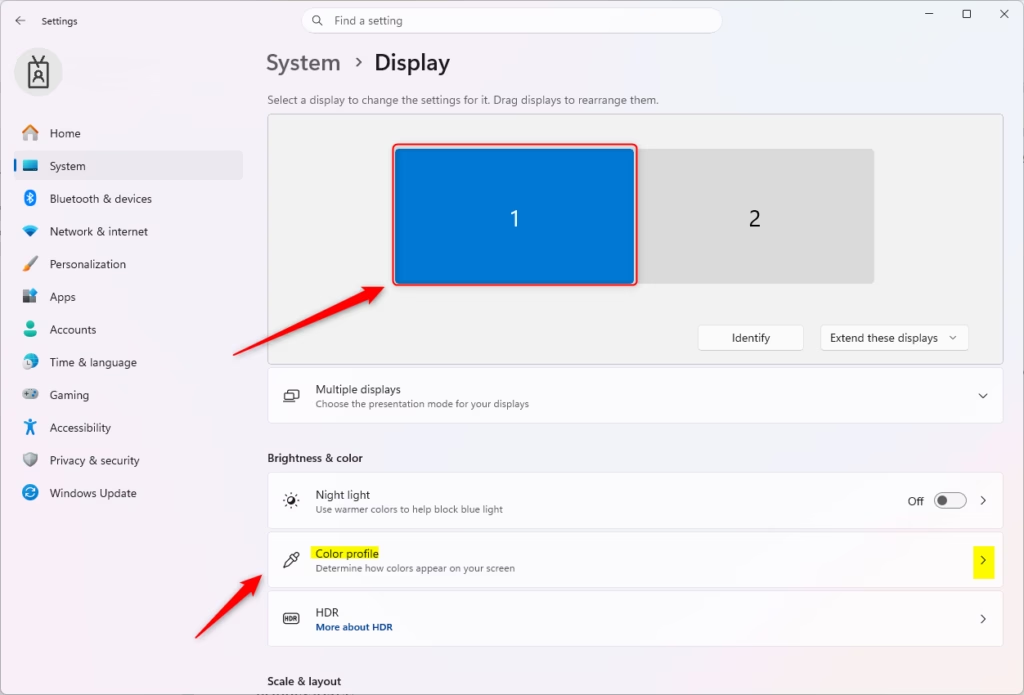
This opens the Color management settings for your screen. From here you can see which profiles are already linked to your monitor and add new ones.
Adding a New Color Profile
Copy the file somewhere easy to find, such as your Downloads or Desktop folder, then follow these steps.
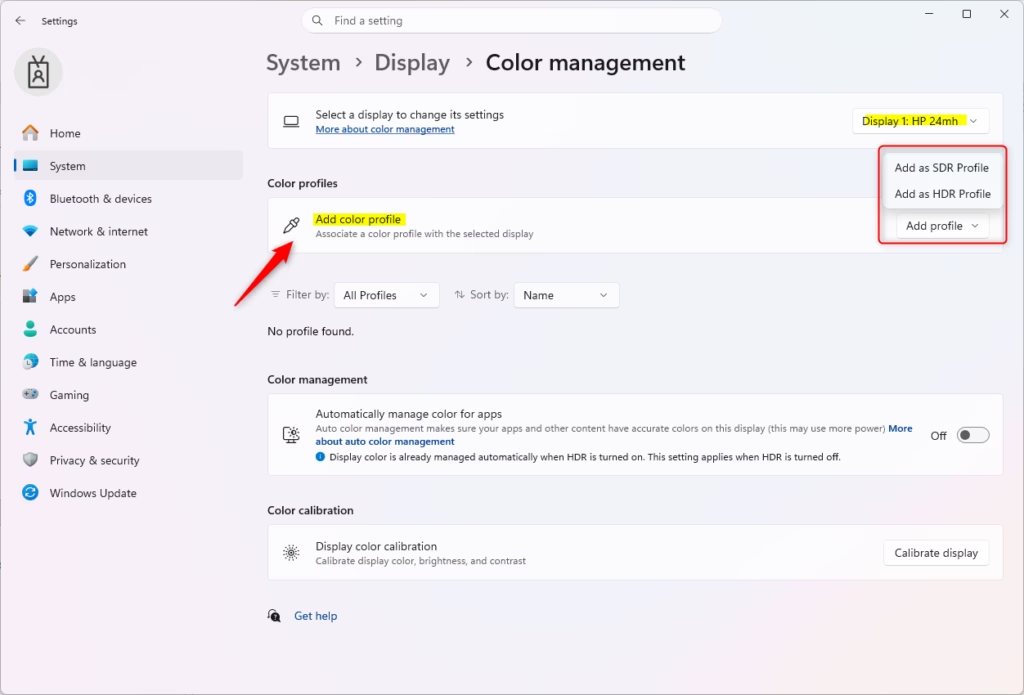
- Choose your display. At the top of the Color management page, find the Select your display box. If you have more than one monitor, pick the one the profile was made for. A profile built for one monitor can make a different model look wrong.
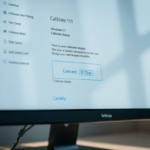
- Click Add profile. Click the Add profile button below the list of current profiles. A file browser window opens.
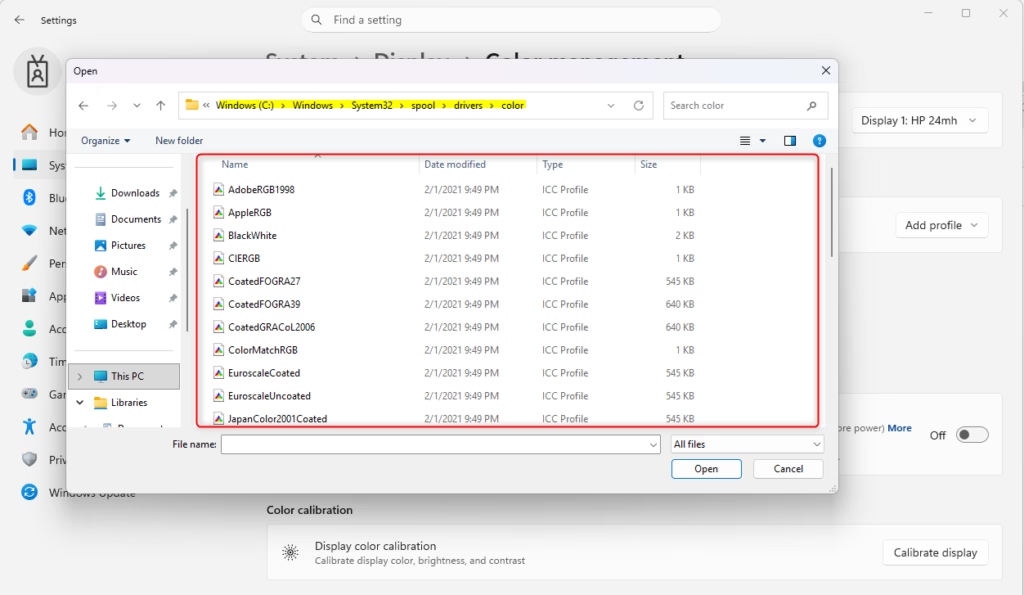
- Find your profile file. Browse to the profile you want. These files usually end in .icm or .icc. If you don’t see your file, check that the file type filter isn’t hiding it, and that you’ve unzipped the download first.
- Add the file. Select the file, then click Add or Open, depending on what your window shows. The profile now appears in the list for your display.
- Set it as the default. Adding a profile does not always make Windows use it. Select the profile you just added, then click the Set profile button below the list. The screen colors may shift right away.
Windows may ask for administrator permission for some of these changes. If you are on a work PC and the buttons don’t work, ask your IT admin.
Setting your new file as the default is what makes Windows actually use it for your display. Select the profile in the color management menu, then click Set profile right below the list to lock in the change.
If the colors look worse than before, you can undo it. Select your previous profile in the same list and click Set profile again. The old profile stays in the list, so nothing is lost.
Reference:
Summary
To add a color profile in Windows 11, go to System Display Color profile, pick your display, click Add profile, select your .icm or .icc file, and then click Set profile to make it the default. To go back, select your old profile and set it again.
Was this guide helpful?

About the Author
Richard
Tech Writer, IT Professional
Richard is a writer at Geek Rewind who turns complex IT tasks into clear, step-by-step guides. He draws on years of hands-on experience in system administration and enterprise IT operations, focusing on Windows, Linux and WordPress: the problems people actually run into, and the fixes that work. His server and WordPress guides come from systems he runs himself. Richard builds and maintains the platform behind Geek Rewind, from its Ubuntu servers and Nginx configuration to its custom WordPress plugins. Many new tutorials start with readers' questions, and he's always glad to answer them in the comments.


No comments yet — be the first to share your thoughts!