View Startup App Impact in Windows 11

Startup apps in Windows 11 are programs that open automatically in the background when you sign in to your PC. A few are useful, such as antivirus or a cloud-sync client. Too many of them slow down your boot time and make the machine feel sluggish for the first few minutes.
Task Manager is the built-in tool that shows running apps and system performance. It rates the startup impact of each program as High, Medium, Low, or Not measured. Those ratings help you decide which apps need to run right away and which ones you can turn off.
Open Task Manager by pressing Ctrl+Shift+Esc, click Startup apps in the left sidebar (or the Startup tab on Windows 11 21H2), and check the Startup impact column to see each app’s rating as High, Medium, Low, or Not measured. You can also view startup impact in Settings Apps Startup
How to Check Startup App Impact in 🪟 Windows 11
You can check startup impact in two places. Both read the same list of startup programs, so use whichever you find faster:
1Using Task Manager
Task Manager gives the most detail. Besides the impact rating, it shows the publisher, the current status, and the total boot delay Windows measured for your last startup (shown as “Last BIOS time” at the top right on most PCs).
- Press Ctrl+Shift+Esc together to open Task Manager . If it opens in a compact view, click More details at the bottom left. You should now see the full window with a list of tabs or icons.
- Open the startup list. On Windows 11 22H2 and later, click Startup apps in the left sidebar. On the original Windows 11 release (21H2), click the Startup tab at the top of the window instead.
- Find the Startup impact column. Each app that starts with Windows is listed with its rating. If you don’t see the column, widen the window or right-click a column header and make sure it is ticked.
- Click the Startup impact header to sort the list. Click it again if you want the High-impact apps at the top.
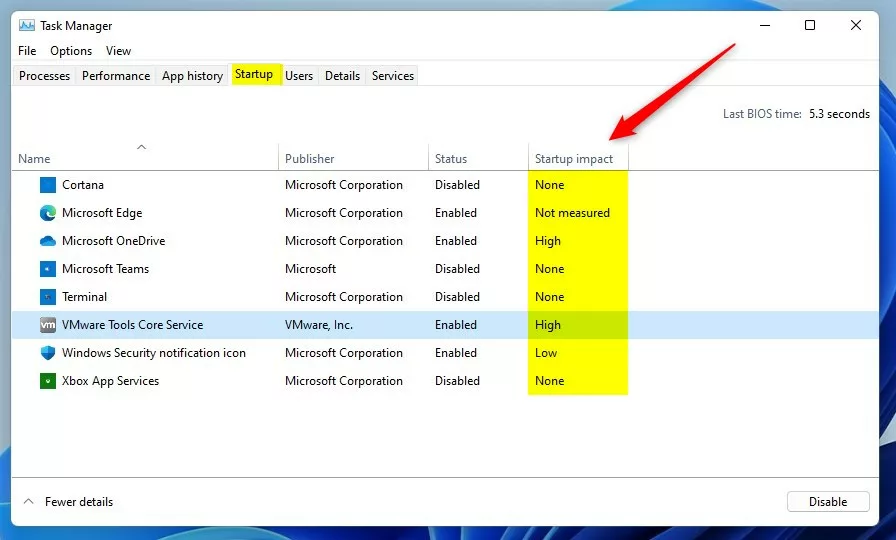
Task Manager shows startup apps and their impact on Windows 11.
The impact rating estimates how much a program delays startup. Windows bases it on the CPU and disk activity the app caused during your recent boots. A Low rating means minimal interference. Medium means a noticeable delay. High means a heavy load that actively drags startup down. Not measured means Windows hasn’t collected enough data yet. This is common for an app you just installed. Restart the PC once or twice and check again.
Latest Update
Go to Apps Startup apps and flip the switch next to any program you want to stop from running when your computer starts. Keep critical system tools turned on to avoid errors when your PC boots up.
Impact levels explained:
- High impact: Uses a lot of CPU or disk activity while Windows is starting. These are the first apps to review.
- Medium impact: Uses a moderate amount of resources. Worth a look if your PC still feels slow.
- Low impact: Uses very little at startup. Usually safe to leave alone.
2Using the Settings App
The Settings app also shows startup apps. It is simpler than Task Manager and works well if you just want to see the list and flip a switch. It lists each app with a label such as High impact or Low impact next to it, and it has a sort option so the heaviest apps can come first.
- Click the Start menu (the Windows icon) at the bottom of your screen.
- Select Settings. You can also press Windows key + I to open Settings directly.
- On the left side, click Apps.
- On the right, click Startup. You should now see a list of apps with an On/Off switch for each one.
- Look at the impact label under each app name. To reorder the list, use the Sort by drop-down and choose Startup impact.

Open Settings from the Start menu.
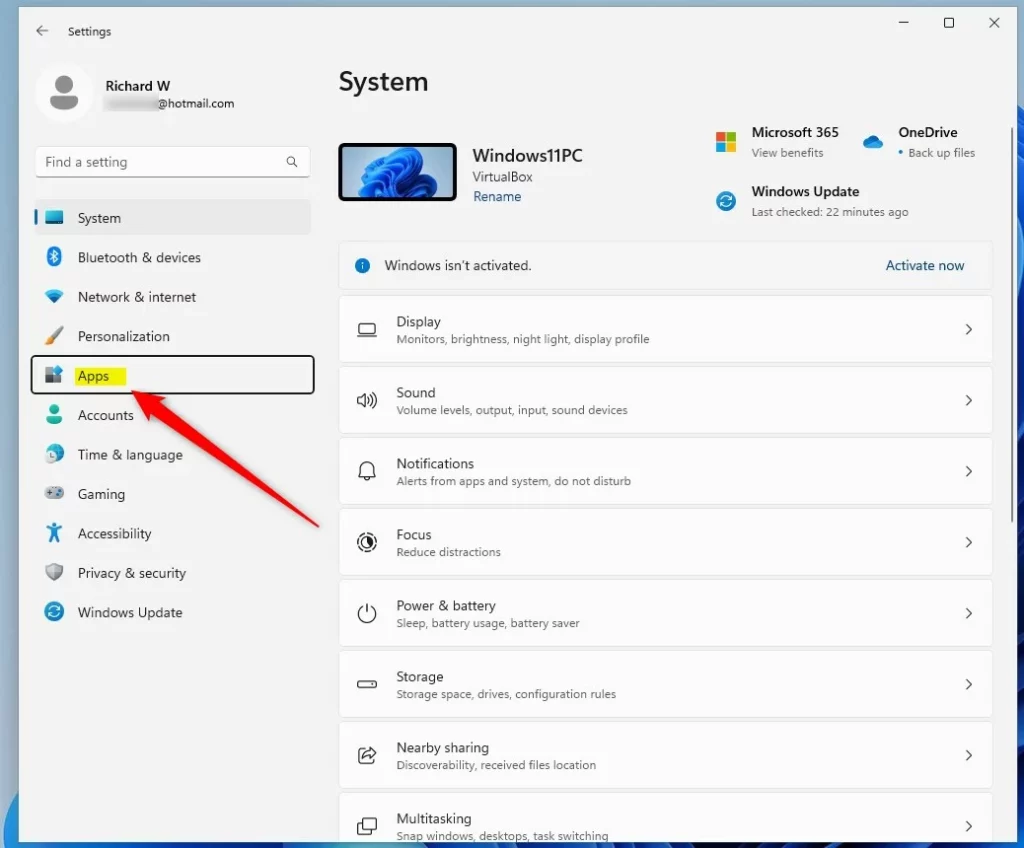
Click "Apps" in the Settings menu.
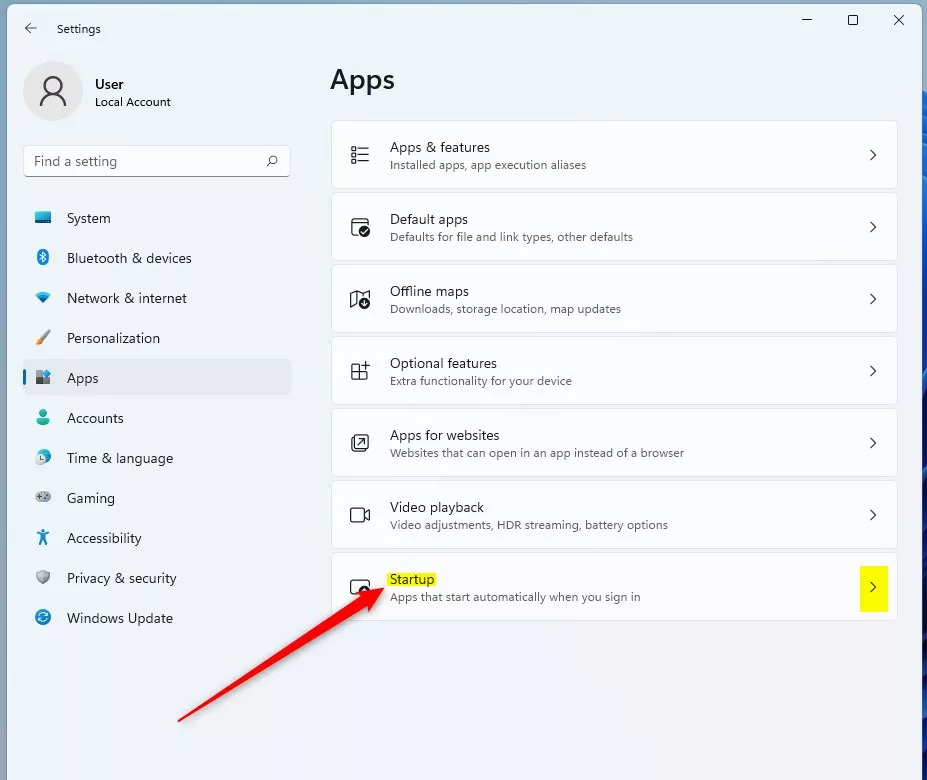
Click "Startup" to see startup apps and their impact.

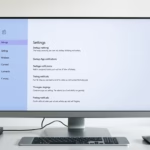
Startup apps and their impact shown in Settings.
What Can You Do With This Information?
High-impact apps slow down your PC at boot. Turning them off stops them from launching when you sign in. You can do this in either place:
- Task Manager: Right-click the app in the Startup apps list and choose Disable. The Status column changes to Disabled.
- Settings: Under Settings Apps Startup, switch the toggle next to the app to Off.
Disabling an app does not uninstall it, and you can still open it by hand. The change takes effect at your next startup, so no restart is needed right now. To undo it, right-click the app in Task Manager and choose Enable, or switch the toggle back to On. Be careful with items from your antivirus, drivers, or hardware vendors. If you don't recognize an entry, search for its name before you disable it.
Latest Update
Toggling programs on or off directly inside the Settings > Apps > Startup apps directory provides an alternative method.
Learn more about enabling or disabling startup apps here: How to Enable or Disable Startup Apps in Windows 11
Summary
- Windows 11 shows how much each startup app affects your computer's startup speed.
- You can check this in either Task Manager or the Settings app.
- Knowing which apps use the most resources lets you decide which ones to keep and which to turn off.
- Turning off heavy, unneeded apps can make your computer start faster and feel more responsive.
Checking startup app impact in Windows 11 helps you stop heavy programs from running in the background every time you turn on your PC. Use Task Manager for the detailed view or Settings for a quick one, then disable what you don't need. You can always turn an app back on if you change your mind.
Task Manager vs. Settings
- Task Manager provides a quick overview and allows immediate disabling.
- Settings offers a dedicated section for managing all startup apps.
- Both methods achieve the same goal of enabling or disabling startup applications.
Was this guide helpful?

About the Author
Richard
Tech Writer, IT Professional
Richard is a writer at Geek Rewind who turns complex IT tasks into clear, step-by-step guides. He draws on years of hands-on experience in system administration and enterprise IT operations, focusing on Windows, Linux and WordPress: the problems people actually run into, and the fixes that work. His server and WordPress guides come from systems he runs himself. Richard builds and maintains the platform behind Geek Rewind, from its Ubuntu servers and Nginx configuration to its custom WordPress plugins. Many new tutorials start with readers' questions, and he's always glad to answer them in the comments.



No comments yet — be the first to share your thoughts!