How to Turn Change Adaptive Communication Sound Levels in Windows 11

Adaptive communication sound levels is a Windows 11 feature that lowers background music or game audio, by up to 80% by default, when you join a voice call in apps like Zoom or Discord. It keeps conversations clear, so you do not have to drag the main volume slider every time a call starts. It is sometimes called “ducking”.
You can change how far Windows lowers other sounds, or stop it from lowering them at all. This is useful if you want music or a game to stay at the same loudness during a chat. There are two ways to do it: the Settings app, which is the easy route, and the Registry Editor, which is the fallback.
Open Settings System Sound, find Adaptive communication sound levels, click the drop-down menu, and select Do nothing. Windows stops lowering background audio during voice calls. No restart needed.
Option 1Using Windows Settings
The Settings app is the best place to start. It works the same on Windows 11 Home and Pro, needs no administrator rights for this setting, and takes effect straight away. Follow these steps to change how Windows adjusts your volume during calls.
- Press the Win and the I key together. The Settings app opens.
- Click System in the left-hand menu.
- On the right side, click Sound. The page that opens lists your sound devices and volume options.
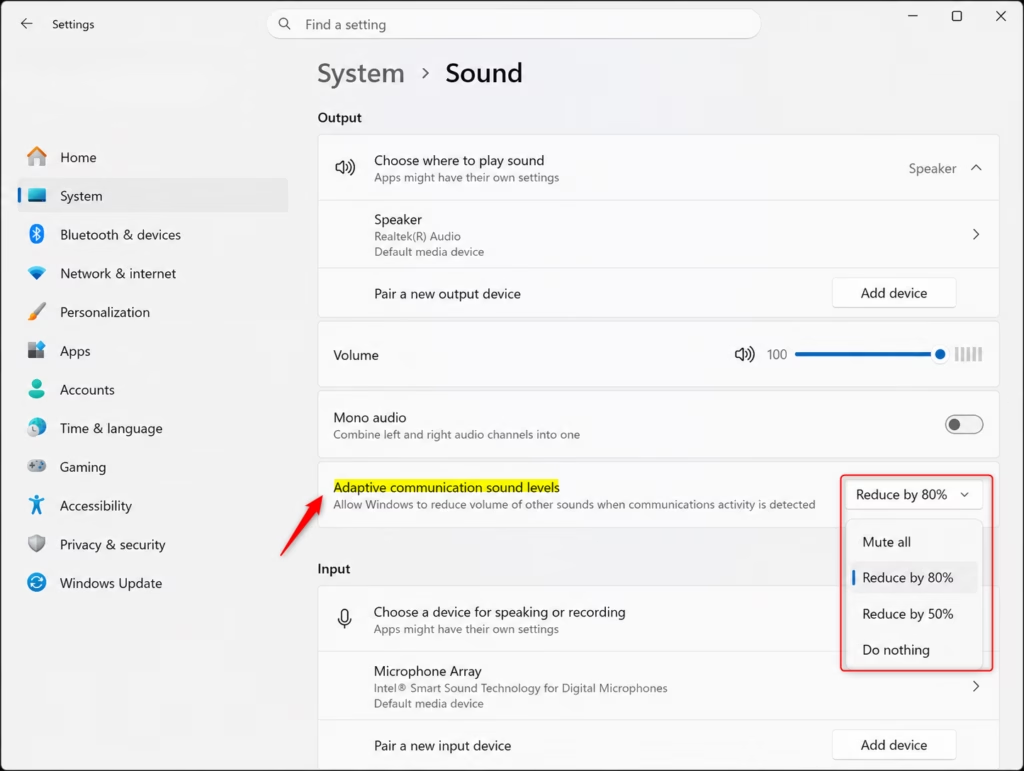
- Find the Output section and look for Adaptive communication sound levels. If you cannot see it, your Windows build may not show it in Settings. Skip to the Registry Editor method further down.
- Click the drop-down menu next to Adaptive communication sound levels. A list of four choices appears. This is what each one does to other sounds while you are on a call:
- Mute all: All other sounds are completely silenced.
- Reduce by 80%: This is the default. Other sounds become much quieter.
- Reduce by 50%: Other sounds are reduced by half.
- Do nothing: Windows does not change the volume of other sounds. Choose this if you want to stop the automatic volume drop.
- Click the option you want. The drop-down closes and shows your choice.
- Close the Settings window. You do not need to restart.
To undo the change, come back to the same drop-down and pick Reduce by 80%. Test it by starting a call while music plays. The effect only applies to apps that tell Windows they are making a communications stream, so some apps may behave differently from others.

Option 2Using the Windows Registry Editor
Use this method if the option is missing from Settings, or if you prefer to set it directly. It works on both Home and Pro, but you need an administrator account.
Before you start, consider backing up the registry. In the Registry Editor, choose File Export, save the file somewhere safe, and you can double-click it later to restore the settings .
- Press the Windows key and type
regedit. Registry Editor appears in the search results. - Click Registry Editor. If a User Account Control prompt asks for permission, click Yes. The Registry Editor window opens with a folder tree on the left and values on the right.
- Go to the following location. The quickest way is to paste the path into the address bar at the top of the window and press Enter.
RegistryHKEY_CURRENT_USER\Software\Microsoft\Multimedia\Audio - Look in the right-hand pane for a value named
UserDuckingPreference. If it is there, go to step 6. If it is not, you need to create it. - Create the value like this:
- Right-click an empty space in the right-hand pane.
- Select New, then select DWORD (32-bit) Value. A new value appears with its name highlighted for editing.
- Type the name
UserDuckingPreferenceand press Enter.
- Double-click
UserDuckingPreference. A dialog opens so you can edit its value. - Enter one of the following numbers in the Value data box, depending on what you want:
- 0 (or
00000000in hexadecimal): Mute all other sounds. - 1 (or
00000001in hexadecimal): Reduce volume of other sounds by 80% (default). - 2 (or
00000002in hexadecimal): Reduce volume of other sounds by 50%. - 3 (or
00000003in hexadecimal): Do nothing.
- 0 (or
- Click OK to save the change. The new number now shows in the Data column.
- Close the Registry Editor. The change should take effect immediately. If your audio still behaves the old way, restart the computer so it fully applies.
To undo the change, open the same value again and set it back to 1, which is the default. If something goes wrong, import the backup file you exported earlier.
Summary
You now know how to control how Windows 11 adjusts sound levels during calls. You can mute other sounds, lower them by 80% or 50%, or leave them alone. Try the Settings app first and keep the registry method for when the option is missing.
Frequently asked questions
How to adjust audio levels in Windows?
Open Settings and go to System Sound. Scroll down to Advanced and click Volume mixer to adjust individual app volumes. You can also use the main volume slider at the top of the Sound page, or right-click the speaker icon in your taskbar to access quick volume controls.
Why isn't loudness equalization showing up on my computer?
Loudness equalization appears in Sound settings under Advanced Volume mixer App volume and device preferences. If you don't see it, your audio driver may need updating. Check Device Manager, find your audio device, right-click it, and select Update driver.
How to change alert sounds on 🪟 Windows 11?
Go to Settings System Sound, then scroll down to Advanced and click Other sound options. Under Sounds, choose notification sounds from the dropdown menus for different system events, or select None to disable them entirely.
Should I enable loudness equalization?
Enable loudness equalization if you listen at low volumes and want consistent sound across different apps and videos. Disable it if you notice distortion or prefer natural audio dynamics. It's a personal preference with no right answer—test it for a day to decide.
Still have a question?
Answered by AI from this guide. Good questions may be added to this page — please don't include personal details.
Did this guide fix your problem?

About the Author
Richard
Tech Writer, IT Professional
Richard is a writer at Geek Rewind who turns complex IT tasks into clear, step-by-step guides. He draws on years of hands-on experience in system administration and enterprise IT operations, focusing on Windows, Linux and WordPress: the problems people actually run into, and the fixes that work. His server and WordPress guides come from systems he runs himself. Richard builds and maintains the platform behind Geek Rewind, from its Ubuntu servers and Nginx configuration to its custom WordPress plugins. Many new tutorials start with readers' questions, and he's always glad to answer them in the comments.
No comments yet — be the first to share your thoughts!