How to Quickly Switch Between HKCU and HKLM Keys in Windows 11 Registry Editor

Jumping between related keys in the Windows Registry usually means expanding folder after folder in the left pane. Registry Editor has a built-in context menu option that takes you to the matching key in the other hive in one click. This tutorial shows how to use it on Windows 11.
Navigate to a key in Registry Editor, then right-click it. Select “Go to 🗝️HKEY_LOCAL_MACHINE” to switch from HKCU, or “Go to 🗝️HKEY_CURRENT_USER” to switch from HKLM. This instantly opens the same key in the other hive, if it exists.
What is the Registry Editor?
Think of the Registry Editor as Windows’ control panel for deep settings. It lets you see and tweak how your computer and apps behave. Many of these settings have no option in the Settings app, which is why admins end up here.
Changes in the registry can break apps or stop Windows from starting. Before you edit anything, export the key you are about to change. Select it, then go to File Export and save the .reg file somewhere safe. Browsing and jumping between keys, as shown below, changes nothing.
Understanding HKCU and HKLM
HKCU (🗝️HKEY_CURRENT_USER) holds configuration data that applies only to the user account currently signed in. HKLM (which stands for 🗝️HKEY_LOCAL_MACHINE) stores settings that affect everyone on the computer. Knowing this HKCU and HKLM distinction is key to understanding where a Windows setting lives.
- HKCU (🗝️HKEY_CURRENT_USER): This holds settings just for the user who is logged in right now. If another person signs in to the same PC, they get their own HKCU values.
- HKLM (🗝️HKEY_LOCAL_MACHINE): This holds settings that apply to the whole computer, for all users. Changing values here normally needs an administrator account.
Why Switch Between HKCU and HKLM?
Sometimes checking or changing a setting means looking at both places. An app may keep a default in HKLM and a personal override in HKCU, for example. Registry Editor lets you jump between the same spot in HKCU and HKLM if that key exists in both. This saves you from browsing through the left sidebar by hand and from losing your place in a deep path.
How to Switch Between HKCU and HKLM Keys
- Open Registry Editor by typing
regeditin the Start menu search and pressing Enter. If a User Account Control prompt appears, click Yes. You should now see the Registry Editor window with the hives listed in the left pane. - Navigate to a key under HKCU or HKLM that you want to check. Click the arrow next to each folder to expand it. The values for the selected key appear in the right pane.
- Right-click the key (folder) in the left pane. A context menu opens.
- Look for the option Go to 🗝️HKEY_LOCAL_MACHINE if you are in HKCU, or Go to 🗝️HKEY_CURRENT_USER if you are in HKLM, and click it.
- Check the left pane. Registry Editor opens the same key in the other hive, if it exists there, and selects it so you can read its values right away.
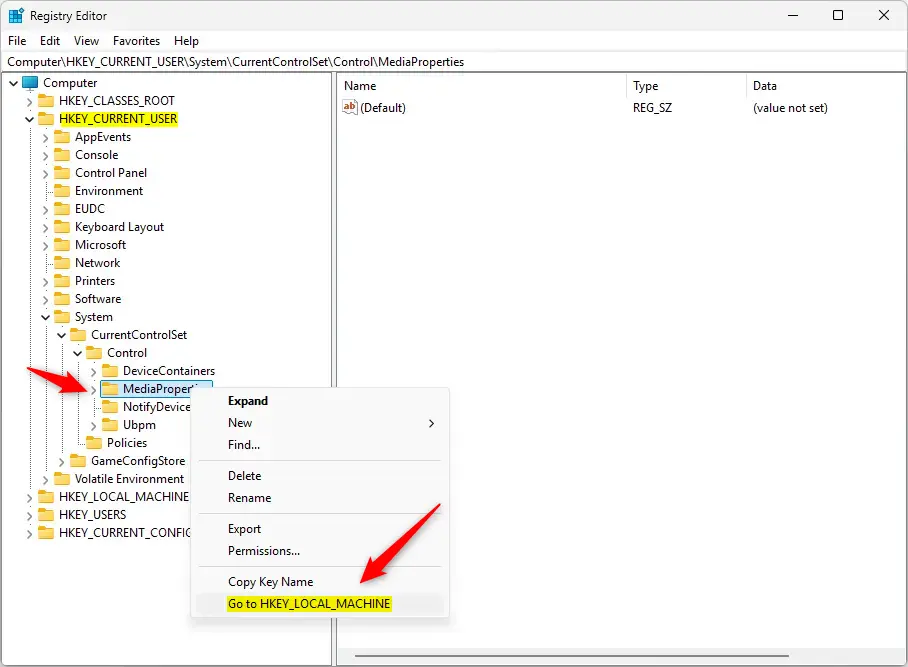
The screenshot shows the right-click menu on a key under HKCU. Choose Go to 🗝️HKEY_LOCAL_MACHINE to jump straight to the matching location in the other hive.
The same applies to any key where the option appears. Right-click it, choose the "Go to" entry, and the view switches hives.
Going from HKLM back to HKCU takes seconds:
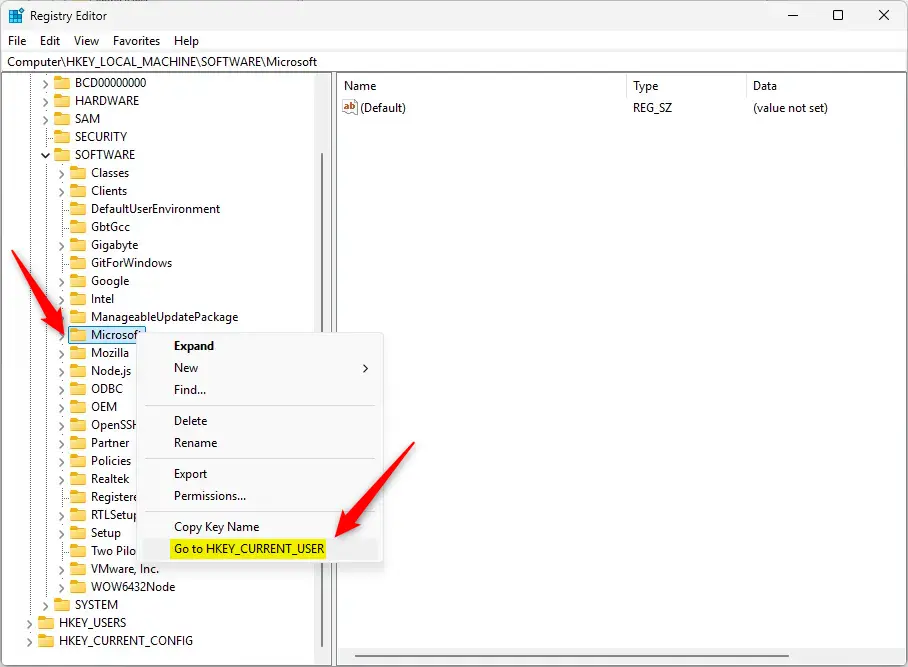
Here the right-click menu is open on a key under HKLM. Choose Go to HKEY_CURRENT_USER to jump straight to the matching location in the other hive.
Again, right-click the key and choose the "Go to" entry to switch. Repeat the steps to go back and forth as often as you need.
Important Note
This shortcut only works when the key exists in both HKCU and HKLM. If the key is missing from the other hive, the option stays hidden. If you do not see it, that is normal. It does not mean anything is broken. The key is simply not present on the other side, and you can still browse there by hand if you want to check.
You will most often see the option on keys under Software, because many apps store settings in both hives. Keys outside the shared areas usually have no counterpart.
What Happens When You Use This Shortcut?
Clicking the "Go to" option moves you to the same location in the other hive. Manual folder searches get bypassed entirely. That saves real time when you are comparing a per-user setting with a machine-wide one, or tracking down where an app stores its configuration.
If you edit a value after jumping, remember that HKLM changes affect every user on the PC, while HKCU changes affect only the current account. Some changes only take effect after you sign out or restart the app. To undo an edit, restore the original value or double-click the .reg file you exported earlier.
Summary
Understanding the HKCU and HKLM registry switch requires knowing that HKCU manages personal preferences while HKLM controls system-wide configurations. The Registry Editor enables rapid movement between matching settings in both locations through the 'Go to' command. This feature helps administrators manage and compare critical Windows settings by instantly bridging personal user preferences and system-wide configurations.- The Registry Editor helps you manage important Windows settings.
- HKCU is for user-specific settings; HKLM is for computer-wide settings.
- You can quickly jump between the same keys in HKCU and HKLM using the "Go to" command.
- Be careful when editing the Registry — wrong changes can cause problems with Windows.
- For more beginner-friendly tips on using the Registry Editor, check out this helpful guide.
Have a question about this guide?
Answered by AI from this guide. Good questions may be added to this page — please don't include personal details.
Did this guide fix your problem?

About the Author
Richard
Tech Writer, IT Professional
Richard is a writer at Geek Rewind who turns complex IT tasks into clear, step-by-step guides. He draws on years of hands-on experience in system administration and enterprise IT operations, focusing on Windows, Linux and WordPress: the problems people actually run into, and the fixes that work. His server and WordPress guides come from systems he runs himself. Richard builds and maintains the platform behind Geek Rewind, from its Ubuntu servers and Nginx configuration to its custom WordPress plugins. Many new tutorials start with readers' questions, and he's always glad to answer them in the comments.
No comments yet — be the first to share your thoughts!