How to Enable or Disable Regedit in Windows 11


- 3 ways to do it
- Needs administrator rights
- Group Policy needs Windows 11 Pro, Enterprise or Education
- Includes a restart or sign-out
Registry Editor (the system tool used to view and change low-level Windows settings, also known as Regedit) can be turned on or off in Windows 11 to control who makes deep system changes. Locking access to the registry database protects your PC setup from accidental damage or unwanted tweaks. It stops edits to hives such as 🗝️HKEY_LOCAL_MACHINE.
When you restrict access, Windows shows a pop-up whenever someone tries to open the tool. The message says that an administrator has put limits in place. You need an account with administrator rights to change this setting and either lock down or open up the registry.
There are three ways to do it: Group Policy (Windows 11 Pro, Enterprise and Education), a registry edit (all editions, including Home), or a command in PowerShell or Command Prompt (all editions). Pick the one that matches your edition. If you lock yourself out, the command-line method is the easiest way back in, because it doesn’t need Regedit to open.
You can enable or disable Registry Editor access using Group Policy Editor, Registry Editor itself, or PowerShell. For Pro versions, use gpedit.msc to navigate to User Configuration Administrative Templates System and set “Prevent access to registry editing tools.” For Home versions, modify the “DisableRegistryTools” DWORD value in the registry.
Method 1Use Group Policy Editor
Group Policy Editor lets you enable or disable Regedit (the built-in database for Windows settings) on Windows 11 Pro editions. Open the policy tool by pressing the Win and R, typing gpedit.msc, and pressing Enter. Go to User Configuration, select Administrative Templates, click System, and find the setting to prevent access to registry editing tools to turn it on or off.
Windows 11 Home does not include the Group Policy Editor. If the Run box reports that Windows cannot find gpedit.msc, you are on Home. Use the registry or command-line method below instead.
Requires admin privileges. Sign in with an administrator account before you start. A standard account will be asked for admin credentials or will fail to open the tool.
- Press Win+R to open the Run box, type
gpedit.msc, and hit Enter. The Local Group Policy Editor window opens. - In the left pane, navigate to: User Configuration Administrative Templates System. Click System so its settings list appears in the right pane.
- Find Prevent access to registry editing tools on the right. The list is long, so click the Setting column header to sort it alphabetically if you can’t spot it.
- Double-click it. A settings window opens with the options Not Configured, Enabled and Disabled.
- Select Enabled to block access or Disabled to allow it. Choosing Not Configured also allows access and removes the policy entirely, which is the cleanest way to undo it.
If you choose Enabled, the window also shows a Disable regedit from running silently? drop-down. Leave it on No unless you also want to block .reg files from being merged without a prompt. Then finish the change:
- Click OK. The setting now shows as Enabled or Disabled in the list.
- Restart your computer to apply the changes. Signing out and back in often works too, but a restart is the safe choice.
If the Run box doesn’t work for you, you can also type gpedit.msc into Start search and open the Group Policy Editor from the result.

To check the result, try to open Registry Editor. With the policy Enabled, Windows shows a message saying registry editing has been disabled by your administrator. With it Disabled or Not Configured, the editor opens normally. The policy is stored per user, so test from the account you configured.
Method 2Use Registry Editor
Registry Editor lets you enable or disable Regedit on Windows 11 Home editions where the group policy tool is missing. Open the registry by typing regedit in the Start menu search bar and pressing Enter. Go to 🗝️HKEY_CURRENT_USER\
Take care here. Back up the registry first, or create a restore point. Also remember that once you block Regedit with this method, you can’t open it to undo the change. Keep the PowerShell method below handy as your way back.
Why use this method? This works on Windows Home editions where Group Policy is unavailable. What happens? Manual creation of a key tells Windows to block the tool. The value sits under 🗝️HKEY_CURRENT_USER, so it applies to the user account you are signed in with.
Requires admin privileges. Windows asks for confirmation through User Account Control when Registry Editor opens. Click Yes to continue.
- Open the Registry Editor by searching for
regeditin the Start menu and pressing Enter. Click Yes if User Account Control appears. - Go to:
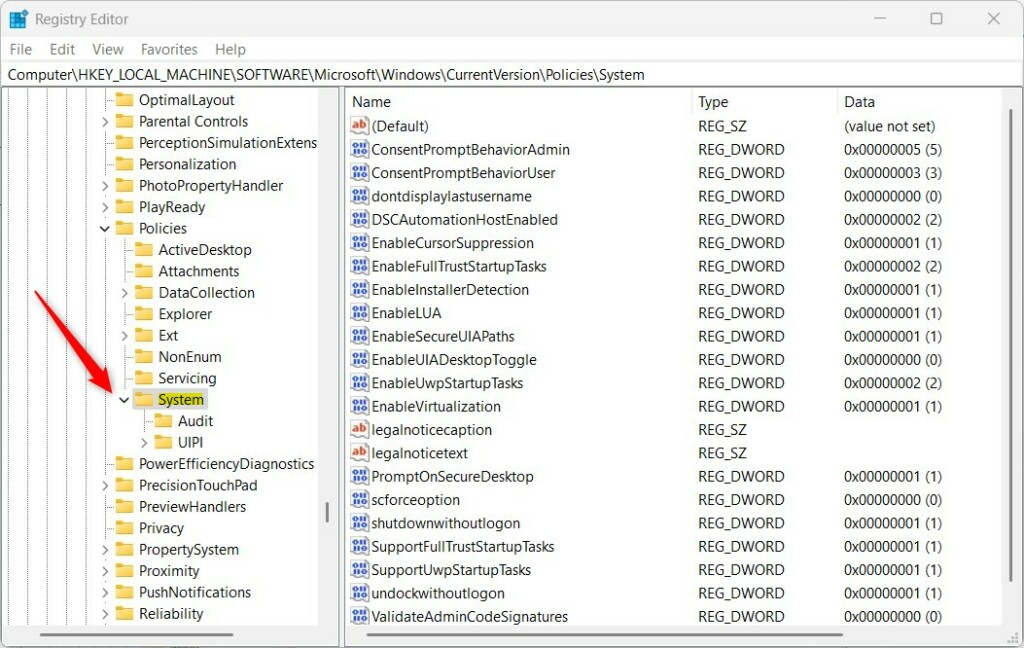
HKEY_CURRENT_USER\SOFTWARE\Microsoft\Windows\CurrentVersion\Policies\System. You can paste the path into the address bar at the top of the window, or expand the folders in the left pane one at a time. - If the System folder is missing, right-click Policies, select New Key, and name it System. The new key appears under Policies. Click it to select it.
- Right-click in the empty space in the right pane, select New DWORD (32-bit) Value, and name it DisableRegistryTools. Use this exact spelling. If the value already exists, skip this step.
- Double-click it and set the value to 2 to disable, or 0 to enable. Click OK.
You can also reach the same place from the Run box. These steps spell out the value details:
- Press the Win+R, type
regedit, and hit Enter. - Navigate to:
HKEY_CURRENT_USER\SOFTWARE\Microsoft\Windows\CurrentVersion\Policies. - If the System folder isn’t there, right-click on Policies, choose New Key, and name it System.
- Right-click on the new System key, choose New DWORD (32-bit) Value.
- Name the new value
DisableRegistryTools. - Double-click
DisableRegistryToolsand set its Value data to1to disable access or0to enable it. - Click OK and close the Registry Editor.
- Restart your computer.
To undo the change later, set the value back to the enabling number, or delete the DisableRegistryTools value. If Regedit is already blocked, use the command in the next section instead.
Method 3Use PowerShell
PowerShell (a command-line shell for system tasks) lets you quickly enable or disable Regedit on Windows 11 using a single command. Open PowerShell as an administrator from the Start menu, paste the specific command to change the registry restriction value, and press Enter to instantly block or restore access to the registry tool.
This method works on every edition and does not need Regedit to be open. That makes it the best way to turn access back on after you have blocked it.
Why use this method? This is the quickest way to toggle access. What happens? The command instantly updates the registry database.
Requires admin privileges. The command only works from an elevated window. If you see an access error, close the window and reopen it as administrator.
- Right-click the Start button and select Terminal (Admin) or PowerShell (Admin). Click Yes if User Account Control appears. A console window opens.
- To disable access, run:
Set-ItemProperty -Path HKCU:\Software\Microsoft\Windows\CurrentVersion\Policies\System -Name DisableRegistryTools -Value 2 -Force - To enable access, run:
Remove-ItemProperty -Path HKCU:\Software\Microsoft\Windows\CurrentVersion\Policies\System -Name DisableRegistryTools -Force
If you prefer Command Prompt, the same change works there:
- Open Command Prompt as an administrator. Search for “cmd”, right-click Command Prompt, and select Run as administrator.
- To disable Registry Editor, type the following command and press Enter:
reg add "HKCU\Software\Microsoft\Windows\CurrentVersion\Policies\System" /v DisableRegistryTools /t REG_DWORD /d 1 /f - To re-enable Registry Editor, type this command and press Enter:
reg delete "HKCU\Software\Microsoft\Windows\CurrentVersion\Policies\System" /v DisableRegistryTools /f - Close the Command Prompt.
- Restart your computer.
Troubleshooting Access Denied Errors
Fixing an Access Denied error when opening Regedit on Windows 11 usually means a virus or a previous administrator blocked the tool. You need local administrator rights to change the restriction keys back to normal, or you can run a full scan with Windows Security to remove malware that locked the registry in the first place.
Work through it in this order:
- Confirm you are signed in with an administrator account. A standard account can’t change these settings.
- Open Windows Security, go to Virus & threat protection Scan options, select Full scan, and click Scan now. Remove anything it finds, then restart.
- Re-enable access with the PowerShell or Command Prompt command above. Use the Group Policy method too if you are on Pro, and set the policy to Not Configured.
- Restart and try opening Registry Editor again.
If the restriction comes back after you remove it, malware may still be active, or a work or school policy is reapplying it. On a managed PC, ask your IT administrator.
Summary
Registry Editor access management relies on Group Policy, the Registry itself, or PowerShell. Group Policy suits Pro users best, while Registry edits and command-line changes work on all versions. Caution remains vital when editing the registry: back up first, and keep a working way to reverse your change. Visit the official Microsoft documentation on security policies for more information.
Have a question about this guide?
Answered by AI from this guide. Good questions may be added to this page — please don't include personal details.
Did this guide fix your problem?

About the Author
Richard
Tech Writer, IT Professional
Richard is a writer at Geek Rewind who turns complex IT tasks into clear, step-by-step guides. He draws on years of hands-on experience in system administration and enterprise IT operations, focusing on Windows, Linux and WordPress: the problems people actually run into, and the fixes that work. His server and WordPress guides come from systems he runs himself. Richard builds and maintains the platform behind Geek Rewind, from its Ubuntu servers and Nginx configuration to its custom WordPress plugins. Many new tutorials start with readers' questions, and he's always glad to answer them in the comments.
[…] Registry Editor in Windows is crucial for managing the operating system’s configuration settings. It provides […]