How to Add Your Accounts to Microsoft Authenticator

Microsoft Authenticator is a free mobile app for Android and iOS. It protects your online accounts with temporary six-digit codes and push notifications that you approve with a tap. Setup usually takes under three minutes. You scan a QR code on your computer screen with your phone to link a personal Microsoft account, a work or school login, or sites such as Google and Facebook.
You need three things before you start: a phone with a working camera, a computer with a web browser, and the password for the account you want to protect.
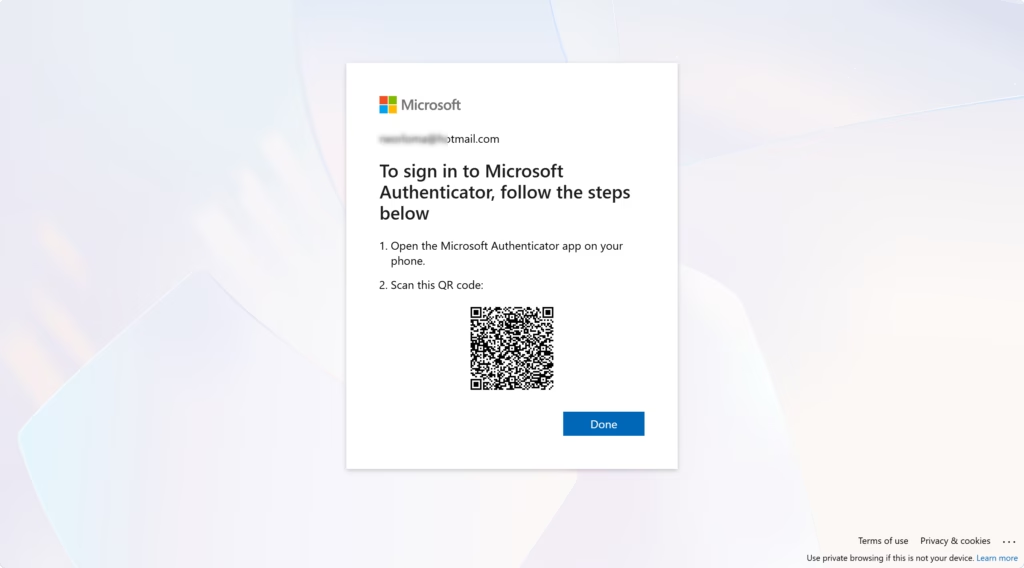
Open account.microsoft.com/security, sign in, go to Manage how I sign in or Security basics, click Add a new way to sign in, select Use an app, then scan the QR code shown on your screen using the plus icon in Microsoft Authenticator on your phone.
Download and Install the App
- Open the Google Play Store on Android or the App Store on iPhone.
- Search for Microsoft Authenticator.
- Check that the publisher is listed as Microsoft Corporation. Fake lookalike apps exist, and a clone could capture your login details.
- Tap Install (Android) or Get (iPhone). The app is free.
- Open the app once it has installed. When it asks for camera access, allow it. You need the camera to scan QR codes. If you refuse by mistake, turn it back on in your phone’s app settings.
You should now see the app’s welcome screen. If you are asked to sign in with a Microsoft account at this point, you can skip it for now. You can add accounts after setup.
Adding Your Personal Microsoft Account
A Microsoft account covers everyday services such as Outlook.com, OneDrive and Xbox. Adding it to Authenticator lets you approve sign-in requests from your phone instead of relying on a password alone.
This is two-factor authentication: a sign-in method that requires two different kinds of proof. In this case, that is something you know (your password) and something you have (your phone). The extra step is what stops someone who has stolen your password from getting in.
Option 1Verify Sign-Ins with the App
You can use the app to approve sign-in prompts on your phone instead of typing a password each time. To set it up, open your Microsoft security page in a browser and add the app as a sign-in method. The menu wording on that page changes from time to time, so if a label below doesn’t match exactly, look for the closest one.
- Sign in to your Microsoft account online. Open a web browser on your computer and go to
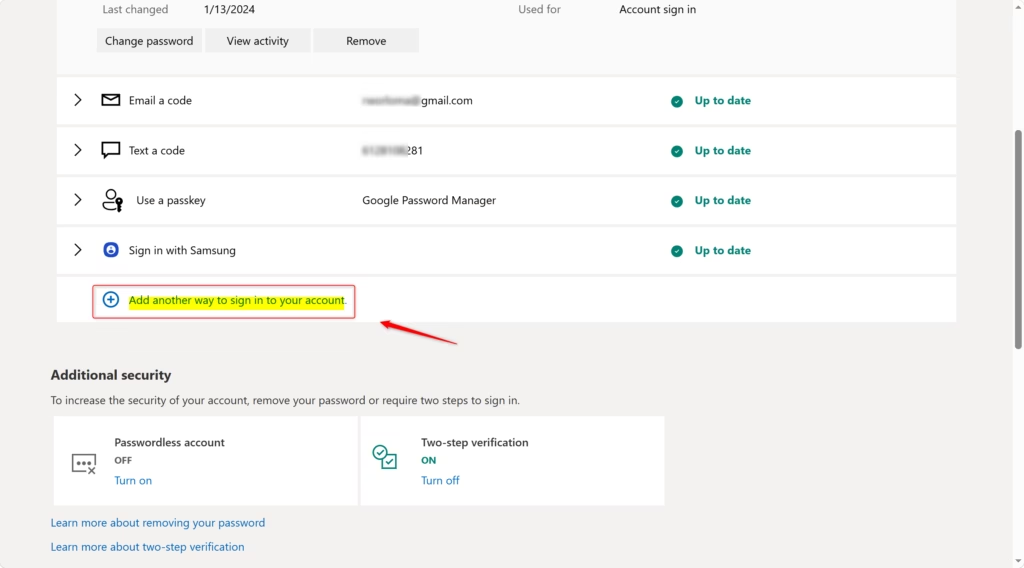
account.microsoft.com/security. Sign in with your Microsoft account details. - Open your sign-in options. Look for Manage how I sign in or Security basics and click it. You will see every way you can currently prove it's you when you log in.
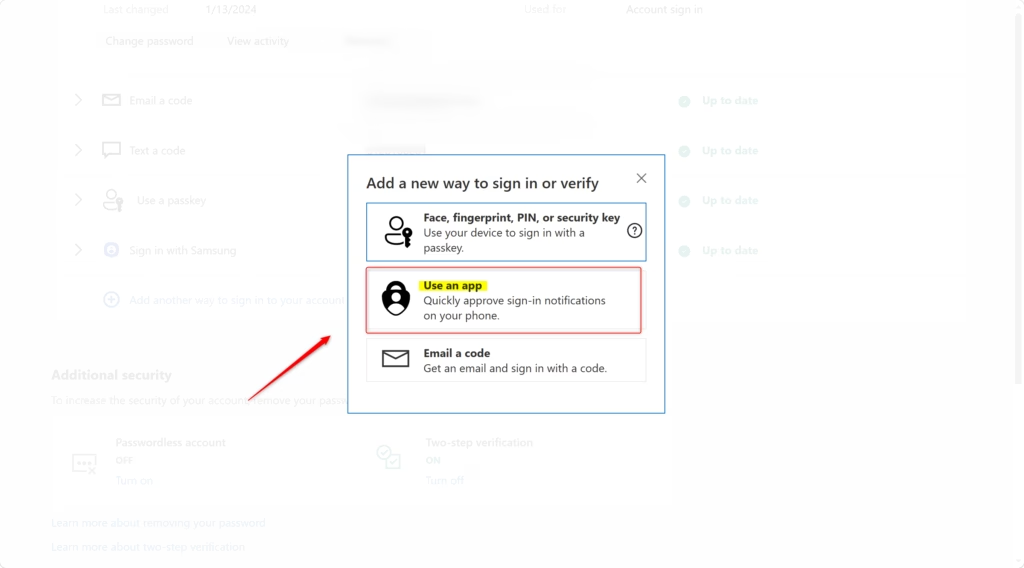
- Add a new method. Click Add a new way to sign in or verify, then choose Use an app.
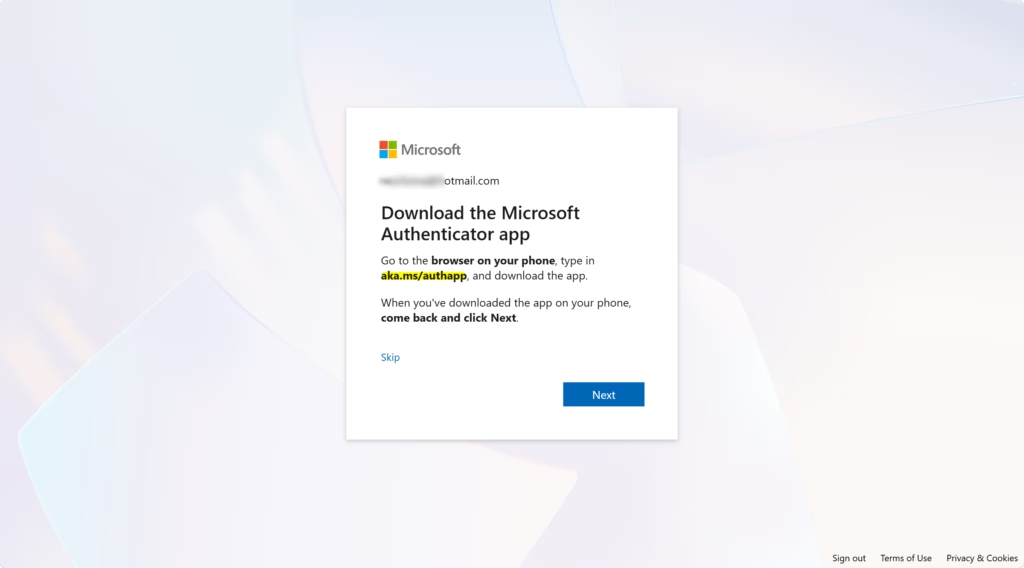
The page may then tell you to install the app first. If Authenticator is not on your phone, a Get it now prompt appears. Install the app as described above before you go on. If you already have it, choose the option for an app you have already installed. You may also see Set up a different Authenticator app, which is the path for a non-Microsoft app. Don't pick that one if you are using Microsoft Authenticator.
- Scan the QR code. A QR code appears on your computer screen. On your phone, open Microsoft Authenticator and tap the plus icon (+). Select Personal account, then choose Scan a QR code. Point the camera at the screen.
- Confirm on your computer. Once the phone scans the code, the app adds your account. Your computer should show that setup is complete. Your personal Microsoft account is now linked to Authenticator.
If the phone won't scan the code, check that camera permission is on, hold the phone steady, and raise the screen brightness. The QR code works like a password during setup, so don't share a screenshot of it. If it times out, refresh the page to get a new one.
To undo this later, go back to the same security page and remove the app from your sign-in methods. Then delete the account from the Authenticator app.
Option 2Use Authenticator for Two-Step Verification
Two-step verification asks for an extra approval on your phone whenever you log in. Even if someone steals your password, they can't get into the account without your phone. Turn it on from your online security page. It works best if Authenticator is already set up as described above.
- Go to your security settings. Open
account.microsoft.com/securityin your browser and sign in. - Open your sign-in options. Click Manage how I sign in.
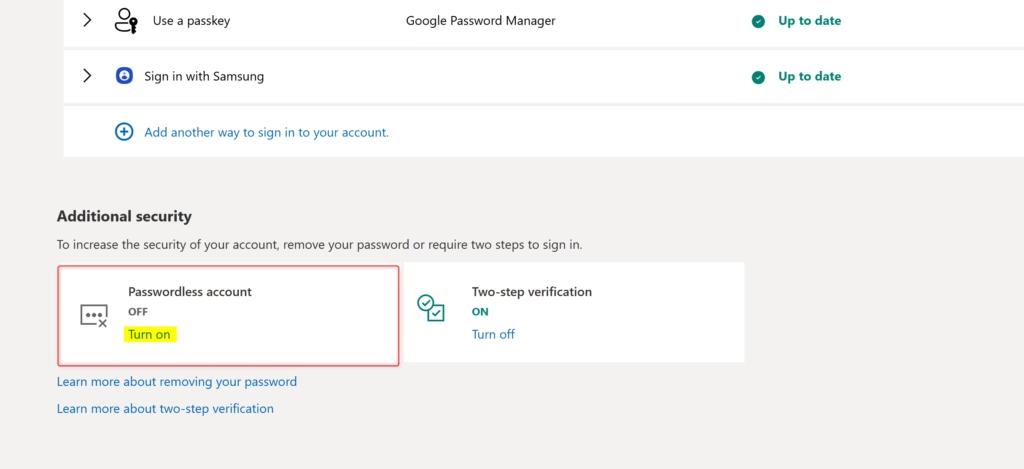
- Find the two-step section. Scroll down to Two-step verification and click Turn on or Set up, whichever your page shows.
Microsoft usually recognizes the existing app and lets you use it without repeating the whole setup.
- Follow the on-screen instructions. Microsoft guides you through the rest. This will most likely mean scanning a QR code on your computer with the Authenticator app. In the app, tap +, select Personal account, then tap Scan a QR code.
As before, treat the QR code like a password. Anyone who scans it before you could link their own device to your account.
- Approve the prompt. After scanning, a notification arrives on your phone from Authenticator. Tap Approve to confirm. Some sign-in prompts also ask you to type a number shown on the computer screen. Enter it to finish.
If you turn two-step verification on and later lose your phone, you could be locked out. Keep a second method on the account, such as a phone number or alternate email, so you can still recover access.
Option 3Go Passwordless (The Future is Here!)
Passwordless sign-in lets you log in without typing a password. You approve a prompt on your phone instead. It is quicker, and it removes the risk of a stolen or reused password. Authenticator must already be linked to the account, so complete the first section before you try this.
- Open your security settings. Go to
account.microsoft.com/securityand sign in. - Open your sign-in options. Select Manage how I sign in.
- Turn on passwordless. Scroll down to the Passwordless account section and choose Turn on or Set up.
- Follow the prompts. Microsoft walks you through the process. It usually asks you to verify your identity one last time. Often this means approving a notification sent to your Authenticator app.
Once it's on, your next sign-in should send a prompt to your phone instead of asking for a password. If you change your mind, return to the same section and turn passwordless off. Your password then works again.
During some prompts you may be asked to register your device manually inside the app. If so, follow the prompts in the app rather than skipping the step.
Summary
This reference covers adding both personal and work or school accounts to Microsoft Authenticator. You can do it by scanning a QR code or, where the QR code won't scan, by entering the details manually. For a work or school account, your organization may control which options are available, so contact your IT administrator if a step doesn't match what you see.
Was this guide helpful?

About the Author
Richard
Tech Writer, IT Professional
Richard is a writer at Geek Rewind who turns complex IT tasks into clear, step-by-step guides. He draws on years of hands-on experience in system administration and enterprise IT operations, focusing on Windows, Linux and WordPress: the problems people actually run into, and the fixes that work. His server and WordPress guides come from systems he runs himself. Richard builds and maintains the platform behind Geek Rewind, from its Ubuntu servers and Nginx configuration to its custom WordPress plugins. Many new tutorials start with readers' questions, and he's always glad to answer them in the comments.
No comments yet — be the first to share your thoughts!