How to Enable Automatic Registry Backup in Windows 11

Automatic registry backup in Windows 11 saves regular copies of your system settings. These copies help you recover from crashes and bad updates. The Windows Registry is a large database that stores core settings for Windows and your apps. Windows 11 doesn’t make automatic backups of it by default.
The backup itself runs as a scheduled task, which is the kind of job Task Scheduler (the Windows tool that runs tasks automatically) handles. All you have to do is switch the feature on with one registry value. The whole job takes about 5 minutes, needs no extra software, and works on both Windows 11 Home and Pro.
Open Registry Editor, navigate to 🗝️HKEY_LOCAL_MACHINE\
What Changed in 🪟 Windows 11?
Windows 11 doesn’t, so that folder is often empty or holds only files that show 0 KB. If you open the backup folder and find nothing useful, this is why.
Microsoft made this change to reduce the size of Windows on your drive. The saved registry copies took up space, and most people never used them. Turning the feature back on is optional, but it costs very little and can save you a lot of work.
Why Should You Turn It On?
Automatic registry backup gives you a safety net when system tweaks go wrong. In the background, Windows saves a copy of the registry (the central database that stores settings for apps, hardware, and user accounts). If a bad driver, update, or tweak damages the registry, you have a recent copy to restore. That matters most when the computer no longer boots properly, because you can copy the saved files back from the recovery environment.
A restore point is a snapshot of your system files and settings at a specific moment. If something breaks, you can roll back to that state. Create one before you make any system change, including the registry edit in this tutorial. Registry backups add a second layer of protection. They don’t replace restore points.
If you have never used restore points, check that System Protection is turned on for your system drive. It is sometimes off by default.
How to Enable Automatic Registry Backup
Step 1Open the Registry Editor
First, open the Registry Editor with administrator rights. You need to be signed in with an administrator account, or know an administrator's password. Work through these steps in order:
- Press Windows key + R on your keyboard. The Run box opens in the bottom-left corner of the screen.
- Type
regeditand press Enter. - If asked by User Account Control, click Yes. The Registry Editor window then opens, with a tree of folders (called keys) on the left. %%SC0%%
Step 2Go to the Correct Folder Path
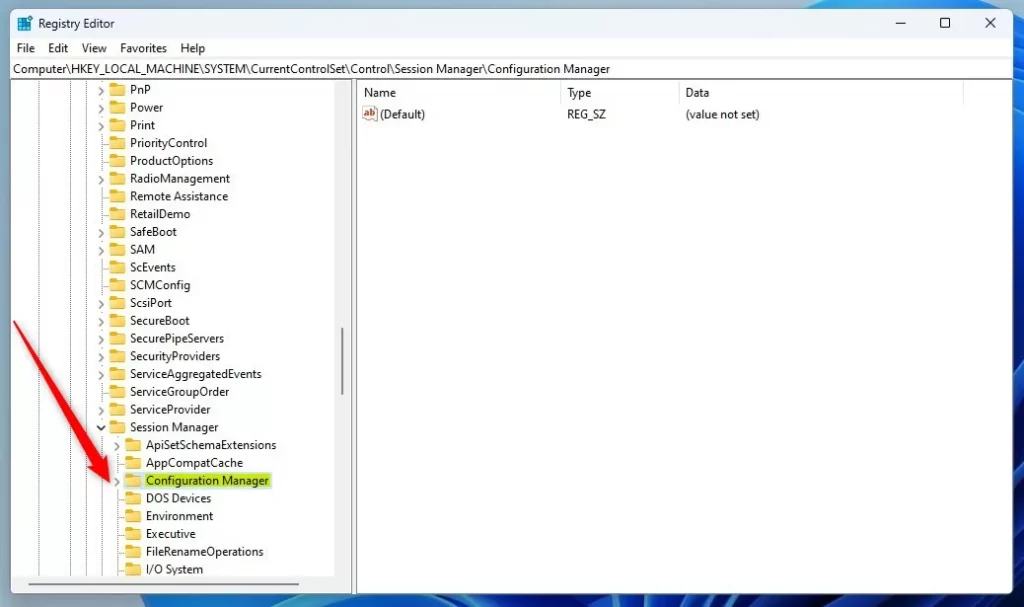
Next, go to the key that holds the backup setting. The quickest way is to click the address bar at the top of the Registry Editor window, paste in the location below, and press Enter. You can also expand the folders on the left one at a time. Navigate to this location:
HKEY_LOCAL_MACHINE\SYSTEM\CurrentControlSet\Control\Session Manager\Configuration ManagerYou should see a Configuration Manager folder under Session Manager. On most PCs it already exists. If you don't see it, create it with these steps:
- Right-click on Session Manager in the left pane.
- Choose New Key A new folder appears under Session Manager with its name highlighted for editing.
- Name the new key Configuration Manager, then press Enter. Spell it exactly as shown, because Windows only reads the setting from a key with this name.
Step 3Create a New Setting
Now add the value that switches the feature on:
- Click the Configuration Manager folder in the left pane, so it is selected.
- Right-click an empty area in the right pane and select New DWORD (32-bit) Value. This applies even on 64-bit Windows 11. A new entry appears in the right pane with its name highlighted.
- Name it EnablePeriodicBackup and press Enter. The new entry shows a value of 0 for now.
Step 4Set the Value
The new value is set to 0, which means off. Change it to turn the feature on:
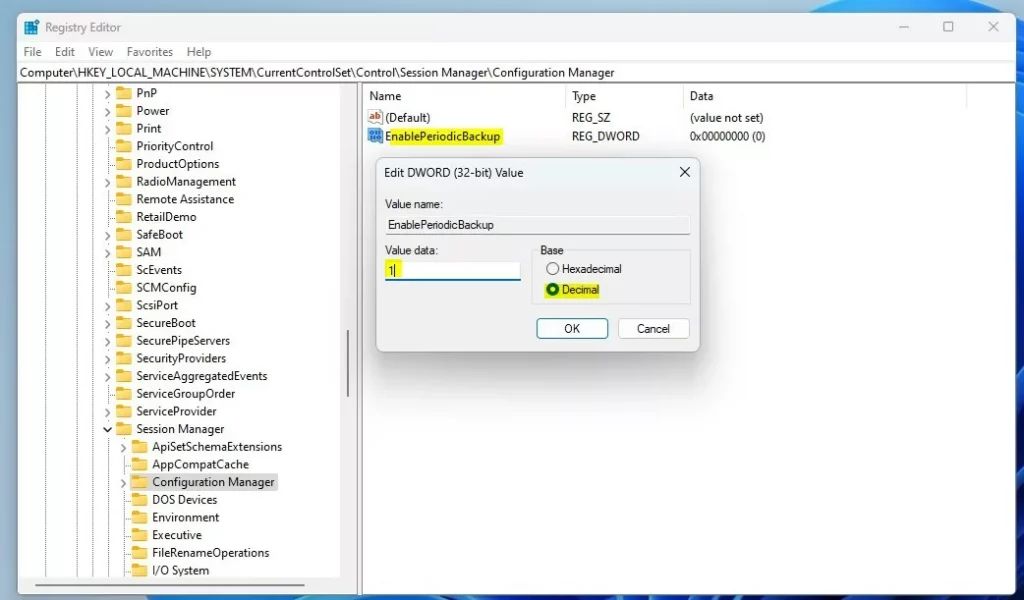
- Double-click EnablePeriodicBackup. The Edit DWORD (32-bit) Value box opens.
- Make sure Base is set to Decimal.
- In Value data, type
1to enable automatic backups. - Click OK. The right pane should now show the new value with your data in it.
To undo the change later, return to this value and set Value data to 0, or delete the value. Automatic backups then stop again.
Step 5Restart Your Computer
Close the Registry Editor and restart your PC. A restart is needed for the change to take effect. After restarting, Windows will start making automatic registry backups again. The backup runs as a scheduled task, usually when the PC is idle, so the files may not appear the instant you sign in. Give it a day or so, and leave the PC on for a while now and then.
What Does This Look Like?
Here's a screenshot showing the Configuration Manager folder inside the Registry Editor. Use it to check that your key sits under Session Manager:
And here is how the new EnablePeriodicBackup value should look. The name must match exactly, and the data should show 1 in decimal:
Once enabled and after a restart, your backup files will be saved again here. Open this folder in File Explorer to check. The files should now have real sizes instead of 0 KB:
C:\Windows\System32\config\RegBack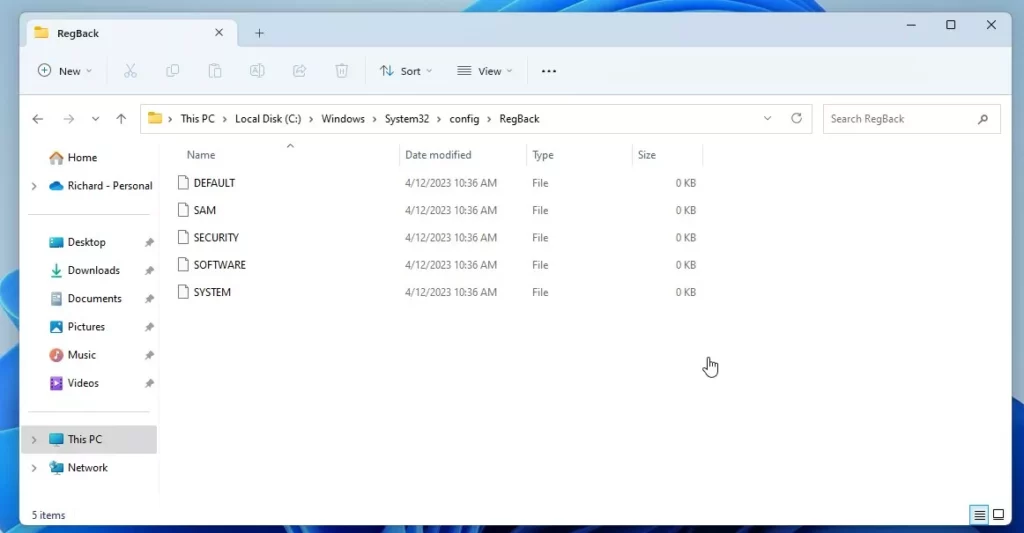
Summary
- Windows 11 does not automatically save registry backups by default.
- You can turn this feature back on by adding a setting in the Registry Editor. It needs administrator rights and a restart, and you can undo it by setting the value to 0 or deleting it.
- Automatic backups help protect your system if the registry gets corrupted.
- Always keep system restore points as your main backup method, and create one before you edit the registry.
Want to Learn More?
Check out the official Microsoft explanation here: Microsoft Support: Registry not backed up in RegBack folder
Have a question about this guide?
Answered by AI from this guide. Good questions may be added to this page — please don't include personal details.
Did this guide fix your problem?

About the Author
Richard
Tech Writer, IT Professional
Richard is a writer at Geek Rewind who turns complex IT tasks into clear, step-by-step guides. He draws on years of hands-on experience in system administration and enterprise IT operations, focusing on Windows, Linux and WordPress: the problems people actually run into, and the fixes that work. His server and WordPress guides come from systems he runs himself. Richard builds and maintains the platform behind Geek Rewind, from its Ubuntu servers and Nginx configuration to its custom WordPress plugins. Many new tutorials start with readers' questions, and he's always glad to answer them in the comments.
No comments yet — be the first to share your thoughts!