How to Remove an Account from Microsoft Authenticator

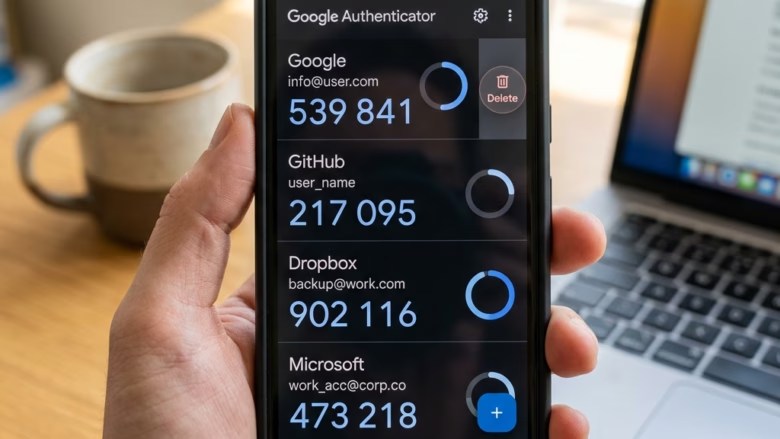
Removing an account from Microsoft Authenticator (a free security app that sends login codes and approval prompts to your phone) takes less than a minute. Deleting one login leaves your other saved accounts untouched.
The short version: open the app on your phone, tap the account you want gone, and confirm the removal. Before you start, make sure you have another way to sign in to that account, such as a password plus a text message, a security key, or a different authenticator app. The removal can’t be undone, and the steps below explain why that matters.
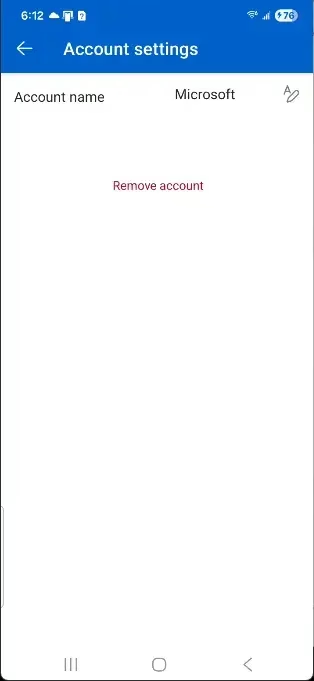
Open Microsoft Authenticator, tap the account you want to remove, tap the settings icon, select Remove account, and confirm. The account disappears from the app immediately, and you’ll need an alternative sign-in method for that service.
Step 1Open the Authenticator App
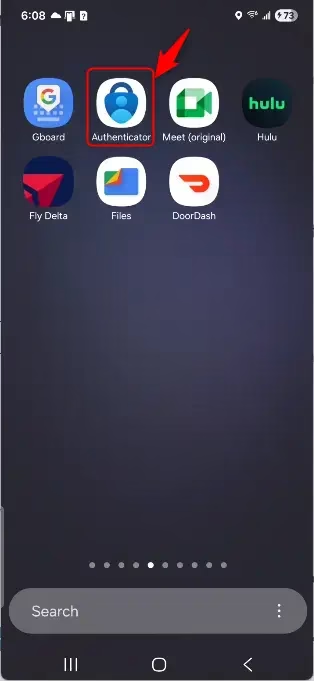
Start by opening the app. The steps are the same on iPhone, iPad and Android, apart from small differences in icon placement.
- Find the Authenticator app on your phone or tablet. It is the one published by Microsoft Corporation.
- Tap the icon to open it.
- If the app asks for your fingerprint, face scan, or PIN, unlock it. Newer versions of the app may require this before showing any accounts.
You should now see the main screen, which holds the codes and approval prompts for your linked accounts.
Step 2Find the Account to Remove
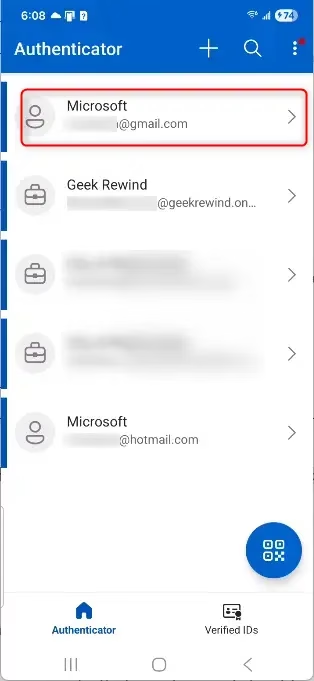
Every linked account appears in a list on the main screen. Work or school accounts and personal Microsoft accounts are listed alongside third-party accounts, such as Google, Amazon, or GitHub, that you added by scanning a QR code.
- Scroll through the list and find the account you want to remove.
- Check the email address or username under the account name. Several entries can share the same service name.
Removing the wrong account means losing that account’s approvals and codes, and you will have to set it up again.
Step 3Access the Account's Settings
Each entry in the list opens its own details page. That page holds the settings for how the account connects to the app.
- Tap the account you want to remove.
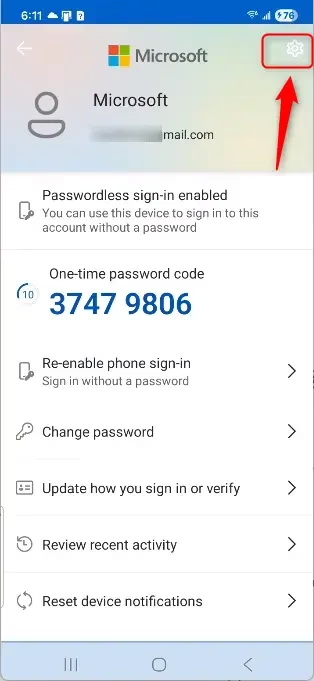
- Wait for the account details page to open. You should see the account name and email address at the top, plus a settings icon (⚙️), usually in the upper-right corner.
If you tapped the wrong entry, use the back arrow and pick again. Nothing changes until you confirm a removal.
Step 4Find the "Remove Account" Option
The removal option sits in the account's settings. In some versions of the app it is visible straight away. In others you have to open the settings first.
- Tap the settings icon (⚙️) on the account details page if you can see it.
- Look for Remove account or Delete account. The exact wording depends on your app version and account type.
- Tap that option.
A confirmation prompt should appear. If you can't find the option, update Microsoft Authenticator from the App Store or Google Play and try again. Some work or school accounts are managed by your organization, so the option may be limited. In that case, ask your IT administrator.
Step 5Confirm the Removal
Once you confirm, you cannot undo the action. You will have to use a different verification method to log in to that service from now on.
- Read the prompt to make sure it names the right account.
- Tap Remove or OK to finish.
The account should disappear from the main list straight away.
Heads up: The account is removed from the Authenticator app immediately, and sign-in approvals for that service stop working. You will need an alternative verification method. You can link the account again later by setting it up as a new sign-in method in that service's security settings.
Removing the account from the app does not delete the account itself. For a personal Microsoft account or a third-party service, the old Authenticator entry may still be listed in that service's security settings. It is a good idea to remove or replace it there as well, so the service doesn't keep asking for a method you no longer have.
What Happens When You Remove an Account?
When you remove an account from Microsoft Authenticator, you stop getting push notifications and approval prompts for that login. The app also stops generating time-based one-time password (TOTP) codes for the service. Set up a new sign-in method, such as a text message or a different security app, before you delete the account. Otherwise you risk being locked out.
- You will no longer receive sign-in approval requests for that account in the app.
- The account's time-based one-time password (TOTP) codes will stop generating.
- You will need to use another method to sign in to that account, like a password, a security key, or a different authenticator app.
- If you need to use Microsoft Authenticator for that account again, you'll have to add it back manually.
If you do get locked out, go to the service's account recovery page, or contact your IT administrator if it is a work or school account. Recovery can take anywhere from minutes to a few days, depending on the service.
Why Remove an Account?
There are several common reasons to remove an account. You might have changed jobs, stopped using a linked service, or want to clear old logins off your phone. Deleting old work or school accounts keeps the app organized and avoids confusion when you sign in elsewhere. It also stops old security prompts from cluttering your phone after you lose access to those services.
- Changed Jobs: If you leave a company, you'll lose access to their services and should remove their associated accounts.
- Closed Service: If a service you used is no longer available or you no longer subscribe to it.
- Security Cleanup: If you suspect an account might be compromised or you simply want to reduce your digital footprint.
- App Organization: To keep the app tidy and only show accounts you actively use.
- Switching Devices: When moving to a new phone, you might want to remove accounts from the old device before setting up the new one. Make sure each account works on the new phone first, so you never have a gap where you can't sign in.
Summary
Removing unused accounts from Microsoft Authenticator keeps the app organized and your sign-in setup easier to manage. Before you delete anything, confirm you have another working sign-in method, and check the service's security settings afterward so nothing stale is left behind.
Have a question about this guide?
Answered by AI from this guide. Good questions may be added to this page — please don't include personal details.
Did this guide fix your problem?

About the Author
Richard
Tech Writer, IT Professional
Richard is a writer at Geek Rewind who turns complex IT tasks into clear, step-by-step guides. He draws on years of hands-on experience in system administration and enterprise IT operations, focusing on Windows, Linux and WordPress: the problems people actually run into, and the fixes that work. His server and WordPress guides come from systems he runs himself. Richard builds and maintains the platform behind Geek Rewind, from its Ubuntu servers and Nginx configuration to its custom WordPress plugins. Many new tutorials start with readers' questions, and he's always glad to answer them in the comments.
No comments yet — be the first to share your thoughts!