How to Sign Out of Your Microsoft Account Everywhere


Signing out of your Microsoft account everywhere ends your active login sessions on your Windows PCs, in your web browsers and in the apps that use your account. Each device then has to ask for your password again before anyone can open your apps or files. It is not instant, though. Microsoft says it can take up to 24 hours to finish, and Xbox consoles are an exception covered below.
Use it when you lose a laptop, sell an old computer, or see sign-in activity you don’t recognize in your Microsoft account. It cuts off access on devices you can no longer reach, so nobody else can keep using your account.
Open your Microsoft account security page in a web browser, sign in, find Advanced security options or Device activity, then click Sign out everywhere or Sign out on all devices. Microsoft takes up to 24 hours to end all sessions across your devices and browsers.
How to Sign Out Everywhere: Step by Step
You need two things before you start:
- A device with a web browser and an internet connection. A phone or a PC you trust is fine.
- Your Microsoft account email and password. Have your phone or authenticator app nearby too, in case you get a verification prompt because you use two-step verification.
Do this from a device you trust. If you suspect someone else is using your account, don’t use the lost or shared computer for the steps below.
Step 1Go to Your Microsoft Account Security Page
The sign-out option lives on the Microsoft account security page. You have to sign in there first, because that is where your security settings and device activity are managed.
- Open your web browser.
- Go to the Microsoft account security page. If you don’t have the address handy, search for “Microsoft account security”, or follow a Microsoft support page that links to it. The Microsoft account dashboard is a good starting point.
- Enter your Microsoft account email and password when asked. Use the account you actually want to secure. If you have more than one account, such as a personal one and a work or school one, check the address shown on screen.
- Approve any verification prompt. Once you are in, you should see your account dashboard with the security options.
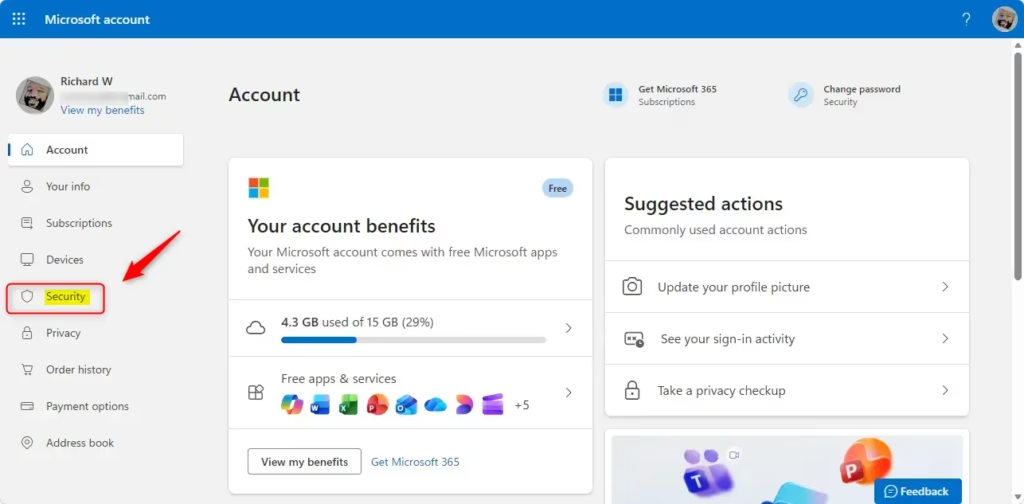
Step 2Find the “Sign out everywhere” Option
The sign-out option sits inside the security settings. Microsoft changes the layout and wording of these pages from time to time, so the labels below may differ slightly on your screen.
- After signing in, open the section called Advanced security options, Security settings or Device activity, depending on what your page shows. You may need to verify your identity again.
- Scroll through the options. Look for a link or button labeled Sign out everywhere or Sign out on all devices. Microsoft often puts it near the bottom of the page.
If you can't find it, look at the sign-in activity or devices pages first. Those can also show you which devices are signed in and whether anything looks wrong.
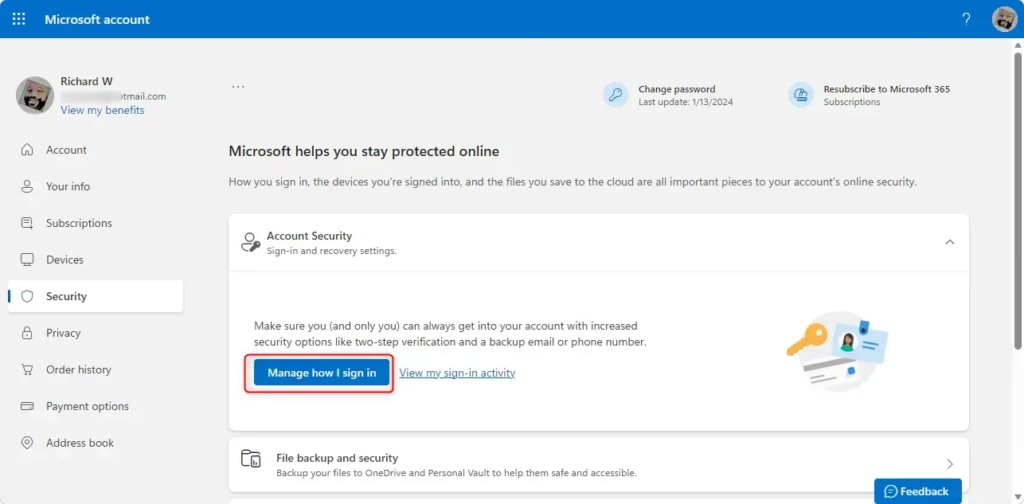
Step 3Start the Sign-Out Process
Read the warning on screen before you confirm, because this affects every device you use with the account.
- Click the Sign out everywhere link or button.
- Read the confirmation message. It explains what signing out everywhere means and warns that it can take a while to complete.
- Confirm that you want to continue. This is usually another button, such as Sign out or Confirm.
You should see a message saying the request was accepted. You can undo nothing here, but you can simply sign back in on any device you still want to use.
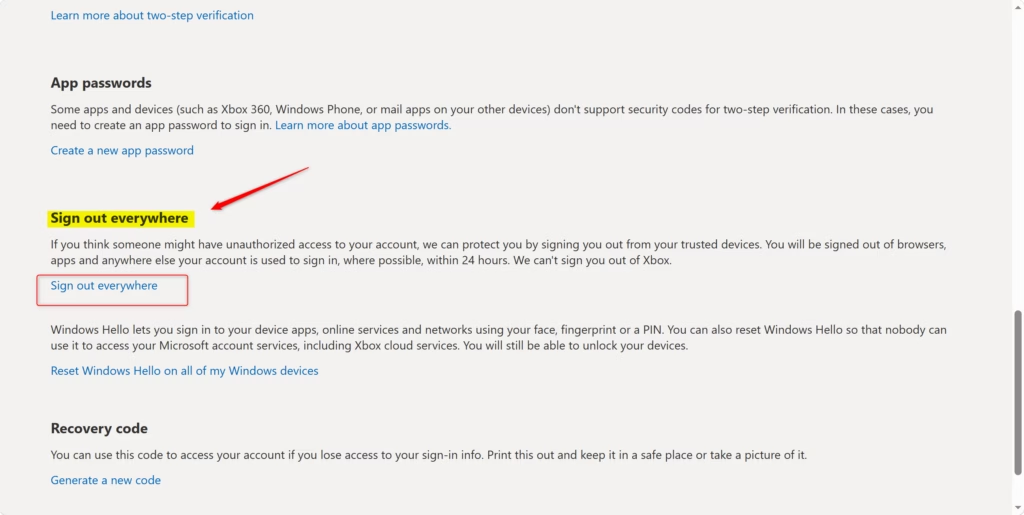
Step 4Understand What Happens Next
The sign-out is not instant. Microsoft's servers need time to end sessions across every browser, app and device, so some devices may stay signed in for a while after you confirm.
- The 24-Hour Window: Microsoft says it can take up to 24 hours for you to be signed out of all browsers, apps and other services where your account is used. The system has to update the status of every active session. Don't assume a device is locked out after a few minutes.
- What Gets Signed Out: This action usually signs you out of web browsers (such as Chrome, Edge and Firefox) on computers and phones. It also signs you out of apps that use your Microsoft account to log in, such as Microsoft 365 apps (Word, Excel, Outlook) and OneDrive. Each of these will ask for your password the next time you open it.
- What Might Not Get Signed Out (Immediately): An Xbox console is the main exception. Signing out of an Xbox usually has to be done directly on the console, because the "Sign out everywhere" feature might not cover it. If the console is lost or sold, change your password as well (see below) and remove the console from your account's device list if you can.
Otherwise, anyone who knows your old password can simply sign in again once the sessions end. Pick a new password you haven't used elsewhere. If you haven't already, turn on two-step verification, so a stolen password alone is not enough to get in.
Summary
To secure your account properly, do three things: open the security dashboard, trigger the global sign-out, and change your password. Then check the next day that every device really asks you to sign in again, and sign out of any Xbox console directly on the console.
Was this guide helpful?

About the Author
Richard
Tech Writer, IT Professional
Richard is a writer at Geek Rewind who turns complex IT tasks into clear, step-by-step guides. He draws on years of hands-on experience in system administration and enterprise IT operations, focusing on Windows, Linux and WordPress: the problems people actually run into, and the fixes that work. His server and WordPress guides come from systems he runs himself. Richard builds and maintains the platform behind Geek Rewind, from its Ubuntu servers and Nginx configuration to its custom WordPress plugins. Many new tutorials start with readers' questions, and he's always glad to answer them in the comments.



No comments yet — be the first to share your thoughts!