How to Lock Your Windows 11 Device Remotely

Remote lock in Windows 11 lets you lock a lost or stolen computer through your Microsoft account. It keeps other people away from your personal files while you decide what to do next. The feature is part of Find My Device, which shows your PC’s last known location on a map and lets you lock the screen from another device.
Find My Device is built into every edition of Windows 11, including Home and Pro. You configure it in the main Settings app. It does not always arrive switched on, so check it now. Remote lock only works if the setting was already on when the device went missing, and you cannot turn it on after the fact.
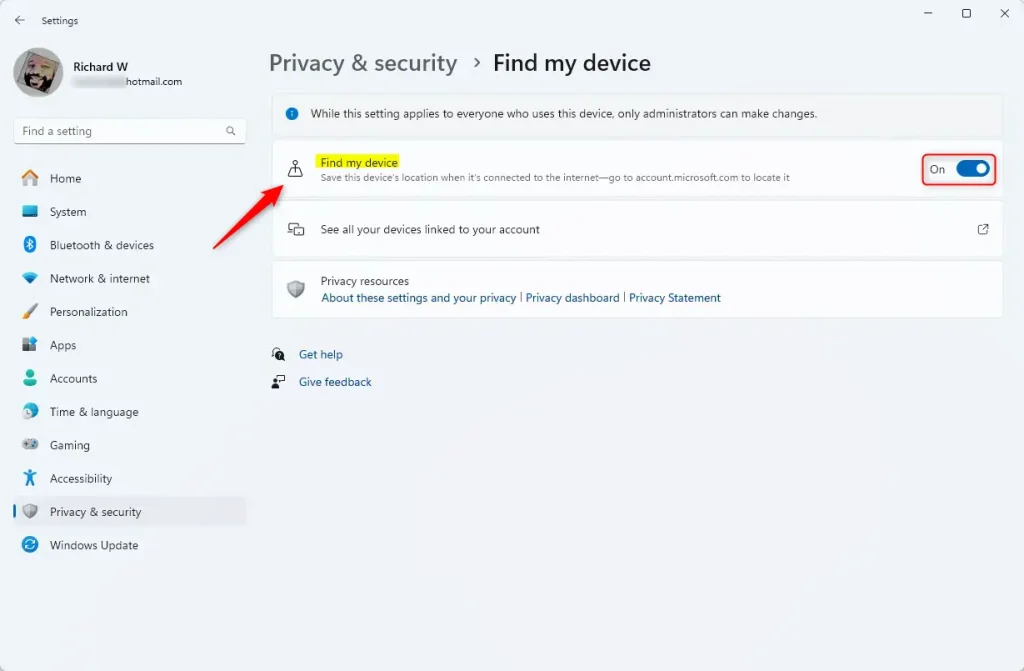
Open Settings by pressing Win+I, click Privacy & security, scroll to Security and click Find my device, then turn the switch on. Once enabled, sign in to your Microsoft account from another device, open the Devices page, select your PC, and use the lock option.
Why This Matters
Turn on Find My Device now, while the PC is still in your hands. Once it is on, you can locate and lock the computer from any browser, even if you no longer have the PC itself.
A few things must be true for it to work later:
- You sign in to Windows with a Microsoft account. Local accounts (accounts that exist only on the PC) cannot use Find My Device.
- The PC is connected to the internet when you send the lock command.
- Location services are turned on for the device.
- You are signed in as an administrator when you change the setting.
How to Enable Find My Device
These steps turn on Find My Device first, then show how to lock your Windows 11 PC remotely from another device. Steps 1 to 4 are done on the PC now. Steps 5 to 9 are done later, if the PC goes missing. The Windows 10 path is included in case you manage an older machine as well.
- Open Settings . Press
Windows key + Ion your keyboard. Alternatively, click the Start button , then click the gear icon (Settings). The Settings window opens with a list of categories on the left. - Select the privacy category. On Windows 11, click
Privacy & securityin the left menu. On Windows 10, clickUpdate & Securityinstead. - Open the Find my device page. On Windows 11, scroll down to the “Security” section and click
Find my device. On Windows 10, clickFind my devicein the left menu of the “Update & Security” screen. - Turn the switch to On. If it says “Off,” click it. The label changes to “On” right away, and no restart is needed.
- Sign in to your Microsoft account. Do this in a browser on another device, using the same account that is signed in to the lost PC.
- Open the Devices page. It lists every device linked to your Microsoft account.
- Select the lost PC. Pick it from the list of devices.
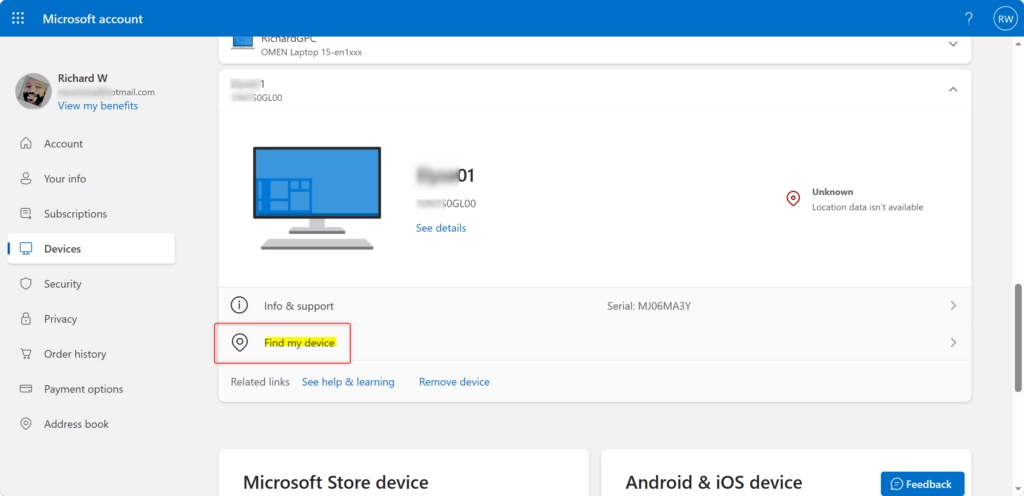
- Choose Find my device. A map shows the PC’s last known location.
- Use the lock option. Locking signs out the current users. After that, only an administrator account can unlock the device.
If you cannot find the option in step 3, or the switch in step 4 is greyed out, check these common causes:
- You are signed in with a local account. Switch to a Microsoft account first.
- You are not signed in as an administrator. Standard users cannot change this setting.
- The PC is managed by an employer or school. The organization may hide or control the option, so ask your IT department.
To undo the change, return to the same screen and switch Find my device back to "Off." The PC will then stop reporting its location, and you will not be able to lock it remotely.
Important Things to Know
You must sign in with a Microsoft account to lock Windows 11 remotely because local user profiles do not link to the online management tools. If you use a local account, open Settings, go to Accounts, and choose Your info to switch to a Microsoft account before you try to secure your computer from the web.- Microsoft Account Required: You must be signed in to your Windows device with a Microsoft account. This links your device to your account so you can manage it remotely. If you use a local account, you need to switch to a Microsoft account first. You can do this in
Settings > Accounts > Your info. - Administrator Privileges Required: You also need to be an administrator on the device. Most personal computers are set up this way. You can check by going to
Settings > Accounts > Your info. Your account type will be listed there. - Location Services: For "Find my device" to show your device's location, location services must be turned on. Even if other users turn off location for their apps, "Find my device" can still work if the main setting is on. You can manage this in
Settings > Privacy & security > Location(Windows 11) orSettings > Privacy & security > Location(Windows 10). - Not for Work/School Accounts: This feature is for personal Microsoft accounts. It usually doesn't work if you're signed in with a work or school account managed by an organization.
- Battery Power & Internet: Your device needs to be on, have battery power, and be connected to the internet (Wi-Fi or Ethernet) to send its location. If it's off or has no internet, you won't see its current location. But, you might still be able to lock it if it comes back online.
Step 2Find Your Missing Device
When a device goes missing, tracing its last known position relies entirely on your Microsoft account.
Accessing the Device Portal
Open any web browser on your phone or another computer, go to https://account.microsoft.com/devices, and sign in with the exact same email and password you use on your missing computer.
- Open a Web Browser: Use any web browser on a device that has internet.
- Go to the Devices Page: Type this address into your browser's address bar:
https://account.microsoft.com/devices - Sign In: Log in with the exact same Microsoft account you use on the lost Windows device. This is very important. If you have more than one Microsoft account, use the right one.
- Select the "Find my device" Tab: Once logged in, find the tab or section called
Find my deviceand click it. - Choose Your Device: You will see a list of devices linked to your Microsoft account. Select the lost Windows device from the list.
- View Location: Click the
Findbutton. Windows will try to find your device and show its last known location on a map. This location is based on the information your device last sent when it was online and had location services turned on.
What If You Can't See the Location?
You can still lock Windows 11 remotely even if you cannot see its location on the map. Find My Device sends the lock command as soon as your computer connects to the internet again, even if the device is turned off, offline, or has location tracking turned off in the settings.
- The device is turned off.
- The device is not connected to the internet.
- Location services were turned off on the device.
- The "Find my device" feature was turned off.
Executing a remote lock remains effective despite missing coordinates. Prioritizing this action blocks potential intruders immediately.
Step 3Lock Your Windows Device Remotely
Blocking unauthorized access to personal data makes locking hardware the ultimate priority during a theft. Treating this step as mandatory protects sensitive information from exposure.
How to Lock Your Device
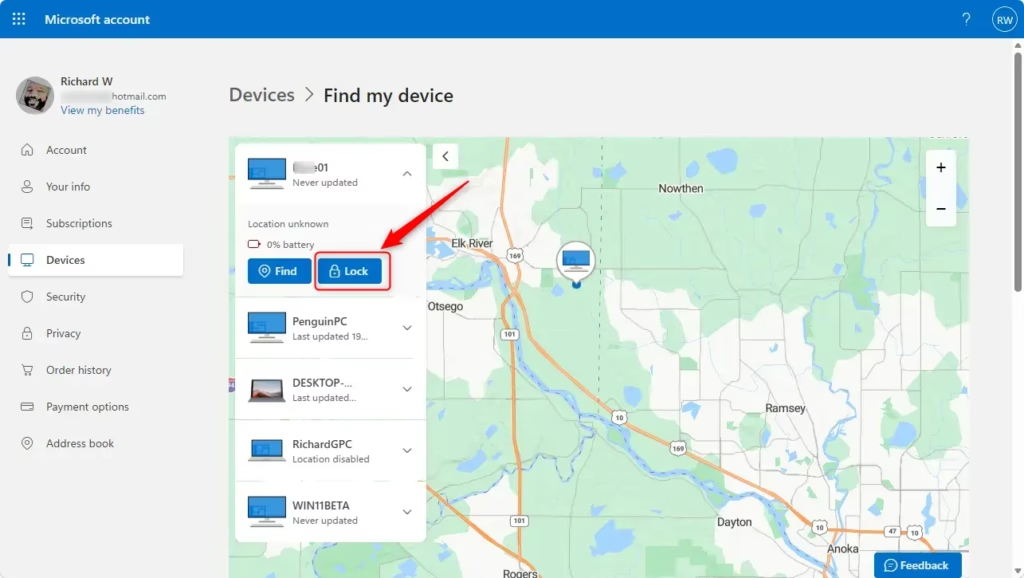
You lock Windows 11 remotely by using the online device dashboard in your web browser. Go to your Microsoft account devices page, click on your missing computer, select Find my device, and click the Lock button to sign yourself out and secure the screen immediately.
- Navigate to the Device: Follow steps 1-5 from "Step 2: Find Your Missing Device" to reach the "Find my device" section for your device on the Microsoft account website.
- Initiate Lock: You should see an option to
Lockyour device. Click this button. - Confirm and Add a Message (Optional but Recommended): After clicking "Lock," you might be asked to add a message. This message will show on the lock screen. It's a good way to give contact info if someone honest finds your device. For example, you could write: "This laptop is lost. Please call or email . Reward offered." You can also set a new password here.
- Click Next: Once you've added your message (or skipped it) and confirmed the lock, click
Nextor a similar button.
Reference:
https://support.microsoft.com/en-us/accounts-billing/security/find-and-lock-a-lost-windows-device
Summary
The "Find my device" feature allows remote PC locking via a Microsoft account, requiring prior activation in settings and valid credentials.
[Your Phone Number] [Your Email Address]Frequently asked questions
How to lock your 🪟 Windows 11 PC remotely?
Sign in to account.microsoft.com/devices with the Microsoft account linked to your PC. Select the device, then choose Lock. You can add a message and phone number so whoever finds the PC can contact you. The PC must be on, connected to the internet, and have Find My Device turned on before it goes missing.
Which of the following features in 🪟 Windows 11 home is specifically designed to track a device if it gets misplaced or stolen?
Find My Device is the Windows 11 feature built into Home and Pro editions that shows a device's last known location on a map. It can also lock the screen remotely. To use it, turn on Find My Device in Settings and sign in with a Microsoft account before the PC goes missing.
How to lock device? PC Windows?
Open account.microsoft.com/devices in any browser and sign in with your Microsoft account. Select your PC, then choose Lock. The PC must be on and connected to the internet, and Find My Device must already be turned on. Local accounts cannot use this feature.
How to loc kstloen device microsofr windwos 11?
Sign in to account.microsoft.com/devices with the Microsoft account on the stolen PC, select the device, and choose Lock. This works only if Find My Device was already turned on and the PC is connected to the internet. Local accounts cannot use it, and you cannot turn it on after the PC is gone.
Will Microsoft lock your computer remotely?
Microsoft will not lock your PC on its own. Only you can lock it, by signing in to account.microsoft.com/devices and choosing Lock for your device. This requires Find My Device to have been turned on before the PC went missing, and the PC must be connected to the internet when you send the lock.
How to lock Windows on remote?
Sign in to account.microsoft.com/devices from another computer or phone, select your Windows PC, and choose Lock. The PC needs an internet connection and must already have Find My Device turned on in Settings under Privacy & security. Without that setting on beforehand, remote lock will not work.
Still have a question?
Answered by AI from this guide. Good questions may be added to this page — please don't include personal details.
Did this guide fix your problem?

About the Author
Richard
Tech Writer, IT Professional
Richard is a writer at Geek Rewind who turns complex IT tasks into clear, step-by-step guides. He draws on years of hands-on experience in system administration and enterprise IT operations, focusing on Windows, Linux and WordPress: the problems people actually run into, and the fixes that work. His server and WordPress guides come from systems he runs himself. Richard builds and maintains the platform behind Geek Rewind, from its Ubuntu servers and Nginx configuration to its custom WordPress plugins. Many new tutorials start with readers' questions, and he's always glad to answer them in the comments.
No comments yet — be the first to share your thoughts!