How to Enable Automatic Device Locking Using Dynamic Lock In Windows 11

Dynamic Lock is a Windows 11 feature that uses Bluetooth to lock your PC automatically when you walk away. When your paired phone moves out of Bluetooth range, Windows starts a 30-second countdown and then locks your desktop to stop unauthorized access.
Before you start, check these requirements:
- Your PC needs a Bluetooth radio. Without one, the Dynamic lock settings will not appear.
- Your phone must support the low-energy Bluetooth profile the feature relies on. If it doesn’t, the settings will not appear either.
- Your phone must be paired with the PC, and the Bluetooth connection must be active right now. A phone that was paired once but is not currently connected will not work.
Dynamic Lock only locks. It does not unlock the PC when you come back. You still sign in with your PIN, password or Windows Hello.
To enable automatic device locking in Windows 11, pair your phone under Settings Bluetooth & devices, then open Settings Accounts Sign-in options, scroll to Dynamic lock and tick “Allow Windows to automatically lock your device when you’re away.” Windows then locks the PC about 30 seconds after your phone leaves Bluetooth range. No restart is needed.
Pairing Your Phone via Bluetooth
Pairing your phone is the first step, because Windows can only tell you have left if it can see your phone. Use the built-in Bluetooth settings to connect the phone before you turn on Dynamic Lock.
- Open Settings.

Windows 11 Start menu with Settings gear icon highlighted. - Click Bluetooth & devices in the left-hand menu.

Windows Settings menu highlighting the Bluetooth and devices option for printers - Turn the Bluetooth toggle switch to On if it is currently off.
- Click the Add device button near the top of the window. The Add a device window opens.
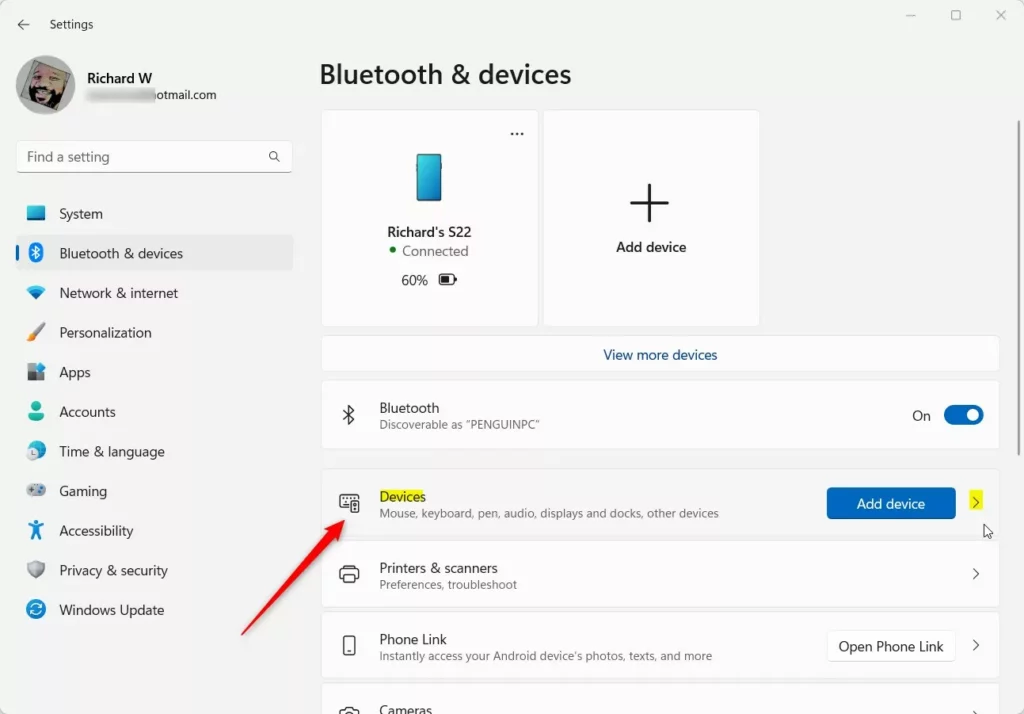
Windows 11 Bluetooth and devices settings with add device option. - Choose Bluetooth in the Add a device window. Make sure the phone is discoverable by keeping its Bluetooth settings screen open.
- Select your smartphone from the list of discovered devices. Follow any on-screen verification prompts, such as confirming a matching code on both devices, to finish pairing.
- To confirm the pairing, go to Settings Bluetooth & devices Devices Your phone should be listed there, and it should show as Connected.
If the link drops because of interference or a disabled radio, Windows cannot tell whether you are still nearby.
Enabling Dynamic Lock in Settings
Once the phone is paired and connected, you can turn on the setting that locks the PC when you walk away. It sits in your account sign-in settings.
- Open Settings.
- Click Accounts in the left sidebar.
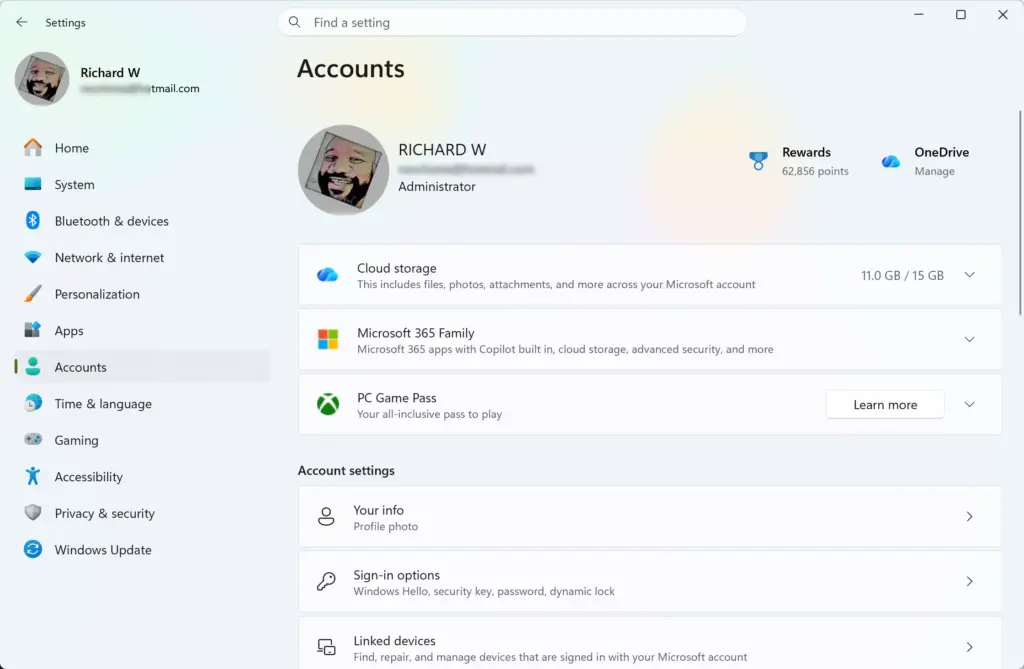
Settings › Accounts - Select Sign-in options.
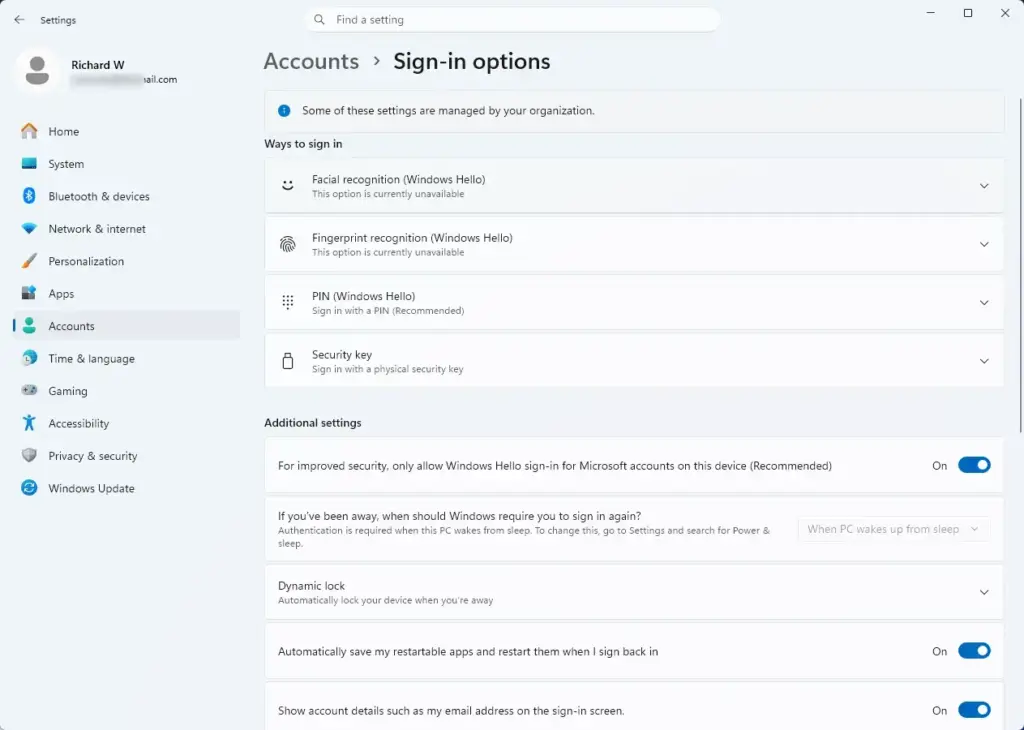
Settings › Accounts › Sign-in options - Scroll down to the section labeled Dynamic lock. Expand it if it is collapsed.
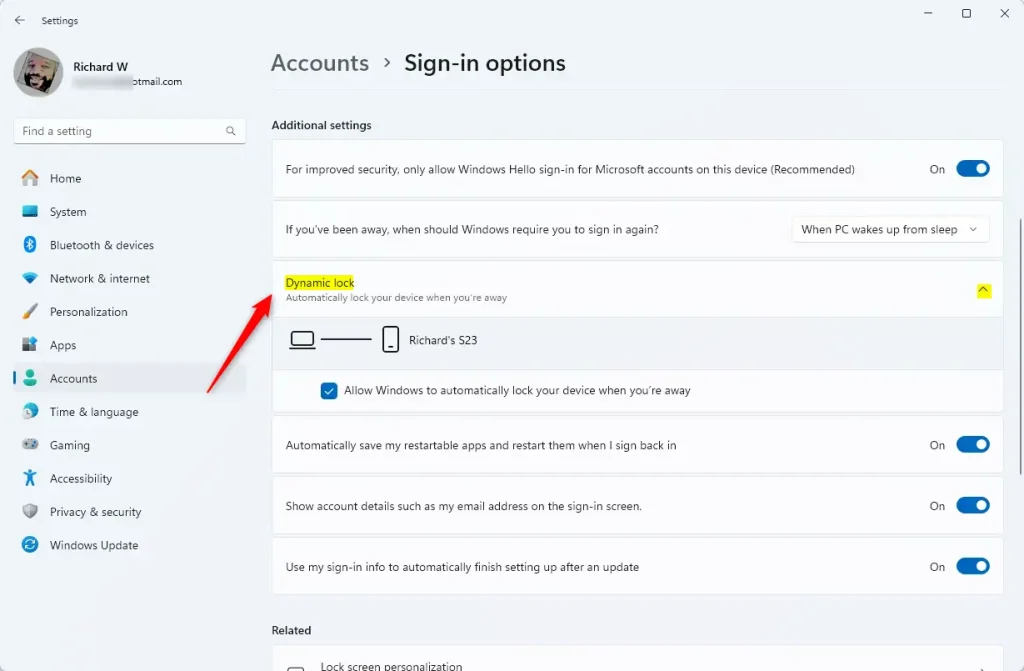
Windows 11 Dynamic Lock settings screen showing pairing options. - Select the Allow Windows to automatically lock your device when you're away checkbox. The checkbox should now be ticked.
Windows opens the Sign-in options page at the Dynamic lock section.
If the checkbox is greyed out, or a message says Bluetooth is off, check that Bluetooth is turned on and that your phone is paired and connected. Open Settings Bluetooth & devices Devices and look for the phone there. When Windows detects a working pairing, it shows the phone's name under the Dynamic lock setting. If you see no phone name, or the section is missing entirely, go back to the pairing steps and check your Bluetooth hardware.
To turn the feature off later, clear the same checkbox. You do not need to restart the PC either way.
Verifying and Troubleshooting Bluetooth Connectivity
If your PC does not lock when you walk away, the Bluetooth link is the usual cause. Dropped connections and outdated or faulty drivers are the most common problems.
- Right-click the Start button and select Device Manager.
- Expand the category labeled Bluetooth. Your Bluetooth adapter should be listed.
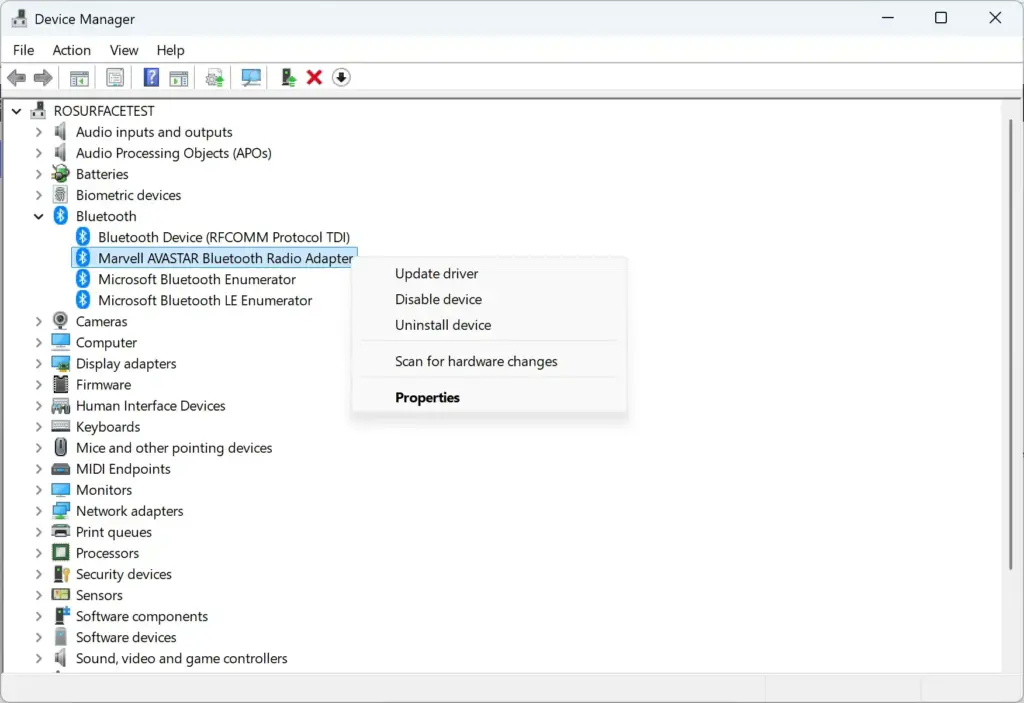
- Look at your Bluetooth adapter's icon. A yellow exclamation mark means a driver fault or hardware conflict.
- Right-click your Bluetooth adapter and select Update driver if Windows cannot keep a stable link with your phone.
Power saving can also cut the connection. In Device Manager, open the adapter's properties and check the Power Management tab, if your adapter has one. Make sure the option that lets the computer turn off the device to save power is not ticked.
You can also press Ctrl + Shift + Esc to open Task Manager, a utility that shows running processes and resource use. Check that no background power-saving tool is suspending your Bluetooth radio while you are using the PC.
If the PC stops locking after you change phones or reset Bluetooth, remove the old pairing in Settings Bluetooth & devices Devices and pair the phone again.
Configuring Proximity Sensitivity and Lock Timers
Dynamic Lock has no setting for sensitivity, distance or lock timing. Windows decides when you have left, and it waits about 30 seconds after the phone goes out of range before it locks. You cannot shorten or lengthen that delay.
The Windows Security Account protection page does not control Dynamic Lock either. You can still look at it, but changes there will not alter how or when Dynamic Lock works:
- Open Settings.
- Click Privacy & security.
- Select Windows Security, then click Open Windows Security.
- Select Account protection. This page covers sign-in protections such as Windows Hello. It has no timer or distance setting for Dynamic Lock.
If your PC locks sooner than you expect when you step away briefly, keep your phone in your pocket or near the desk so the Bluetooth signal stays steady. If it locks too late, remember that the delay is fixed and that Bluetooth range varies with walls and interference.
If you need more control over when the PC locks, these alternatives help:
- Press Win+L to lock the PC manually whenever you leave. It works instantly and does not depend on Bluetooth.
- In Settings Accounts Sign-in options, check the option that sets when Windows asks you to sign in again after you have been away. The wording varies by build.
- Set a shorter screen timeout in Settings System Power & battery under Screen and sleep. The screen turns off sooner when the PC is idle.
What to do next
You should now see your PC lock on its own within about a minute of walking away with your paired phone. To test it, turn on Dynamic lock, then take your phone out of range and wait. The lock screen should appear.
Remember that Dynamic Lock only locks the PC. To make coming back faster, you can set up Windows Hello face recognition or fingerprint sign-in, if your hardware supports it.
Have a question about this guide?
Answered by AI from this guide. Good questions may be added to this page — please don't include personal details.
Did this guide fix your problem?

About the Author
Richard
Tech Writer, IT Professional
Richard is a writer at Geek Rewind who turns complex IT tasks into clear, step-by-step guides. He draws on years of hands-on experience in system administration and enterprise IT operations, focusing on Windows, Linux and WordPress: the problems people actually run into, and the fixes that work. His server and WordPress guides come from systems he runs himself. Richard builds and maintains the platform behind Geek Rewind, from its Ubuntu servers and Nginx configuration to its custom WordPress plugins. Many new tutorials start with readers' questions, and he's always glad to answer them in the comments.
No comments yet — be the first to share your thoughts!