How to Disable or Enable Smart Screen Filtering in Windows 11 Security

- 10 steps
- Needs administrator rights
- Includes a restart or sign-out
To turn SmartScreen on or off in Windows 11, open the Windows Security app and go to App & browser control Reputation-based protection settings. There you’ll find separate toggles for files and apps you run, for websites in Microsoft Edge, and for apps from the Microsoft Store, rather than one master switch.
Microsoft Defender SmartScreen is the built-in safety filter that checks apps, files, and websites against Microsoft’s list of known threats before they run on your computer. Turning it off for any of these areas makes your PC less protected, though it can stop false alerts when the filter blocks something you trust. This guide covers all three toggles plus the Edge-specific setting, what happens when you disable each one, and how to put them back to their default state.
Open Windows Security, click App & browser control, then Reputation-based protection settings. Toggle Check apps and files, SmartScreen for Microsoft Edge, or SmartScreen for Microsoft Store apps on or off. Each toggle takes effect immediately without restart.
What SmartScreen Actually Checks
SmartScreen compares what you’re about to open against a Microsoft-maintained reputation database. If an app, file, or site has no track record, or a bad one, you get a warning before Windows lets it proceed. Depending on your Windows 11 build, the feature is labelled either Windows Defender SmartScreen or just SmartScreen. Microsoft has used both names across recent versions, and they refer to the same feature.
The three components you can control separately are:
- Check apps and files — scans unrecognized executables and installers before they run, whether you downloaded them or copied them from a USB drive.
- SmartScreen for Microsoft Edge — warns you before you land on a phishing site or download a flagged file in Edge.
- SmartScreen for Microsoft Store apps — checks content inside Store apps for malicious links or downloads.
You’ll also see a Potentially unwanted app blocking toggle on the same settings page. It’s related but separate: it blocks adware and bundled junkware, and it doesn’t run the same reputation checks SmartScreen does. Keep the two apart when you’re troubleshooting a specific warning.
Two more protections live in the same area of Windows Security, and they are easy to mix up with SmartScreen:
- Phishing protection (Enhanced). On builds that include it, this appears among the reputation-based protection settings. It is its own setting, so check it separately if you’re chasing phishing warnings.
- Smart App Control. This is on the App & browser control page, not inside Reputation-based protection settings. It can block apps independently of SmartScreen, so an app can still be stopped after you’ve turned every SmartScreen toggle off. Be careful with this one: on some Windows 11 versions, once you turn Smart App Control off, you can’t turn it back on without resetting Windows. Don’t switch it off just to test something.
Before You Start: Administrator Access Required
Changing any of these toggles requires an administrator account. If you’re signed in as a standard user, Windows shows a User Account Control prompt asking for an admin password before the switch will move. If you don’t have admin rights on the machine, ask whoever manages it to make the change, or sign in with an administrator account first.
How to Turn SmartScreen On or Off in Windows Security
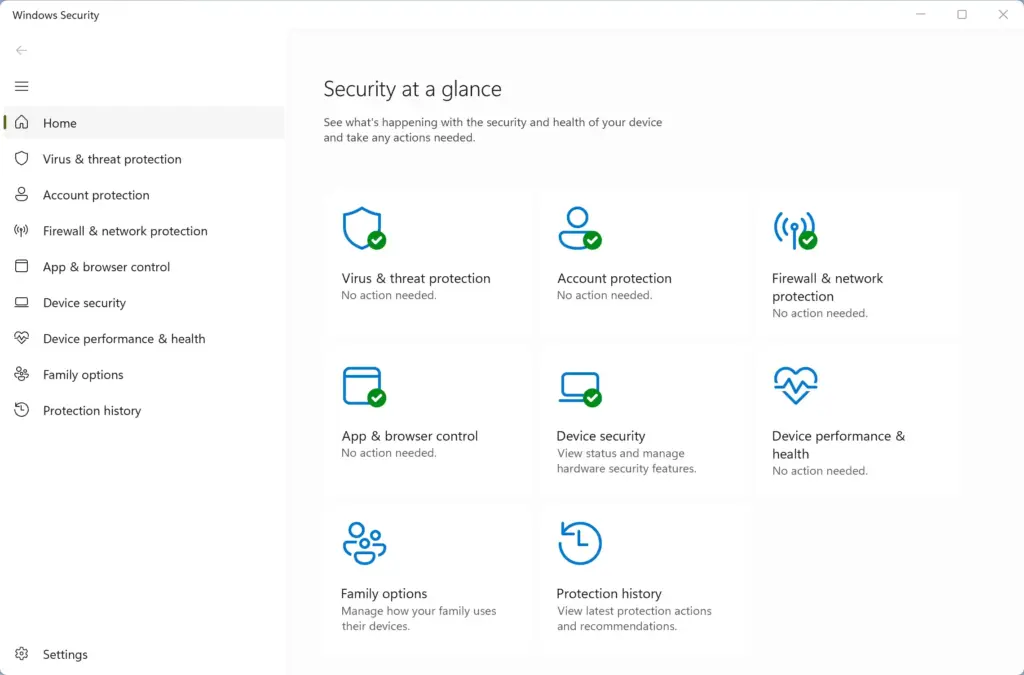
- Open the Start menu, type Windows Security, and press Enter. The Windows Security app opens, showing a dashboard with sections like Virus & threat protection and Firewall & network protection.
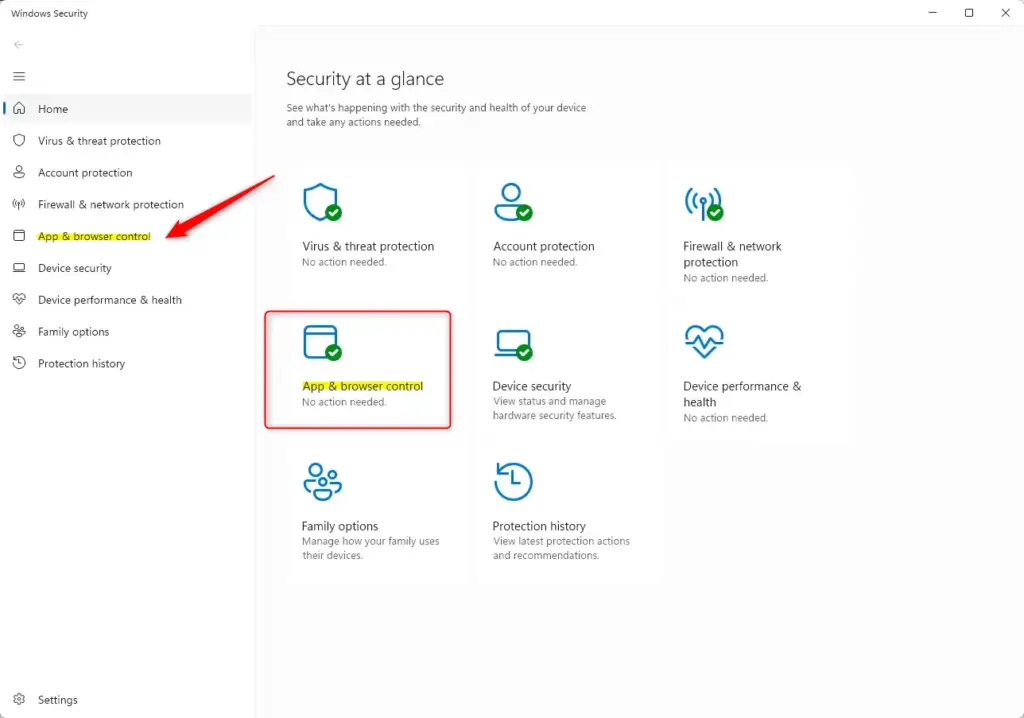
Windows Security - Click App & browser control in the left sidebar. You’ll see a summary showing whether reputation-based protection is currently on, along with recent blocked items if any.
Windows Security App and browser control settings for Smart App Control. - Click Reputation-based protection settings, a link near the top of the page. A new screen opens with the individual toggles plus the potentially unwanted app blocking option.
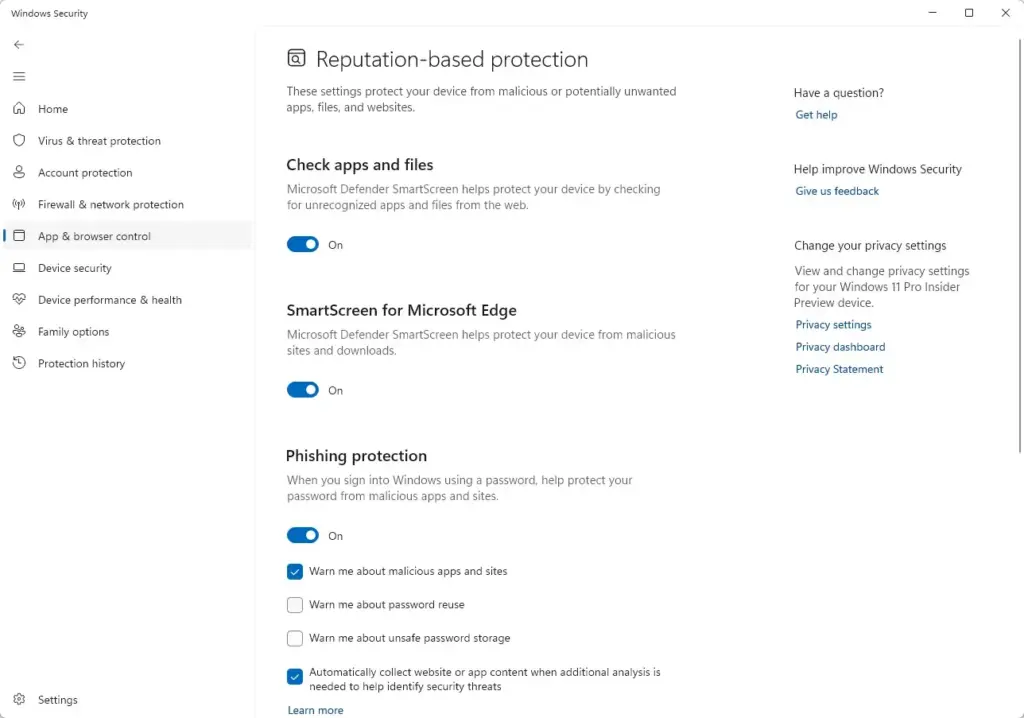
Windows Security - Switch Check apps and files on or off. This toggle scans anything you download or run outside the browser, so turning it off removes warnings for unrecognized executables system-wide.
- Switch SmartScreen for Microsoft Edge on or off. This controls the phishing and malicious-download warnings you see while browsing in Edge specifically.
- Switch SmartScreen for Microsoft Store apps on or off. This affects content checks inside apps installed from the Store, not the apps’ installation itself.
Each toggle applies the moment you flip it. You don’t need to restart your PC or sign out. If a UAC prompt appears when you click a toggle, click Yes to confirm. If you click No or close the prompt, the toggle snaps back to its previous position and nothing changes.
Why a Toggle Might Be Greyed Out
If you can see a toggle but can’t click it, one of two things is usually going on:
- Managed by your organization. On a work or school PC, or any device enrolled in mobile device management, you’ll see a note like “Some settings are managed by your organization” under App & browser control. The setting is locked by policy, and you’ll need your IT department to change it. There’s no workaround on the device itself. Windows 11 Pro and Enterprise editions can have these policies applied by an admin, while a Home PC is only locked this way if it’s enrolled in management.
- Third-party antivirus software. If you’ve installed another security suite, it may take over reputation-based protection and disable Windows’ own SmartScreen controls in the process. Check your antivirus app’s own settings for an equivalent toggle, or uninstall it temporarily if you need to confirm SmartScreen itself is the problem.
Neither of these is a bug. Windows is deliberately preventing changes it doesn’t control locally.
Turning SmartScreen On or Off Directly in Microsoft Edge
The SmartScreen for Microsoft Edge toggle in Windows Security and the SmartScreen setting inside Edge itself are the same control, so you can change it from either place. If you’re after the smart screen on/off switch while you’re already in the browser, and don’t want to open Windows Security separately, do it here:
- Open Microsoft Edge, click the three-dot menu in the top-right corner, and choose Settings. The Settings page opens in a new tab.
- Click Privacy, search, and services in the left sidebar. The page scrolls to show sections for tracking prevention, clear browsing data, and security.
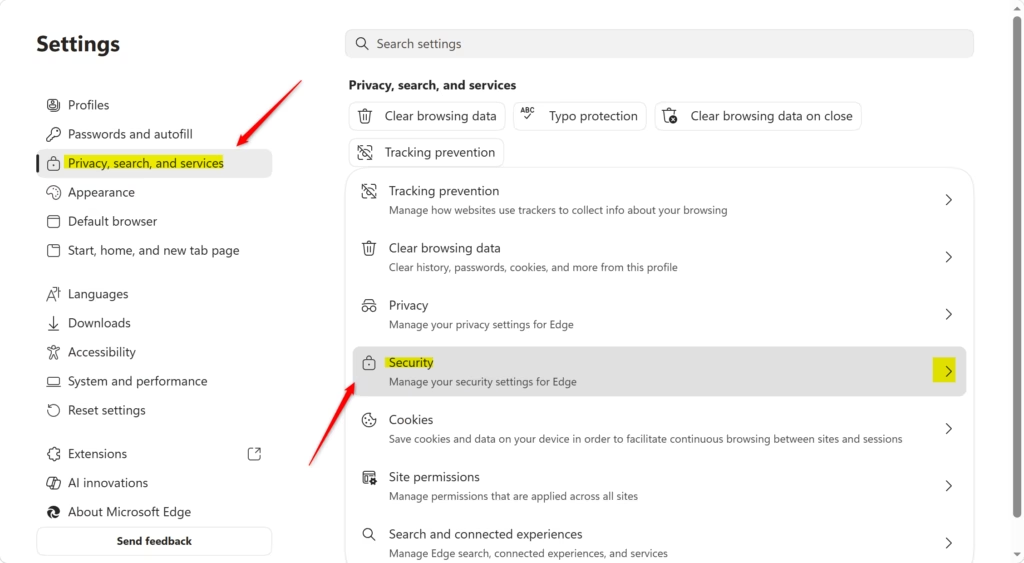
Microsoft Edge Privacy, Search, and Services settings page. - Scroll down to the Security section and find Microsoft Defender SmartScreen.
- Switch the toggle on or off. Edge applies the change immediately, with no browser restart needed.
If the toggle is greyed out here, the same causes apply as in Windows Security: a policy from your organization or another security product. While you’re in Edge’s privacy settings, it’s also worth checking your tracking prevention level. Our guide on enabling or disabling tracking prevention in Microsoft Edge covers the difference between Basic, Balanced, and Strict.
What Changes When You Turn SmartScreen Off
Turning off Check apps and files means Windows will run unrecognized executables without warning you first, including files you downloaded from an untrusted source or copied from removable media. Turning off SmartScreen for Microsoft Edge means the browser stops warning you before you land on a known phishing site or download a flagged file. Turning off SmartScreen for Microsoft Store apps removes the same kind of check inside Store apps that embed web content.
None of this disables Microsoft Defender Antivirus itself. That’s a separate, much broader protection layer and keeps running regardless of what you do with these three toggles. SmartScreen is specifically about reputation checks on things you’re about to open, not ongoing malware scanning.
The usual reason to turn any of these off is that a specific app you trust, often something niche, self-signed, or from a small developer, keeps getting flagged, and you’ve already verified it’s safe. In that case you often don’t need to turn protection off at all. For a single blocked file, you can leave SmartScreen on and allow just that file:
- In Edge downloadsif Edge blocks a download, open the downloads list and choose Keep on that file.
- On the SmartScreen promptwhen Windows shows “Windows protected your PC”, click More info, then Run anyway. The button only appears after you click More info.
- In the file’s Propertiesright-click the downloaded file, choose Properties, and on the General tab tick Unblock if it’s there, then click OK. Windows treats the file as trusted from then on.
If none of those work, or you have several files to run, turn the toggle off, install or run the app, then turn it straight back on. Don’t leave SmartScreen off long-term.
How to Undo the Change
Reversing any of these settings just means flipping the same toggle back. Open Windows Security App & browser control Reputation-based protection settings, and switch Check apps and files, SmartScreen for Microsoft Edge, or SmartScreen for Microsoft Store apps back on. You don’t need to restart, and no history or log of the change is kept anywhere you need to clean up. The toggle position is the only thing that matters.
A Windows 11 feature update can sometimes reset these to their default (on) state, particularly if the update rebuilds the Windows Security app’s components. If you find SmartScreen back on after an update you didn’t expect, that’s the likely reason. Switch it off again only if you still need it off for a specific reason. Smart App Control is the exception to the “just flip it back” rule: on some versions, a Smart App Control that has been turned off can’t be re-enabled without a reset.
What to Do Next
If SmartScreen keeps flagging an app you’re confident is safe, check whether it comes from a signed, well-known publisher first. Unsigned or obscure installers trigger far more warnings than they deserve. A natural next step is reviewing your other Windows Security defenses, such as Microsoft Defender Antivirus’s exclusion list if you keep hitting false positives on files you use daily. If your concern is more about browser safety than the file system, spend a few minutes with Edge’s tracking prevention settings too, since it works alongside SmartScreen rather than replacing it.
Frequently asked questions
How do I turn on a smart screen?
Open Windows Security, go to App & browser control, then select Reputation-based protection settings. You'll see three toggles for SmartScreen: one for files and apps, one for websites in Microsoft Edge, and one for Microsoft Store apps. Turn on whichever toggle you need.
Still have a question?
Answered by AI from this guide. Good questions may be added to this page — please don't include personal details.
Did this guide fix your problem?

About the Author
Richard
Tech Writer, IT Professional
Richard is a writer at Geek Rewind who turns complex IT tasks into clear, step-by-step guides. He draws on years of hands-on experience in system administration and enterprise IT operations, focusing on Windows, Linux and WordPress: the problems people actually run into, and the fixes that work. His server and WordPress guides come from systems he runs himself. Richard builds and maintains the platform behind Geek Rewind, from its Ubuntu servers and Nginx configuration to its custom WordPress plugins. Many new tutorials start with readers' questions, and he's always glad to answer them in the comments.
No comments yet — be the first to share your thoughts!