What Breaks When You Disable Windows SmartScreen File Checking

- 20 steps
- Needs administrator rights
- Group Policy needs Windows 11 Pro, Enterprise or Education
- Includes a restart or sign-out
Microsoft Defender SmartScreen (a built-in security filter) checks files and websites before you open them to protect your PC from harmful apps. When you turn off this feature, Windows stops verifying unknown files from the web. You can then run unverified programs without safety warnings, but you lose your primary shield against malware.
Disabling SmartScreen changes how Windows handles downloads across Microsoft Edge and other apps. Here is what you stop seeing:
- The blue Windows protected your PC screen that appears when you run an unrecognized app.
- Edge warnings about unrecognized or commonly malicious downloads.
- Reputation checks on web content used by Microsoft Store apps.
Nothing else in Windows Security is switched off. Microsoft Defender Antivirus still scans files. But SmartScreen catches new malware that antivirus signatures may not know yet. Weigh these risks before you turn off file checking on your system. If you only need to run one file, use the single-file method near the end of this article instead.
SmartScreen is not the only reputation-based feature in Windows 11. Smart App Control, Phishing protection and Potentially unwanted app blocking also exist, and they are covered in the Windows Security section below. Turning SmartScreen off does not necessarily turn those off.
To turn SmartScreen on or off, open Windows Security, select App & browser control, then click Reputation-based protection settings. Set Check apps and files, SmartScreen for Microsoft Edge, and SmartScreen for Microsoft Store apps to On or Off. Approve the User Account Control prompt. Turning these off removes the blue “Windows protected your PC” warning and your main shield against new malware.
How to Turn SmartScreen On or Off in Windows Security
Windows Security is the easiest way to turn SmartScreen on or off. The settings live under App & browser control, in the reputation-based protection area. Changes here take effect immediately. You do not need to restart. You will need an administrator account or an admin password, because Windows asks for approval when you switch a protection off.
Only do it temporarily, for a specific job, and turn it back on as soon as you are finished.
- Open the Start menu , type
Windows Security, and press Enter to launch the security dashboard. You should see the Windows Security home page with its protection areas.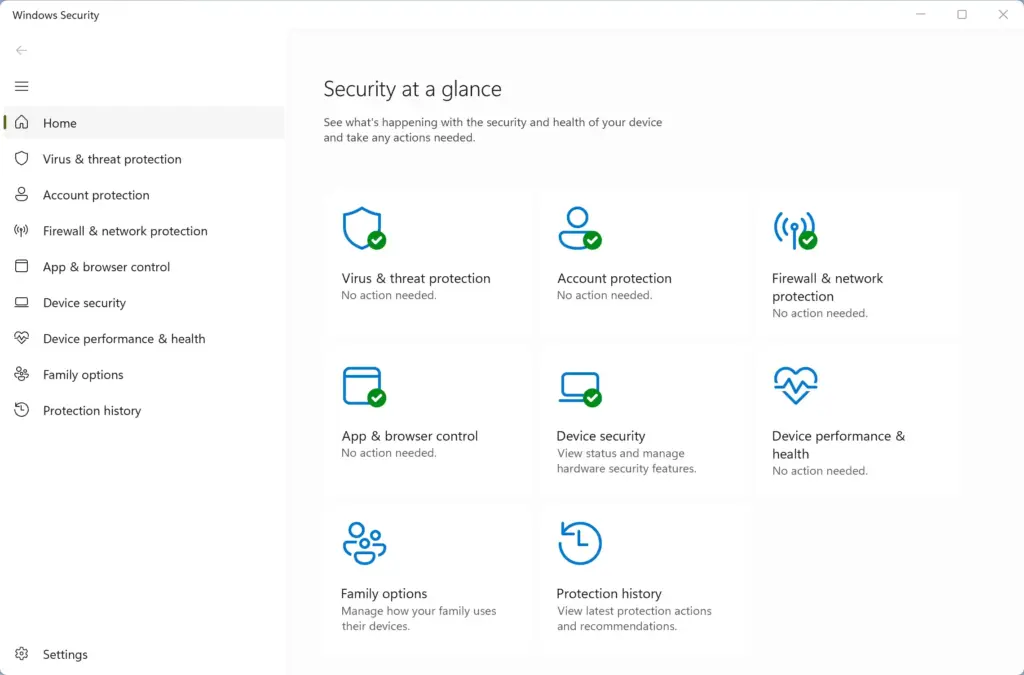
Windows Security - Select App & browser control from the main menu or the sidebar. The page shows the reputation-based protection options and related settings.
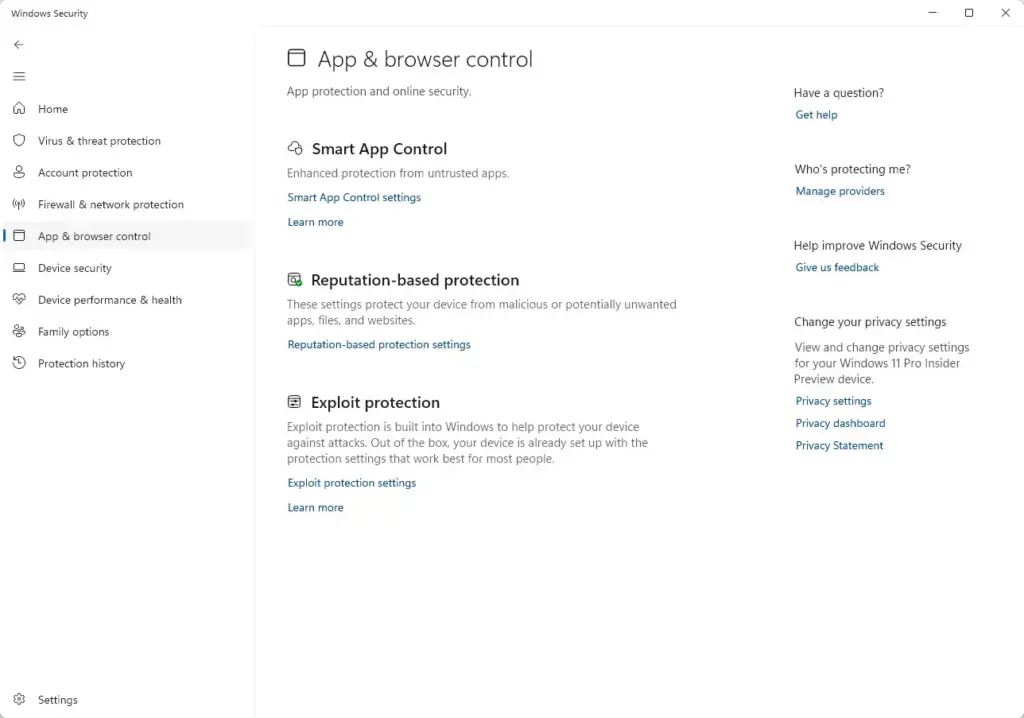
Windows Security - Click the Reputation-based protection settings link under the Reputation-based protection heading. A page opens with a list of switches.
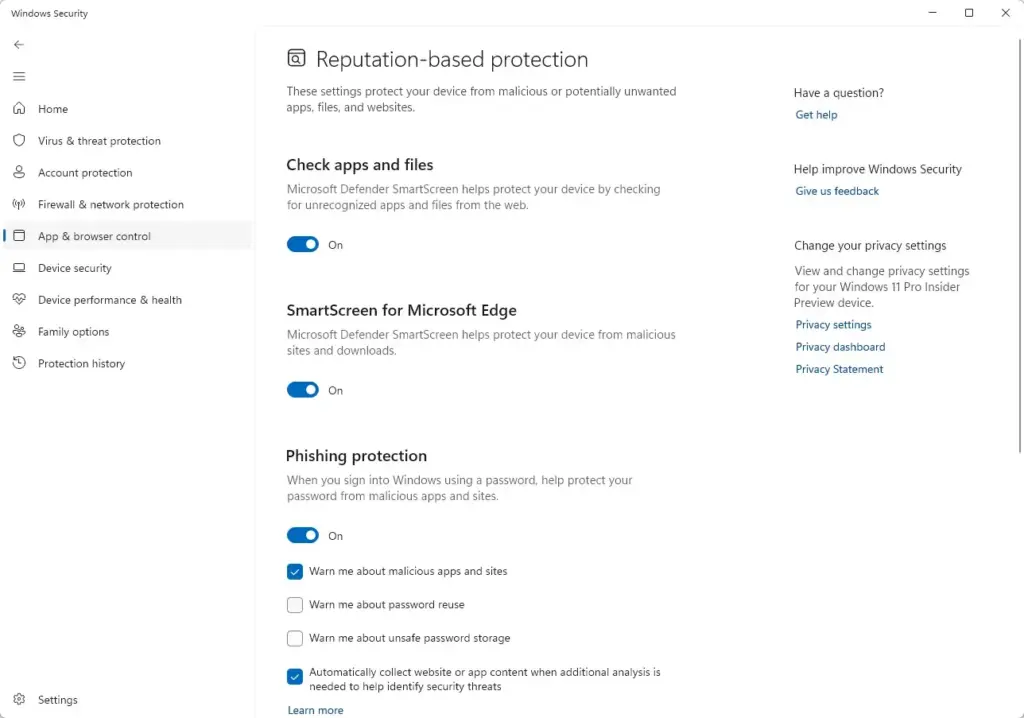
Windows Security - Set the switches for Check apps and files, SmartScreen for Microsoft Edge, and SmartScreen for Microsoft Store apps to Off to disable the feature, or to On to enable it. Each switch you turn off shows a warning that your device may be vulnerable.
- If Windows shows a User Account Control prompt, approve it. The switch should now show Off (or On if you are turning protection back on).
To undo the change, return to the same page and switch the options back to On. If the switches are greyed out, or you see a message that some settings are managed by your organization, a policy is controlling them. In that case, check the Group Policy and registry sections below.
Two other settings on this page matter when you are testing what SmartScreen blocks:
- Phishing protectionOn Windows 11 this appears on the same Reputation-based protection settings page. It warns you when you enter or reuse a password in an unsafe app or site. It is separate from the three switches above, so check whether it is still on.
- Potentially unwanted app blockingThis switch is also on the Reputation-based protection settings page. It controls whether Edge blocks apps and downloads that are not necessarily malware but may cause problems, such as adware or bundled software. Leaving it on is the safer choice. Switch it off only if it blocks a specific tool you trust, and turn it back on afterward.
- Smart App ControlWindows 11 also has this feature, found in Windows Security under App & browser control. It is separate from SmartScreen. Smart App Control can still block unsigned or unknown apps even when SmartScreen is off. On some builds, once you turn Smart App Control off, you can only turn it on again by resetting Windows. Do not switch it off casually. If it is not available on your PC, it is not enabled or not offered on your build.
How to Enable or Disable SmartScreen Using Registry Editor
Registry Editor turns SmartScreen on or off by editing specific system registry keys. Use it when the Windows Security page is not available to you, or when you need to set the value directly. A wrong edit can cause system errors, so back up first. In Registry Editor, click File, then Export, choose All as the export range, and save the file somewhere safe. You can also export just the key you are about to change. You need to be signed in as an administrator.
- Press the Win+R to open the Run dialog box, type
regedit, and press Enter to open Registry Editor. Approve the User Account Control prompt if it appears. - Navigate to the following key in the left sidebar:
HKEY_LOCAL_MACHINE\SOFTWARE\Microsoft\Windows Defender. The values for that key appear in the right pane. - Look for the relevant DWORD values (registry settings) that control SmartScreen. If a value is not there, SmartScreen is using its default setting and nothing has been overridden on this PC.
- Double-click the value and set the Value data to 0 to disable SmartScreen or 1 to enable it, then click OK.
- Restart your computer to apply the changes.
To undo the change, set the value back or import the backup file you exported. After a restart, check Reputation-based protection settings in Windows Security to confirm the result. As with the Windows Security method, treat this as a temporary change and restore the original value when you are done.
Managing SmartScreen via Group Policy
Local Group Policy Editor is available on Pro, Enterprise, and Education editions of Windows 11. It is not included in Home. If you run Home, use the Windows Security or registry method instead. The local editor changes the policy for the PC you are sitting at. To manage many computers at once, an administrator sets the same policy in a domain Group Policy Object. Policies set this way override the toggles in Windows Security, which is why those toggles may show as managed by your organization.
- Press the Win+R, type
gpedit.msc, and press Enter to open the Local Group Policy Editor. - Navigate to the appropriate policy folder under Computer Configuration or User Configuration. Use the tree in the left pane, and select a folder to see its policies on the right.
- Double-click the SmartScreen policy setting you want to modify. A settings window opens with a description of the policy.
- Select Enabled or Disabled depending on your preference, then click Apply and OK. Read the policy description first. An “Enabled” policy may include a dropdown with extra options.
- Close the editor and restart your computer.
To undo the change, open the same policy and select Not Configured. That hands control back to Windows Security.
Bypassing SmartScreen Warnings for a Single File
File Properties lets you bypass SmartScreen warnings for a single trusted file without turning off protection for the whole computer. This is the safer choice when you only need to run one installer or script you trust. Windows tags files downloaded from the internet with a “mark of the web,” and this method removes that tag from one file.
Before you do it, scan the file with Microsoft Defender (right-click it and choose Scan with Microsoft Defender; on Windows 11 you may need Show more options first). Also check that it came from the publisher’s own site, and compare its hash with the one the publisher lists if they provide one.
- Locate the blocked file in File Explorer.
- Right-click the file and select Properties from the context menu. On Windows 11, you may need to click Show more options first if you do not see Properties in the short menu. You can also select the file and press Alt + Enter.
- Look for a security notice at the bottom of the General tab stating that the file came from another computer and might be blocked. If you do not see the notice, the file is not marked as blocked, and something else is stopping it.
- Check the box next to Unblock.
- Click Apply and OK to save your changes and run the file normally.
Only unblock files from sources you trust. The notice disappears once you apply the change, so you cannot re-block the file from this screen. Downloading the file again will bring the warning back.
If you have several files to unblock, the Properties dialog is slow. The Unblock-File cmdlet in PowerShell removes the mark of the web from a single file or from many files in one go. The same advice applies: scan and verify the files first, because the result is the same as using the Unblock checkbox.
If this didn't work
Administrator privileges and background security software conflicts are usually why you cannot turn SmartScreen on or off, or why your settings keep resetting after a Windows update. Work through these checks:
- Account permissionsMake sure you are using an administrator account. A standard account cannot change these settings without admin credentials.
- Managed settingsIf Windows Security says some settings are managed by your organization, a Group Policy or registry value is overriding the toggle. On a work or school PC, ask your IT team before changing it.
- Third-party antivirusSome antivirus suites take over parts of Windows Security. Review their settings, since they may re-enable or lock protection.
- Smart App ControlIf an unsigned app is still blocked with SmartScreen off, Smart App Control may be the cause. Check its status under App & browser control, and remember that on some builds it can only be turned back on by resetting Windows.
- RestartRegistry and Group Policy changes do not apply until you restart.
- After updatesCheck the settings again after a major Windows update. If they have reset, repeat the change and restart.
Have a question about this guide?
Answered by AI from this guide. Good questions may be added to this page — please don't include personal details.
Did this guide fix your problem?

About the Author
Richard
Tech Writer, IT Professional
Richard is a writer at Geek Rewind who turns complex IT tasks into clear, step-by-step guides. He draws on years of hands-on experience in system administration and enterprise IT operations, focusing on Windows, Linux and WordPress: the problems people actually run into, and the fixes that work. His server and WordPress guides come from systems he runs himself. Richard builds and maintains the platform behind Geek Rewind, from its Ubuntu servers and Nginx configuration to its custom WordPress plugins. Many new tutorials start with readers' questions, and he's always glad to answer them in the comments.
No comments yet — be the first to share your thoughts!