What Breaks When You Disable the Windows 11 Virtual Memory Paging File


- 12 steps
- Needs administrator rights
- Includes a restart or sign-out
Disabling the Windows 11 virtual memory paging file takes away Windows’ way of handling memory overflow. Apps can then crash without warning and throw sudden out-of-memory errors, even on a PC with 16GB or 32GB of RAM. The paging file is a hidden system file named pagefile.sys, usually in the root of your C: drive. Windows uses it as backup space when physical RAM fills up.
Physical RAM holds the apps and games you have open right now, but it fills fast when many programs run at once. Under heavy load, Windows moves idle data out of RAM and into the paging file. That frees fast memory for the work you are actually doing.
Disabling the Windows 11 virtual memory paging file, pagefile.sys, removes Windows’ backup space for when physical RAM fills up. Apps can then crash without warning or show out-of-memory errors, even on a PC with 16GB or 32GB of RAM. Crash dumps can also fail to save, so Blue Screen of Death troubleshooting becomes harder.
What Happens Immediately When You Turn Off the Paging File?
When you turn off the paging file, Windows stops using storage as a backup for RAM. Every active task now has to fit entirely in your memory sticks, and the safety net that prevents memory shortages is gone.
- System LimitsYour computer can no longer use storage space as a backup for RAM.
- Memory ManagementWindows must fit every single active task entirely into your physical RAM sticks.
- Crash VulnerabilityThe system loses its primary workspace for handling severe memory crunches.
Your PC may boot and run normally for days if you have plenty of RAM, but you are walking a tightrope. The first time a demanding app or game asks for more memory than you physically own, things start to break. The failure often looks random, because it depends on what happens to be open at that moment.
Core Issues and Failures Caused by Disabling Virtual Memory
Turning off virtual memory sets off a chain of errors and failures. Here are the problems you will actually run into, starting with the most common.
1Applications Crash Without Warning
Apps crash without warning because Windows has no other option left. When physical RAM is full and a program asks for more, Windows cannot move anything out to storage to make room. It has to refuse the request.
Programs also tend to reserve more memory than they use. Windows counts those reservations against its limit. With no paging file, that limit is roughly the size of your RAM. So you can hit errors even when Task Manager shows free RAM.
2The Blue Screen of Death and Loss of Crash Data
Disabling the paging file also affects crash diagnostics. When Windows hits a fatal error, it normally writes a memory dump file, and it uses the paging file on the boot drive to do that. Without one, you may get no dump or an incomplete one, and you lose the main clue to why the PC crashed.
That makes later troubleshooting much harder. Tools that read dump files, and anyone helping you diagnose the problem, will have little or nothing to work with.
The paging file also cushions sudden memory spikes. Without it, heavy workloads push your hardware to the limit sooner, so a Blue Screen of Death becomes more likely in the first place.
3Reduced Overall System Performance
Performance can drop because Windows can no longer move idle background data out of fast RAM. Idle data stays in memory next to the data your active programs need, so those programs share a smaller pool of free space.
Normally Windows parks rarely used data in the paging file and keeps RAM free for active tasks. Without that, memory use is less efficient, and the PC can slow down when you multitask. On a system with a lot of RAM the slowdown may be small. The stability problems above are the bigger risk.
Unique Angles: What Most Guides Miss About Disabling Paging Files
Most articles stop at “your apps will crash.” There are two less obvious consequences of removing the paging file that are worth knowing about, especially if you do development work or maintain the machine.
Memory Allocation Overhead and Developer Tools
Developers and power users hit failures first. Development tools and virtual machines often ask for large blocks of virtual memory up front, even if they never use all of it. Windows only grants those requests if it can promise the room, and the paging file is part of what backs that promise.
Without a paging file, software development suites, database servers, and local container environments can throw out-of-memory exceptions or refuse to start. This can happen while the PC still shows plenty of free RAM.
Background Windows Maintenance and Update Failures
Maintenance and update failures are the other hidden cost. Windows updates and virus scans lean heavily on virtual memory. During large updates, Windows stages big installation packages in temporary memory space, and a missing paging file can stop that process.
Major Windows feature updates can fail partway through with confusing error codes. That can leave the operating system in an unstable state. If an update keeps failing and you have turned off the paging file, check that setting first.
Step-by-Step Guide: How to Check and Manage Your Paging File Safely
- Click the Start button on your taskbar, type Settings, then press Enter. The Settings window opens.

Taskbar - In the Settings window, click System in the left sidebar.
- Scroll down the right side and click About. You will see your device specifications.
- Under Related links, click Advanced system settings. The System Properties window opens.
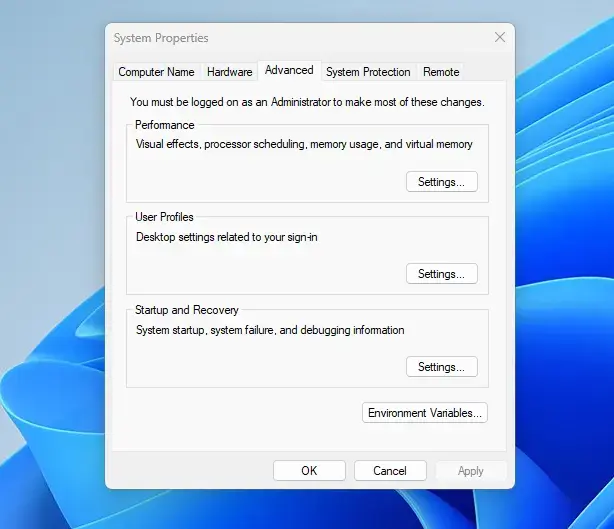
System Properties - On the Advanced tab, find the Performance section and click Settings. The Performance Options window opens.
- In the Performance Options window, click the Advanced tab at the top.
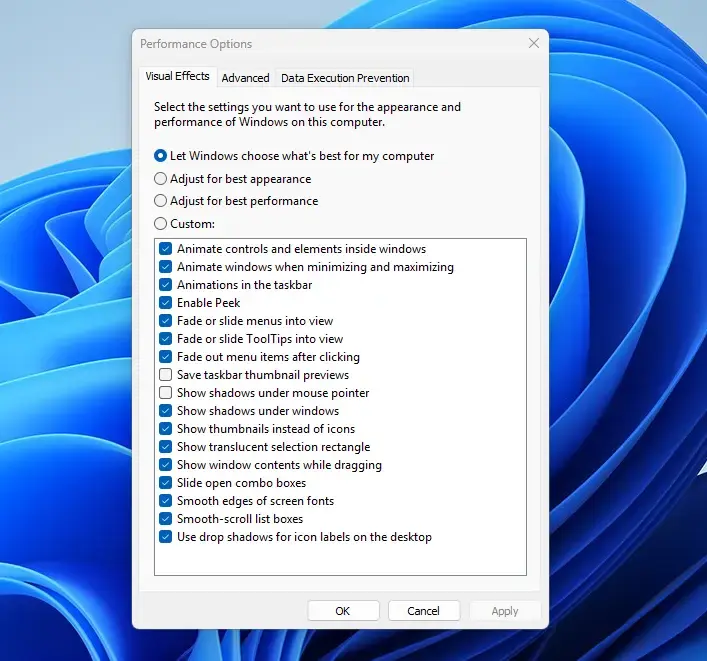
Performance Options - In the Virtual memory section, click Change. A Virtual Memory window opens. If the button is greyed out or the changes will not save, sign in with an administrator account.
- Look at the box at the top, Automatically manage paging file size for all drives. If it is checked, Windows is managing the paging file for you. This is the recommended setting, so you can leave it alone.
- If the box is unchecked, check Automatically manage paging file size for all drives. This also switches off a No paging file choice if someone selected it.
- Only uncheck that box if you have a specific reason to set a custom size. If you do, select your drive, choose Custom size or System managed size, and click Set. Do not choose No paging file.
- Click OK in each open window to close it. Windows may say a restart is needed.
- Restart your computer to apply the changes. Changes to the paging file generally do not take full effect until you restart.
Summary
Keep the Windows 11 paging file turned on. It keeps your PC stable and prevents random app crashes. Disabling it leads to lower performance, lost crash diagnostic data, and failed system updates. If you are short on drive space, free up space elsewhere instead of turning off virtual memory.
Have a question about this guide?
Answered by AI from this guide. Good questions may be added to this page — please don't include personal details.
Did this guide fix your problem?

About the Author
Richard
Tech Writer, IT Professional
Richard is a writer at Geek Rewind who turns complex IT tasks into clear, step-by-step guides. He draws on years of hands-on experience in system administration and enterprise IT operations, focusing on Windows, Linux and WordPress: the problems people actually run into, and the fixes that work. His server and WordPress guides come from systems he runs himself. Richard builds and maintains the platform behind Geek Rewind, from its Ubuntu servers and Nginx configuration to its custom WordPress plugins. Many new tutorials start with readers' questions, and he's always glad to answer them in the comments.
No comments yet — be the first to share your thoughts!