What to Do When Windows 11 Fingerprint Scanner Says Device Could Not Be Found

- 4 ways to do it
- Needs administrator rights
- Includes a restart or sign-out
The “Device could not be found” error on a Windows 11 fingerprint scanner means your PC has lost its connection to the biometric sensor. The usual causes are a glitchy driver update or a component that went to sleep and did not wake up. Most of the fixes below use tools built into Windows, and the early ones take about five minutes.
The main fixes are resetting Windows Hello (the built-in face and fingerprint sign-in system) and reinstalling your sensor driver in Device Manager (the tool that manages your hardware). Work through the sections in order. The early ones are quick and easy to undo, and the later ones change more.
The “Device could not be found” error means your PC has lost connection to the fingerprint sensor, usually due to a driver issue or a stopped background service. Start by restarting your computer, then open the Services app, find Windows Biometric Service, and click Restart in the left panel.
Why Does 🪟 Windows 11 Fail to Find Your Fingerprint Scanner?
Windows 11 fails to find your fingerprint scanner when the motherboard loses communication with the sensor, a driver crashes, or the Windows security services it depends on stop running. Three things have to work together, and a fault in any one of them gives you this error.
Driver. Windows needs the right driver, which is the software translator that lets it talk to the fingerprint hardware. If a Windows update replaces your manufacturer’s driver with a generic one, communication can break down.
Background services. Windows Hello relies on background security services to verify your identity. If they stop, Windows cannot process your fingerprint data. This happens on brand new computers and older machines alike.
Initial Checks and Basic Troubleshooting
Start with a full restart, not a shut down. A restart clears temporary glitches and reloads all USB controllers. That often brings the reader back without changing any settings.
- Click the Start button.
- Click the Power icon, then choose Restart. The PC reboots and returns to the sign-in screen.
Avoid the Shut down option for this test. With Fast Startup on, a shut down saves a snapshot of the system state, so the error can carry over into your next session. Restart does not use that snapshot.
Next, check the sensor itself. Dirt, oils, moisture and smudges can block it. Wipe the glass or metal surface gently with a clean, dry, lint-free microfiber cloth.
If you use an external USB fingerprint reader on a desktop, try this:
- Unplug the reader completely.
- Wait ten seconds.
- Plug it into a different USB port.
A new port makes Windows detect the reader as a new device and rebuild the connection. You may see a short “setting up device” notification. Avoid USB hubs while testing and plug the reader straight into the PC.
Method 1Resetting Windows Biometric Service
The Windows Biometric Service is a background program that manages facial recognition and fingerprint data. If it crashes or stops, Windows loses the ability to talk to your biometric hardware. Restarting it from the Services app often restores the scanner straight away. The Services app is the same on Windows 11 Home and Pro.
- Click the Start button on your taskbar.
- Type
Servicesinto the search box and press Enter. The Services window opens with an alphabetical list. - Scroll down until you find Windows Biometric Service.
- Click Windows Biometric Service to highlight it. Links for the service appear in the left-hand panel.
- If you see Restart, click it. If the service is not running, click Start instead. A short progress box appears, then closes.
- Close the Services window and restart your computer to apply the change.
Restarting the service wakes a sleeping sensor and makes it visible to Windows Hello again. The whole job takes under two minutes. A frozen background service is the most common reason Windows 11 fails to detect a fingerprint reader, so it is worth doing first.
If the Start link is greyed out or the service stops again right away, move on to the driver steps below.
Method 2Reinstalling or Updating Fingerprint Drivers
Reinstalling the fingerprint driver in Device Manager replaces corrupted software with a fresh copy. Faulty driver files stop Windows 11 from recognizing the reader. If you uninstall the device and scan for hardware changes, Windows loads clean drivers.
Sign in to an administrator account first. Standard user accounts cannot install or change hardware drivers. Device drivers are the software files that let Windows 11 communicate with your fingerprint reader.
- Right-click the Start button and select Device Manager. The Device Manager window opens.
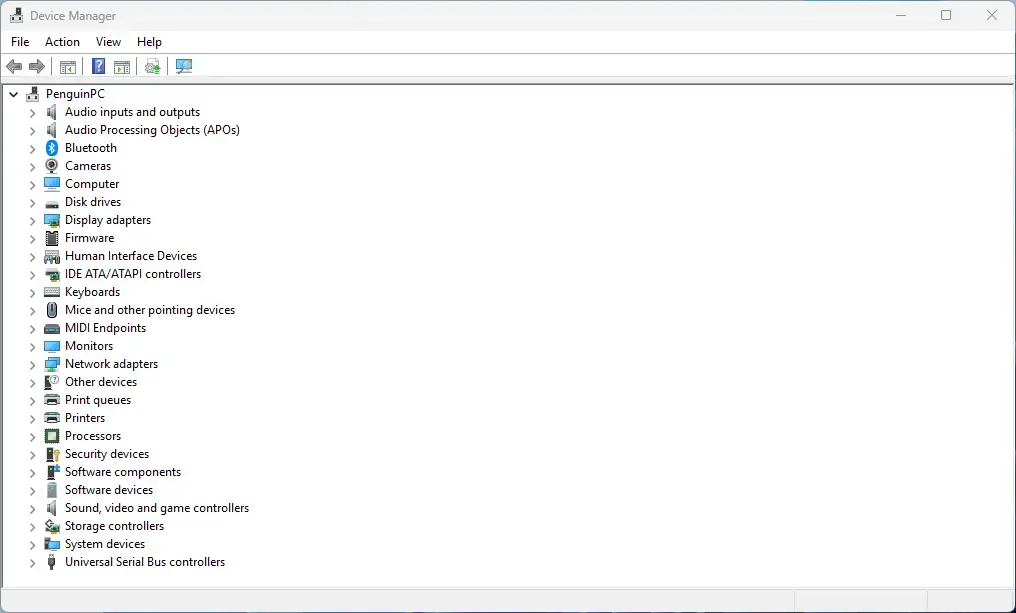
- Find the Biometric devices category and click the small arrow next to it to expand it. If you do not see the category, click the View menu at the top and select Show hidden devices.
- Right-click your fingerprint sensor and select Uninstall device. Manufacturers often label the sensor as a Goodix, Synaptics or Elan device. These steps apply to Windows 11 version 23H2.
- A warning box appears. If you see a checkbox labelled Attempt to remove the driver for this device, tick it. Then click Uninstall. The sensor disappears from the list.
- Do not restart yet. Click the Action menu at the top of the Device Manager window and select Scan for hardware changes.
- Wait a few moments. Windows notices the missing driver and reinstalls a fresh copy. The sensor should reappear under Biometric devices.
If the sensor does not return, restart the PC. Windows 11 then reinstalls the correct driver on its own and often clears the connection bug.
If Windows still cannot find a driver, go to your computer maker’s official support website (Dell, HP or Lenovo, for example). Enter your exact model number, download the latest fingerprint driver and install it manually. Use the PC maker’s site and avoid third-party driver download sites.
Method 3Clearing the Windows Hello Database Files
The Windows Hello database holds your stored biometric sign-in data. If that data is corrupted, the scanner can keep throwing device errors. Deleting the old database files makes Windows 11 build a fresh record, so you can register and verify fingerprints again.
Deleting these files removes your enrolled fingerprints. Make sure you can sign in with your PIN or password before you start. Try this fix after the driver and service fixes above.
- Click the Start button, type services.msc into the search box and press Enter.
- Scroll down, right-click Windows Biometric Service and select Stop. Leave this window open, because you need it again later.
- Open File Explorer by pressing the Win+E, or click the folder icon on your taskbar. You need it to reach the system folder that holds the database.
- Copy and paste this path into the address bar at the top of File Explorer, then press Enter:
C:\Windows\System32\WinBioDatabase - If a prompt asks for permission to open the folder (📁C:\
Windows\ , click Continue or confirm as administrator. Windows 11 protects system folders and asks for this permission.System32\ WinBioDatabase) - Look for files with a long string of letters and numbers that end in a
.datfile extension. Select all of them and delete them. If you want a safety net, copy them to another folder first. - Return to the Services window, right-click Windows Biometric Service and select Start.
- Restart your computer.
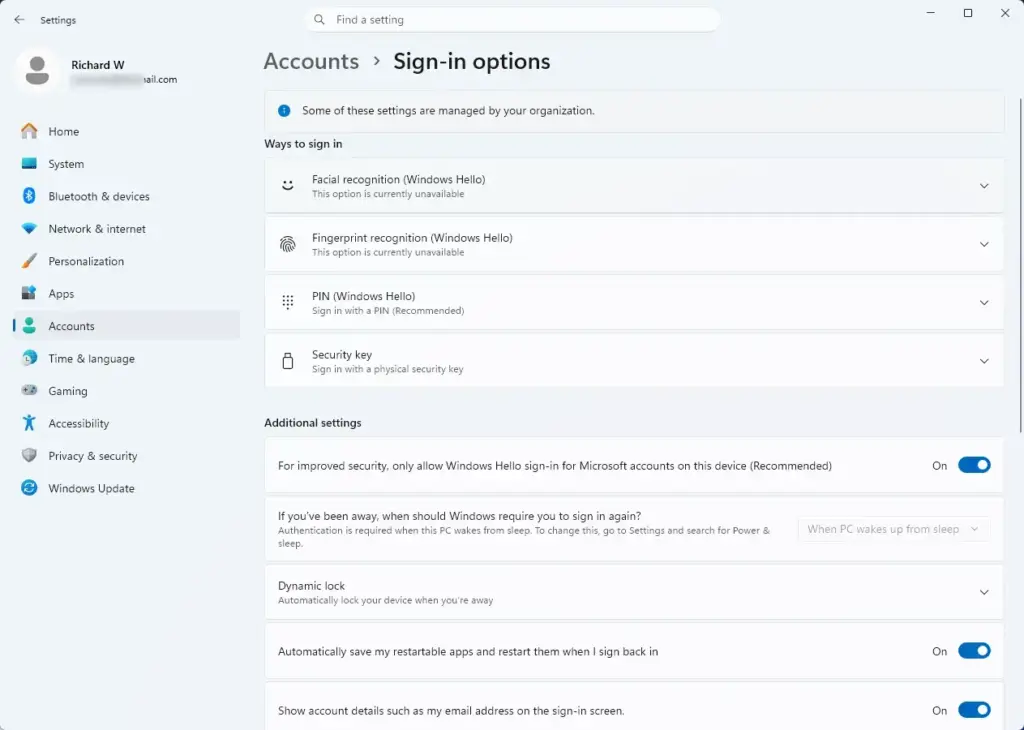
- Open Settings Accounts Sign-in options and set up your fingerprint again under the fingerprint recognition option.
There is no undo for the deleted data. If you did not keep a copy, you will need to enrol your fingerprints again.
Method 4Checking BIOS and Chipset Settings
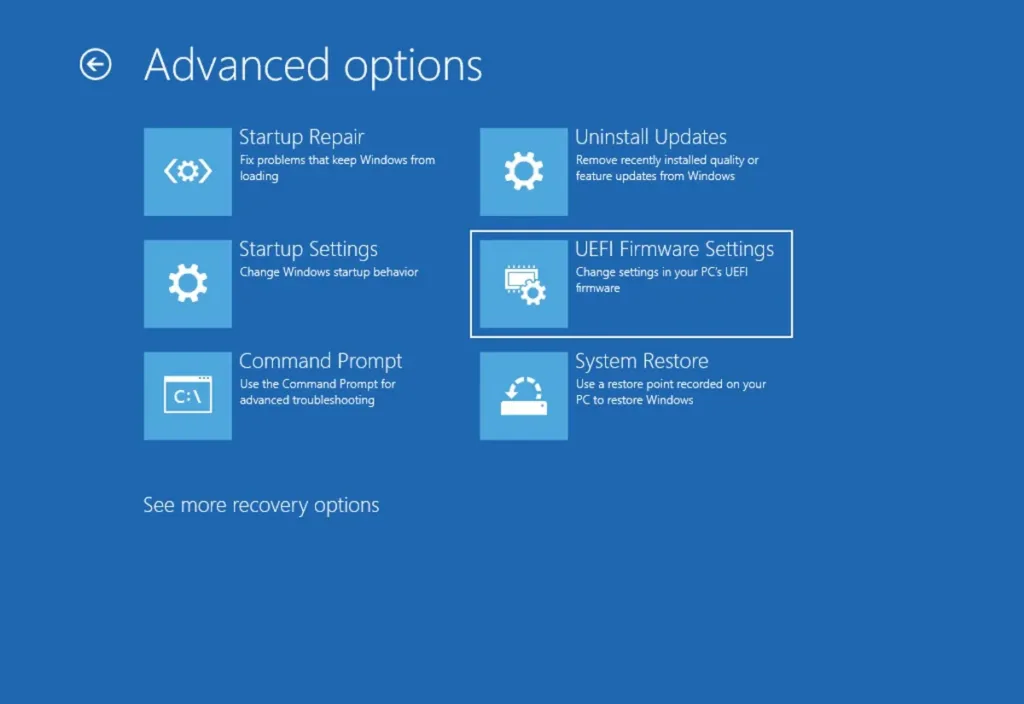
If Windows cannot see the scanner at all, the BIOS (the low-level firmware that controls your hardware before Windows starts) may have the sensor switched off. Check it, and update the chipset drivers while you are at it.
- Restart your computer.
- Tap the BIOS key repeatedly as the computer boots. It is usually F2, F12 or Delete, depending on the brand. The BIOS setup screen appears.
- Look through the security or advanced hardware menus for an option named “Biometric Device,” “Fingerprint Reader” or “I/O Interface.”
- Make sure the setting is Enabled.
- Save your changes and exit. The PC restarts into Windows.
Menu names vary by manufacturer, and some PCs do not offer this option at all. Do not change settings you do not recognize.
Outdated motherboard chipset drivers can also break USB and internal device communication. Visit your manufacturer’s support page, download the latest chipset drivers for your exact model, install them and restart.
Unique Expert Tips: Preventing Future Fingerprint Reader Failures
Most guides stop after a basic driver reinstall. Experienced technicians know that some Windows features can quietly break biometric hardware again and again. These two strategies help keep the scanner working long term.
Managing Fast Startup Conflicts
Fast Startup saves a partial system state so the PC boots faster. It can leave hardware drivers in a low-power state, and the fingerprint reader may then fail to wake up properly. Turning it off makes Windows load every hardware driver fresh at each boot.
- Click the Start button, type
Control Paneland press Enter. - Click Power Options.
- Click Choose what the power buttons do in the left-hand list.
- Click Change settings that are currently unavailable near the top. This needs administrator privileges. The options at the bottom, which were greyed out, become usable.
- At the bottom of the window, untick Turn on fast startup (recommended).
- Click Save changes.
Your PC will take a few seconds longer to boot, but the hardware gets a clean start each time, which prevents these connection drops. To undo the change, repeat the steps and tick the box again.
Protecting Drivers from Unwanted Windows Updates
A routine Windows update can replace your working manufacturer driver with a generic one that breaks the scanner. If you stop that for this device, your fingerprint driver stays in place.
If the problem began after an update, you can check what was installed in Settings Windows Update Advanced options Optional updates. Driver updates are listed there. In Device Manager you can also open the sensor’s properties and look at the Driver tab. If Roll Back Driver is available, click it to return to the previous version. It is greyed out when there is no earlier driver to go back to.

You can manage driver installs through advanced system settings. The most reliable approach is simpler. Download the official driver from your manufacturer’s support portal and keep the installer in a dedicated folder on your desktop. If an update breaks the reader, run the saved installer to restore it at once, without waiting for an official patch.
Summary
If the reader still does not respond, run the Hardware and Devices troubleshooter. You can also test the sensor on a different user account to rule out a corrupted user profile. Future Windows feature updates may reset biometric drivers, so you may need to reinstall the manufacturer software again.
Have a question about this guide?
Answered by AI from this guide. Good questions may be added to this page — please don't include personal details.
Did this guide fix your problem?

About the Author
Richard
Tech Writer, IT Professional
Richard is a writer at Geek Rewind who turns complex IT tasks into clear, step-by-step guides. He draws on years of hands-on experience in system administration and enterprise IT operations, focusing on Windows, Linux and WordPress: the problems people actually run into, and the fixes that work. His server and WordPress guides come from systems he runs himself. Richard builds and maintains the platform behind Geek Rewind, from its Ubuntu servers and Nginx configuration to its custom WordPress plugins. Many new tutorials start with readers' questions, and he's always glad to answer them in the comments.
No comments yet — be the first to share your thoughts!