How to Use the Settings App to Remove a Device in Windows 11

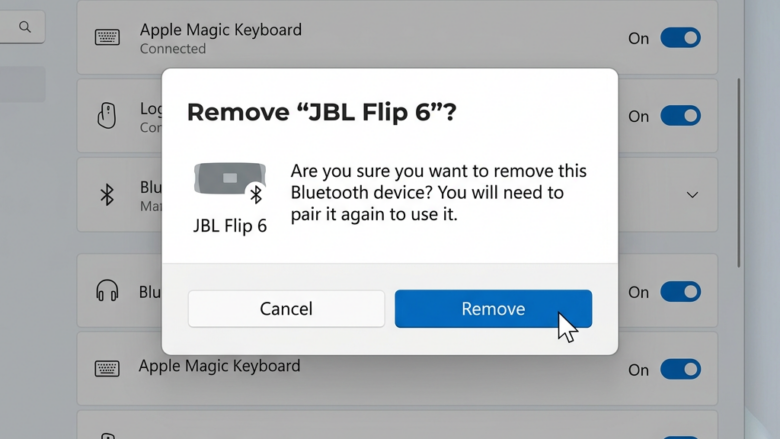
Removing old hardware such as Bluetooth mice, printers, and USB drives in Windows 11 takes less than 60 seconds through the main system menus. Leftover device links often stay in your system even after you unplug the physical hardware. They can cause minor glitches and slow down syncing.
The Settings app lets you clear out these dead connections so your PC stays tidy and free of driver conflicts. The steps are the same on Windows 11 Home and Pro, and you do not need to restart afterward.
How to Use the Settings App to Remove a Device in 🪟 Windows 11
The Settings app is a clean way to remove devices. It helps most with hardware that never shows up in the system tray . You can use it for Bluetooth devices, printers, or any other gadget you no longer want Windows to recognize.
Removing a device only deletes Windows’ record of it. Your files on a USB drive are not touched. If you change your mind later, you can add the device again (see the end of this guide).
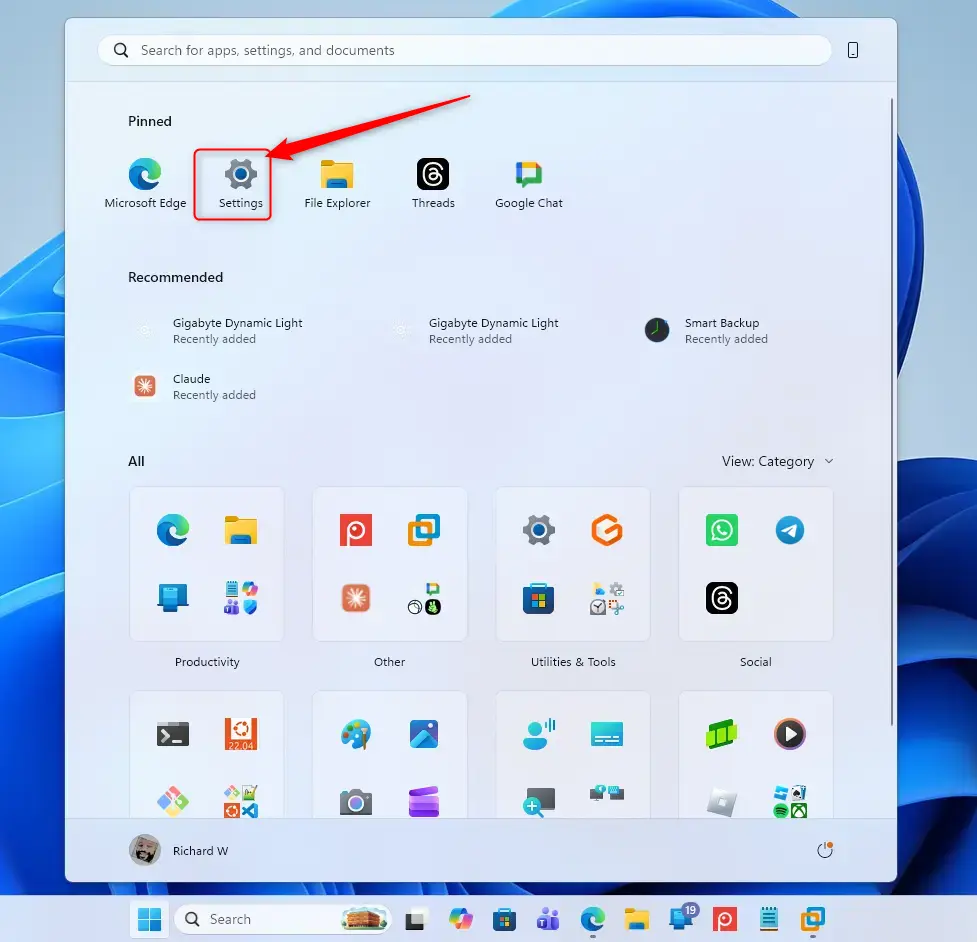
Open the Settings App
- Press Win+I on your keyboard. You can also click the Start button on your taskbar and select the gear icon.
The Settings app opens. If you are not signed in as an administrator, Windows may ask for admin credentials later on.
Go to Devices
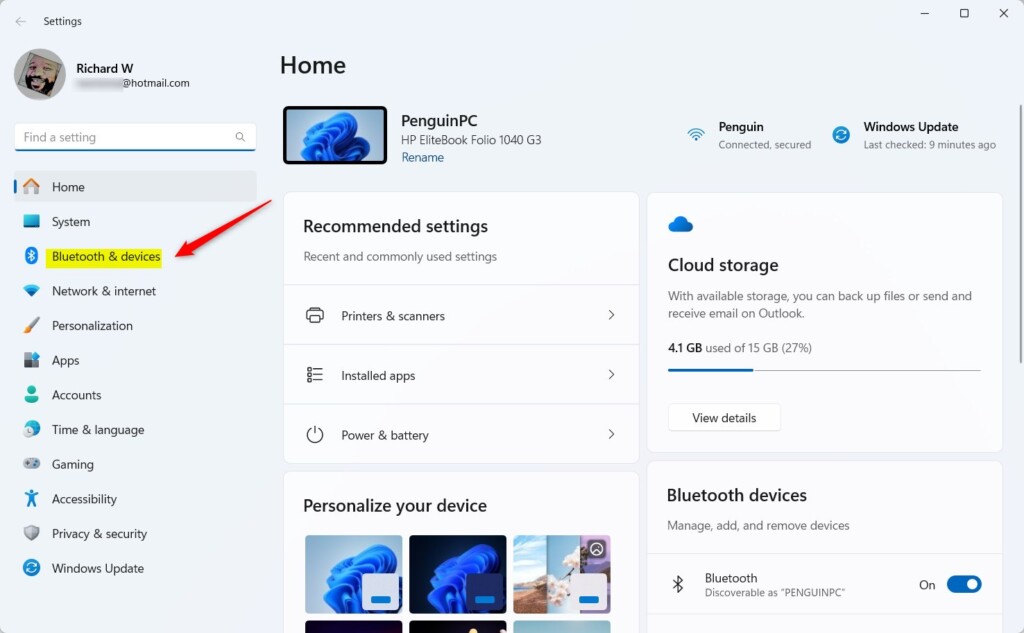
- Look at the list of options on the left side of the Settings window.
- Click Bluetooth & devices.
Windows manages all hardware connected to your PC through this menu. The right side of the window now shows your Bluetooth toggle and a set of device options.
Select the 'Devices' Sub-menu
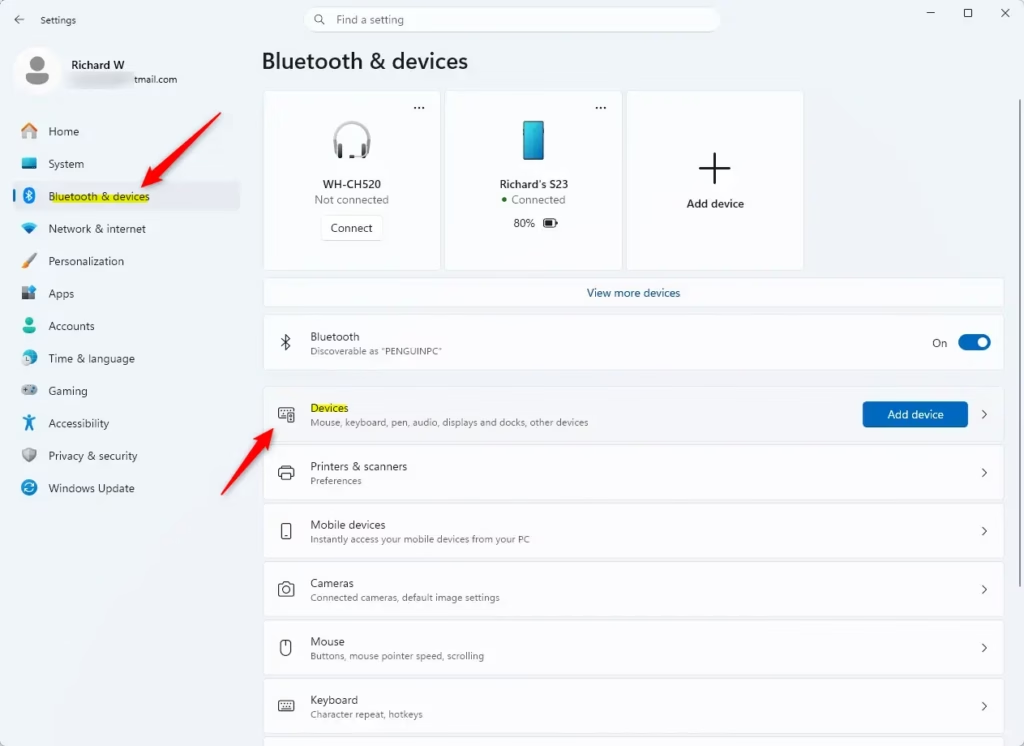
- Click Devices in the Bluetooth & devices section.
You should now see a list of all hardware recognized by Windows, including connected and previously connected items. Printers and scanners also have their own page, Printers & scanners, in the same Bluetooth & devices section. Use it if the printer you want to remove is not in this list.
Find the Device You Want to Remove
- Scroll through the device list and find the device you want to remove. Items are grouped under categories such as "Bluetooth," "Printers & scanners," and "Other devices."
- Click the device.
The Other devices category catches everything else, including external USB (Universal Serial Bus) storage drives and older controllers. If you are not sure which entry is the right one, check the name against the label on the hardware. Disconnecting the device first, so only the stale entry remains, can help you spot it.
Show More Device Details
Clicking the name of the target device opens a new screen with more controls for that piece of hardware. Depending on your Windows 11 build, the controls may appear on a details page or in a menu on the device entry.
Start the Removal Process
- Click Remove device.
The button usually sits directly below the device name or within the device details. On some builds, you may need to open the three-dot menu on the device entry to find it. If the option is missing or greyed out, the device is probably built into your PC, or your account lacks permission to change it. Sign in with an administrator account and try again.
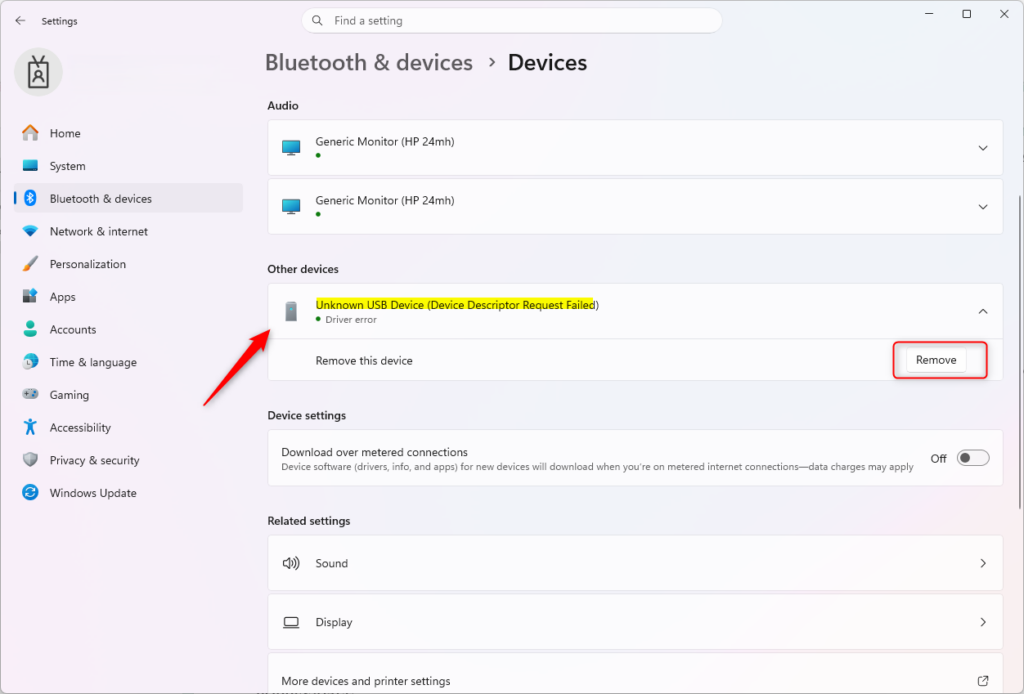
Confirm the Removal
- Read the confirmation window. It asks, "Are you sure you want to remove this device?"
- Click Yes.
This tells Windows to forget the specific device and remove it from the system entirely. If you click No, nothing changes.
Check if the Device is Gone
After you confirm, the device vanishes from the "Other devices" list in the Settings app. That shows Windows has updated its records and no longer treats the hardware as connected or recognized.
If the hardware is still plugged in or powered on, Windows may detect it again and list it once more. Unplug it or switch it off first if you want it gone for good. To undo the removal, pair a Bluetooth device again or reconnect a USB device. For Bluetooth, put the device in pairing mode and use Bluetooth & devices Add device
Reference:
https://support.microsoft.com/en-US/Windows/Hardware/safely-remove-hardware-in-windows
Summary
To remove a device from a Windows 11 PC, open the Settings app, go to Bluetooth & devices, select Devices, locate the hardware, and click Remove device. Then confirm with Yes.
Was this guide helpful?

About the Author
Richard
Tech Writer, IT Professional
Richard is a writer at Geek Rewind who turns complex IT tasks into clear, step-by-step guides. He draws on years of hands-on experience in system administration and enterprise IT operations, focusing on Windows, Linux and WordPress: the problems people actually run into, and the fixes that work. His server and WordPress guides come from systems he runs himself. Richard builds and maintains the platform behind Geek Rewind, from its Ubuntu servers and Nginx configuration to its custom WordPress plugins. Many new tutorials start with readers' questions, and he's always glad to answer them in the comments.
No comments yet — be the first to share your thoughts!