How to Schedule Microsoft Defender Scans in Windows 11

Scheduled Microsoft Defender scans run automatic antivirus checks on your Windows 11 PC during your downtime, so heavy system maintenance never interrupts your work or games. Microsoft Defender is the built-in security tool that protects your computer from viruses and malware without extra paid software.
Setting your own scan times gives you control over when your PC’s resources get used. A full system check every week keeps your files covered without slowing you down in the middle of the day. The Windows Security app has no scheduling screen, so you set the schedule in Task Scheduler. It is included in both Windows 11 Home and Pro, and the steps below are the same on both.
Open Task Scheduler, navigate to Task Scheduler Library Microsoft Windows Windows Defender, double-click Windows Defender Scheduled Scan, click the Triggers tab, then click New to set your scan frequency, day and start time. Windows runs the scan on that schedule whenever your PC is on and awake.
Steps to Schedule Microsoft Defender Scans
Step 1Open Task Scheduler
- Click the Start button (the Windows icon at the bottom of your screen).
- Type
Task Schedulerin the search box and press Enter. Task Scheduler should open in its own window. - Alternatively, instead of the two steps above, click the search box on the taskbar , type
Task Scheduler, and click the app when it appears in the results.
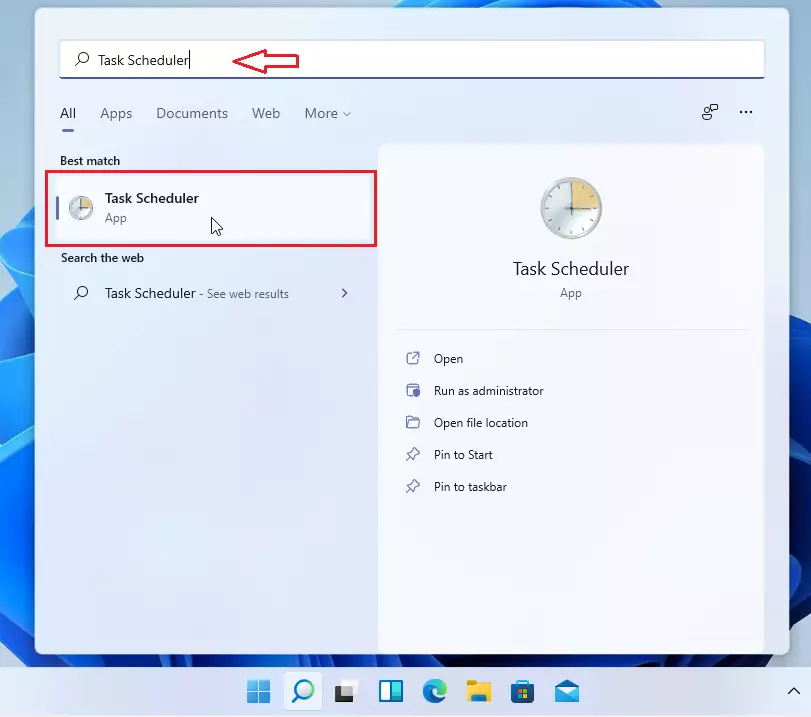
You should now see the Task Scheduler window, with a folder tree on the left, a list of tasks in the middle and an actions list on the right. Editing Defender’s tasks needs administrator rights. If you are signed in with a standard account, Windows asks for an administrator password when you save changes. If Task Scheduler does not open, check your spelling and try the taskbar search method instead.
Step 2Find the Windows Defender Scan Task
- In the Task Scheduler window, look at the left side panel. This is the folder tree.
- Click the arrow next to Task Scheduler Library to open it.
- Click the arrow next to Microsoft, then click the arrow next to Windows. This is the Microsoft Windows path
- Scroll down the list of folders and click the Windows Defender folder. The folder holds a lot of subfolders, so it can take a bit of scrolling to find it.
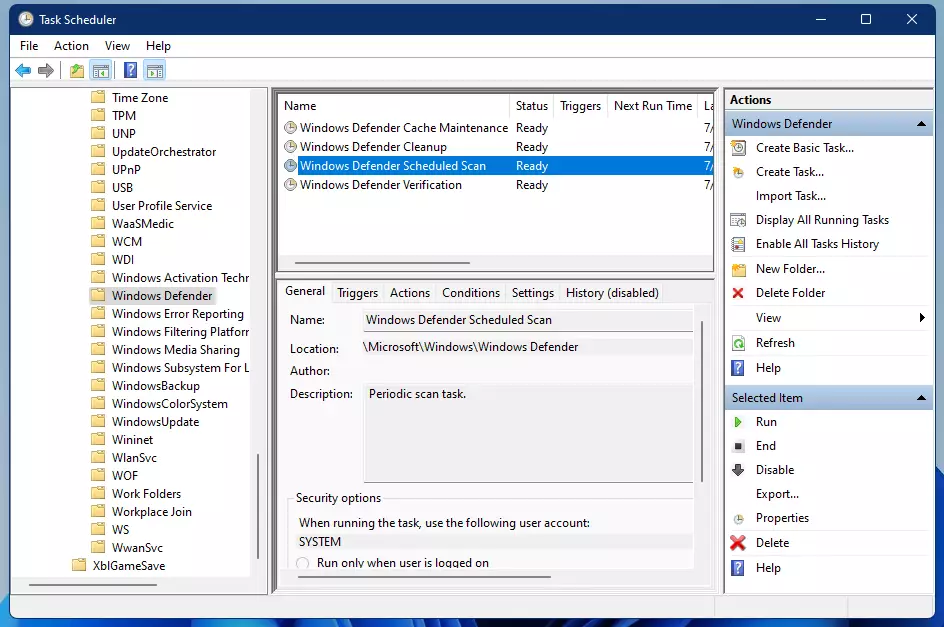
Several are maintenance tasks that Windows needs, so leave those alone and only work with the scan task in the next section.
Step 3Open the Scheduled Scan Settings
- In the middle panel, find and double-click
Windows Defender Scheduled Scan. Its Properties window opens.
Step 4Set When the Scan Runs
- In the new window, click the Triggers tab at the top. A trigger is the rule that tells Windows when to start the task. The list may be empty or may already hold an entry.
- Click the New… button at the bottom. The New Trigger window opens.
- Make sure Begin the task is set to On a schedule.
- Under Settings, choose how often you want the scan to run: Daily, Weekly or Monthly. For a weekly scan, tick the day you want.
- Set the Start date and time. Pick a time when you are away from the PC, such as overnight or during lunch.
- Make sure your computer is turned on and awake at the scheduled time. If it is off, the scan won’t start.
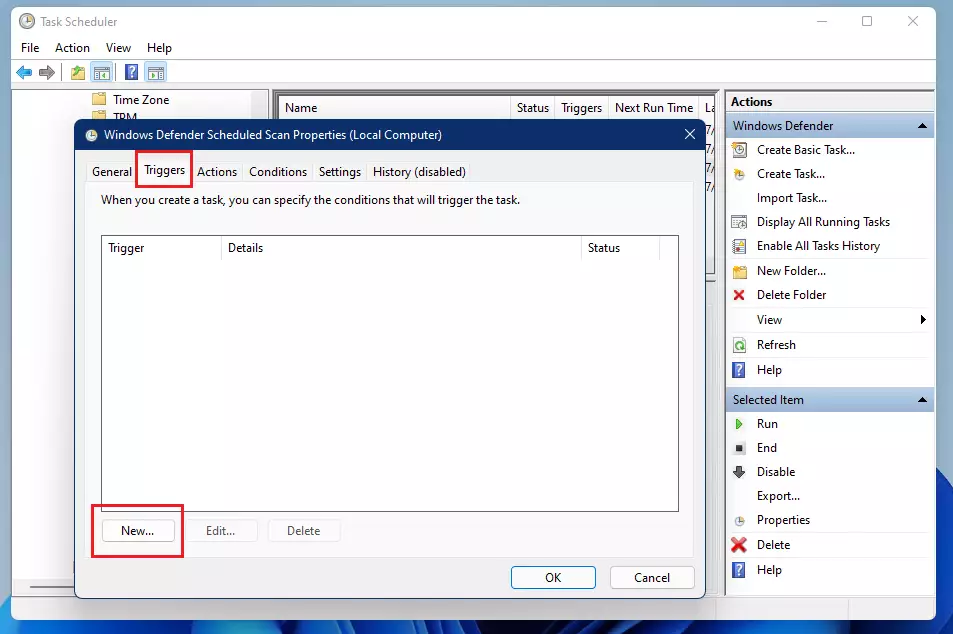
The schedule lives in a trigger. In the task’s Properties window, open the Triggers tab, click New…, and pick the frequency and start time. After that, Windows starts the scan on that schedule whenever the PC is on and awake.
There you can tick Wake the computer to run this task. On a laptop, look at Start the task only if the computer is on AC power too, because it decides whether the scan runs on battery.
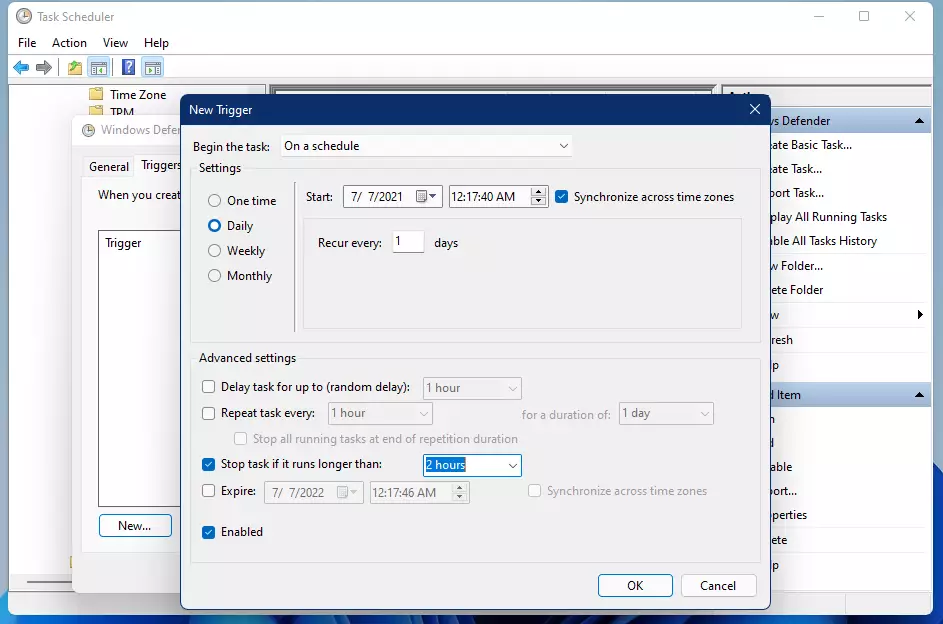
To schedule Microsoft Defender scans, add a new trigger in Task Scheduler. Open the Triggers tab, click New..., and choose your start time and repeat pattern so regular virus checks run while you are away.
If you miss a scan because the PC was off, the Settings tab in the same Properties window has Run task as soon as possible after a scheduled start is missed. Tick it if you want a missed scan to run when the PC next starts.
Step 5Finish and Save
- Click OK to save your new schedule. The New Trigger window closes and the trigger now appears in the list on the Triggers tab.
- Click OK on the previous window to close it. If Windows asks for administrator credentials, enter them to confirm the change.
Microsoft Defender now checks the system according to the schedule you set, so protection keeps running without breaking your workflow. To confirm it took effect, select the task in Task Scheduler and look at the Next Run Time column in the middle panel. To undo the change, open the task's Triggers tab again, select your trigger and click Delete, or open it with Edit... and clear the Enabled checkbox.
Why Schedule Defender Scans?
Scheduled Defender scans keep your computer safe by running automatic checks at times that do not interrupt you. Running them during idle hours avoids performance drops and lag while you play games or work. It also catches viruses and malware without draining your battery during peak daily hours.
- It helps keep your computer safe by regularly checking for viruses and malware.
- You can pick a time when the scan won't disturb your work or gaming.
- It's easy to set up using Windows' built-in Task Scheduler, with no extra software needed.
- Regular scans help keep your PC running smoothly and securely.
- By scheduling scans, you take control of your computer's security in a simple way.
Summary
Scheduling Microsoft Defender scans in Windows 11 keeps your PC safe by running automatic background checks at times that do not interrupt your day. Taking charge of your security schedule means threats get caught early without eating your CPU power or slowing your computer while you work or play. Check the Next Run Time column now and then to make sure the schedule is still in place.
Reading the official Microsoft documentation gives deeper insight into security architecture: Windows Security - Microsoft Support.
Have a question about this guide?
Answered by AI from this guide. Good questions may be added to this page — please don't include personal details.
Did this guide fix your problem?

About the Author
Richard
Tech Writer, IT Professional
Richard is a writer at Geek Rewind who turns complex IT tasks into clear, step-by-step guides. He draws on years of hands-on experience in system administration and enterprise IT operations, focusing on Windows, Linux and WordPress: the problems people actually run into, and the fixes that work. His server and WordPress guides come from systems he runs himself. Richard builds and maintains the platform behind Geek Rewind, from its Ubuntu servers and Nginx configuration to its custom WordPress plugins. Many new tutorials start with readers' questions, and he's always glad to answer them in the comments.
No comments yet — be the first to share your thoughts!