How to Enable Task Scheduler History in Windows 11


Task Scheduler history records every start, run, and finish time for your automated tasks on Windows 11. Task Scheduler is the built-in Windows tool that lets you set programs to run automatically on a schedule. It is part of both Windows 11 Home and Pro, so the steps below are the same on either edition.
History is off by default. Turning it on helps you track down errors when a scheduled task fails to run, because you can see whether it started, what it did, and how it ended. You can view the full activity logs inside the Event Viewer app after you enable the feature. Only events recorded after you switch it on are kept, so enable it before you need it.
Open Task Scheduler, click Action, and select Enable All Tasks History. This provides detailed logs for troubleshooting, accessible later in Event Viewer under Applications and Services Logs Microsoft Windows TaskScheduler Operational
How to enable or disable Task Scheduler history
Task Scheduler history in Windows 11 lets you see when your scheduled tasks run and if they finish successfully. You can turn on Task Scheduler history by opening the app, clicking the Action menu, and choosing the option to enable all tasks history. This tracking helps you figure out why an automated task failed to run at the right time. The setting is global: it applies to every task on the PC, not to a single task.
- Open the Start menu and search for Task Scheduler.
- Select the app from the results. The Task Scheduler window opens, with a list of folders on the left, the middle pane for details, and an Actions panel on the right. If you want to be sure you have the rights to change settings, choose Run as administrator from the results instead.
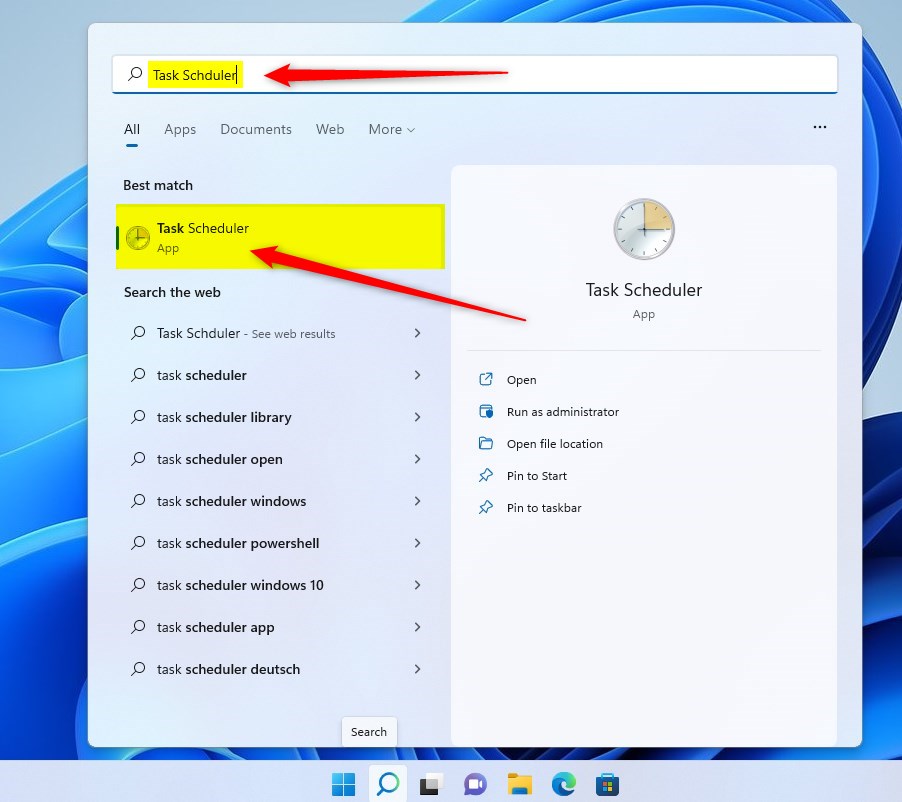
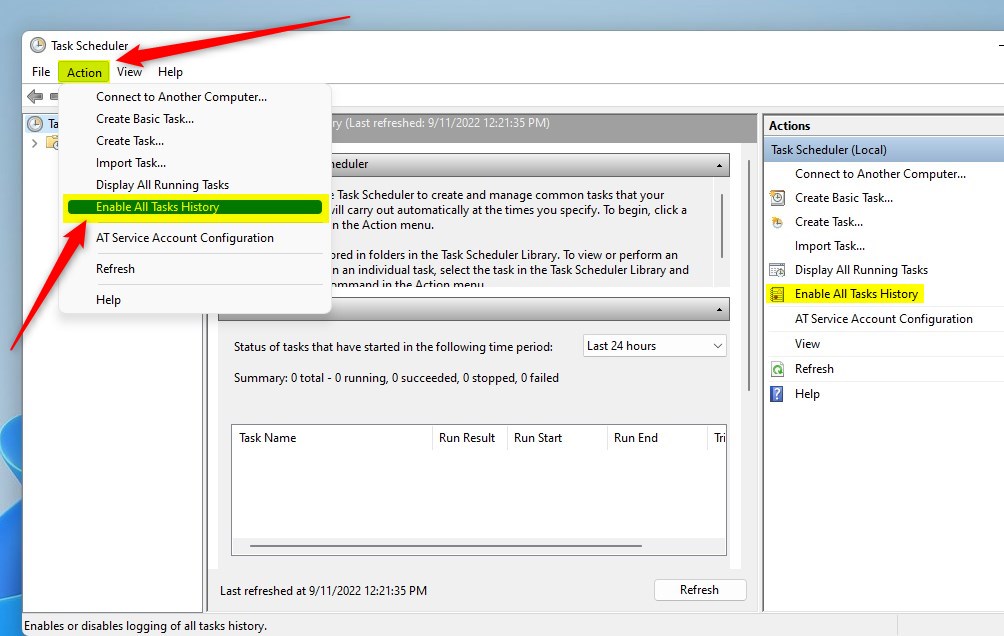
- Once the app is open, click the Action menu at the top. A drop-down list of commands appears.
- Select Enable All Tasks History. Nothing pops up to confirm it. The only sign is that the same menu entry now reads Disable All Tasks History, which tells you logging is on.
- Alternatively, you can click Enable All Tasks History in the Actions panel on the right side of the window. If you do not see the entry, make sure Task Scheduler (Local) is selected in the left pane. If it is missing or greyed out, close the app and reopen it with Run as administrator.
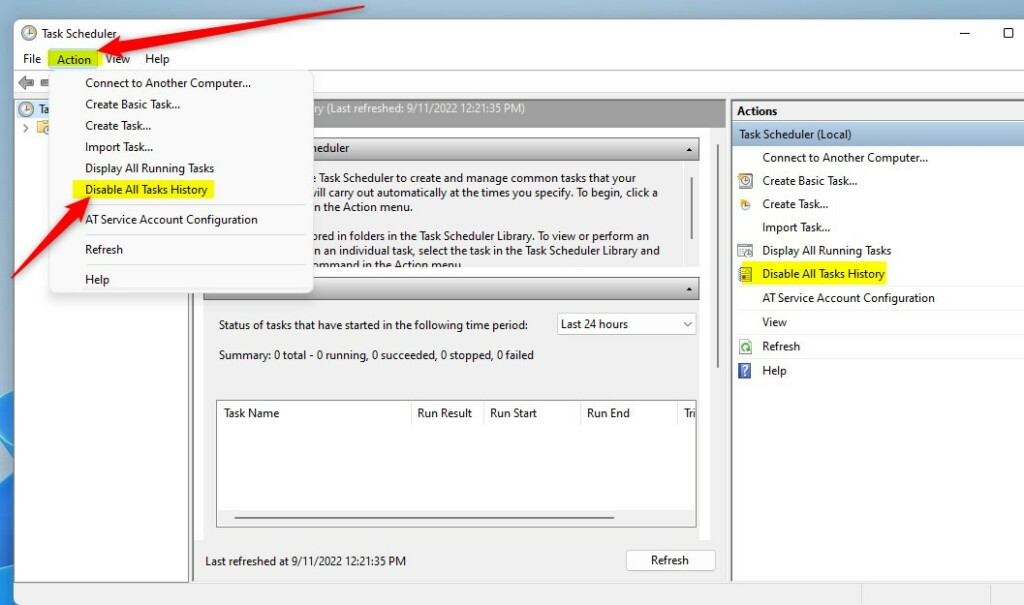
To turn off Task Scheduler history later, follow the same steps and choose "Disable All Tasks History" instead of "Enable All Tasks History". This action stops Windows from recording when tasks run, freeing up disk space. No restart is needed for either change. Events already recorded stay in the log until they are cleared or overwritten.
Using PowerShell to Enable History
For those comfortable with command-line tools, PowerShell offers another way to manage these settings quickly. Run PowerShell as an administrator first: right-click the Start button, then choose Terminal (Admin) and approve the User Account Control prompt. Without elevation, the commands below will fail with an access error.
To enable history, run this command:
wevtutil set-log Microsoft-Windows-TaskScheduler/Operational /enabled:true
To disable history, run this command:
wevtutil set-log Microsoft-Windows-TaskScheduler/Operational /enabled:false
Viewing Logs in Event Viewer
Once enabled, you can view the logs by opening Event Viewer from the Start menu. In the left pane, go to Applications and Services Logs Microsoft Windows TaskScheduler Operational The middle pane lists the events, and selecting one shows its details below. You can filter these logs to find specific tasks or errors: click Filter Current Log in the right-hand panel and narrow the list by level, such as Error, or by time. If the Operational log is empty, run a task and refresh the view. Learn more about managing logs at the official Microsoft documentation.
You can also check a single task without opening Event Viewer. Select the task in Task Scheduler and click its History tab at the bottom of the middle pane. The tab shows the events for that task only, and it stays empty until history is enabled.
Summary
Task Scheduler history in Windows 11 records your tasks, making it easier to spot and fix problems with your automated jobs. Turn it on from the Action menu or with PowerShell, read the results in Event Viewer or on a task's History tab, and turn it off again if you no longer need the log.
Have a question about this guide?
Answered by AI from this guide. Good questions may be added to this page — please don't include personal details.
Did this guide fix your problem?

About the Author
Richard
Tech Writer, IT Professional
Richard is a writer at Geek Rewind who turns complex IT tasks into clear, step-by-step guides. He draws on years of hands-on experience in system administration and enterprise IT operations, focusing on Windows, Linux and WordPress: the problems people actually run into, and the fixes that work. His server and WordPress guides come from systems he runs himself. Richard builds and maintains the platform behind Geek Rewind, from its Ubuntu servers and Nginx configuration to its custom WordPress plugins. Many new tutorials start with readers' questions, and he's always glad to answer them in the comments.
No comments yet — be the first to share your thoughts!