How to Access Windows Tools in Windows 11


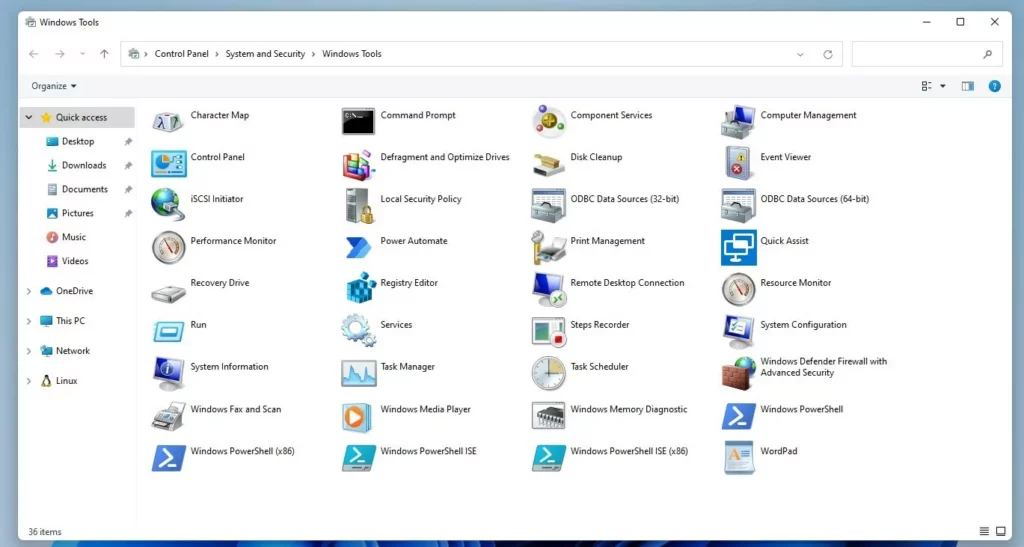
Windows Tools is a single folder in Windows 11 that gathers over 40 advanced system management utilities, including Disk Management, Event Viewer, and Registry Editor. Each item in the folder is a shortcut to a tool that is already part of Windows. You do not need to install anything.
This central hub replaces scattered administrative shortcuts so you can troubleshoot PC problems and check drive health without digging through multiple menus. This guide covers what the folder contains, three ways to open it, and what to do if you cannot find it.
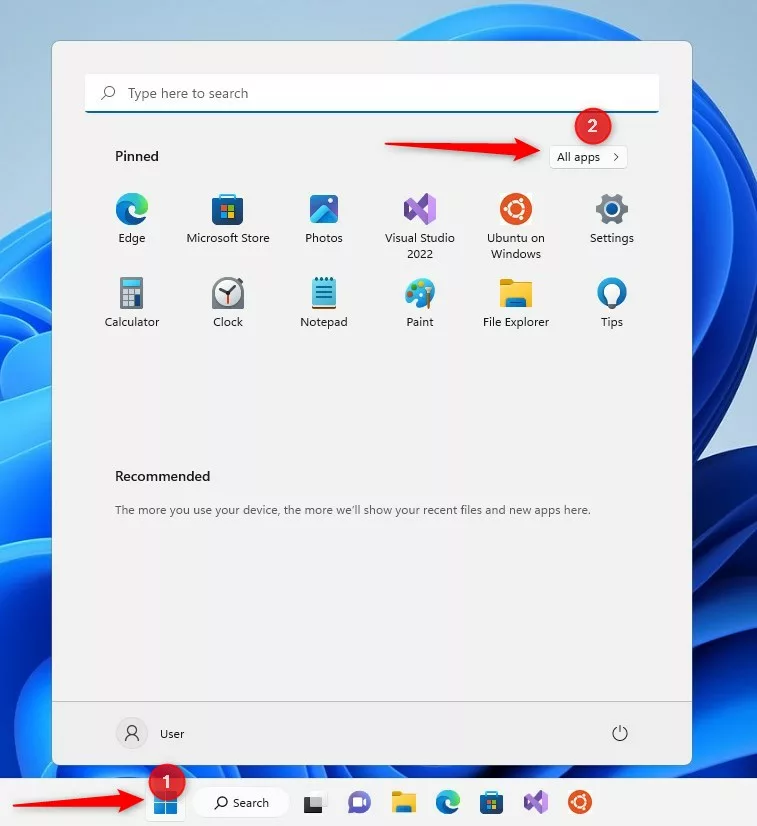
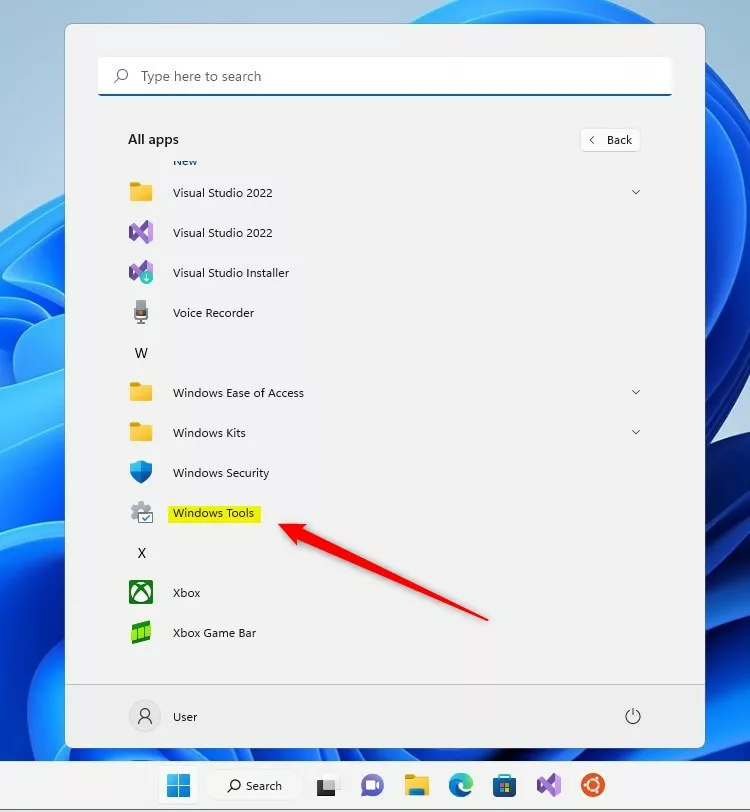
Open the Start menu , select All apps, scroll to Windows Tools near the end of the W section, and click it. The folder opens in File Explorer showing over 40 system utilities including Disk Management, Event Viewer, and Registry Editor. Double-click any tool to launch it.
Functional Breakdown of Essential Tools
Windows Tools in Windows 11 gives you a central folder of advanced system utilities to manage your PC. You can open Computer Management to control local users and disks, check the Registry Editor for deep system settings, and use Event Viewer to track down hardware errors.
The folder looks like a normal File Explorer window. Double-click any item to launch that tool. Some tools are meant for admins and developers, so you will not need all of them. It still helps to know what is there before a problem shows up.
- Computer Management: A one-stop shop for managing disks, services, and local users. It bundles several other tools, such as Event Viewer and Disk Management, into one window. Note that the Local Users and Groups section is not available on Windows 11 Home.
- Disk Management: Use this to format drives, create partitions, or change drive letters. It is also a good place to check whether Windows can see a new or external drive. Formatting or deleting a volume erases its data, so double-check the drive before you confirm.
- Event Viewer: A log of everything your computer does, perfect for finding the cause of crashes. Look for entries marked Error or Critical around the time the problem happened. They often name the app, driver, or device involved.
- Resource Monitor: Shows real-time data on how your CPU, memory, and disk are being used. It goes into more detail than Task Manager . You can see which process is reading from or writing to your disk, for example.
- System Configuration: Helps you manage startup programs and boot settings. It is useful for troubleshooting, such as a clean boot to test whether a background program is causing trouble. Changes to boot settings take effect after a restart.
- Component Services: Used by developers and admins to manage COM components. Most home users never need it. Leave it alone unless a vendor or an admin tells you what to change.
- Registry Editor: A powerful database for system settings. Warning: Be careful here, as changing the wrong key in 🗝️HKEY_LOCAL_MACHINE\
SOFTWARE can break your system. Before you change anything, back up the key you plan to edit. In Registry Editor, select the key and use File Export to save a copy you can restore later.
Accessing Windows Tools
You can reach these tools using several methods in Windows 11. The three below all lead to the same folder, so use whichever suits you. The Control Panel and File Explorer methods are handy if you cannot find the folder in the Start menu .
Open Windows Tools from the Start Menu
- Click the Start button on the taskbar . The Start menu opens with your pinned apps.
- Select All apps, at the top right of the Start menu . You now see an alphabetical list of every installed app.
- Scroll down and click on Windows Tools. It sits near the end of the list, under the W entries. The Windows Tools folder opens and shows the full set of utilities. Double-click one to launch it.
Open Windows Tools via the Control Panel
- Open the Control Panel . If the Control Panel opens in Category view, you will see the headings used in the next step.
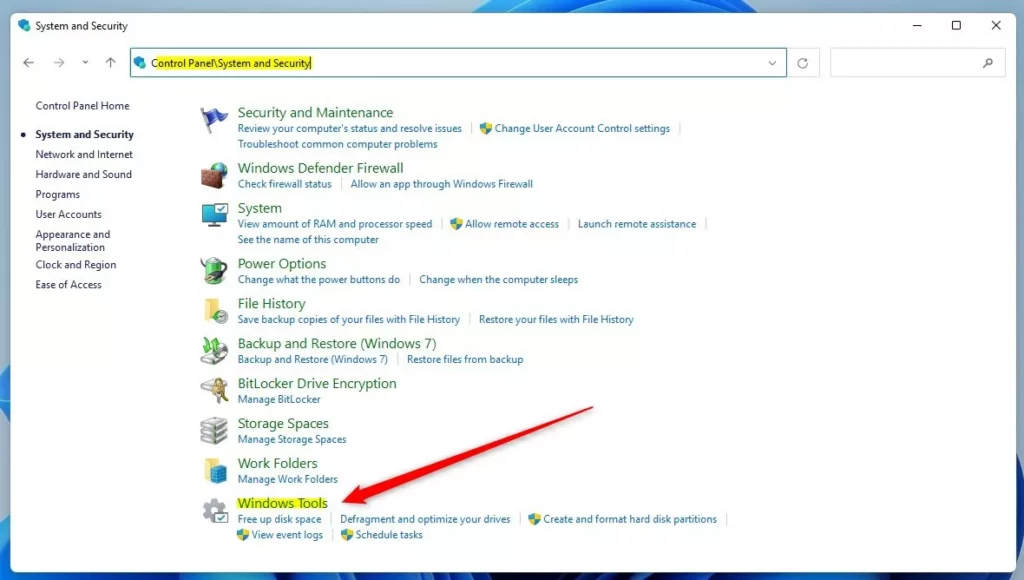
- Click on System and Security. A page opens with a list of system-related links.
- Look for Windows Tools in the list and click it. You may need to scroll down. The Windows Tools folder opens in a File Explorer window.
Locate Windows Tools via File Explorer
- Open File Explorer . The quickest way is to press the Win plus E.
- Copy and paste this path into the address bar:
%ProgramData%\Microsoft\Windows\Start Menu\Programs\Administrative Tools - Press Enter. The Windows Tools folder opens and lists the same utilities as the other two methods.
Troubleshooting Access Issues
If you cannot find the Windows Tools folder, it is likely because your account does not have administrator rights.
If you are on a work or school PC, an admin may have restricted access on purpose. Ask your IT team before trying to work around it. On a home PC, check whether your account is an administrator under Settings Accounts Your info. Standard accounts show up there as such. To change the account type, sign in with an administrator account and use Settings Accounts Other users
Approve the prompt only for tools you opened on purpose.
Summary
Windows Tools in Windows 11 is your central hub for important system management and diagnostic utilities. Once you know where the folder is, checking a drive, reading an error log, or reviewing startup programs takes only a few clicks. Take extra care with Registry Editor and Disk Management, because mistakes there are hard to undo.
Related Articles
Have a question about this guide?
Answered by AI from this guide. Good questions may be added to this page — please don't include personal details.
Did this guide fix your problem?

About the Author
Richard
Tech Writer, IT Professional
Richard is a writer at Geek Rewind who turns complex IT tasks into clear, step-by-step guides. He draws on years of hands-on experience in system administration and enterprise IT operations, focusing on Windows, Linux and WordPress: the problems people actually run into, and the fixes that work. His server and WordPress guides come from systems he runs himself. Richard builds and maintains the platform behind Geek Rewind, from its Ubuntu servers and Nginx configuration to its custom WordPress plugins. Many new tutorials start with readers' questions, and he's always glad to answer them in the comments.
[…] can also find it inside the Windows Tools […]