How to Restrict Access to Windows 11 Settings

Restricting access to the Windows 11 Settings app stops other people from changing your system updates, user accounts, or computer setup on shared devices. You can lock down these controls entirely or hide specific pages using two built-in Windows tools: the Group Policy Editor (gpedit.msc) and the Registry Editor (regedit.exe).
Shared computers in homes, schools, and offices often need these safeguards to prevent accidental or unwanted changes. Setting up these blocks lets you keep your system secure so only trusted people can change your preferences. Both methods below need an administrator account, and both take a minute or two once you know where to click.
Open Registry Editor, navigate to 🗝️HKEY_CURRENT_USER\
Where Windows Stores Its Settings
Windows 11 gives people two places to change operating system settings. The restrictions in this guide cover both of them:
- Settings app – This is the new, easy-to-use panel for most settings. It covers Windows Update , accounts, network, personalization, and apps.
- Control Panel – This is the older tool for advanced settings. Many admin tasks, such as legacy network adapter options and some user account tools, still live here.
Method 1Use Registry Editor to Block Settings and Control Panel
Registry Editor (an advanced database for system settings) lets you restrict Windows 11 settings by modifying the system registry to block both the Settings app and Control Panel entirely. Open the Start menu , type regedit.exe, and press Enter to launch the Registry Editor, where you can create a specific restriction policy that prevents standard users from changing critical computer configurations.
Before you start, back up the registry: in Registry Editor, choose File Export, pick All as the export range, and save the file somewhere safe. If something goes wrong, you can restore it with File Import
What happens when you do this? This method blocks both the Settings app and Control Panel for your user account. If you are signed in with the same account you are restricting, you will lock yourself out of both too. Registry Editor itself stays available, so you can always reverse the change (see the undo note below the screenshots).
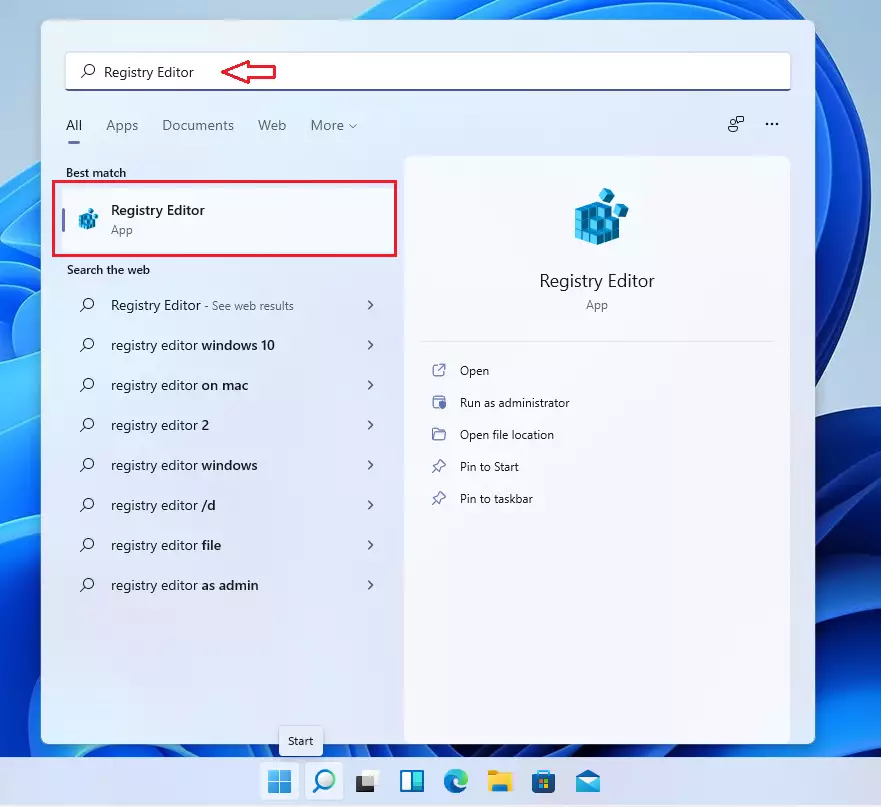
- Click the Start button and type
Registry Editor. The Registry Editor app should appear at the top of the search results. - Click the Registry Editor app to open it. If a User Account Control prompt appears, click Yes. You should now see the Registry Editor window with a tree of keys in the left pane.
- Click the address bar at the top of Registry Editor, paste one of the two paths below, and press Enter. The left pane jumps to that location.
HKEY_CURRENT_USER\Software\Microsoft\Windows\CurrentVersion\PoliciesRestricting access to Windows 11 Settings prevents users from opening the Settings app or Control Panel. This action blocks all users from accessing system configurations and adjustments, effectively locking down Windows 11. This measure is useful for shared computers.
HKEY_LOCAL_MACHINE\SOFTWARE\Microsoft\Windows\CurrentVersion\Policies - In the left pane, right-click Policies, choose New Key, and name it
Explorer. If a key with that name already exists under Policies, skip this step and select it instead. You should now see the new key listed under Policies. - Right-click the new Explorer key and choose New DWORD (32-bit) Value. A new value appears in the right pane with its name highlighted for editing.
- Name this new value
NoControlPaneland press Enter. Type the name exactly, because Windows ignores values with the wrong name. - Double-click
NoControlPanel, set the Value data to1, and click OK. The value should now show your data in the right pane. - Repeat the steps for both registry paths above to make sure it applies to all users. ⚠️ Admin privileges required
- Close Registry Editor and restart your computer. After you sign in again, the restriction is active.
Here's what it looks like in Registry Editor:
Your value should show the type REG_DWORD and the data you entered in the right pane, under the Explorer key. If it does not, check the spelling of the value name.
To undo it: sign in with an account that is allowed to use Registry Editor, open the same path, and either delete the value or set its data back to 0. Then restart or sign out and back in.
Method 2Use Group Policy Editor to Block Settings (For 🪟 Windows 11 Pro or Enterprise)
Group Policy Editor (a centralized management tool for system administrators) lets you restrict Windows 11 settings without touching the registry if you use Pro, Enterprise, or Education editions. Open the Start menu, type Edit group policy, and press Enter to open the tool so you can apply administrator policies that stop other users from opening system preference menus.
Windows 11 Home does not include the Group Policy Editor. If you search for it on Home and nothing comes up, use the Registry Editor method above instead.
Restricting access prevents users from opening the Windows 11 Settings app or Control Panel. This action blocks unwanted changes to system configurations. As with the registry method, the policy applies to the account it is set for, so do not enable it while signed in as the only administrator unless you are happy to lose access to Settings yourself.
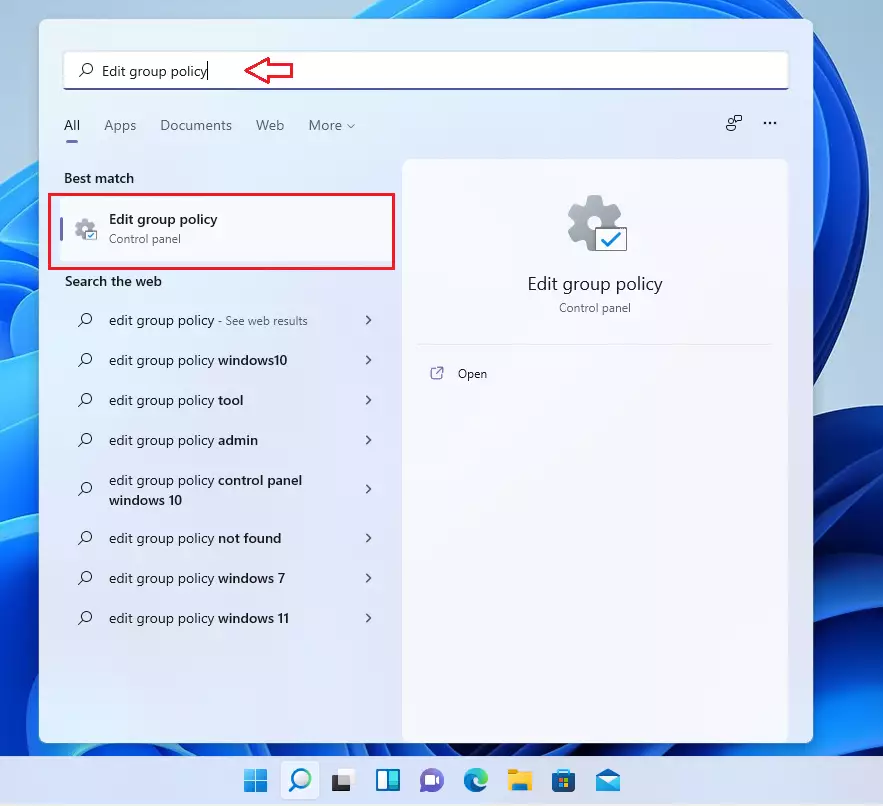
- Click Start, type
Edit group policy, and open the app. If a User Account Control prompt appears, click Yes. ⚠️ Admin privileges required - In the left pane, go to: User Configuration Administrative Templates Control Panel The list of Control Panel policies should appear in the right pane.
- In the right pane, double-click Prohibit access to Control Panel and PC settings. A settings window for that policy opens.
- Select Enabled, then click OK. The policy's state in the list should now read Enabled.
- Close the Group Policy Editor and restart your PC. A restart is the surest way to make the policy apply, though signing out and back in often works too.
To undo it: open the same policy again, select Not Configured (or Disabled), and click OK. Restart or sign out and back in. The Group Policy Editor is not blocked by this policy, so you can still reach it from an administrator account.
What Happens After You Complete These Steps?
Configured restrictions prevent standard users from launching the Windows 11 Settings app or Control Panel. Attempting to open either application triggers a system notification stating that access is restricted. To test it, sign in as the restricted user and try to open Settings from the Start menu. If Settings still opens, restart the PC and check that the value or policy was saved on every path you set.
Summary
Locking down core areas to restrict Windows 11 settings keeps your computer configuration safe on shared hardware by stopping unauthorized changes. You can choose between registry tweaks that work on any Windows edition or policy tools built into Pro versions, depending on what best fits your needs.
- Restricting access helps protect your computer from unwanted changes.
- The Registry Editor method works on all editions of Windows 11 but is a bit technical, so export a backup before you edit.
- The Group Policy Editor is simpler but only available on Windows 11 Pro, Enterprise, or Education editions.
- Always be careful when changing system settings and back up important data. Both changes can be reversed from the same tool you used to make them.
- By following these simple steps, you can keep your Windows 11 PC safer and prevent accidental or unwanted changes to important settings.
Have a question about this guide?
Answered by AI from this guide. Good questions may be added to this page — please don't include personal details.
Did this guide fix your problem?

About the Author
Richard
Tech Writer, IT Professional
Richard is a writer at Geek Rewind who turns complex IT tasks into clear, step-by-step guides. He draws on years of hands-on experience in system administration and enterprise IT operations, focusing on Windows, Linux and WordPress: the problems people actually run into, and the fixes that work. His server and WordPress guides come from systems he runs himself. Richard builds and maintains the platform behind Geek Rewind, from its Ubuntu servers and Nginx configuration to its custom WordPress plugins. Many new tutorials start with readers' questions, and he's always glad to answer them in the comments.
No comments yet — be the first to share your thoughts!