How to Make Coloring Book Pages Using Paint on Windows 11

Coloring book pages in Paint on Windows 11 let you turn a typed description into a printable black-and-white outline. The feature is called Cocreator. It is an AI-powered drawing tool built into Paint, and it generates clean line art from your idea. You don’t need any drawing skills, and a simple page takes only a few minutes.
The short version of the process looks like this:
- Open the Paint app.
- Select the Cocreator icon in the top toolbar. A Cocreator panel should open beside the canvas.
- Type your idea in the text box. Keep it short and concrete, for example the subject plus “black and white line art, coloring page”.
- Choose a style from the options in the panel. Pick one that gives plain outlines rather than shaded or filled artwork, since filled areas are hard to color in.
- Check the results. If the outlines are too busy, change your description and generate again.
Menu names and layout can shift slightly between Paint versions. If something looks different from the steps above, check that Paint is up to date first.
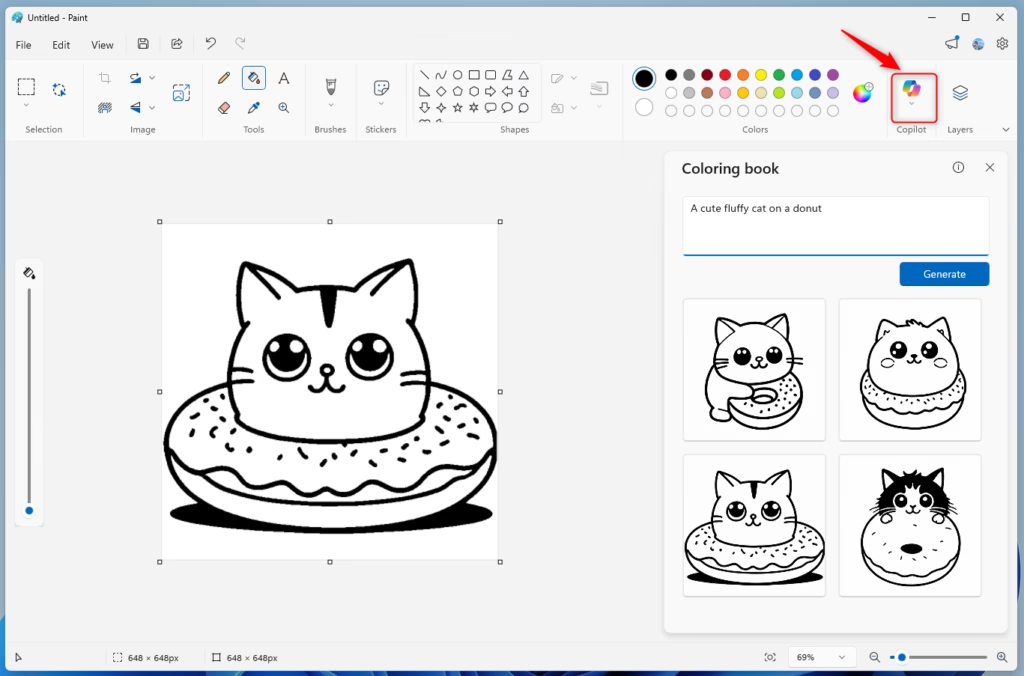
Open Paint and click the Copilot button on the toolbar. Select “Coloring book,” describe your desired image, and click “Generate.” Paint will create several coloring pages for you to use.
What You Need
Check these three things before you start. If one is missing, the Cocreator icon may not appear in Paint at all.
- A Windows 11 PC that supports Copilot+ PC. Cocreator depends on hardware and region support, so an older Windows 11 PC may not offer it even when everything else is in order.
- The latest Paint app (version 11.2512.191.0 or newer). Paint updates through the Microsoft Store, not through Windows Update , so open the Microsoft Store, go to its downloads or updates page, and install any pending update for Paint. Close and reopen Paint afterward so the new version loads.
- A Microsoft account to sign in. Sign in to Windows or to Paint with it. A local-only account will not give you access to Cocreator.
If the icon is still missing after you meet all three, the usual cause is an out-of-date Paint app or a PC that doesn’t support the feature. Updating Paint is the first thing to try.
Step-by-Step: Create Coloring Pages in Paint
You can use Paint coloring book Windows 11 features to turn text ideas into line art. Open Paint, click the Copilot button on the toolbar, and pick the coloring book option from the menu. Type what you want to see in the prompt box, and the built-in artificial intelligence draws the page for you to print or color digitally.Click the Start button, type Paint, and open the app.
On the Paint toolbar at the top, click or tap the Copilot button. A menu will appear. Select Coloring book from that menu.
In the panel that opens, type what you want to see in your coloring book page. For example, type “a cute fluffy cat on a donut”. Then click the Generate button.
Paint creates several coloring pages based on your description. Click any page to add it to your drawing area, copy it, or save it to your computer for later.
Why Try This Feature?
- Easy to Use: Paint is simple and made for everyone, no special skills needed.
- Let AI Help You: Just type what you want, and the computer makes your coloring pages.
- Save and Share: Keep your pages or share them with friends and family.
- Always Improving: Microsoft keeps updating Paint with new fun features.
Using the built-in artificial intelligence tool in Paint saves time when you want custom line art without drawing skills. The program is already installed on your computer, so you do not need to download extra apps or learn complex design software to make unique pages for kids or relaxation.
Learn More
For official news about Paint and other Windows apps, visit the Windows Insider Blog.
Have a question about this guide?
Answered by AI from this guide. Good questions may be added to this page — please don't include personal details.
Did this guide fix your problem?

About the Author
Richard
Tech Writer, IT Professional
Richard is a writer at Geek Rewind who turns complex IT tasks into clear, step-by-step guides. He draws on years of hands-on experience in system administration and enterprise IT operations, focusing on Windows, Linux and WordPress: the problems people actually run into, and the fixes that work. His server and WordPress guides come from systems he runs himself. Richard builds and maintains the platform behind Geek Rewind, from its Ubuntu servers and Nginx configuration to its custom WordPress plugins. Many new tutorials start with readers' questions, and he's always glad to answer them in the comments.
No comments yet — be the first to share your thoughts!