
A Microsoft Edge profile is a separate space inside the browser. It keeps its own bookmarks, saved passwords, history, extensions and settings. In Microsoft Edge version 120 and later, you can run several profiles on one computer. That lets you keep work links apart from personal pages, or give each family member their own space on a shared PC.
Creating a new profile takes less than a minute. You don’t need to restart Edge or Windows, and the profiles you already have stay as they are.
Click the profile icon in the top right corner of Microsoft Edge, select Add profile, choose Personal or Work or school, then decide whether to sign in with your Microsoft account to sync data or start without it. Click Confirm and start browsing to open your new profile in a separate window.
Step 2Start Creating a New Profile
Start from any open Edge window. The profile icon sits in the top right corner, next to the address bar. It shows your picture or initials if you’re signed in, or a generic person icon if you aren’t.
- Open Microsoft Edge.
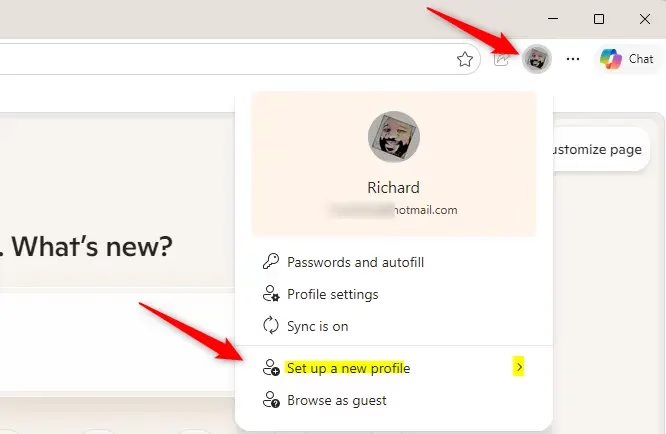
- Click the profile icon in the top right corner of the window.
- Look at the menu that opens. It lists your current profile and any others on this PC. Below them is the option to add a new profile (Add profile). Click it to begin.
The new profile is kept separate from every other profile on the PC. Its bookmarks, saved passwords and browsing history won’t mix with anyone else’s.
If the profile icon is missing, make sure you are in a normal browser window and not a pop-up window. Also check that the window is wide enough to show the full toolbar.
Step 3Pick Your Profile Type
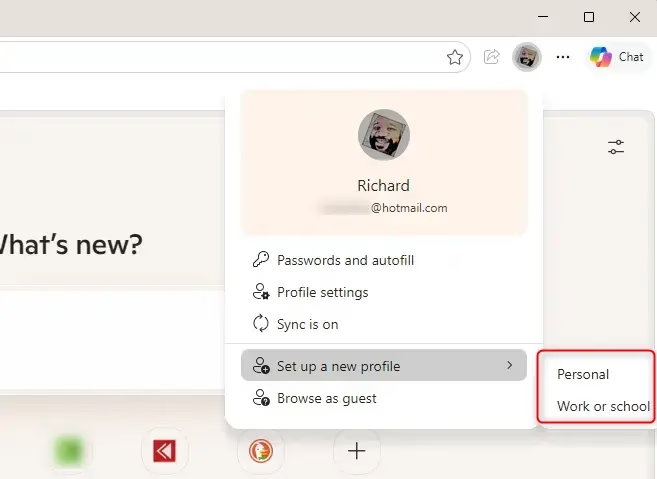
Edge asks which type of profile you want. This choice decides the initial setup, and you can change the related settings later.
- Personal: Use this for everyday browsing, such as social media, shopping, personal email and hobbies.
- Work or school: Use this to keep job or school activity apart from your home life. It suits work email, project tools and anything tied to your employer or school.
Pick the type that matches how you'll use the profile. If you're unsure, choose Personal. A work or school profile is usually tied to an organisation account, and your organisation's admin may apply its own policies to it. A personal profile has no such restrictions.
Step 4Decide About Syncing Data
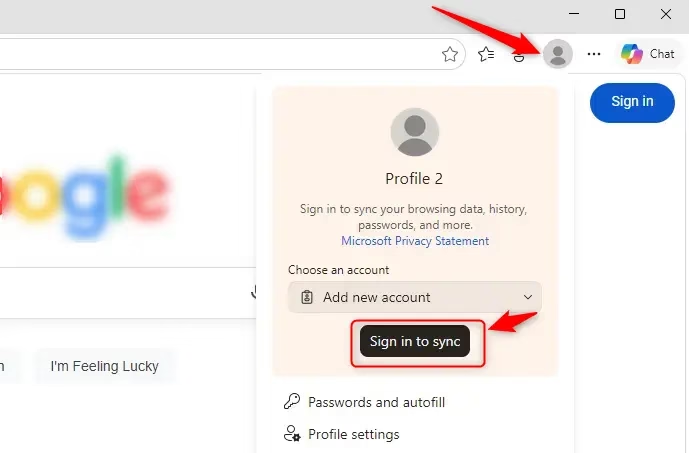
Next, Edge asks whether to sign in so the profile can sync. You have two choices.
- Sign in to sync data (Recommended): Sign in with your Microsoft account, such as an Outlook.com address. Edge then syncs your bookmarks, passwords, history, extensions and settings across every device where you use the same account and profile. This is useful if you use Edge on more than one computer or on your phone.
- Start without your data: The new profile starts completely empty, like a brand-new browser. No bookmarks, history or extensions come over. This suits testing something, setting up a profile for someone else, or using a shared computer where you don't want personal information saved.
Start without your data if you want extra privacy or the profile belongs to someone else.
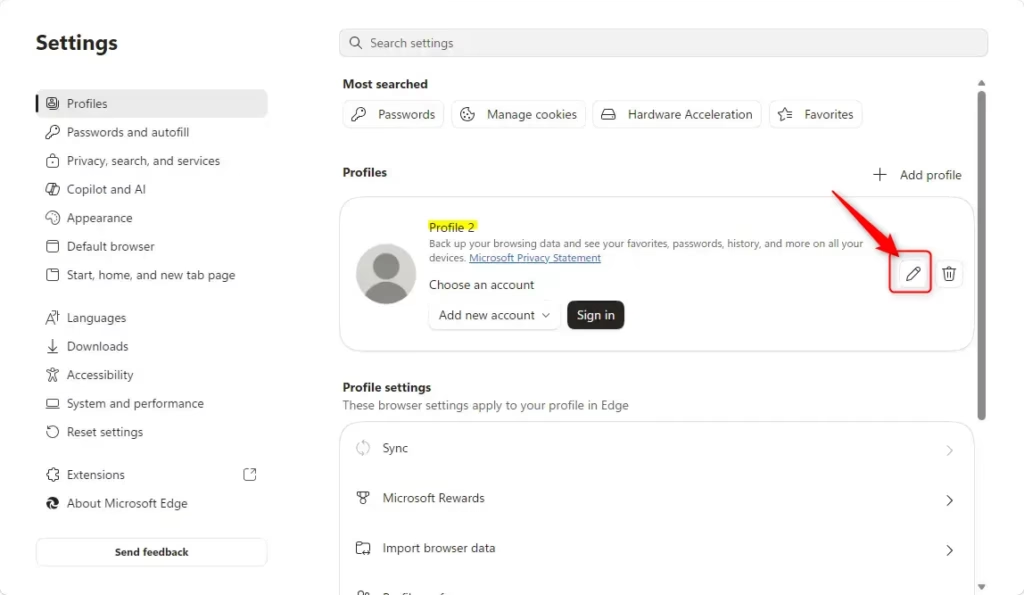
You can change this later. Open Edge Settings, go to the Profiles section, and adjust sign-in and sync there.
Step 5Confirm and Start Browsing
When setup is finished, click Confirm and start browsing. A new Edge window opens automatically for the new profile.
You can tell you're in the new profile because the window looks fresh. It may have a different background or theme and none of your old bookmarks or history. The profile icon in the top right corner also shows the new profile.
Anything you do in this window affects only this profile. That includes saving website links, adding extensions and changing settings. Your other profiles stay unchanged and keep working as before. Each profile opens in its own window, so you can have several open at once.
If you no longer need a profile, open Edge Settings, go to Profiles, and remove it there. Removing a profile deletes its local data from that PC, so check you have what you need first.
Reference:
https://support.microsoft.com/en-us/edge/sign-in-and-create-multiple-profiles-in-microsoft-edge
Summary
Separate profiles in Microsoft Edge help you organise your browsing. Work, personal use and shopping each get their own space, so everything is easier to manage.
Have a question about this guide?
Answered by AI from this guide. Good questions may be added to this page — please don't include personal details.
Did this guide fix your problem?

About the Author
Richard
Tech Writer, IT Professional
Richard is a writer at Geek Rewind who turns complex IT tasks into clear, step-by-step guides. He draws on years of hands-on experience in system administration and enterprise IT operations, focusing on Windows, Linux and WordPress: the problems people actually run into, and the fixes that work. His server and WordPress guides come from systems he runs himself. Richard builds and maintains the platform behind Geek Rewind, from its Ubuntu servers and Nginx configuration to its custom WordPress plugins. Many new tutorials start with readers' questions, and he's always glad to answer them in the comments.
No comments yet — be the first to share your thoughts!