How to Browse as a Guest in Microsoft Edge


Guest browsing in Microsoft Edge opens a separate, temporary window. It keeps your browsing history, passwords, and cookies off a shared PC. When you close the guest window, Edge deletes the temporary data from that session.
Edge includes this feature on both Windows 10 and Windows 11. It is a quick way to let someone borrow your computer without exposing your personal data. It works the same on Home and Pro editions, and you don’t need to install or enable anything.
Open Microsoft Edge, click your profile icon, and select “Browse as a guest.” A new window will open for a temporary session that clears all data when closed.
Why use Guest mode?
Use guest mode when someone else needs to borrow your computer. It also helps when you want to look something up without adding it to your own history. A few common cases:
- A friend or relative wants to check their email or look something up on your PC.
- You want to sign in to a second account on a website without logging out of your main one.
- You are on a shared or family computer and don’t want searches or sign-ins saved to your profile.
Guest mode does not make you anonymous online. Websites, your network administrator, and your internet provider can still see your traffic. It only stops Edge from keeping a record on this PC.
What happens when done?
Closing the guest window deletes the cookies, history, and other temporary data from that session. Nothing carries over to your regular profile, and the next guest session starts empty.
Files you download in a guest window are saved to the PC like any other download. Closing the window does not remove them. If you don’t want them left behind, delete them from your Downloads folder before you hand the PC back.
How to browse as a guest in Microsoft Edge
Edge lets you browse as a guest from the browser menu when you share a computer and want to keep your personal data private. Here is how to start a session:
- Open the Microsoft Edge browser.
- Click your profile icon on the top toolbar, to the left of the three-dot menu. It shows your picture or initial if you are signed in.
- Select Browse as a guest from the menu that appears.
If you don't see the guest option, update Edge to the latest version and try again. Some work or school PCs also have it turned off by policy, and only an administrator can change that.
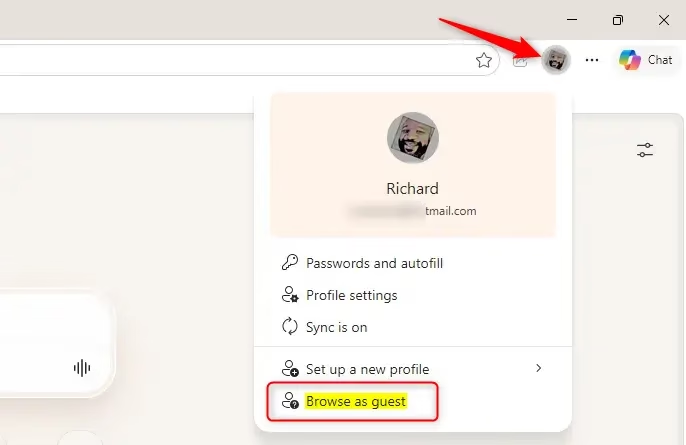
A new, separate window opens immediately for guest activities. It looks different from your normal window and shows a notice that you are browsing as a guest. Your own tabs, bookmarks, and saved passwords are not available in it. Your original Edge window stays open behind it, so you can switch back at any time.
Browsing as a guest using a command
You can also open Edge guest mode directly, without clicking through the browser menus. Paste the text string C:\Program Files (x86)\Microsoft\Edge\Application\msedge.exe -guest into the Windows Run box (press the Windows key + R) or use it as the target of a desktop shortcut. Either one launches a temporary window immediately. This is handy if you want a dedicated shortcut for quick access. Because the path contains spaces, put quotation marks around the path part if Windows can't find the file.
If Edge is installed somewhere else on your PC, the command won't work until you adjust the path.
Use this command to open a blank guest window:
"C:\Program Files (x86)\Microsoft\Edge\Application\msedge.exe" -guest
Use this command if you want to open a specific website immediately:
"C:\Program Files (x86)\Microsoft\Edge\Application\msedge.exe" -guest https://geekrewind.comSummary
Guest browsing in Microsoft Edge protects your privacy on shared computers. It keeps your passwords and browsing history separate from your main profile. When you finish your task and close the guest window, the browser removes the session's cookies, history, and site data. Nobody else using the device can then see what you looked at or signed into.
Before you close the window, sign out of any accounts you used and save anything you need. To undo guest mode, close the guest window. Your normal Edge profile is untouched.
How do I browse as a guest in Microsoft Edge?
What is the difference between guest mode and InPrivate mode in Edge?
Can I open a specific website in guest mode using a command?
Will my browsing history be saved when using guest mode in Edge?
Is browsing as a guest in Edge safe?
Was this guide helpful?

About the Author
Richard
Tech Writer, IT Professional
Richard is a writer at Geek Rewind who turns complex IT tasks into clear, step-by-step guides. He draws on years of hands-on experience in system administration and enterprise IT operations, focusing on Windows, Linux and WordPress: the problems people actually run into, and the fixes that work. His server and WordPress guides come from systems he runs himself. Richard builds and maintains the platform behind Geek Rewind, from its Ubuntu servers and Nginx configuration to its custom WordPress plugins. Many new tutorials start with readers' questions, and he's always glad to answer them in the comments.

No comments yet — be the first to share your thoughts!