Enable or Disable Guest Mode in Google Chrome


Guest mode in Google Chrome opens a temporary browsing window that saves no web history, cookies, or personal data. When you turn on guest mode, anyone can use your computer to browse the web without seeing your saved passwords, bookmarks, or autofill information.
You can turn this feature on or off depending on whether you share your PC with others. Turning it off forces everyone to use their own profile so data stays separate.
If your school or workplace manages your PC, policy settings might block you from changing guest mode yourself.
Edit the Windows Registry to enable or disable Chrome’s Guest Mode. Navigate to Computer\🗝️HKEY_LOCAL_MACHINE\
Enable / Disable Guest Mode in Chrome using the Registry
You can manage guest mode chrome settings by adding a specific command to the Windows Registry Editor. Opening the Registry Editor as an administrator lets you turn guest browsing on or off for anyone who uses your computer. This method is helpful if you want to stop other people from browsing the web without saving their history on your PC.
Manual creation fails if an existing policy (a set of rules applied by an administrator) locks your registry keys. To make these changes, run the Registry Editor as an Administrator.
First, open the Windows Registry. Before you begin, back up your registry (a record of your computer’s settings) or create a System Restore point as a safety measure.
Go to this path:
Computer\HKEY_LOCAL_MACHINE\SOFTWARE\Policies\Google\Chrome
If you do not see the Google folder, right-click the Policies folder and create a new key named Google. Do the same for Chrome if it is missing.
Right-click the Chrome folder. Select New DWORD (32-bit) Value. Name it BrowserGuestModeEnabled.
Browser Guest Mode, a privacy setting in Google Chrome version 110 and later, allows temporary users to browse without saving history or cookies. To disable Browser Guest Mode, locate the BrowserGuestModeEnabled setting and change its value to 0. To enable Browser Guest Mode, change the value to 1, which protects your personal browsing data.
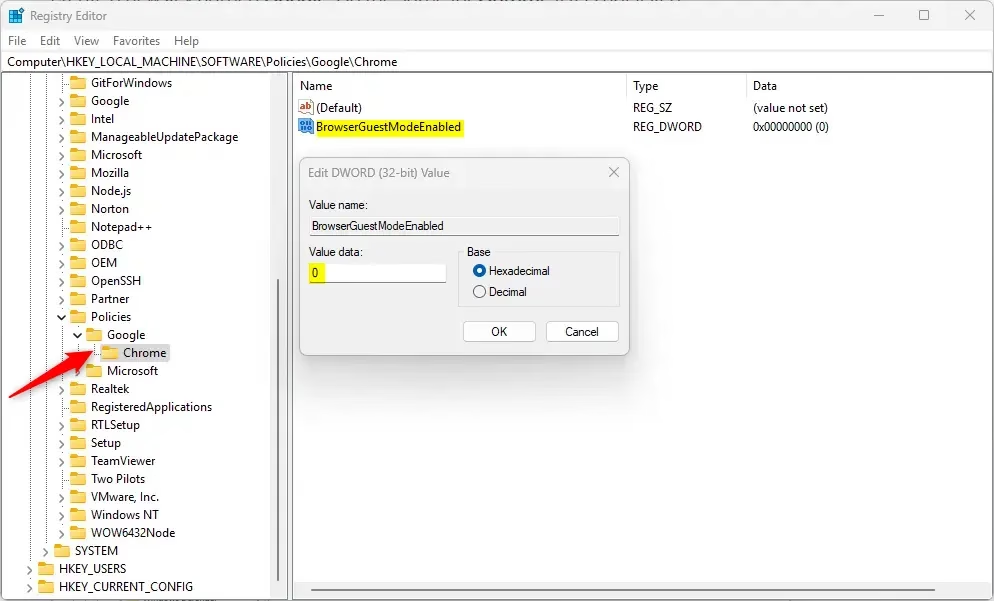
To restore the default settings, delete the BrowserGuestModeEnabled entry. You may need to restart your computer for these changes to work.
Using Google Chrome ADMX Templates
Businesses and IT teams can manage guest mode settings for many computers using Google Chrome ADMX templates with the Group Policy Editor.
Conclusion
You can control Guest Mode through the Windows Registry or via Group Policy. Always back up your registry before you change anything. If your computer is managed by an organization, contact your IT department to change these settings.
Reference:
Was this guide helpful?

About the Author
Richard
Tech Writer, IT Professional
Richard is a writer at Geek Rewind who turns complex IT tasks into clear, step-by-step guides. He draws on years of hands-on experience in system administration and enterprise IT operations, focusing on Windows, Linux and WordPress: the problems people actually run into, and the fixes that work. His server and WordPress guides come from systems he runs himself. Richard builds and maintains the platform behind Geek Rewind, from its Ubuntu servers and Nginx configuration to its custom WordPress plugins. Many new tutorials start with readers' questions, and he's always glad to answer them in the comments.
No comments yet — be the first to share your thoughts!