How to Force Guest Mode in Google Chrome

Guest mode in Google Chrome opens a fresh browser window that deletes your browsing history, cookies, and saved passwords the moment you close it. Shared family computers and public PCs rely on this feature to keep your personal accounts and web habits away from other people.
Forcing guest mode removes the normal profile switch buttons. Nobody can open your profile or sign in to their own account. The setting is applied through a policy, and you can set it on Chrome version 110 and newer using either the registry or Group Policy.
Before you start, know that this affects everyone who uses Chrome on the machine, including you. Plan a way back (covered near the end) before you lock things down.
Open Registry Editor, navigate to Computer\🗝️HKEY_LOCAL_MACHINE\
Force Guest Mode in Chrome using the Registry or Group Policy
There are two ways to apply this configuration. The Windows Registry Editor is the first option and works on every edition of Windows 11, Home included. The Group Policy Editor is the second. It is better suited to several computers, but it is only available on Windows 11 Pro, Enterprise, and Education.
If you run Windows 11 Home, use the registry method. Both methods write the same Chrome policy, so you only need one of them.
Method 1Using the Registry Editor
Registry Editor lets you force guest mode on a single computer by adding a policy value to the system registry. Chrome then opens in a temporary guest session every time a user launches it, so nobody can reach personal browsing data. You do not need any enterprise management tools for this.
Editing the wrong value can cause problems, so follow the names exactly.
- Close all open Chrome windows.
- Open Registry Editor from the Start menu and approve the administrator prompt. The Registry Editor window opens with the list of root keys on the left.
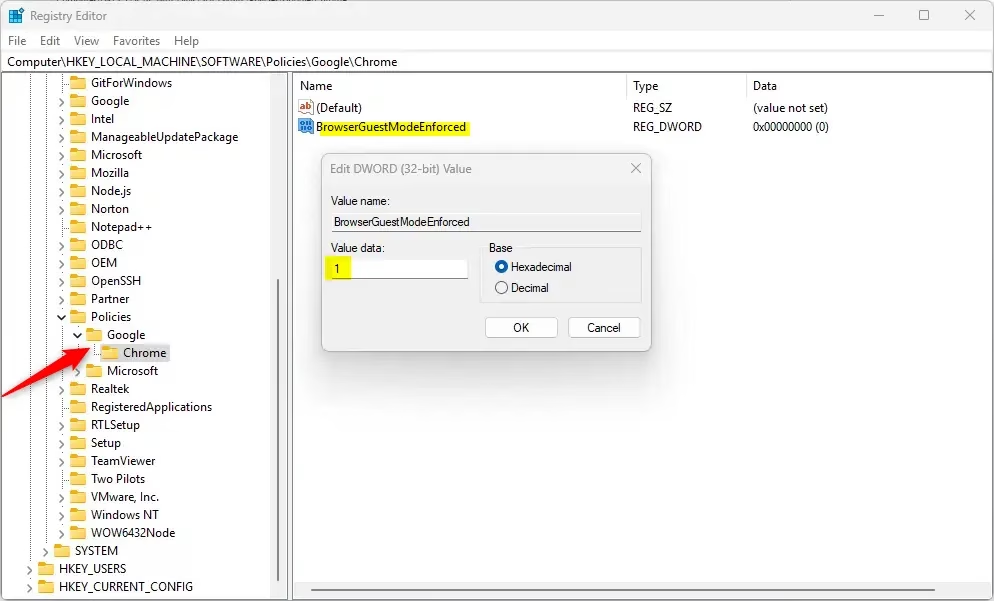
- Go to this path: Computer\HKEY_LOCAL_MACHINE\SOFTWARE\Policies\Google\Chrome. You can paste it into the address bar at the top of the window.
- If the folders Google or Chrome do not exist, right-click the parent folder, select New, then Key, and name it exactly Google or Chrome. The new folder appears in the left pane.
- Right-click an empty area in the right pane of the Chrome folder and select New DWORD (32-bit) Value. A new entry appears with its name ready to edit.
- Name it BrowserGuestModeEnforced and press Enter.
- Double-click the new value. The Edit DWORD (32-bit) Value box opens.
- Type 1 in the Value data box and click OK. The list now shows BrowserGuestModeEnforced with a data value of 0x00000001 (1).
- Close Registry Editor and restart the computer, or at least sign out and back in, then open Chrome.
Method 2Using ADMX Templates (Recommended)
Group Policy and ADMX templates (administrative files used to manage Windows settings across a network) are the best way to force guest mode on many office computers. Network administrators use Google's official templates to enforce strict browsing rules and force guest sessions on all company machines at once.
The Local Group Policy Editor is not included in Windows 11 Home. If you cannot find it, use the registry method above. In a domain, you would normally add the same templates to the central policy store and edit a Group Policy Object instead of the local policy.
- Download the latest Chrome policy templates from the official Google site and extract the ZIP file.
- Copy the ADMX files to your C:\Windows\PolicyDefinitions folder. Copy the matching language files (ADML) into the language subfolder, such as en-US. Windows asks for administrator approval to write there.
- Open the Windows Registry (gpedit.msc). The editor opens with Computer Configuration and User Configuration in the left pane.
- Navigate to Computer Configuration Administrative Templates Google Google Chrome If the Google folder is missing, the templates were not copied to the right place. Close the editor and check the folders, then reopen it.
- Find Force Guest Mode in the policy list. The name may vary slightly depending on the template version. Double-click it.
- Select Enabled, then click Apply and OK. The policy state in the list changes to Enabled.
- Restart Chrome, or restart the computer, so the browser reads the new policy.
Troubleshooting
If guest mode does not start right away, work through the checks below. Checking Chrome's own settings and restarting the computer usually shows whether Windows applied your change or whether the policy is still waiting to load.
- Close every Chrome window, including any still running in the background, and reopen the browser. Chrome only reads policies at startup.
- Restart the computer. This clears anything that kept the old state loaded.
- Type chrome://policy in the Chrome address bar and click Reload policies. If the policy is applied, it appears in the list with a status of OK. If it is missing, Chrome never saw it.
- Check the spelling of the value name in the registry and make sure it is a DWORD set to 1, not a string value.
- Confirm the key sits under HKEY_LOCAL_MACHINE\SOFTWARE\Policies\Google\Chrome, not under HKEY_CURRENT_USER or another similar path.
- Make sure Chrome is up to date. This guide covers version 110 and newer.
If you used Group Policy, open the same policy again and set it to Not Configured. Restart the computer so the browser reads the new state. Normal profiles and the profile picker return afterward, and your existing profile data is still there.
Reference: Chrome Enterprise Policy
Conclusion
Locking Chrome into guest sessions improves security on shared computers because session data is wiped automatically. The trade-off is that users cannot save bookmarks, store passwords, or run extensions. Weigh these limits against how the computer is used to decide whether the restricted setup is right for it.
On a public kiosk or a lab PC, the restrictions are usually a benefit. On a family computer where people want their own bookmarks and sign-ins, you may be better off giving each person a separate Windows account instead.
Have a question about this guide?
Answered by AI from this guide. Good questions may be added to this page — please don't include personal details.
Did this guide fix your problem?

About the Author
Richard
Tech Writer, IT Professional
Richard is a writer at Geek Rewind who turns complex IT tasks into clear, step-by-step guides. He draws on years of hands-on experience in system administration and enterprise IT operations, focusing on Windows, Linux and WordPress: the problems people actually run into, and the fixes that work. His server and WordPress guides come from systems he runs himself. Richard builds and maintains the platform behind Geek Rewind, from its Ubuntu servers and Nginx configuration to its custom WordPress plugins. Many new tutorials start with readers' questions, and he's always glad to answer them in the comments.
No comments yet — be the first to share your thoughts!