How to Show Your Profile Icon in Microsoft Edge

The profile icon in Microsoft Edge is the small picture that shows which Google or Microsoft account is signed into the browser. Moving this icon to the top title bar frees up space on your main toolbar so you have more room for bookmarks and extensions.
This quick adjustment takes only a few seconds and works on all recent versions of Microsoft Edge. A cleaner toolbar lets you see more of your open tabs without clutter.
To show your profile icon in the Microsoft Edge title bar, go to Settings Appearance Customize toolbar Then, click “Select which buttons to show on the toolbar” and toggle “Profile icon” on.
Show the profile icon on the title bar in Microsoft Edge
You can show the Microsoft Edge profile icon on the title bar by changing a quick setting in your browser menu. This keeps your active account visible at all times so you never mix up your personal and work profiles. Turning on this display takes just a few clicks.
Here’s how to update your view:
- Open the Microsoft Edge browser browser.
- Click the three dots (…) in the top right corner.
- Select Settings from the menu.

- Click Appearance on the left-hand menu.
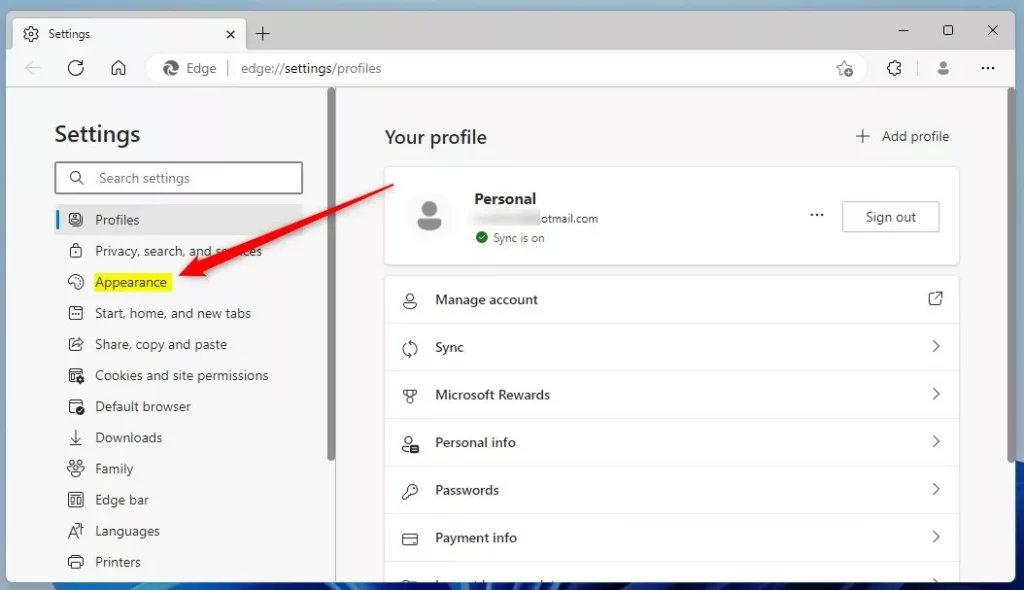
- Scroll down to the Customize toolbar section.
- Look for the Select which buttons to show on the toolbar link and click it.
- Find the Profile icon toggle.
Toggling this setting repositions your profile hub (where your account information is displayed). The icon sits directly in the title bar when enabled. Disabling the toggle moves it back to the main toolbar or the browser overflow menu.
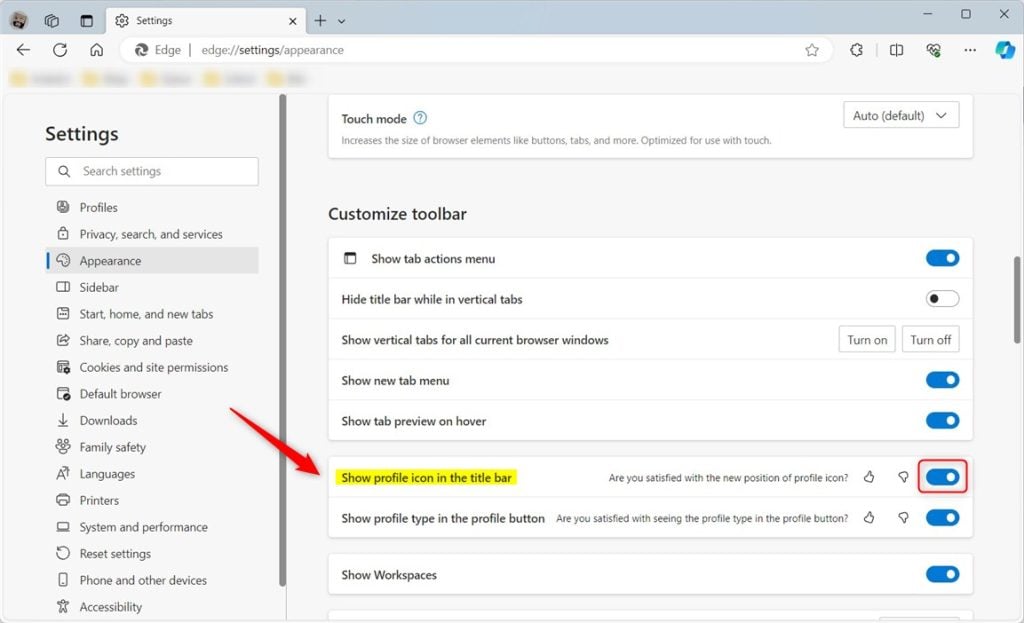
Examples of the profile icon placement:

Was this guide helpful?
0% of readers found this helpful (1 votes)

About the Author
Richard
Tech Writer, IT Professional
Richard is a writer at Geek Rewind who turns complex IT tasks into clear, step-by-step guides. He draws on years of hands-on experience in system administration and enterprise IT operations, focusing on Windows, Linux and WordPress: the problems people actually run into, and the fixes that work. His server and WordPress guides come from systems he runs himself. Richard builds and maintains the platform behind Geek Rewind, from its Ubuntu servers and Nginx configuration to its custom WordPress plugins. Many new tutorials start with readers' questions, and he's always glad to answer them in the comments.



this information is outdated profile icon options removed by Microsoft
even on there own Support page it still says to use the options they removed, it’s a Joke when Microsoft Can’t even Update there own sites info.