
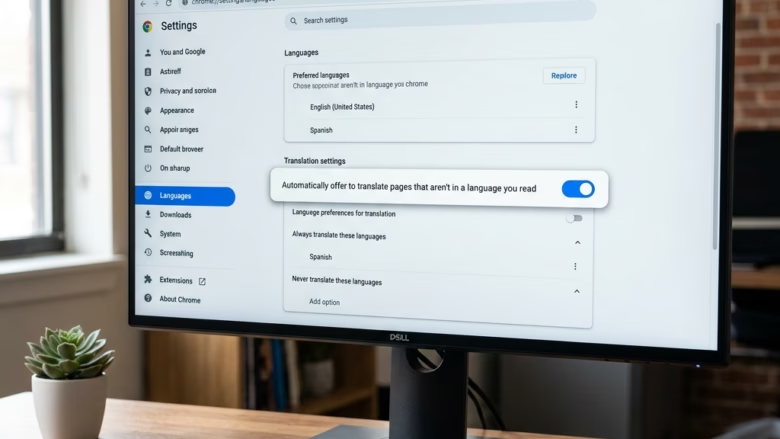
Video translation in Microsoft Edge turns foreign-language audio into your own language in real time. It uses built-in artificial intelligence to add live subtitles or audio dubbing, right inside the browser. You don’t need an extension or a separate app.
Your PC needs at least 12 GB of RAM to run this feature smoothly. With less memory, expect stuttering or slow translation. The first time you turn on translation, Edge downloads a secure language model. After that, it processes everything locally on your computer, so the video and audio are not sent elsewhere for translation. That keeps your personal data private.
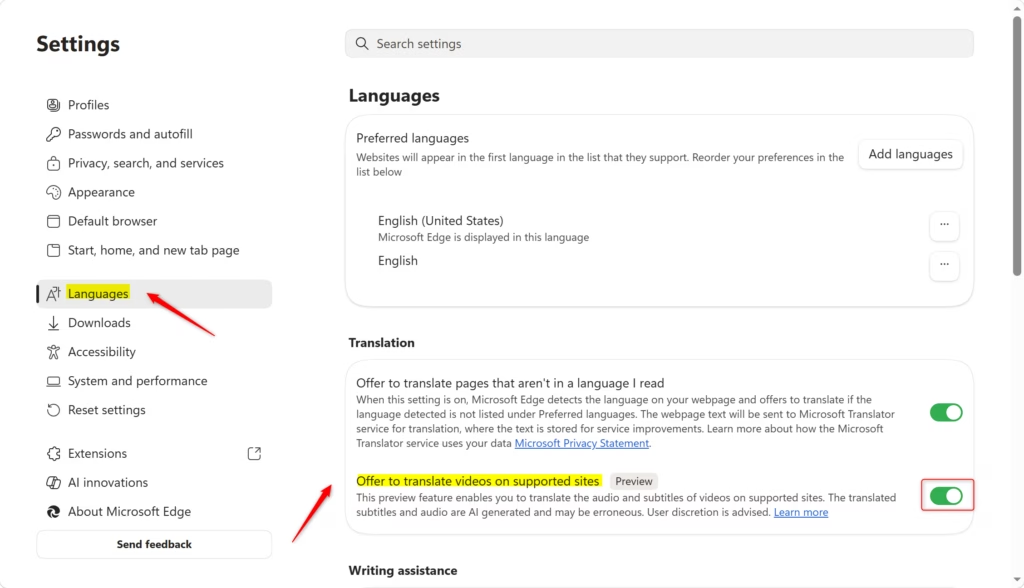
Open Microsoft Edge, click the three dots menu, go to Settings Languages, scroll to the Translation section, and toggle “Offer to translate videos on supported sites” on or off. The change applies to your account immediately.
How to Turn Video Translation On or Off in Microsoft Edge
The first is a setting in Edge that affects only your own user account. The second is a registry change that applies to every account on the PC. Most people only need the first. Use the second if you share a computer and want one setting for everyone, or if you manage several PCs.
Option 1For Your User Account
This method changes a setting in your browser menu for your individual user account. Edge then offers subtitles or dubbing on foreign-language clips on supported sites like YouTube. Other people who share your computer are not affected, because the setting belongs to your profile. You can turn it on or off at any time in your language preferences.
- Open the Microsoft Edge browser.
- Click the three dots icon (…) in the top right corner. This is the “Settings and more” menu.
- Click Settings. A new Settings tab opens.
- Click Languages in the menu on the left. The language options appear on the right.
- Scroll to the Translation section.
- Find the option “Offer to translate videos on supported sites“. Toggle the switch to On or Off, depending on what you want. Offering translation is the default setting.
- Close the Settings tab. The change is saved as soon as you flip the switch, so there is no Save button.
To undo the change, come back to the same page and flip the switch the other way. If the switch is greyed out, or the page says your browser is managed by your organization, a policy is controlling the setting. That can be a work or school policy, or the registry method below. Change or remove the policy first, and the switch will work again.

Option 2For All Users (Requires Administrator Access)
Enabling video translation in Edge for all user accounts on one computer means editing the Windows registry. This system-wide method sets a policy that applies to every profile on the device. You need full administrator access, because the policy covers anyone who signs into Windows. It works the same on Windows 11 Home and Pro, since it uses the Registry Editor and not Group Policy.
Why change this? It lets you enforce the translation setting for all users on the computer, not just yourself.
What happens when done? The setting you choose for offering video translation applies to all user accounts on the PC. Users will usually no longer be able to change it in their own Edge settings.
Follow these steps exactly. If you want a safety net, right-click the key you are about to change in Registry Editor and choose Export to save a backup first.
- Click the search box on the taskbar, type "regedit", and press Enter.
- If a User Account Control warning asks whether you want to allow the app to make changes, click Yes. If you are signed in as a standard user, you will be asked for an administrator password. The Registry Editor window then opens.
- In the left pane, navigate to this path:
HKEY_LOCAL_MACHINE\SOFTWARE\Policies\Microsoft\Edge
- Check whether the
Edgefolder is visible on the left. If it is, select it and go to the next step. If it isn't, create it. Right-click theMicrosoftfolder, select New Key, and name the new keyEdge. The new folder appears under its parent. Select it.
The right pane shows the values stored in the selected key. This is where you create or change the value that controls the video translation offer. Choose one of the three options below.
- To Always Enable Offer to Translate Videos:
- Right-click in the empty space on the right.
- Select New DWORD (32-bit) Value. A new entry appears with its name highlighted.
- Name the new value
LiveVideoTranslationEnabled. - Double-click
LiveVideoTranslationEnabled. The Edit DWORD (32-bit) Value box opens. - Set the Value data to
1and click OK.
- To Disable Offer to Translate Videos:
- Right-click in the empty space on the right.
- Select New DWORD (32-bit) Value. A new entry appears with its name highlighted.
- Name the new value
LiveVideoTranslationEnabled. - Double-click
LiveVideoTranslationEnabled. The Edit DWORD (32-bit) Value box opens. - Set the Value data to
0and click OK.
- To Use the Default Setting (User Choice):
- If the
LiveVideoTranslationEnabledvalue exists, right-click it and select Delete. - Confirm the deletion if prompted. Each user can then choose the setting for their own account again.
- If the
When you are done, close the Registry Editor. You may need to restart Microsoft Edge for the change to take effect. Close all Edge windows, then open the browser again. If the setting still hasn't changed, sign out of Windows and back in, or restart the PC. To undo this method later, delete the value as described in the last option above.
Summary
Microsoft Edge has a built-in tool that translates videos on your device. It offers real-time audio dubbing and subtitles, and you can control it for just your account or for every account on the PC.
Was this guide helpful?

About the Author
Richard
Tech Writer, IT Professional
Richard is a writer at Geek Rewind who turns complex IT tasks into clear, step-by-step guides. He draws on years of hands-on experience in system administration and enterprise IT operations, focusing on Windows, Linux and WordPress: the problems people actually run into, and the fixes that work. His server and WordPress guides come from systems he runs himself. Richard builds and maintains the platform behind Geek Rewind, from its Ubuntu servers and Nginx configuration to its custom WordPress plugins. Many new tutorials start with readers' questions, and he's always glad to answer them in the comments.




No comments yet — be the first to share your thoughts!