

- 5 steps
- Needs administrator rights
This tutorial shows you how to turn startup boost on or off in Microsoft Edge. You can do this for just your own account or for everyone who uses your Windows 11 computer. Changing it for your own account only affects your profile. Changing it for every user needs an administrator account.
Open Microsoft Edge, click Settings and more (three dots) at top right, select System and performance, then System, and toggle Startup boost on or off. The change takes effect after you close and reopen Edge.
What Is Startup Boost?
Startup boost is a feature that helps Microsoft Edge open faster. After you close the browser, Edge keeps a few of its processes running quietly in the background, using only a small amount of system resources.
If you have an older build, update Edge first so the setting and any related policy behave as described here.
With startup boost on, Edge starts much faster when you open it from any of these places:
- the taskbar
- the desktop
- a link in another app
The speed gain shows up after the computer starts and after you close Edge.
The feature does not use much computer power, because it only keeps some Edge processes ready. While your browser windows are already open, startup boost adds no extra load.
Here is when you might want to turn it off:
- Your PC has little RAM, and you want every bit of memory free.
- You rarely use Edge, so there is nothing to speed up.
- You see Edge processes in Task Manager after closing the browser and don’t want them there.
If you change your mind, repeat the same method and set the opposite value. The change takes effect the next time you close and reopen Edge, so close all Edge windows afterward. If you manage a shared PC and the setting is greyed out or keeps switching back, an administrator policy is probably controlling it. In that case, the all-users method has to be changed instead.
Option One
Turn Startup Boost On or Off in Microsoft Edge Settings
You can easily turn Microsoft Edge startup boost on or off right in the browser’s settings. Just go to ‘System and performance’ within the main settings menu. This is the simplest way to control if Edge runs in the background.- Open Microsoft Edge.
- Click the Settings and more button (three dots) at the top right. You can also press Alt+F. Then click Settings.
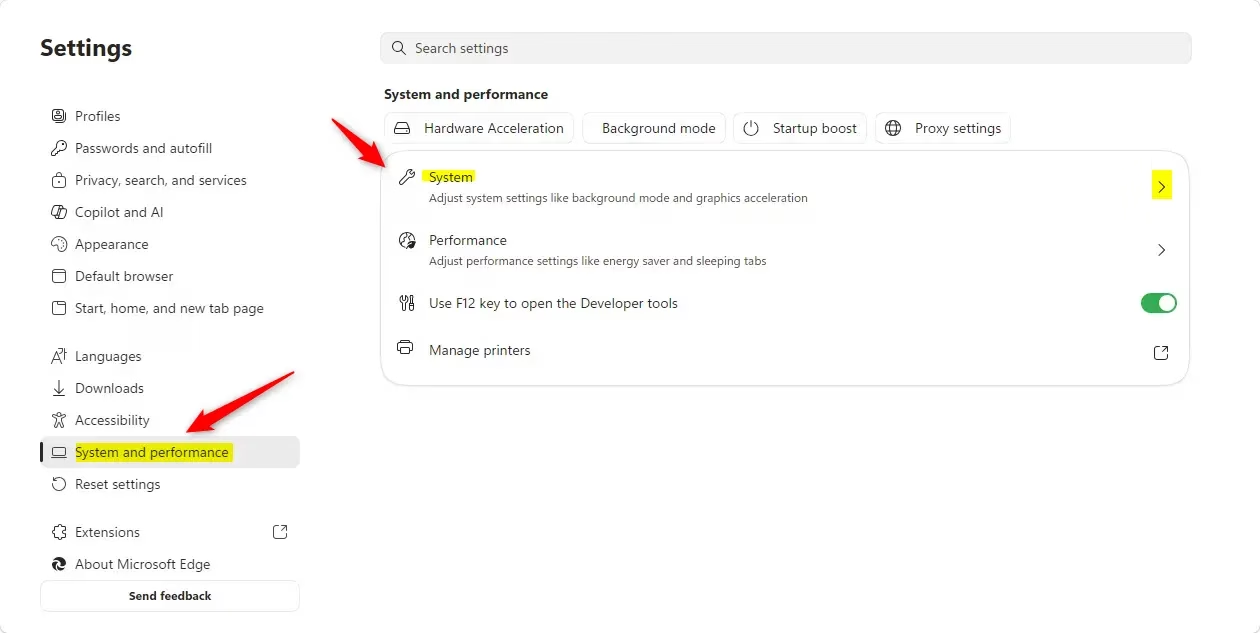
- Click System and performance on the left side. Then click System on the right side.
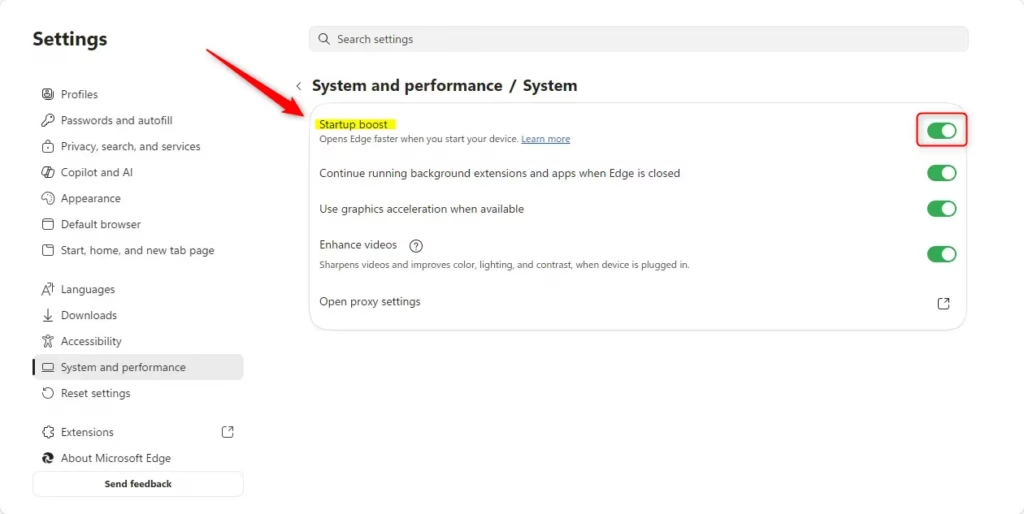
If you don’t see a left pane, click the three lines menu button at the top left. Or make the Microsoft Edge window wider until you see the left pane. - Turn Startup boost on (this is the default) or off. Pick what you want.
- You can now close the Settings tab or Microsoft Edge.
Option Two
Turn Startup Boost On or Off for All Users Using the Registry
If you’re an administrator, you can disable Microsoft Edge startup boost for all users on your computer using the Windows Registry. You can either use the Terminal app with a command or directly edit the registry value to manage this setting.
You can use the Windows Terminal app as an administrator and run a command. Or you can go directly to the Registry and edit the value yourself. This option uses the StartupBoostEnabled policy for Microsoft Edge.
Always Turn On Startup Boost for All Users
This setting will override Option One and gray it out.
reg add "HKEY_LOCAL_MACHINE\SOFTWARE\Policies\Microsoft\Edge" /v StartupBoostEnabled /t REG_DWORD /d 1 /f
Turn Off Startup Boost for All Users
To turn off startup boost for all users, you can use a specific setting that overrides the individual browser options. This method ensures that Microsoft Edge startup boost is disabled across the entire computer, preventing it from running in the background.
Startup boost, a Microsoft Edge feature, is on by default, allowing users to control its activation. Users can select Option One within Microsoft Edge settings to turn startup boost on or off. This feature helps Microsoft Edge open faster on your computer.
Microsoft Edge's Startup Boost feature helps your browser open faster. This feature keeps a small part of Microsoft Edge running in the background even when the browser is closed, preparing it for quicker launches.
Have a question about this guide?
Answered by AI from this guide. Good questions may be added to this page — please don't include personal details.
Did this guide fix your problem?

About the Author
Richard
Tech Writer, IT Professional
Richard is a writer at Geek Rewind who turns complex IT tasks into clear, step-by-step guides. He draws on years of hands-on experience in system administration and enterprise IT operations, focusing on Windows, Linux and WordPress: the problems people actually run into, and the fixes that work. His server and WordPress guides come from systems he runs himself. Richard builds and maintains the platform behind Geek Rewind, from its Ubuntu servers and Nginx configuration to its custom WordPress plugins. Many new tutorials start with readers' questions, and he's always glad to answer them in the comments.
No comments yet — be the first to share your thoughts!