
- 4 steps
- Needs administrator rights
The Tab Performance detector in Microsoft Edge is a built-in tool that flags open tabs using too much memory or CPU power. It helps keep your PC responsive when you have dozens of tabs open. You can turn it on or off in the browser settings, or for every user on the PC with a registry policy.
To change it from the flags page, open a new tab in Microsoft Edge, type edge://flags in the address bar, and search for the performance detector setting. The standard method in the Settings page is covered in Option One below.
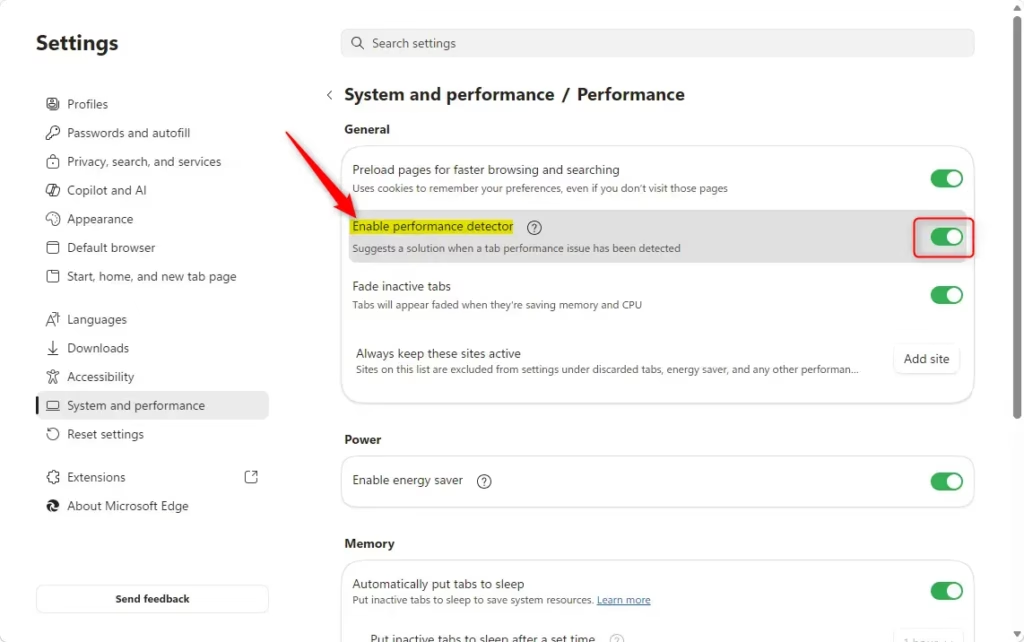
Go to Settings, then System and performance, and toggle “Enable performance detector” under the Performance section. This feature monitors tab resource usage and alerts you when tabs consume too much memory or CPU.
Why Use the Performance Detector?
The Performance detector helps you find browser tabs that use too much memory and processing power. With it turned on, you can spot the heavy tabs slowing down your computer. You can then close them or put them to sleep so the browser runs fast again.
The detector watches your tabs in the background. When it finds a tab using excessive resources, it alerts you so you can deal with the problem. It only alerts you. It does not close or sleep anything until you choose to.
How Does the Performance Detector Work?
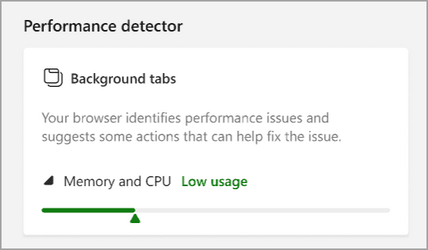
Here is what the detector looks like in use. It shows simple visual cues, so you do not need to open Task Manager to find a problem tab.
When Edge detects that your background tabs are using too much memory or processing power, a heart pulse icon with a red dot appears in the toolbar. If you do not see the icon, the detector is probably turned off, or no tab is using enough resources to trigger it.
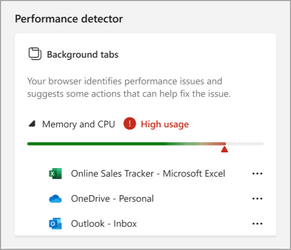
Click the Performance detector icon. You will see "High usage" for memory and CPU, and the gauge turns red to show high resource use. Below it, a list shows the specific tabs using the most memory or CPU.
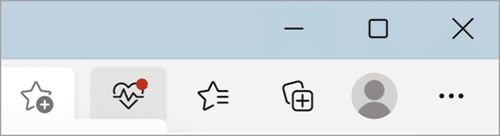
From that list, you can close the tabs or put them to sleep. Doing so frees resources and helps restore your computer’s normal performance. Typically at least one tab shows memory usage of over 300 MB.
Option 1Turn On or Off Tab Performance Detector in Microsoft Edge Settings
You can turn the Performance detector on or off directly in the Edge settings. This changes the setting for your own profile only. It works the same on Windows 11 Home and Pro, and you do not need to restart Windows.
- Open Microsoft Edge.
- Click the Settings and more button (Alt+F), which looks like three dots in the top right corner. Then click Settings. The Settings page opens in a new tab.
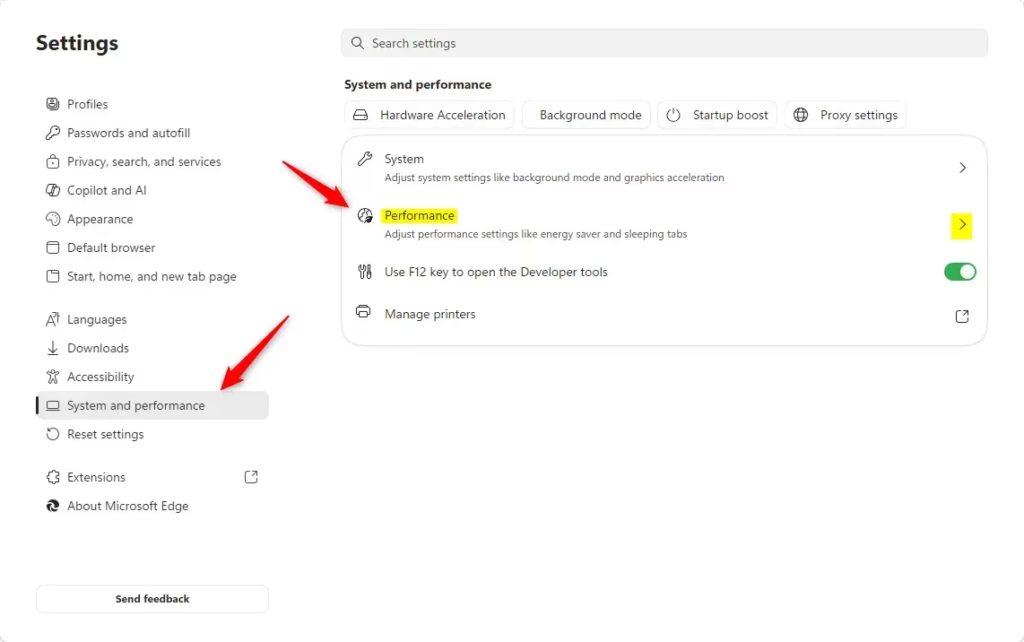
- Click System and performance in the left pane. The performance options appear in the right pane. Then click Performance there.
If you do not see a left pane, click the menu button (three bars) at the top left. You can also make the Microsoft Edge window wider until the left pane appears.
- Under General, turn the Enable performance detector switch on or off. The change takes effect right away, with no need to restart Edge.
If the switch is greyed out, a registry policy is controlling it (see Option Two below). If the option is missing, update Edge to the latest version, since the detector is not in older builds. To undo your change, flip the same switch back.

Option 2Turn On or Off Tab Performance Detector Using Registry [Requires Admin]
You can also enable or disable the Performance detector for all users on the PC by changing the Windows Registry. This is the more advanced method. It sets a policy for Microsoft Edge, and it works on both Home and Pro editions.
Open Windows Terminal as an administrator and run the command below for the setting you want. Or you can go to the Registry Editor and edit the value directly. If you edit by hand, back up the registry first or create a restore point, so you can undo a mistake.
This option uses the policy for Microsoft Edge. After you apply it, close and reopen Edge if the setting does not change right away.
Always Turn On Tab Performance Detector for All Users
This will override and gray out Option One.
reg add "HKEY_LOCAL_MACHINE\SOFTWARE\Policies\Microsoft\Edge" /v PerformanceDetectorEnabled /t REG_DWORD /d 1 /f
Always Turn Off Tab Performance Detector for All Users
This will override and gray out Option One. Users will not be able to change the switch in Edge settings until the policy is removed or set back to the default.
reg add "HKEY_LOCAL_MACHINE\SOFTWARE\Policies\Microsoft\Edge" /v PerformanceDetectorEnabled /t REG_DWORD /d 0 /f
Default to User Choice for Tab Performance Detector
This is the default setting. It lets users control the Performance detector using Option One. Use it to undo either of the policies above and hand control back to the switch in Edge settings.
reg delete "HKEY_LOCAL_MACHINE\SOFTWARE\Policies\Microsoft\Edge" /v PerformanceDetectorEnabled /f
More Information
Learn about performance features in Microsoft Edge - Microsoft Support Learn about other performance features in Microsoft Edge. These include sleeping tabs, efficiency mode, and the Performance detector.
Summary
The Performance detector helps you spot tabs hogging resources. You can control it through the browser settings for your own account, or through the Registry for all users.
Have a question about this guide?
Answered by AI from this guide. Good questions may be added to this page — please don't include personal details.
Did this guide fix your problem?

About the Author
Richard
Tech Writer, IT Professional
Richard is a writer at Geek Rewind who turns complex IT tasks into clear, step-by-step guides. He draws on years of hands-on experience in system administration and enterprise IT operations, focusing on Windows, Linux and WordPress: the problems people actually run into, and the fixes that work. His server and WordPress guides come from systems he runs himself. Richard builds and maintains the platform behind Geek Rewind, from its Ubuntu servers and Nginx configuration to its custom WordPress plugins. Many new tutorials start with readers' questions, and he's always glad to answer them in the comments.
No comments yet — be the first to share your thoughts!