How to Fix Microsoft Edge High CPU Usage on Windows 11

- 23 steps
- Needs administrator rights
Microsoft Edge high CPU usage means the browser is using too much processor power on Windows 11. The whole PC gets slow, and the fans often get loud. It usually starts when you keep more than 20 tabs open, run memory-heavy add-ons, or load pages full of auto-playing video ads.
You can usually fix it without reinstalling anything. End stuck browser tasks in Task Manager, turn off extensions you don’t need, and change built-in settings such as Startup boost. The sections below go through these in order, starting with the quickest check.
Open Microsoft Edge and press Shift+Esc to launch Browser Task Manager. Click the CPU column header to sort by processor use, select the top process, and click End process to stop it. Then disable unused extensions via the three-dot menu, clear cached images and files with Ctrl+Shift+Del, and enable Efficiency mode in Windows Settings under System Power & battery
Step 1Identify the Culprit with the Edge Browser Task Manager
Edge has its own Browser Task Manager, separate from the Windows one. It lists every tab, extension and background process with its own CPU figure. That lets you find the one item causing the problem and close it without shutting down the whole browser.
- Open Microsoft Edge.
- Press Shift+Esc to open the Browser Task Manager . A small window opens with a list of tasks.
- Click the CPU column header to sort the list. The busiest process now sits at the top. If the order looks wrong, click the header a second time.
- Select the offending item and click End process. A tab you end shows a “Aw, Snap” style error page. An extension you end stops until you reload it or restart Edge.
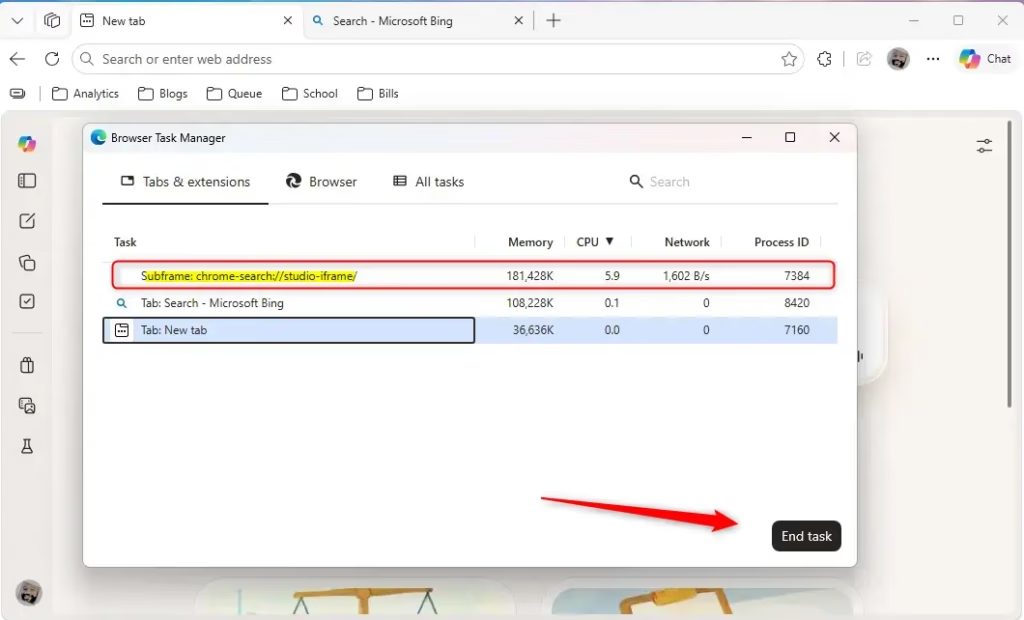
Why do this? It tells you whether a rogue website or a poorly coded extension is causing the spike. If the same tab or extension is at the top every time you check, you have found your culprit. Close that site for good, or remove that extension in the next section.
Step 2Use Advanced Diagnostic Tools
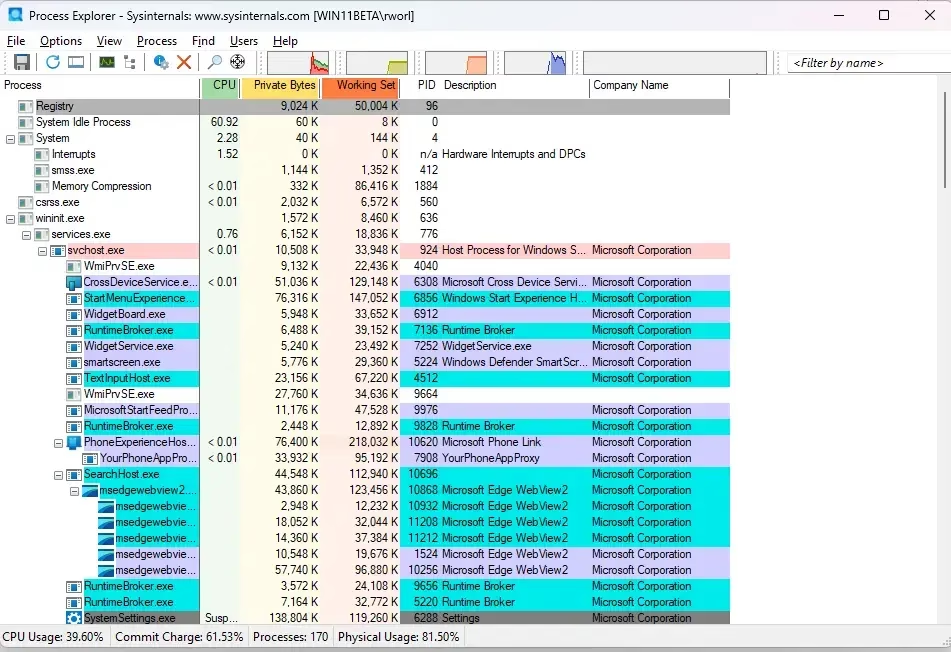
If your PC is still slow after that, use Resource Monitor (a Windows tool that tracks system resource use) to check processor activity. It shows what the whole system is doing, not just Edge.
- Click Start , type Resource Monitor, and open it.
- Click the CPU tab.
- Click the Average CPU column in the Processes list. Sorting by the average over time is more reliable than the instant figure, which jumps around.
- Look for several msedge.exe entries near the top. If another program is at the top instead, Edge is not your main problem.
Step 3Disable Unused Extensions
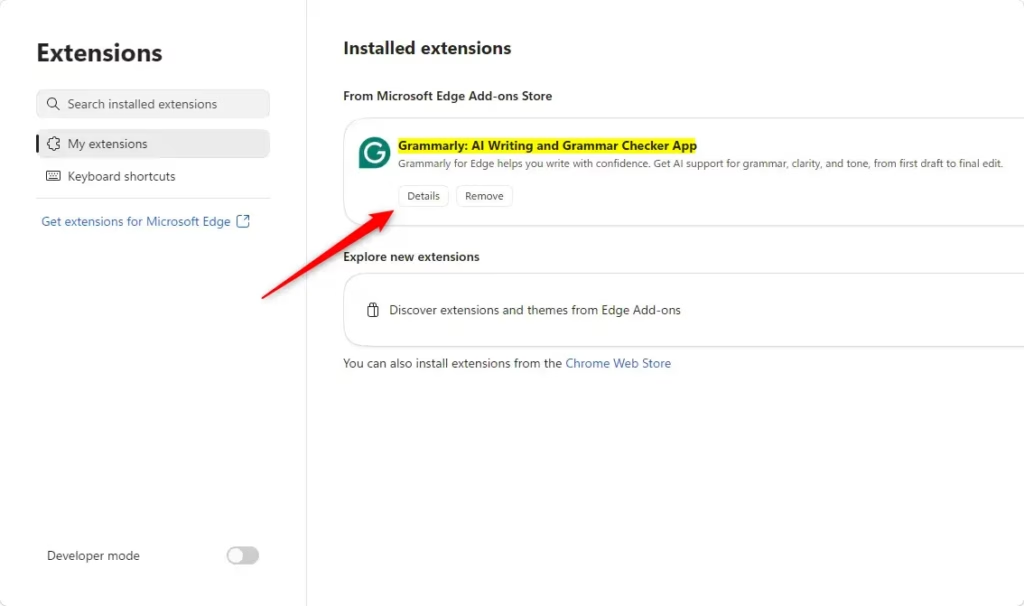
Extensions run constantly in the background. If you have ten add-ons installed and use only two, the other eight still draw processing power. Ad blockers, coupon finders and page-modifying tools tend to cost the most, because they inspect every page you load.
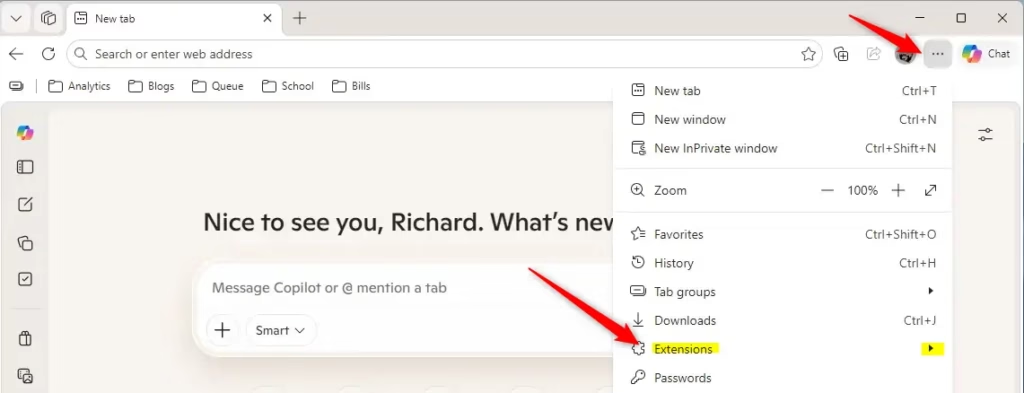
- Click the three-dot menu in the top-right corner of Edge.
- Select Extensions and then Manage extensions. A page opens listing everything you have installed.
- Toggle off or remove any extensions you do not use daily. A toggle is the safer first step because you can switch the extension back on later. Use Remove for ones you no longer want.
- Restart Edge and watch the CPU column in the Browser Task Manager (Shift+Esc) again.
The last one you enabled is the cause.
Step 4Clear Browser Cache and Data
Corrupted cache files force the browser to spend extra effort reading stored data. This often shows up as high CPU load, especially on sites you visit a lot.
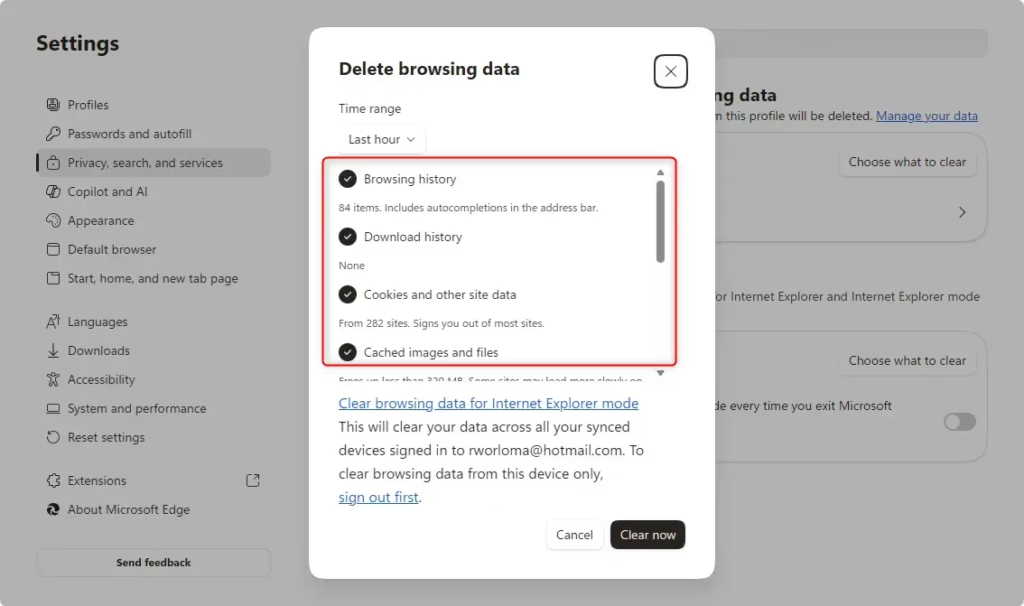
- Press Ctrl+Shift+Del in Edge. The Clear browsing data window opens.
- Set the Time range to All time.
- Check Cached images and files and Cookies. Clearing cookies signs you out of most websites, so have your passwords handy. If you want to stay signed in, clear only Cached images and files first.
- Click Clear now. Sites load a little slower the first time afterwards while the cache rebuilds.
Step 5Enable Efficiency Mode (Admin Privileges Required)
On a work PC these may be locked by your IT department.
- Open Windows Settings.
- Go to System Power & battery. Check that Power mode is not set to Best performance if you want the PC to run cooler and quieter.
- Make sure Efficiency mode is enabled for Microsoft Edge.
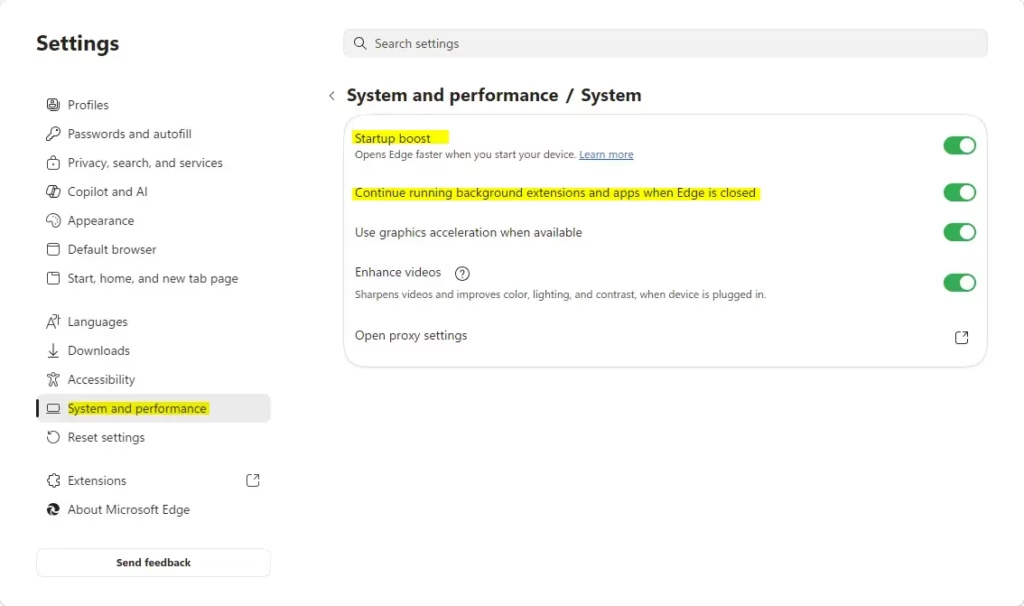
Edge’s own Efficiency mode switch is in the browser: open the three-dot menu, go to Settings, then System and performance. Windows 11 also lets you set Efficiency mode for a single process in Task Manager, which needs a recent version of Windows 11. Efficiency mode lowers how much processor priority Edge gets, so heavy pages may load slightly slower. You can switch it off again the same way you turned it on.
Step 6Manage ‘Zombie’ Processes
Edge sometimes leaves processes running in the background after you close the window. They have no visible window, but they keep using CPU and memory. You can stop this in Edge’s settings under System and performance. Turn off Startup boost and Continue running background extensions and apps when Microsoft Edge is closed.
The side effect is that Edge may take a second or two longer to open. If you notice that and prefer the faster start, you can turn Startup boost back on later.
Step 7Registry Tweaks for Advanced Power Management (Admin Privileges Required)
If Edge still runs in the background after those settings, check this system setting. Changing it needs administrator rights, so note the original value before you edit it, in case you need to put it back.
- Press Win + R, type
regedit, and press Enter. Click Yes if Windows asks for permission. - Navigate to
HKEY_LOCAL_MACHINE\SOFTWARE\Policies\Microsoft\Edge. - If you see
BackgroundModeEnabled, set it to 0. If it is not there, leave things as they are and do not create it. - Close the window and restart Edge. A full PC restart makes sure the change applies.
Summary
High processor usage in the browser usually comes from too many extensions, corrupted cache data, or lingering background tasks. Check the Browser Task Manager first, then clear cached data and turn off unneeded background features. Keeping Windows 11 and Edge up to date also helps, because updates fix known performance bugs and compatibility conflicts.
Have a question about this guide?
Answered by AI from this guide. Good questions may be added to this page — please don't include personal details.
Did this guide fix your problem?

About the Author
Richard
Tech Writer, IT Professional
Richard is a writer at Geek Rewind who turns complex IT tasks into clear, step-by-step guides. He draws on years of hands-on experience in system administration and enterprise IT operations, focusing on Windows, Linux and WordPress: the problems people actually run into, and the fixes that work. His server and WordPress guides come from systems he runs himself. Richard builds and maintains the platform behind Geek Rewind, from its Ubuntu servers and Nginx configuration to its custom WordPress plugins. Many new tutorials start with readers' questions, and he's always glad to answer them in the comments.
No comments yet — be the first to share your thoughts!