How to Enable JavaScript in Microsoft Edge on Windows 11

JavaScript is the scripting language built into web pages. It makes buttons, videos, drop-down menus and login forms work. With JavaScript blocked, many modern sites load half-empty, ignore clicks or refuse to let you sign in.
Microsoft Edge allows JavaScript by default on every version of Windows 11, Home and Pro alike. If a site misbehaves or blocks your login, check this setting. It takes about a minute, and you don’t need to restart Windows or Edge.
Open Edge Settings at edge://settings, select Cookies and site permissions, then choose All permissions and click JavaScript. Make sure the toggle reads Allowed (recommended). Edge allows JavaScript by default, so this only matters if it was turned off. No restart is needed; reload the page afterwards.
Step 1Open Edge Settings
You can reach the Edge settings page in two ways. Both end up on the same page, which holds your profile, security preferences and core browser features.
- Click the three dots (Settings and more) in the top-right corner of the Edge window.
- Select Settings from the menu. A Settings page opens in a new tab, with a list of categories down the left side.
Or skip the menu: click the address bar, type the Edge settings address and press Enter.
edge://settings into the address bar and pressing Enter is a quick way to reach the settings.
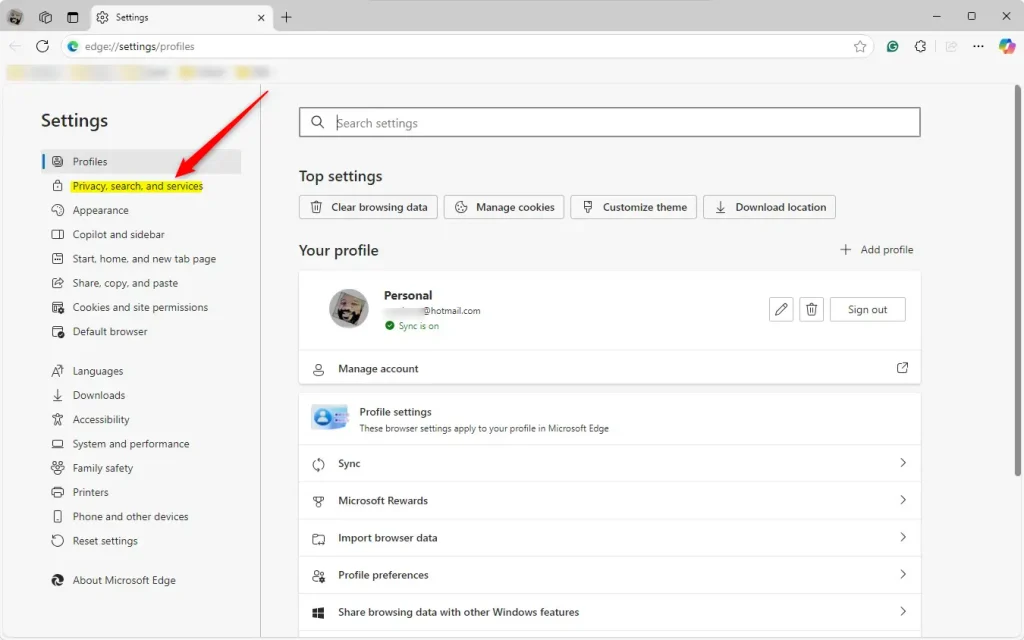
Step 2Go to Privacy, Search, and Services
If you used the menu, this is the step shown above. In the menu that pops up, click Settings. This opens the main settings page for Edge, with its list of categories on the left.
You may notice Privacy, search, and services in that list. It covers tracking prevention and security options, and it sits close to the setting we need, but the JavaScript switch is not inside it. If you opened it, go back to the category list. The next category is the one you want.
Step 3Find Site Permissions
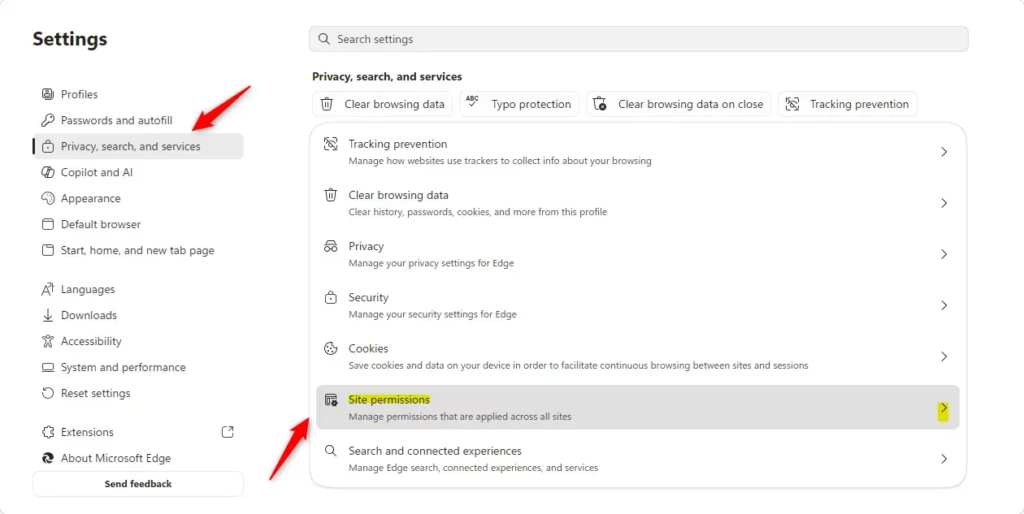
Site permissions control what websites can do on your computer, including running scripts and accessing hardware such as your camera and location. Here is how to get to them:
- In the left menu of Edge settings, click Cookies and site permissions. The page on the right now lists cookie controls and a Site permissions section.
- Scroll to the Site permissions section.
- Click All permissions. You’ll see every website control Edge offers, such as Location, Camera, Notifications and JavaScript.
Step 4Find and Enable JavaScript
Now turn JavaScript on:
- Scroll down the All permissions list until you find JavaScript.
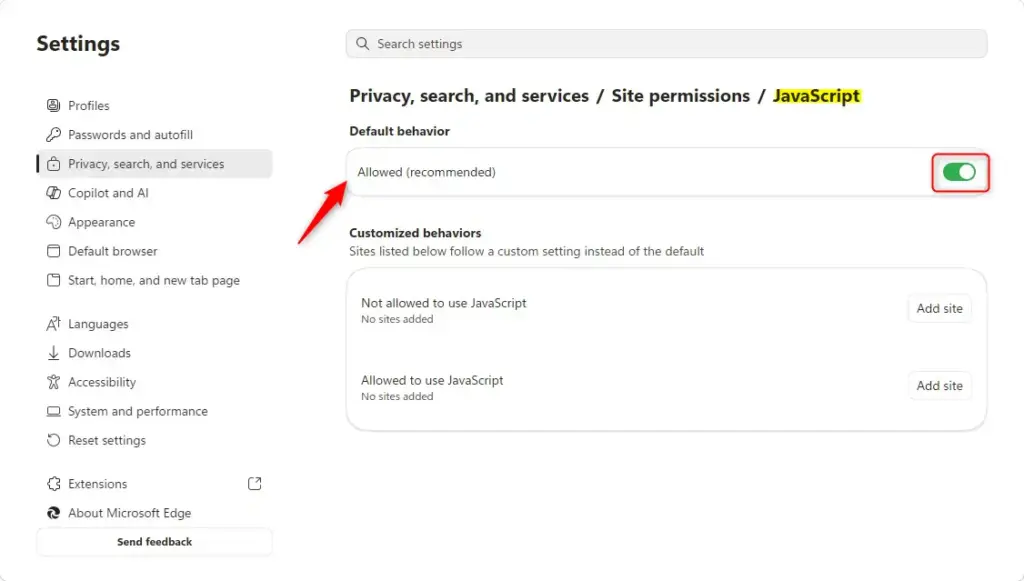
- Click JavaScript. The JavaScript page opens.
- Look at the toggle at the top, labelled Allowed (recommended). Some Edge versions word it Allow (recommended). If the switch is off, click it. It should now read as on, which confirms JavaScript is enabled.
- Go back to the site that was giving you trouble and press F5 to reload it. Interactive parts should now work.
If the toggle is greyed out or you can’t change it, your device is probably managed by an organization (work or school), and a policy is controlling the setting. Edge usually shows a “Managed by your organization” notice in this case. Only your IT administrator can change it.
To undo the change, return to this page and switch the toggle off. You shouldn’t normally do this, because most sites need JavaScript to work.
Reference:
https://support.microsoft.com/en-us/sharepoint/legacy/enable-javascript
Summary
In short: open Edge Settings, go to Cookies and site permissions, then All permissions, click JavaScript and make sure the toggle is on. Reload the page afterwards. No restart is needed.
How to enable javascript in edge?
Open Edge settings at edge://settings, select Cookies and site permissions, then choose JavaScript and switch Allowed on. Edge allows JavaScript by default, so this only matters if you or a policy turned it off. No restart is needed. Changes take effect right away, so reload the page you were trying to use.
How do I enable javascript in Microsoft edge?
In Microsoft Edge, open Settings, go to Cookies and site permissions, and select JavaScript. Make sure Allowed is switched on. Edge turns JavaScript on by default, so a blocked site usually means someone changed this setting. Reload the page after you change it to see the fix.
How to turn on javascript 🪟 Windows 11?
On Windows 11, JavaScript is turned on in Microsoft Edge by default. To check, open Edge settings, select Cookies and site permissions, then JavaScript, and make sure it is set to Allowed. Windows itself has no separate JavaScript switch, so the setting lives in the browser.
Do computers with window 11 come with javascript?
Windows 11 does not include JavaScript as a separate program. Your web browser runs it. Microsoft Edge, which comes with Windows 11, has JavaScript turned on by default, so you get it without installing anything. Other browsers, such as Chrome or Firefox, also run JavaScript on their own.
How to enable javascript Microsoft?
Microsoft does not offer a separate JavaScript setting for Windows. You turn it on in Microsoft Edge: open Settings, select Cookies and site permissions, choose JavaScript, and set it to Allowed. Edge already allows it by default, so change this only if a site is not working.
Have a question about this guide?
Answered by AI from this guide. Good questions may be added to this page — please don't include personal details.
Did this guide fix your problem?

About the Author
Richard
Tech Writer, IT Professional
Richard is a writer at Geek Rewind who turns complex IT tasks into clear, step-by-step guides. He draws on years of hands-on experience in system administration and enterprise IT operations, focusing on Windows, Linux and WordPress: the problems people actually run into, and the fixes that work. His server and WordPress guides come from systems he runs himself. Richard builds and maintains the platform behind Geek Rewind, from its Ubuntu servers and Nginx configuration to its custom WordPress plugins. Many new tutorials start with readers' questions, and he's always glad to answer them in the comments.
No comments yet — be the first to share your thoughts!