

Temporarily allowing cookies in Microsoft Edge lets a specific website save small data files on your computer so its pages load correctly, without lowering your main privacy settings. Microsoft Edge version 120 and newer blocks third-party trackers by default. That protection is useful, but strict settings can break login pages and shopping carts on sites you trust.
You can add exceptions for single websites without turning off protection for the rest of the web. This stops login loops and empty carts while keeping your browser protected against unwanted tracking. Everything below applies to current Windows 11 with a recent version of Edge. It works the same on Home and Pro.
Click the “Allow” button on the permission pop-up when a website asks to access cookies and site data. The site gets temporary access for 30 days without changing your main Edge privacy settings, and the blocked content loads.
How Microsoft Edge Protects Your Privacy
Microsoft Edge uses Tracking Prevention to block online trackers while you browse. You can pick Basic, Balanced or Strict protection, and that choice decides how many cookies Edge blocks before you ever touch the settings for a single site.
- Basic: The least strict level. It allows most trackers, so ads and sites will likely be personalized, and most sites work normally.
- Balanced (Recommended): The default for most people. It blocks trackers from sites you haven’t visited yet. Ads may be less personalized, but most sites should still work.
- Strict: The most aggressive level. It blocks most trackers from all sites and gives the best privacy. Some parts of websites may stop working because they rely on blocked elements.
When Edge blocks a tracker or site data that a page needs, you may see a warning message, or the site may simply break. Typical signs are a login page that keeps sending you back to the sign-in form, or a cart that empties itself.
Step 1Knowing When You Need to Allow Site Data
You need to allow cookies when a website shows a prompt asking for access to your site data before it can work. Sites use these small files to remember your login, the items in your shopping cart and your site preferences.
The prompt reads something like this:
"Allow [website name] to access cookies and site data?"
A website shows this prompt when it needs cookies (small files that store your preferences) to display its content. It means your Microsoft Edge privacy settings are blocking something the site needs.
Allowing cookies from the prompt gives that one site access to the data it needs for its trusted features. Edge limits how long that permission lasts, so you are not handing out access forever. The permission is tied to the site you approved, not to every site you visit.
Step 2Letting a Website Use Cookies and Data for a While
To temporarily allow cookies, click the allow button on the permission pop-up the website shows. The site gets short-term access to your browser data, so you can finish what you are doing without changing your main security settings.
- Read the message. Check which website is asking and what it wants. It should name the site and mention cookies and site data. If the site name looks unfamiliar or misspelled, don't continue.
- Click "Allow" if you trust the website and need its content to work. The prompt closes.
- Reload the page if the content hasn't appeared. The login, cart or other missing content should now load.
The permission gives the site access to cookies and site data for the time Edge grants it. It expires 30 days after the website first receives the allowance. If you want it gone sooner, remove the site's data using the steps further down.
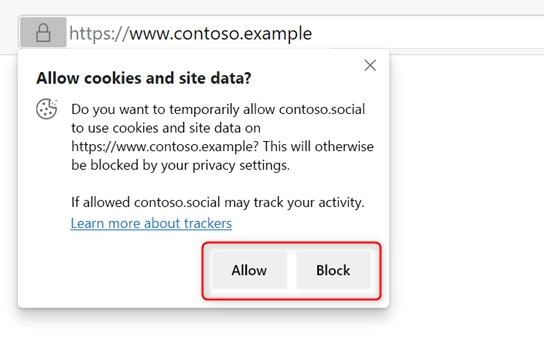
Allowing a website's cookies in Microsoft Edge gives it access for 30 days. During that time the site can use cookies to track your activity on it. Only grant this permission to websites you trust, such as your bank, your email provider or a store you already buy from.
Step 3Managing and Removing Temporary Permissions
You manage site data from the Settings menu, under the Privacy, search, and services tab. From there you can see every website that has stored data on your computer and remove it whenever you no longer want a site to remember you.
- Open Edge Settings. Click the three dots (
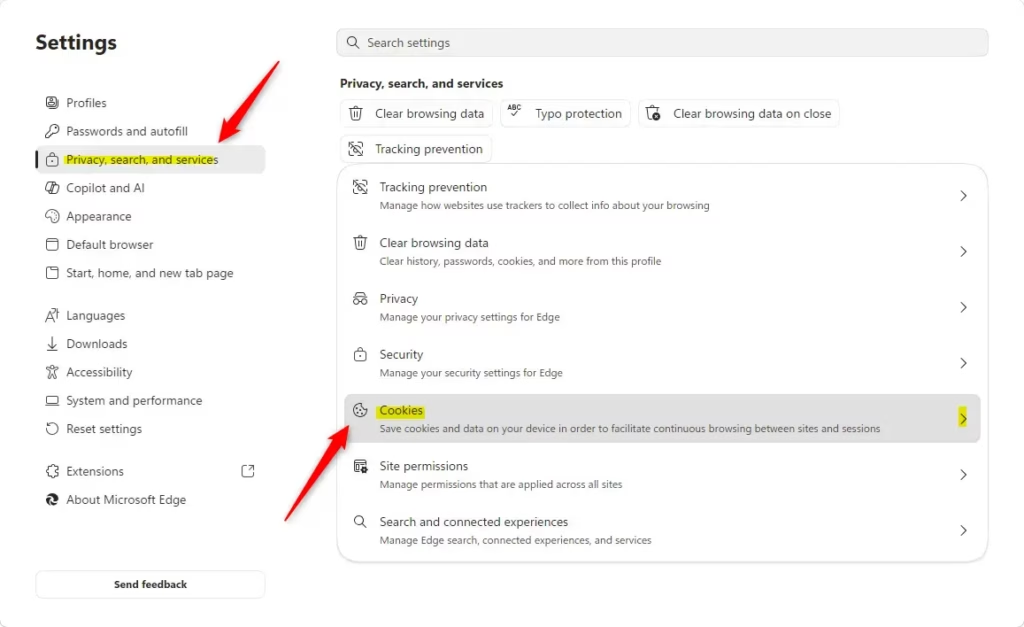
...) in the top-right corner of the Edge window, then choose Settings. The Settings page opens in a new tab. - Go to privacy settings. Click Privacy, search, and services in the left-hand menu. The privacy options appear on the right.
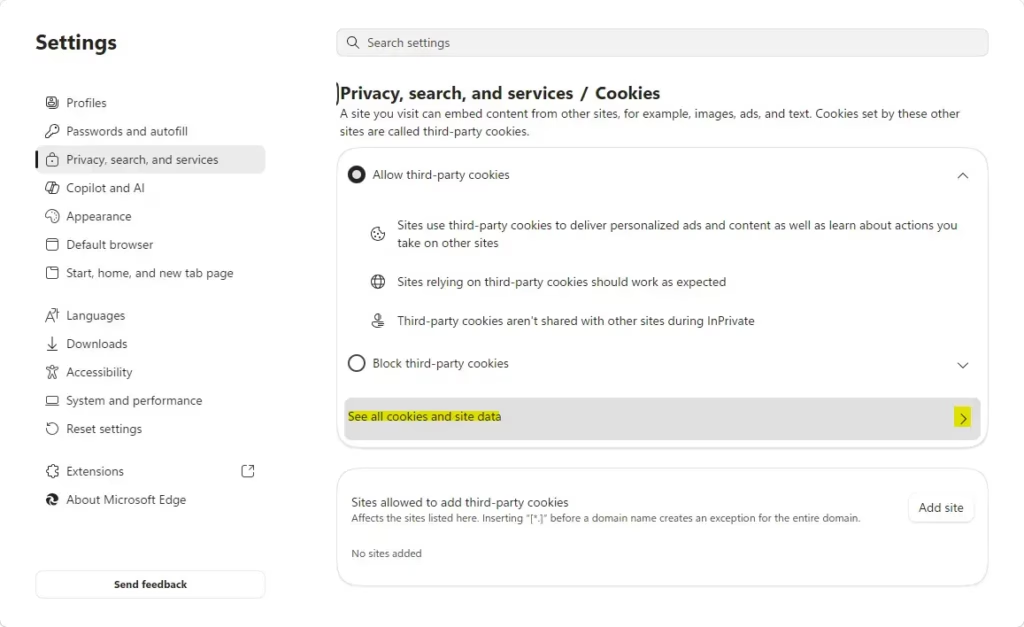
- Find the cookie options. Scroll down in the "Privacy, search, and services" section until you reach Cookies, then click it. If you can't find it there, look for Cookies and site permissions in the left-hand menu, because Edge also keeps cookie controls in that section.
- Open the full list. Under Cookies and site data, click the option for seeing all cookies and site data. You now see every website that has saved data on your computer, including sites you allowed temporarily.
- Remove a site's data. The list is called "Cookies and data stored for sites you have browsed." Find the site, then click the small trash can (Delete) icon next to it. This removes all cookies and site data for that website. You will probably be signed out of that site the next time you visit.
If these options are greyed out or missing, your PC may be managed by an employer or school. Edge then shows a "Your browser is managed by your organization" notice, and only your administrator can change those settings.

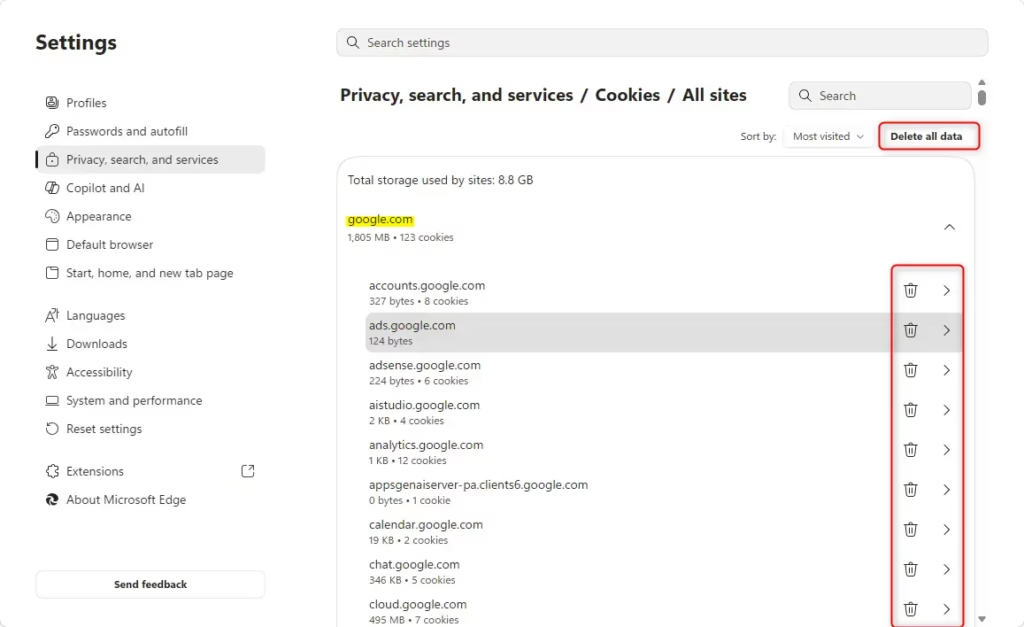
Clearing a website's cookies and site data now and then can fix common browsing problems and remove outdated information. For example, clearing cookies for a site you no longer use removes everything that site stored on your computer. For a small site that frees up only about 1 kilobyte of disk space, so do it for tidiness and privacy, not for storage.
Clearing cookies is also a good first step when one site misbehaves. A stale login cookie often causes a login loop, and deleting it lets the site start fresh.
Step 4Changing Tracking Prevention Settings (If You Need To)
To change how strictly Edge blocks trackers, go to Settings and select Privacy, search, and services. Lowering the level stops Edge from blocking cookies automatically on sites you visit often. It applies to every site, so use it only when per-site permissions aren't enough.
- Go to Settings. Click the three dots (
...) in the top-right corner and choose Settings. - Select Privacy, search, and services. Click it in the left-hand menu.
- Choose your tracking prevention level. Click Tracking prevention near the top. You can now choose Basic, Balanced or Strict. The change takes effect straight away. Reload the affected site to test it.
To undo the change, return to the same screen and select your previous level.
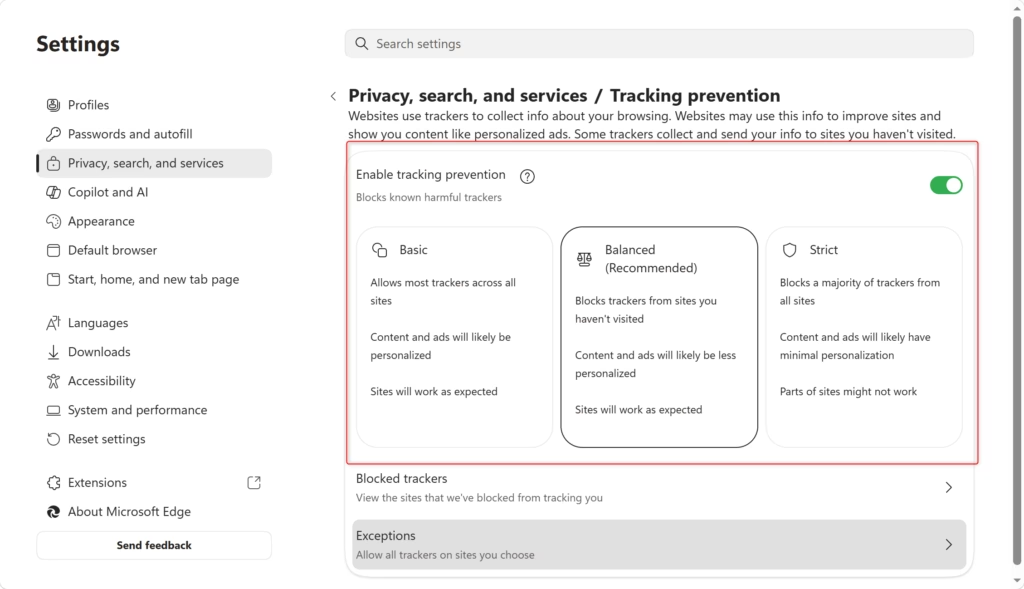
Switching from Strict to Balanced can fix problems on many websites. It also saves you from allowing each site one by one. If Balanced still causes trouble, the site may be old or built in a way that doesn't work with strong privacy controls. In that case, use the per-site permission above for that one site rather than lowering protection further.
For most people, Balanced is a good mix of privacy and compatibility.
Reference:
https://support.microsoft.com/en-us/edge/temporarily-allow-cookies-and-site-data-in-microsoft-edge
Summary
This guide explains how to temporarily allow cookies and site data in Microsoft Edge when websites don't work right. It covers why sites need this data, how to allow it for a single site, and how to manage or remove those permissions afterwards.
Have a question about this guide?
Answered by AI from this guide. Good questions may be added to this page — please don't include personal details.
Did this guide fix your problem?

About the Author
Richard
Tech Writer, IT Professional
Richard is a writer at Geek Rewind who turns complex IT tasks into clear, step-by-step guides. He draws on years of hands-on experience in system administration and enterprise IT operations, focusing on Windows, Linux and WordPress: the problems people actually run into, and the fixes that work. His server and WordPress guides come from systems he runs himself. Richard builds and maintains the platform behind Geek Rewind, from its Ubuntu servers and Nginx configuration to its custom WordPress plugins. Many new tutorials start with readers' questions, and he's always glad to answer them in the comments.
No comments yet — be the first to share your thoughts!