Unlock a More Private Web Experience with Microsoft Edge’s InPrivate Mode

InPrivate mode in Microsoft Edge is a built-in privacy feature. When you close the window, it deletes your browsing history, cookies, and temporary site files. It stops the browser from saving what you type, search, or view on the computer, which helps on shared machines.
Every private window runs in a separate session. Your search history and autofill suggestions never mix with your normal browsing tabs. You can open a new private window at any time by pressing Ctrl+Shift+N. This works in current Edge releases, including version 120 and newer.
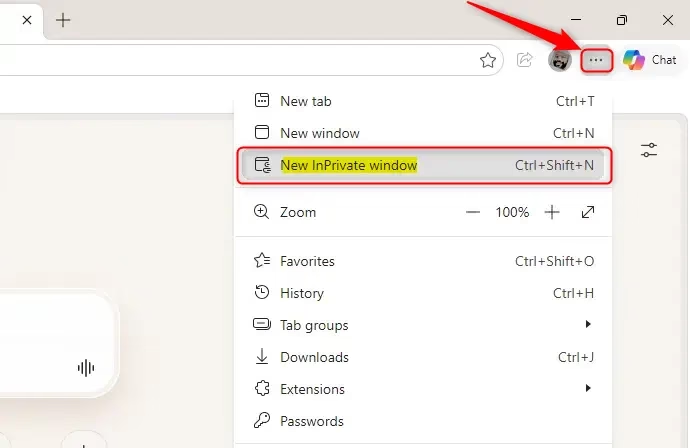
To open Microsoft Edge InPrivate mode, press Ctrl+Shift+N, or click the Settings and more icon (three dots) in the top-right corner and select New InPrivate window. InPrivate browsing deletes your history, cookies, and temporary site files when you close the window.
How to Open Your First InPrivate Window
Opening an InPrivate window adds a layer of privacy to your browsing. There are two ways to do it: the browser menu or a keyboard shortcut. Both give you the same kind of window.
Method 1Using the Edge Menu
The menu method is the easiest to remember. Everything you need is in the top-right corner of the Edge window.
- Open Microsoft Edge.
- Click the Settings and more icon, the three dots (
...) in the top-right corner of the window. A menu opens. - Click New InPrivate window. A new Edge window opens.
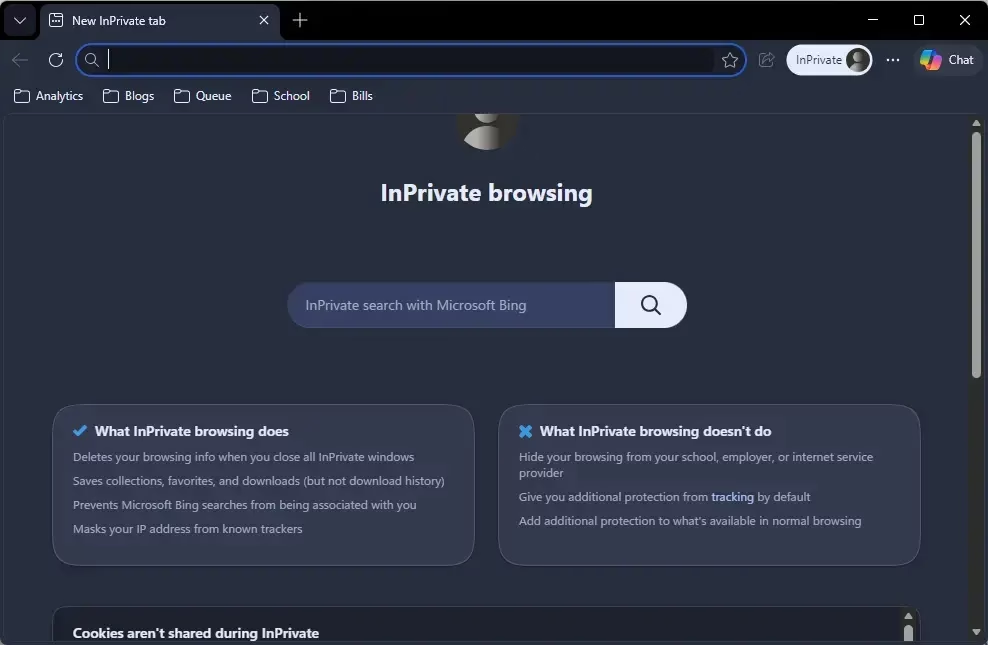
- Check that the window is private. It usually has a darker look and shows an InPrivate label with a blue icon at the top. That label means you are browsing privately.
If New InPrivate window is missing from the menu, InPrivate has probably been turned off by an administrator. This happens mostly on work or school PCs that are managed by policy. On a personal Home or Pro PC the option is normally always there.
Method 2Using a Keyboard Shortcut
The keyboard shortcut is faster once you get used to it. Edge needs to be open and in focus for it to work.
- Open Microsoft Edge and click on the window so it has focus.
- Press and hold Ctrl and Shift together.
- Tap the N key, then release all the keys.
- Look for the new window. A private window opens straight away, with the InPrivate label in the top-left corner. That confirms private browsing is active.
Other key combinations trigger unrelated actions. If nothing happens, make sure Edge is the active window and not another program.
What Happens When You Browse InPrivate?
InPrivate mode keeps no record of that session's activity on your computer. Edge does not save your history, and temporary cookies and site data disappear automatically when you close the window.
- No history saved: Sites you visit do not appear in your regular browsing history.
- Cookies are temporary: When you close the InPrivate windows, the cookies from that session are deleted. You will not be signed in automatically to those sites the next time you open a normal window.
- Site data cleared: Temporary internet files and other site data saved during the session are deleted too.
- Form entries not remembered: Information you type into forms is not saved for autofill.
Cookies and site data are cleared once you close all InPrivate windows, not just one. As long as one InPrivate window stays open, the session keeps its data.
Downloads and favorites are safe: InPrivate mode does not delete files you download. They stay on the computer, so delete them yourself if you do not want them found. Websites you add as favorites go straight into your normal favorites list.
Practical tip: Gift shopping, private research, and shared computers are where this feature helps most. You can also sign in to a second account on a website in a private window without signing out of your main account in a normal window.
When to Use InPrivate Mode
Use InPrivate whenever you browse on a shared computer, such as at a library or a friend's house, so your personal details are not left behind. It also keeps websites from building up a long-term record of your activity on that browser. That can cut down on ads based on your earlier searches.
- Protecting privacy on shared devices: InPrivate leaves no trace of your activity in the browser. Use it for private research or surprises, then close the window when you are done. Your history, cookies, and site data are cleared automatically.
- Avoiding targeted ads and tracking: Websites use cookies to track you and choose ads. If you do not want your browsing to influence the ads you see, use an InPrivate window. The cookies are deleted when you close it, which makes tracking across sessions harder.
- Testing websites: If you build websites, InPrivate shows you how a site looks to a new visitor. Open your site in an InPrivate window and you can see it without any stored data getting in the way.
- Logging into multiple accounts: If you need two accounts for the same service at once, such as personal and work email, sign in to the second one in an InPrivate window. The two sessions will not interfere with each other.
- Shopping and sensitive topics: Keep surprise purchases hidden and research sensitive topics without leaving a record in your history.
They can still see your activity. If you need real anonymity, you need other tools, such as a virtual private network (VPN).
Closing Your InPrivate Session
You close an InPrivate window the same way as any other browser window. Closing it is what clears the session data, so do not skip it when you are finished.
- Find the InPrivate window. Make sure it is the one with the InPrivate label at the top, so you do not close a normal window by mistake.
- Click the X button in the top-right corner of the window. Alternatively, press Ctrl + Shift + W on Windows.
- Repeat for any other InPrivate windows you have open.
Once the last InPrivate window is closed, the browsing data from the session is deleted from the computer automatically. Your regular browsing windows are not touched.
Tip: Multiple InPrivate windows close independently. To end all private browsing, you must close every InPrivate window.
Summary
Microsoft Edge's InPrivate mode improves privacy on your own computer by not storing history and cookies. That makes it a good fit for shared devices and for cutting down on tracking. It does not make you anonymous online, so use it with that limit in mind.
Was this guide helpful?

About the Author
Richard
Tech Writer, IT Professional
Richard is a writer at Geek Rewind who turns complex IT tasks into clear, step-by-step guides. He draws on years of hands-on experience in system administration and enterprise IT operations, focusing on Windows, Linux and WordPress: the problems people actually run into, and the fixes that work. His server and WordPress guides come from systems he runs himself. Richard builds and maintains the platform behind Geek Rewind, from its Ubuntu servers and Nginx configuration to its custom WordPress plugins. Many new tutorials start with readers' questions, and he's always glad to answer them in the comments.


No comments yet — be the first to share your thoughts!