How to Reset Your Android Device with Phone Link and Windows 11

Resetting the Android connection in Phone Link fixes broken links and gets your phone and Windows 11 PC talking again, usually in under 5 minutes. Phone Link is a built-in Windows 11 app. It lets you send text messages, view notifications, and open mobile apps from your PC screen.
The fix has two parts, one on each device. First you stop and clear the Link to Windows app on your phone. Then you remove the phone and reset the Phone Link app on your PC. Both sides start clean, so you can pair them again from scratch.
Open your Android phone’s Settings, tap Apps, find Link to Windows, and tap Force Stop. Then on your PC, go to Settings Phone, click Remove next to your phone, navigate to Apps Phone Link Advanced options, and click Reset. Your devices are now unpaired and ready to reconnect.
Step 1Stop the “Link to Windows” App on Your Android Phone
Open your phone settings, find the app in the application list, and force stop it before you clear its storage or cache.
Menu names vary between Android versions and manufacturers (Samsung, Pixel, and others). The labels below are the most common ones. If yours differ slightly, look for the closest match. Link to Windows comes pre-installed on many Samsung phones and is a Google Play download on others.
- Open Your Phone’s Settings: Unlock your Android phone and tap the Settings app. It usually looks like a gear. You should see the main list of settings.
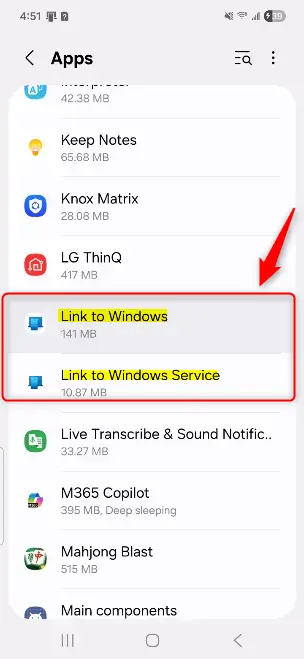
- Find Your Apps: Scroll through the Settings menu and tap Apps or Apps & notifications, depending on your Android version. You should see a list of installed apps.
- Find “Link to Windows”: If the list looks short, tap See all apps or App info to show every app. Scroll until you find Link to Windows, then tap it. The app’s info screen opens.
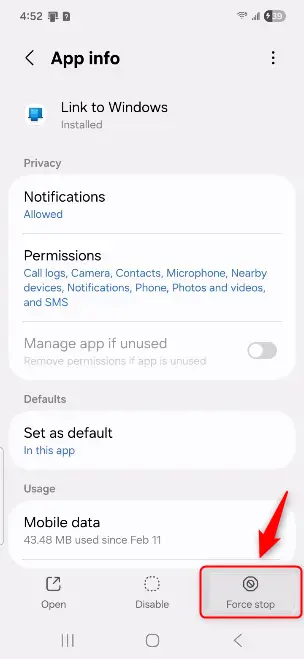
- Force Stop: On the “Link to Windows” app screen, tap Force Stop. Android will probably warn that stopping the app may make it behave strangely. Tap OK or Force Stop again to confirm. If the button is greyed out, the app is already stopped, so you can move on. Once it is stopped, you can clear its storage and cache from the same app info screen.
Step 2Reset the Phone Link App on Your PC
Now move to the PC. Resetting the Phone Link app on Windows 11 clears out old connection data and fixes most pairing errors. You first remove the linked phone in Settings, which deletes the PC’s stored connection to it. Then you reset the app itself.
They are not deleted. After the reset, Phone Link behaves like a fresh install. You will need to sign in and pair the phone again. No restart is required, but restarting the PC afterwards does no harm if the app still misbehaves.
- Go to Windows Settings: On your PC, click the Start button, then click the Settings gear icon. The Settings window opens.
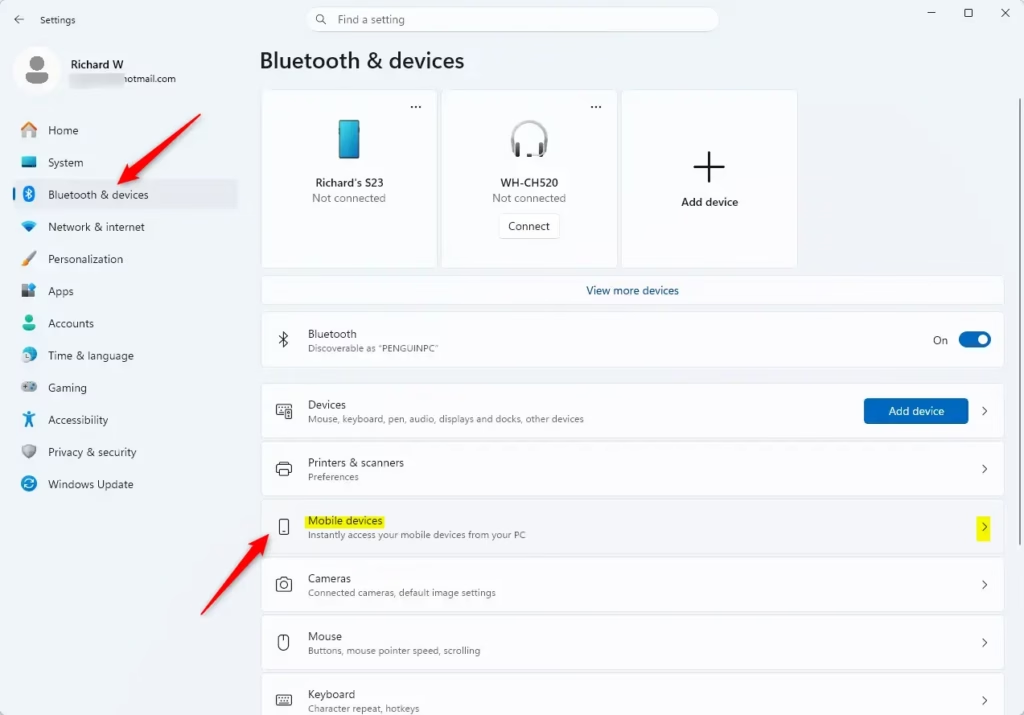
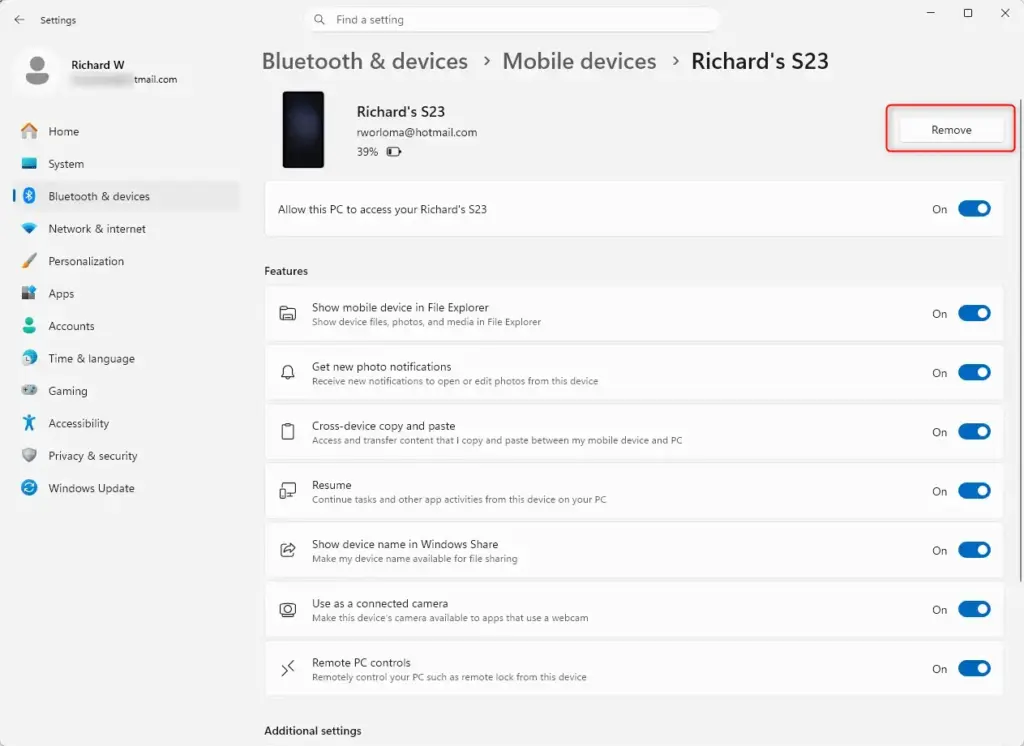
- Go to "Mobile Devices": In the Settings window, click Phone. On many Windows 11 builds this page sits under Bluetooth & devices Mobile devices, so look there if you don't see a Phone entry. You should see your linked phone listed.
- Remove: Find your phone and click Remove. This removes the computer's specific connection to your phone. The phone should disappear from the list.
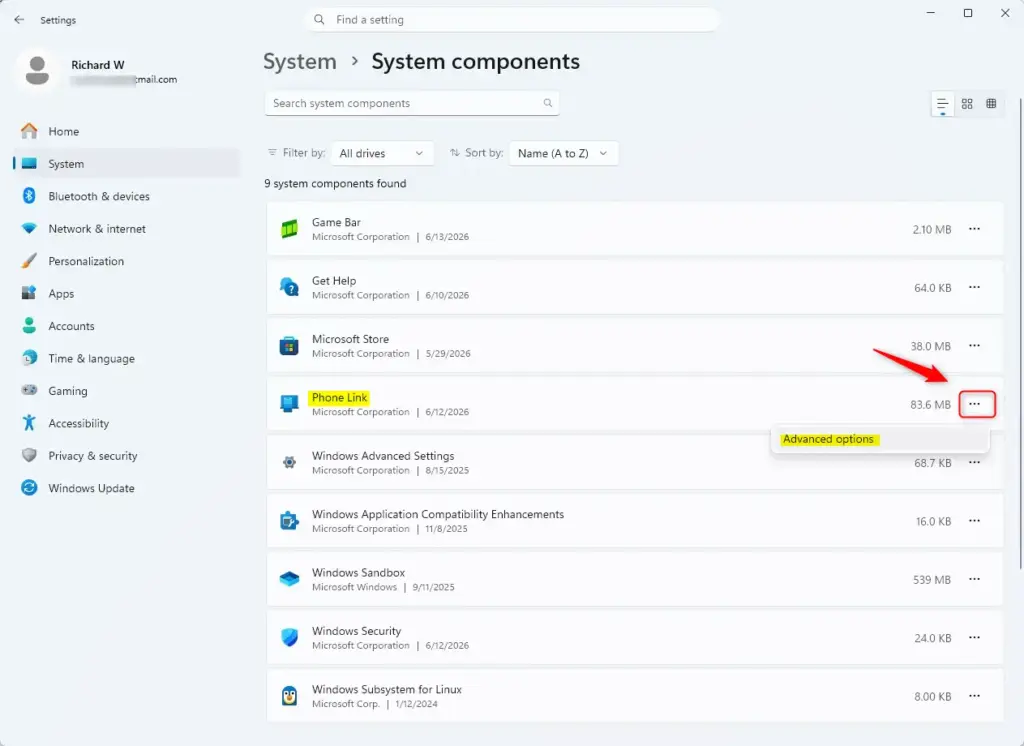
- Go to System components: Click the back arrow in the top-left corner of the Settings window to return to the main Settings menu. Then choose Apps. On recent Windows 11 versions, Phone Link may instead be listed under System System components If you can't find it in one place, check the other.
- Find Phone Link in System components: In the list of apps, scroll down or use the search box to find Phone Link. Click the three-dot menu next to it, or click the app name if your version shows it that way.
- Go to Advanced Options: Click Advanced options. The app's settings page opens.
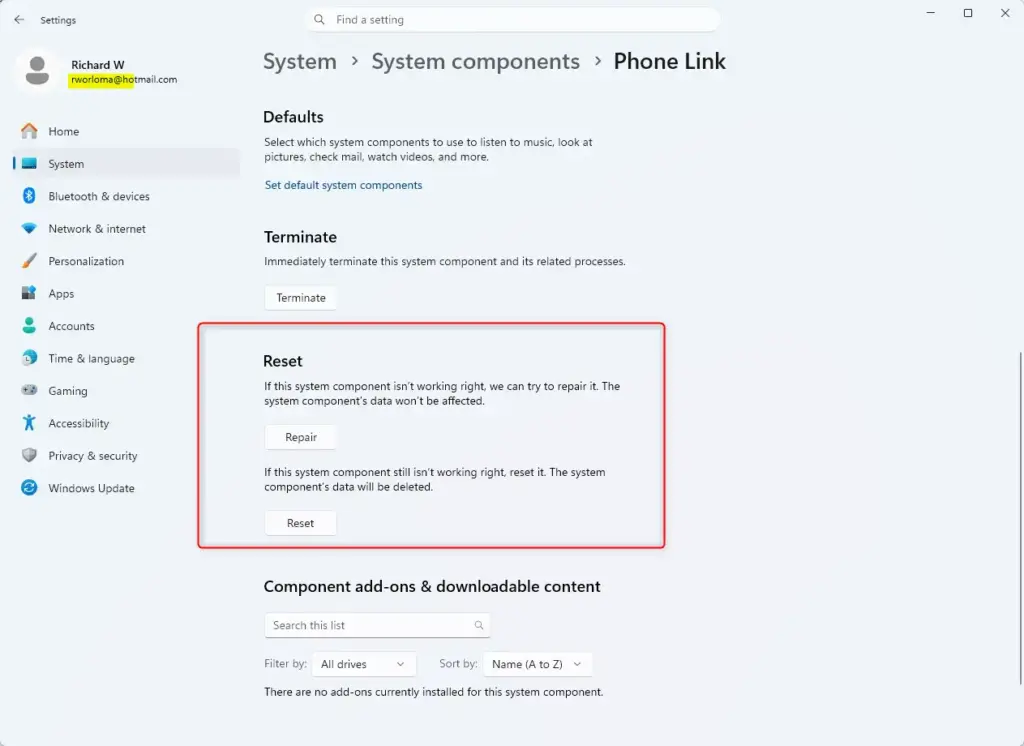
- Reset the App: Scroll down in Advanced options until you see the Reset button, then click it. A message asks you to confirm. Click Reset again. A check mark usually appears next to the button when the reset finishes.
Resetting an app on Windows restores it to its initial state, as if it had just been installed. It removes all stored data and user preferences, which is why it fixes corrupted connection data. If you only want to try a lighter fix first, the Repair button above Reset keeps your app data. Reset is the stronger option.
Reference:
Summary
Clearing the data for Link to Windows on your phone and resetting the Phone Link app on your PC fixes most stubborn pairing problems. Both devices lose their corrupted settings and cached files, so you can set up a fresh connection from scratch.
When both resets are done, open Phone Link on your PC, sign in, and follow the prompts to pair your Android phone again. Keep both devices on the same Wi-Fi network while you do it. If the problem returns, check that the phone and PC are both signed in to the same Microsoft account, and that Windows and the Link to Windows app are up to date.
Pairing the devices again after both resets repairs the broken connection. Clearing the corrupted caches removes the sync errors. Once that's done, you should have a Phone Link session that works reliably.
Have a question about this guide?
Answered by AI from this guide. Good questions may be added to this page — please don't include personal details.
Did this guide fix your problem?

About the Author
Richard
Tech Writer, IT Professional
Richard is a writer at Geek Rewind who turns complex IT tasks into clear, step-by-step guides. He draws on years of hands-on experience in system administration and enterprise IT operations, focusing on Windows, Linux and WordPress: the problems people actually run into, and the fixes that work. His server and WordPress guides come from systems he runs himself. Richard builds and maintains the platform behind Geek Rewind, from its Ubuntu servers and Nginx configuration to its custom WordPress plugins. Many new tutorials start with readers' questions, and he's always glad to answer them in the comments.
No comments yet — be the first to share your thoughts!