How to Access Recent Apps from the Phone Link in Windows 11

Recent apps in Windows 11 Phone Link let you open and run your smartphone apps on your PC screen without picking up your device. Your Android phone and Windows 11 computer work together, so you can check messages, scroll social media, and use mobile tools on a larger display.
You need a compatible Android phone running version 1.24032.164 or newer and the latest Phone Link update on your PC. Your phone must already be paired with the PC through Phone Link. If the apps feature is missing, update Phone Link from the Microsoft Store and the companion app on your phone, then try again.
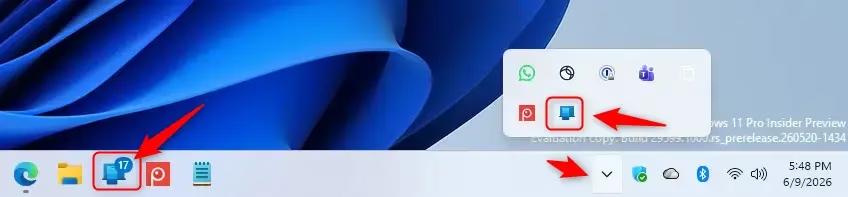
Click the Phone Link icon on the Windows 11 taskbar near the clock, then select a recently used app from the menu to open it in its own window on your PC. If the icon is hidden, click the upward arrow next to the clock to reveal it in the system tray .
What Happens When You Access Recent Apps?
Recent apps open in their own windows on the PC. You use them much as you would on the phone, so you can switch between computer and phone apps without losing your place. To close one, close its window the way you would any other app on your PC.
Method 1Using the Phone Link Icon on the Taskbar
Step 1Find the Phone Link Icon
If you don’t see it, it is probably tucked away in the system tray overflow.
- Look at the right end of the taskbar , next to the clock.
- Click the upward-pointing arrow (^) to show the hidden icons. You should see a small panel of background app icons.
- Find the Phone Link icon. It looks like a phone next to a computer screen.
If the icon is not there at all, Phone Link may not be running. Use the Start menu method later in this tutorial instead.
Step 2Open the Phone Link Menu
Click the Phone Link icon. A compact menu opens with options for your connected phone. If it shows no phone, check that your phone is still linked and connected.
Step 3Choose Your App
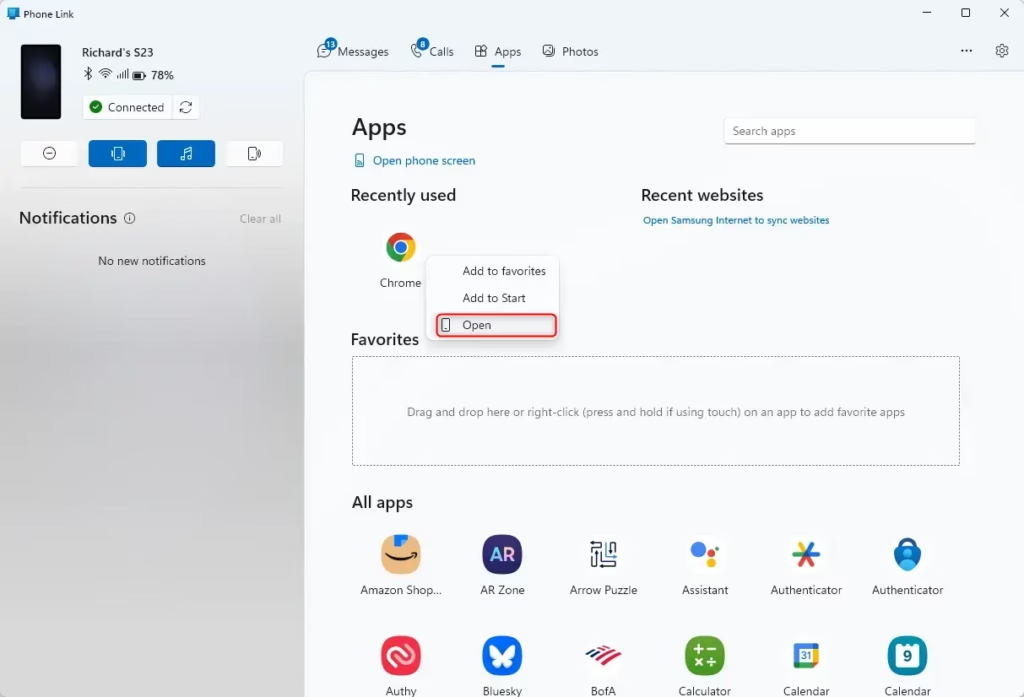
When the app list appears, you can see your most recently used mobile apps at a glance and pick the one you want. You can open it in either of two ways:
- Single Click: Click the app icon you want to open. The app opens in its own window on your PC.
- Right-Click: Right-click the app icon. A small menu appears, and you can choose Open.
Both methods give the same result, so use whichever you prefer.
Method 2Using the Phone Link App
Step 1Open the Phone Link Application
You can also reach recent apps from the full Phone Link window. This is the route to use if the taskbar icon is missing or the app is closed.
- Click Start and type Phone Link.
- Select the Phone Link result to launch it. The main window opens, and from here you manage the connection to your phone.
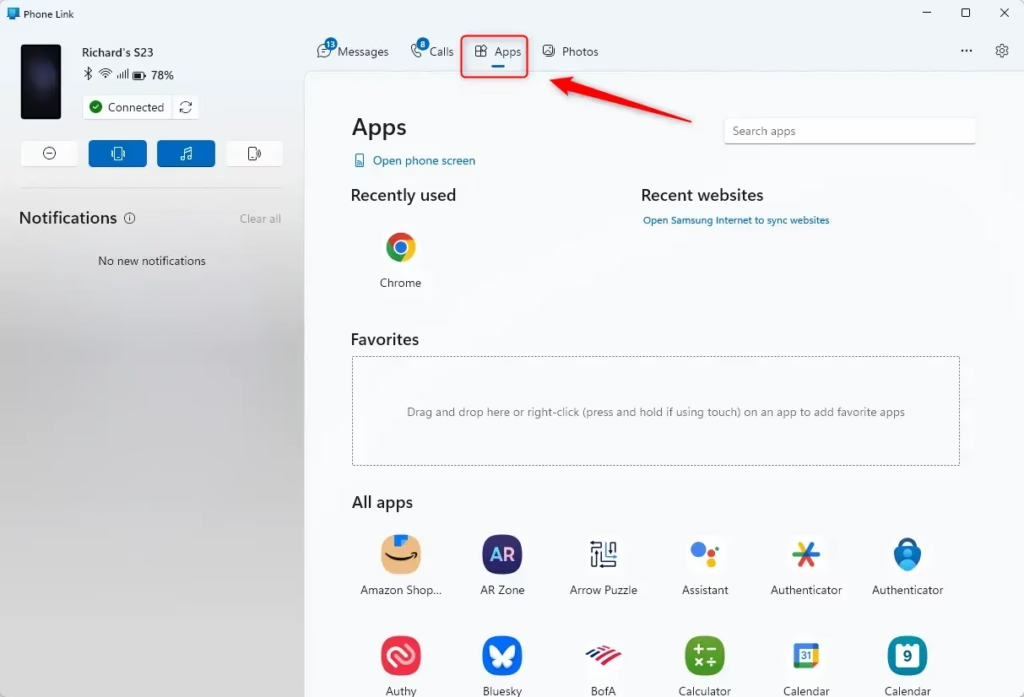
Step 2Go to the "Apps" Section
You will see the mobile apps available to use on the PC. If the tab is missing or empty, check that your phone is connected and that both Phone Link and the phone's companion app are up to date.
Step 3Find the "Recently Used" Area
At the top of the Apps page, find the Recently used section. It shows up to three recent mobile apps, so you can pick up where you left off without scrolling through the full list.
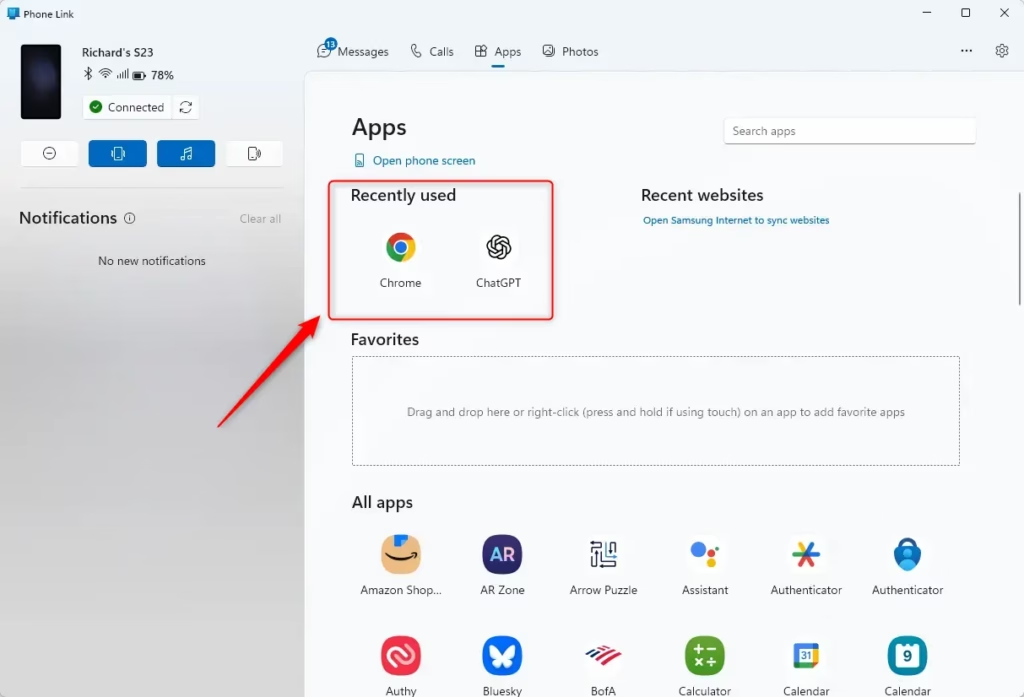
Step 4Select Your App
Launching an app from here works the same way as from the taskbar menu. You have two options:
- Click to Launch: Click the app icon to open it in a new window on your PC.
- Right-Click for Options: Right-click the app icon and choose Open from the menu.
After either action, the app should appear in its own window.
Reference:
Summary
Use the taskbar icon for a quick launch and the full Phone Link window when you want the whole app list. Either way, your essential phone apps stay within easy reach on the PC.
Did this guide fix your problem?

About the Author
Richard
Tech Writer, IT Professional
Richard is a writer at Geek Rewind who turns complex IT tasks into clear, step-by-step guides. He draws on years of hands-on experience in system administration and enterprise IT operations, focusing on Windows, Linux and WordPress: the problems people actually run into, and the fixes that work. His server and WordPress guides come from systems he runs himself. Richard builds and maintains the platform behind Geek Rewind, from its Ubuntu servers and Nginx configuration to its custom WordPress plugins. Many new tutorials start with readers' questions, and he's always glad to answer them in the comments.
No comments yet — be the first to share your thoughts!