How to Set Up WordPress on Your Windows 11 PC Using XAMPP

Run WordPress locally on your Windows 11 PC, offline, using XAMPP. XAMPP is a free tool that turns your computer into a local web server. It is a good way to build or test a site without paying for hosting.
Install XAMPP, then create a database for WordPress using the XAMPP Shell or phpMyAdmin. Download WordPress, extract its files into the C:xampphtdocs folder, and then run the WordPress installer via your browser at http://localhost/wordpress.
What is XAMPP?
XAMPP turns your Windows 11 PC into a local web server, so you can set up WordPress without a live website. It bundles three things WordPress needs:
- Apache (the web server)
- MariaDB (the database where WordPress stores your content)
- PHP (the language WordPress is written in)
XAMPP also runs on other systems, but this guide covers Windows 11 only. Everything here runs on your own machine, so only you can see the site, and it keeps working with no internet connection once the downloads are done.
Step 1Install XAMPP
Installing XAMPP is the first step. Follow our guide to install it, using the link below. When it finishes, open the XAMPP Control Panel . It is where you start and stop Apache and MariaDB, and you will use it for the rest of this tutorial.
How to Install XAMPP on Windows 11
Keep the Control Panel handy. If WordPress ever stops loading, the first thing to check is whether Apache and MySQL (the MariaDB module) show as running in it.
Step 2Create a Database for WordPress
WordPress needs a database to store your posts, pages and settings. You will create it with XAMPP's own tools. The command-line method comes first, and a graphical alternative follows.
- Open the XAMPP Control Panel.
- Click Start next to Apache and next to MySQL. The module names turn green when they are running. MySQL here is the MariaDB database server.
- Click the Shell button (see image below). A command window opens.
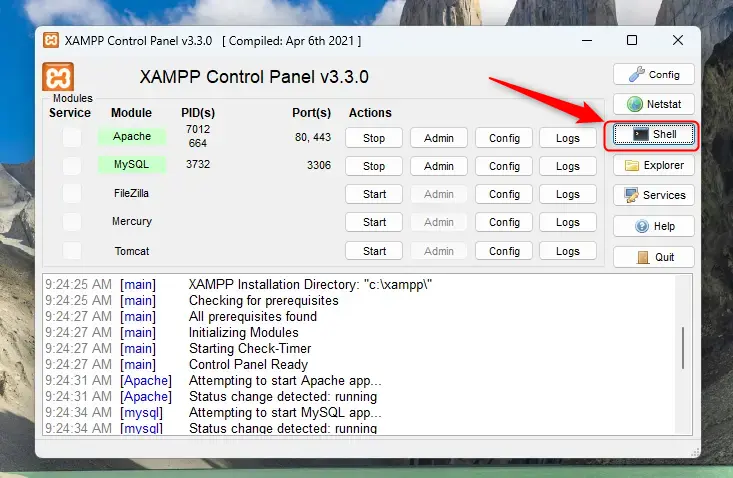
- In the shell window, type this command to open the database, then press Enter:
mysql -u root
If it asks for a password, press Enter. A fresh XAMPP install has an empty password for the root account. You should now see a database prompt where you can type commands.
- Enter the commands below one by one, pressing Enter after each. Replace
your_password_herewith a password you will remember. You need it again in the WordPress setup.
CREATE DATABASE wordpressdb CHARACTER SET utf8mb4 COLLATE utf8mb4_general_ci;

CREATE USER 'wordpressdbuser'@'localhost' IDENTIFIED BY 'your_password_here';

GRANT ALL PRIVILEGES ON wordpressdb.* TO 'wordpressdbuser'@'localhost';

FLUSH PRIVILEGES;

exit
Each command should answer with a short confirmation. If one returns an error, read it before moving on. A typo or a missing semicolon at the end of a line is the usual cause.
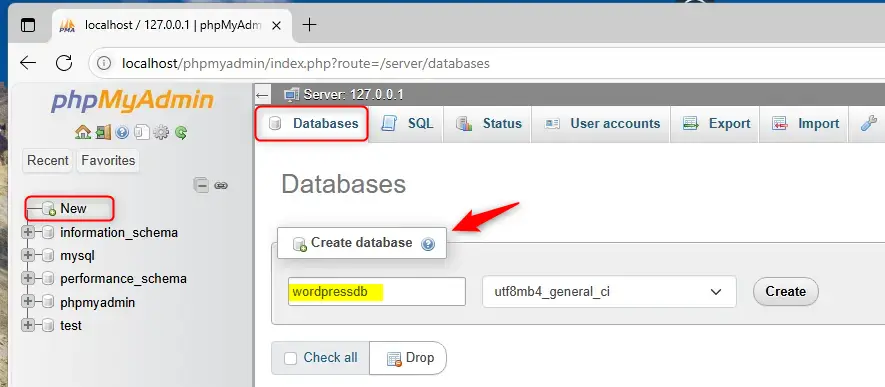
If you prefer a graphical interface, click the Admin button next to MySQL in the XAMPP Control Panel. This opens phpMyAdmin in your browser, where you can create a new database and a user with full permissions using its visual interface (see image below). MySQL must be running for this button to work. Use the same database name, username and password you will enter in the WordPress setup.
Step 3Download and Set Up WordPress
Before installing WordPress, download the latest version and put its files in the right folder. XAMPP serves websites from its htdocs folder, so WordPress goes inside that.
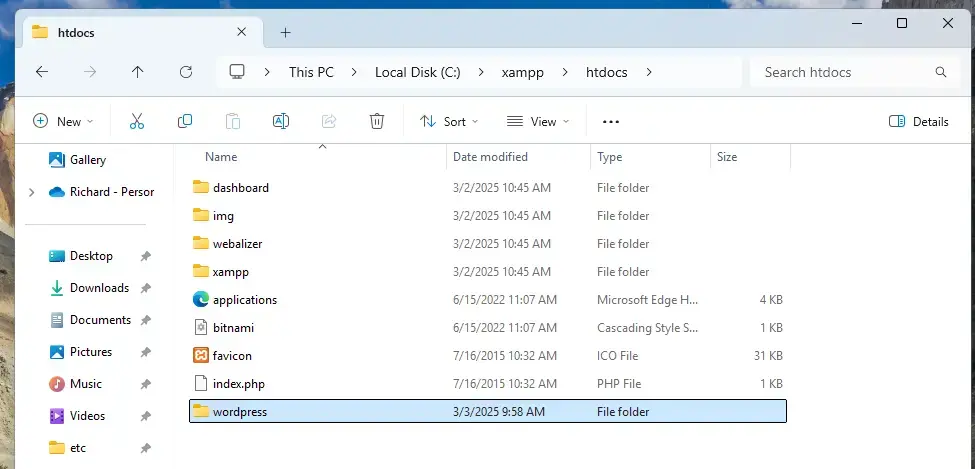
- Open File Explorer and go to the folder
C:\xampp\htdocson your PC. - Create a new folder inside it called
wordpress. Right-click an empty area, choose New, then Folder, and type the name. - Download WordPress from the official WordPress download page. You get a ZIP file.
- Extract the WordPress files into the
wordpressfolder you just created. The ZIP contains its own wordpress folder, so make sure the files themselves, such as wp-admin and wp-config-sample.php, end up directly inside your new folder and not one level deeper.
Next, change what XAMPP shows when you visit your local server. By default it opens the XAMPP dashboard. You will make it go straight to WordPress.
- Open the file
C:\xampp\htdocs\index.phpwith a text editor like Notepad. This file controls what shows up when you visit your local server. If Windows asks which app to use, choose Notepad. - Select everything in the file and replace it with this code, which makes your browser go directly to the WordPress site:
<?php

  if (!empty($_SERVER['HTTPS']) && ('on' == $_SERVER['HTTPS'])) {

    $uri = 'https://';

  } else {

    $uri = 'http://';

  }

  $uri .= $_SERVER['HTTP_HOST'];

  header('Location: '.$uri.'/wordpress/');

  exit;

?>
If you ever see the message "Something is wrong with the XAMPP installation :-(" when you open the local server, the default page could not find its dashboard. Replacing the file as shown here avoids that.
- Save the file. If Notepad asks you to save as a new file, you opened the wrong location, so check that you are editing the file inside the htdocs folder.
Step 4Restart Apache Server
Go back to the XAMPP Control Panel and restart Apache so your changes take effect.
- Click Stop next to Apache and wait for the green highlight to disappear.
- Click Start again. Apache should turn green once more.
Step 5Install WordPress
With the files in place, you finish the installation in your web browser. Open this address to launch the WordPress setup wizard:
http://localhost/wordpress
The WordPress setup screen should appear. If you see an error page or nothing loads, check that Apache is running in the Control Panel. Then follow these steps:
- Choose your language and click Continue.
- Click Let's go! to start.
- Enter the database details you created earlier:
- Database Name:
wordpressdb - Username:
wordpressdbuser - Password: the password you set
- Database Host:
localhost - Table Prefix: leave it as
wp_
- Database Name:
- Click Submit. If WordPress says it cannot connect to the database, go back and check the name, username and password, and make sure MySQL is running.
- Click Run the installation.
- Fill in your site title, choose an admin username and password, and enter your email. Pick a password you will not forget, because there is no live site to reset it by email.
- Click Install WordPress.
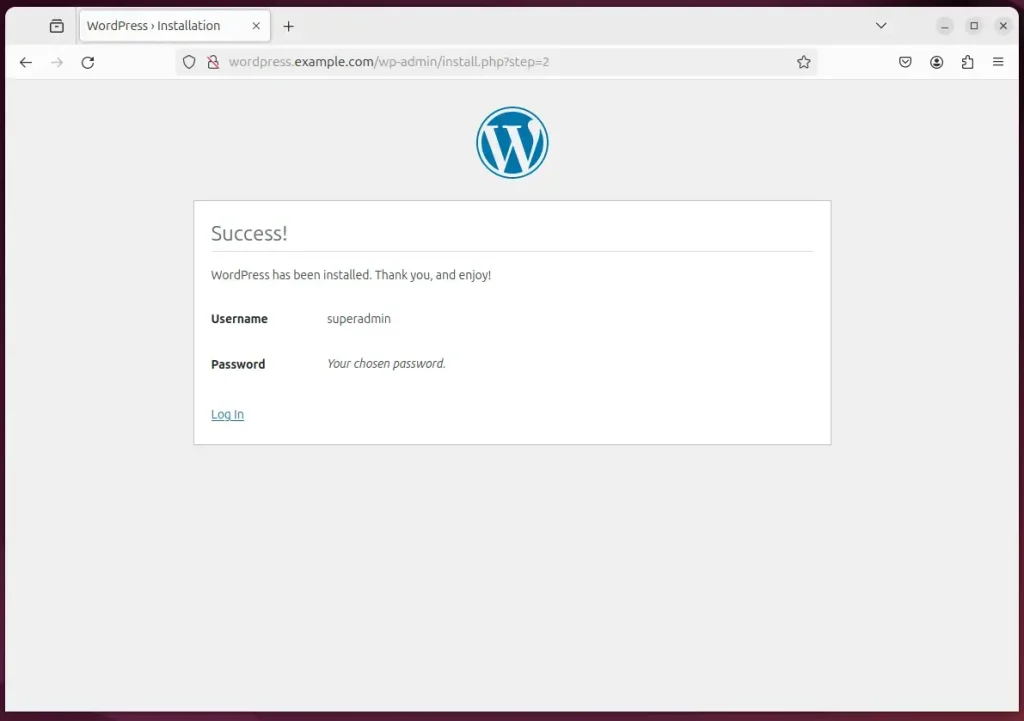
If everything is correct, WordPress finishes the installation and you can log in to your new site. To work on it again later, open the XAMPP Control Panel, start Apache and MySQL, and visit the same local address.
Summary
- You installed WordPress on your Windows 11 PC using XAMPP, with no internet needed once the downloads are done.
- You created a database for WordPress to save your website data.
- You downloaded WordPress and set it up to run on your local server.
- You installed WordPress through the web setup wizard.
You now have a working local WordPress site on your Windows 11 PC. The process covered installing XAMPP, creating a database, downloading the WordPress files and running the web setup wizard. Remember that Apache and MySQL must be running in the XAMPP Control Panel whenever you want to use the site.
Was this guide helpful?

About the Author
Richard
Tech Writer, IT Professional
Richard is a writer at Geek Rewind who turns complex IT tasks into clear, step-by-step guides. He draws on years of hands-on experience in system administration and enterprise IT operations, focusing on Windows, Linux and WordPress: the problems people actually run into, and the fixes that work. His server and WordPress guides come from systems he runs himself. Richard builds and maintains the platform behind Geek Rewind, from its Ubuntu servers and Nginx configuration to its custom WordPress plugins. Many new tutorials start with readers' questions, and he's always glad to answer them in the comments.



No comments yet — be the first to share your thoughts!