How to Install Joomla on Your Windows 11 Computer Using XAMPP

Joomla on Windows 11 runs locally when you use XAMPP to turn your PC into a web server, so you don’t need a live host. Joomla is free website software that lets you build pages offline. XAMPP supplies the backend tools it needs, such as PHP and a database.
Testing a site on your own machine saves money and time before you put it online. You can try themes, extensions and settings, break things, and start over without touching a public site. You need three things: a Windows 11 PC, the XAMPP installer, and the Joomla installation files. The sections below cover the setup in order.
Install Joomla on Windows 11 by first installing and starting XAMPP. Then, create a Joomla database using XAMPP’s tools, download Joomla files to `C:xampphtdocsjoomla`, and modify `htdocsindex.php` to redirect to your Joomla folder. Finally, navigate to `http://localhost/` to complete the Joomla installation in your browser.
What is XAMPP?
XAMPP is a free software package that turns your Windows 11 computer into a local web server, so you can test websites offline. It bundles the three parts Joomla needs, so you don’t have to install and configure each one yourself. Nothing is reachable from the internet by default. The site only opens on your own PC.
- Apache (the web server that shows your site in the browser)
- MariaDB (a database that stores your site’s articles, users and settings). The XAMPP Control Panel still labels this module “MySQL”, and it works the same way for Joomla.
- PHP (the programming language Joomla is written in)
You can use XAMPP to try out Joomla and other website tools on your PC before making your site live on the internet. Treat it as a testing setup only. Its default settings, such as a database administrator account with no password, are not safe for a public server.
Step 1Install XAMPP
If you haven’t installed XAMPP yet, follow this tutorial first. Check the Joomla download page for the PHP version your Joomla release needs, and make sure your XAMPP version ships with a matching PHP.
How to Install XAMPP on Windows 11
Once XAMPP is installed, open the XAMPP Control Panel to start working with your local web server. If Windows Defender Firewall asks whether to allow Apache, allow it on private networks. If Apache refuses to start, another program is usually using the same port, so close it or change the port before you go on.
Step 2Create a Database for Joomla
Joomla stores everything in a database, so you must create an empty one before you run the installer. You can do this with the command line or with phpMyAdmin. In both cases the MySQL service in the XAMPP Control Panel must be running first. Use the same database name, user name and password later in the Joomla wizard.
Here's how to do it using XAMPP's built-in tools:
- Open the XAMPP Control Panel.
- Click Start next to MySQL. The module name turns green when the service is running.
- Click the Shell button to open a command window. You should see a console window with a command prompt.
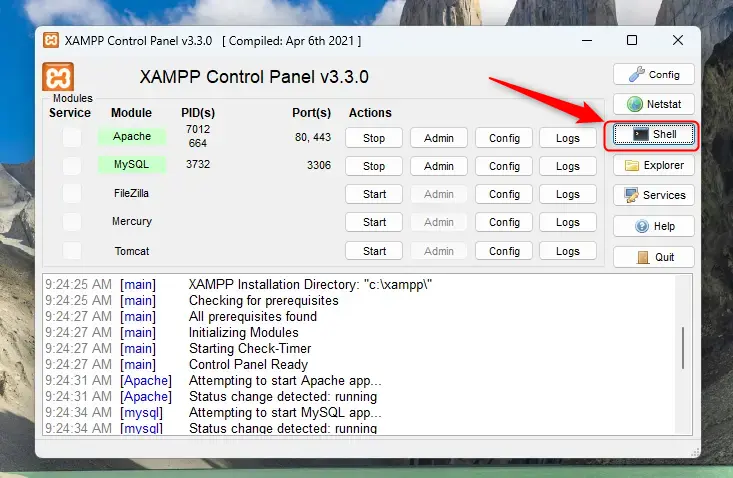
XAMPP Shell Button - Type this command and press Enter to log into the database system. The prompt should change to show you are now talking to the database server:
mysql -u root - Now type these commands one by one, pressing Enter after each. Together they create the database, create a user for Joomla, and give that user access to the database:
CREATE DATABASE joomladb CHARACTER SET utf8mb4 COLLATE utf8mb4_general_ci;CREATE USER 'joomladbuser'@'localhost' IDENTIFIED BY 'your_password_here';GRANT ALL ON joomladb.* TO 'joomladbuser'@'localhost';FLUSH PRIVILEGES;exit
Replaceyour_password_herewith a password you create. Write it down, because you will need it in the Joomla wizard.
Can't use the command line? No problem! You can also create the database and user using phpMyAdmin. This gives the same result, so pick one method and not both:
- In the XAMPP Control Panel, next to MySQL, click the Admin button. If the button is greyed out, the MySQL service isn't running, so click Start first. Your browser should open phpMyAdmin.
- In phpMyAdmin, click Databases, enter
joomladbas the database name, and click Create. The new database appears in the list on the left. - Go to the User accounts tab (older phpMyAdmin versions call it Users) and add a new user called
joomladbuserwith your chosen password. Give it all privileges on thejoomladbdatabase, then save the account.
Step 3Download Joomla
Next, download the latest Joomla installation package from the official Joomla website. Save the zip file, extract it, and place the files in a folder inside the C:\xampp\htdocs directory. Apache only serves files from that directory, so Joomla has to live there.
- Go to the official Joomla download page: https://downloads.joomla.org/
- Download the latest Joomla zip file.
- Open File Explorer and go to
C:\xampp\htdocson your computer. - Create a new folder here named
joomla. Right-click an empty space, choose New Folder, and type the name. - Extract all the Joomla files you downloaded into this
joomlafolder. Right-click the zip file, choose Extract All, and point it at that folder. Make sure the files land directly inside it, not in an extra subfolder.
Your folder structure should look like C:\xampp\htdocs\joomla with Joomla files inside. Open the folder and check for a file named index.php and a folder named administrator. If you only see one more folder, you extracted one level too deep, so move the contents up.
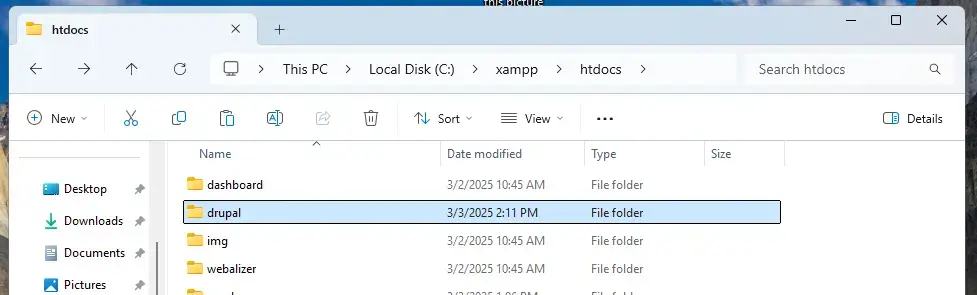
With the files in place and the database ready, Apache can now serve the Joomla installer. The next section is optional but makes the setup easier to reach.
Step 4Make Joomla Show as Your Homepage
You can make your new site open automatically when you visit http://localhost on your Windows 11 computer. To do that, change the default start page in your XAMPP folder. Out of the box, XAMPP sends visitors to its own dashboard page. This step swaps that for the Joomla installer.
Edit the file C:\xampp\htdocs\index.php (or index.html, whichever exists in C:\xampp\htdocs) and replace its content with the code below. Make a copy of the original file first, so you can restore it later and get the XAMPP dashboard back.
<?php

	if (!empty($_SERVER['HTTPS']) && ($_SERVER['HTTPS'] == 'on')) {

		$uri = 'https://';

	} else {

		$uri = 'http://';

	}

	$uri .= $_SERVER['HTTP_HOST'];

	header('Location: '.$uri.'/joomla/');

	exit;

?>

Something is wrong with the XAMPP installation :-(
- Save the file. If Windows says you don't have permission, close the editor and reopen it with Run as administrator.
- Restart Apache in the XAMPP Control Panel by clicking Stop and then Start. Apache's name should turn green again.
Step 5Open Joomla in Your Browser
You finish the setup by opening http://localhost in your web browser on Windows 11 to launch the on-screen Joomla installation wizard. Follow the prompts to choose your language, create your administrator login, and connect the database you made earlier. Make sure Apache and MySQL are both running before you start.
http://localhost/
You should see the Joomla installation page. If you see the XAMPP dashboard instead, check that you saved the start-page change and restarted Apache. If the page won't load at all, Apache isn't running.

The wizard has three screens: site setup, admin login, and database. The database screen is where most mistakes happen, so double-check it before you continue.
Follow the steps on screen:
- Choose your language and enter your website's name.
- Click Next. The login data screen appears.
- Set up your admin account by entering your name, username, password, and email. Joomla 4 and later asks for a long password (12 characters or more), so choose one you can remember.
- Click Next. The database screen appears.
- On the database page, enter these values:
- Database Type: MySQLi
- Host: localhost
- Username: joomladbuser
- Password: the password you created earlier
- Database Name: joomladb
- Click Install Joomla. The installation can take a minute, so don't close the tab while it runs.

If the wizard shows a database connection error, check that MySQL is running in the XAMPP Control Panel. Then confirm that the user name, password and database name match exactly what you created earlier.
Once installation is complete, you will see a success message.

From the success page you can open the public site or the administrator area. To reach the back end later, add /administrator to the end of your site address and sign in with the admin account you just created.
Congratulations! Your Joomla website is now ready to use on your Windows 11 computer.
Summary
- XAMPP lets you run Joomla on your PC without needing the internet.
- You created a database for Joomla using either the command line or phpMyAdmin.
- You downloaded Joomla and placed it in the right folder inside XAMPP.
- You changed the homepage to open Joomla by default.
- You completed the Joomla setup by following the installation wizard in your browser.
Running Joomla on your Windows 11 computer using XAMPP gives you a complete offline environment for building and testing websites. You now have a working local server, a dedicated database, and the core Joomla files ready for your web development projects. To use the site again later, open the XAMPP Control Panel and start Apache and MySQL. When you finish for the day, click Stop on both. Your site and its data stay in place until you delete them.
Have a question about this guide?
Answered by AI from this guide. Good questions may be added to this page — please don't include personal details.
Did this guide fix your problem?

About the Author
Richard
Tech Writer, IT Professional
Richard is a writer at Geek Rewind who turns complex IT tasks into clear, step-by-step guides. He draws on years of hands-on experience in system administration and enterprise IT operations, focusing on Windows, Linux and WordPress: the problems people actually run into, and the fixes that work. His server and WordPress guides come from systems he runs himself. Richard builds and maintains the platform behind Geek Rewind, from its Ubuntu servers and Nginx configuration to its custom WordPress plugins. Many new tutorials start with readers' questions, and he's always glad to answer them in the comments.
No comments yet — be the first to share your thoughts!