How to Install Apache on Ubuntu Linux


Apache is a free, open-source web server that hosts millions of websites. On Ubuntu 22.04 LTS you install it from the terminal with APT, the built-in package manager. A basic install takes only a few minutes.
You need an account with sudo access, or the root account, and a working internet connection on the server. The steps also work on newer Ubuntu releases, such as 24.04 LTS. Package versions may differ slightly.
Install Apache by opening a terminal and running sudo apt update followed by sudo apt install apache2. Verify the installation by checking its status with sudo systemctl status apache2.
How to use Apache HTTP server on Ubuntu Linux
Apache is in Ubuntu’s standard software sources, so you don’t need to add a repository or download anything by hand. You run a couple of commands in the terminal. APT downloads Apache, installs it and starts the service for you.
Open a terminal on the server, or connect to it over SSH, before you start. Your user must be allowed to use sudo. If a command fails with a “permission denied” message, you most likely left out sudo.
Apache is available in the Ubuntu repositories, so you can install it with the apt package management tool. The version you get is the one Ubuntu maintains for your release. It receives security updates through the normal update process.
To install Apache, follow these steps:
- Open a terminal window.
- Run the commands in the block below, one after the other. The first refreshes the list of available packages. The second downloads and installs Apache.
- If APT asks you to confirm, type Y and press Enter. You will see a stream of download and setup messages. When the prompt returns, the install is done.
sudo apt update
sudo apt install apache2
These commands install the Apache HTTP server. On Ubuntu, Apache starts right after installation and is set to start again every time the server boots. You don't need to start it yourself or restart the machine.
Next, check that Apache is installed and running:
- Run the status check command from the block below.
- Read the output. Look for the line that starts with Active.
- Press q to return to the prompt if the output stays open in a pager.
sudo systemctl status apache2
When Apache is running, the command prints lines similar to the ones below. The key line says active (running), usually in green. If you see inactive or failed instead, Apache is not running. The most common cause is another program already using port 80. The last lines of the status output usually show the error.
apache2.service - The Apache HTTP Server
     Loaded: loaded (/lib/systemd/system/apache2.service; enabled; vendor preset: enabled)
     Active: active (running) since Wed 2021-09-15 12:29:40 CDT; 10s ago
       Docs: https://httpd.apache.org/docs/2.4/
    Process: 4860 ExecStart=/usr/sbin/apachectl start (code=exited, status=0/SUCCESS)
   Main PID: 4864 (apache2)
      Tasks: 55 (limit: 4651)
     Memory: 4.7M
     CGroup: /system.slice/apache2.service
             ├─4864 /usr/sbin/apache2 -k start
             ├─4865 /usr/sbin/apache2 -k start
             └─4866 /usr/sbin/apache2 -k start

Sep 15 12:29:40 ubuntu2004 systemd[1]: Starting The Apache HTTP Server...
Sep 15 12:29:40 ubuntu2004 apachectl[4863]: AH00558: apache2: Could not reliably determine the >
How to allow Apache through the Ubuntu firewall
Before visitors can reach your server, the firewall has to allow web traffic. Standard web traffic uses port 80, and secure traffic uses port 443. If you use UFW (Uncomplicated Firewall, Ubuntu's tool for managing network rules), one command opens both ports.
UFW is often switched off on a fresh Ubuntu install. If it is off, nothing is blocked on the server itself, and you can skip this step. If your server is with a cloud provider, also check the provider's own firewall or security group. It may block ports 80 and 443 separately from UFW.
If you use UFW to manage the Ubuntu firewall, allow Apache traffic like this:
- Run the command or commands in the block below.
- Wait for UFW to confirm the rule. It prints a short message such as "Rule added".
sudo ufw allow 'Apache Full'
This allows full traffic to Apache, both regular and secure. The rule only opens the ports. HTTPS will not work until you set up an SSL certificate for your site.
With the firewall open, test the server in a browser:
- Open a web browser on any computer that can reach the server.
- Type the server's hostname or IP address into the address bar and press Enter. If you are working on the server itself, http://localhost works too.
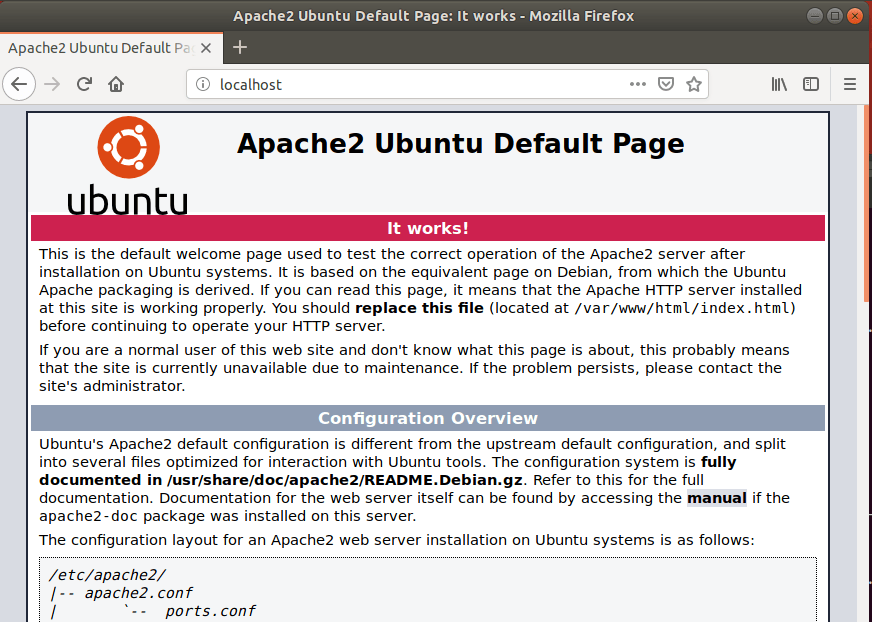
- Wait for the page to load. You should see the Apache default page.
http://localhost
The Apache default welcome page is titled Apache2 Ubuntu Default Page and carries the message "It works!". It confirms that Apache is installed, running and reachable. If the page doesn't load, check three things: the service status, the firewall rules (including any provider firewall), and whether you typed the right address.
How to configure Apache on Ubuntu Linux
Apache's settings live in the main configuration folder, /etc/apache2. This folder holds the text files that control how the web server behaves, which domains it serves and how it handles secure connections. You need sudo to edit these files.
After you change a configuration file, reload or restart Apache so it picks up the change. A mistake in a file can stop Apache from starting, so keep a backup copy of any file before you edit it.
On Ubuntu, Apache's files and folders are laid out differently from some other Linux distributions. The sections below explain the main ones.
All Apache configuration files are in the /etc/apache2 directory. This is Apache's home directory on Ubuntu.
Apache's main configuration file is /etc/apache2/apache2.conf. It holds the global settings. You rarely need to edit it, because site-specific changes belong in the virtual host files described below.
Port settings are in /etc/apache2/ports.conf. This is where you change the default listen ports. The ports in this file are the ones Apache listens on for traffic. If you change a port here, update the firewall rules and any virtual host that uses the old port.
Virtual host files define your websites. They are kept in the /etc/apache2/sites-available directory. Apache only uses the definitions you have activated. An activated site is linked into the /etc/apache2/sites-enabled directory. Files in sites-available that are not linked there are ignored.
To activate a website, link its file into the /etc/apache2/sites-enabled directory with the command below. Replace example.com.conf with the name of your own virtual host file. Reload Apache afterwards so the new site takes effect.
sudo a2ensite example.com.conf
The command creates a symlink (a shortcut) from the website configuration file in the sites-available directory to the sites-enabled directory. The original file stays in sites-available, so you can edit it there.
To deactivate a virtual host, use the command below. Replace example.com.conf with your website's virtual host file. This removes only the link. Your configuration file stays in sites-available, so you can switch the site back on later. Reload Apache afterwards.
sudo a2dissite example.com.conf
Apache uses modules to add features, such as URL rewriting or SSL support. The available modules are in the /etc/apache2/mods-available/ directory.
Apache only loads a module once it is enabled, which means it is linked into the /etc/apache2/mods-enabled/ directory.
On Ubuntu, you turn modules on and off with the a2enmod and a2dismod commands. The similar a2enconf and a2disconf commands do the same for extra configuration files, not for modules. Once a module is enabled and linked into the mods-enabled directory, Apache loads it. Restart Apache after you enable or disable a module.
Apache keeps two main log files, access.log and error.log, in the /var/log/apache2/ folder on Ubuntu. The access log records each request the server receives. The error log records problems. When something doesn't work, the error log is the first place to look. You need sudo to read these files.
Apache's configuration files on Ubuntu hold many more advanced settings. Future guides will cover them and show practical uses of the web server.
Conclusion:
This guide showed how to install Apache on Ubuntu, check that it is running, open the firewall and find your way around its configuration files. If you spot an error or want to add something, use the comment form below.
Was this guide helpful?

About the Author
Richard
Tech Writer, IT Professional
Richard is a writer at Geek Rewind who turns complex IT tasks into clear, step-by-step guides. He draws on years of hands-on experience in system administration and enterprise IT operations, focusing on Windows, Linux and WordPress: the problems people actually run into, and the fixes that work. His server and WordPress guides come from systems he runs himself. Richard builds and maintains the platform behind Geek Rewind, from its Ubuntu servers and Nginx configuration to its custom WordPress plugins. Many new tutorials start with readers' questions, and he's always glad to answer them in the comments.




useless a2enconf and a2disconf commands missing like how to load php etc
The Apache default site doesn’t load.
[…] How to install Apache on Ubuntu […]
[…] Apache installed, you can enable the Userdir feature by running the command […]
[…] use and run CGI script on Apache, you must first enable its module. With Apache installed, run the command below to enable the Apache CGI […]
[…] Install Apache on Ubuntu Linux. […]
[…] Apache is already installed, run the command below to install PHP. At the time of this writing, PHP 8.3 is the current version […]
[…] all the necessary components are installed, like PHP, a web server (like Apache or Nginx), and Composer, you can create a new CakePHP project using Composer, which is […]
[…] you already have a web server like Nginx or Apache installed and running a website, you can use this method to generate a free […]
[…] Install Apache on Ubuntu […]