Enable Apache CGI on Ubuntu 24.04


Apache CGI (Common Gateway Interface) lets your web server run external scripts and pass form input to them. It acts as a go-between for Apache and programs such as Perl or shell scripts, so a page can read what a visitor submitted and talk to a database. Apache 2.4 on Ubuntu 24.04 ships with the CGI module, but it is not switched on by default.
The work comes down to two parts. You turn on the module, and then you decide where your scripts live. If you want a folder other than the default, you also add a small configuration file. Every command here needs sudo, so use an account that has it.
Enable Apache CGI on Ubuntu 24.04 by running sudo a2enmod cgi, then sudo systemctl restart apache2. This turns on the CGI module, which lets Apache run scripts such as Perl or Python and pass them form input. Scripts placed in /usr/lib/cgi-bin run by default.
Enable the Apache CGI module
To enable CGI, you turn on the CGI module and restart Apache. After that, Apache runs any script you place in the default /usr/lib/cgi-bin folder.
- Open a terminal.
- Run sudo a2enmod cgi. If Apache uses the default threaded event MPM, Ubuntu enables the cgid module for you. This is normal, because cgid is the version of the CGI module built for threaded servers. You should see a message saying the module was enabled, plus a reminder to restart Apache.
- Run sudo systemctl restart apache2. Nothing is printed when it works.
The module change does not take effect until you restart. If you later want to turn CGI off, disable the module the same way you enabled it, then restart Apache again.
sudo a2enmod cgi
sudo systemctl restart apache2
Once the module is enabled, CGI scripts run from the /usr/lib/cgi-bin directory by default. Put your script in this folder and Apache will execute it instead of showing its source as text.
The folder belongs to root, so you need sudo to create or edit files in it.
Client requests sent to the URL http://localhost/cgi-bin/index.cgi execute the script. Replace the domain with your own domain name or the server's IP address.
If you only want to try CGI out, you can stop here and skip the custom directory steps.
If you want to change this default or use a different directory for your CGI scripts, create a custom Apache configuration file and define your settings in it. This keeps your changes separate from the main Apache files, so a package update will not overwrite them.
For example, say you want to store your CGI scripts in the /var/www/html/custom-cgi directory instead. You create the directory, then create an Apache configuration file that points to that new location.
- Create the CGI directory by running the command below.
sudo mkdir /var/www/html/custom-cgi
- Run the command below to create an Apache configuration file. It opens an empty file in your text editor.
sudo nano /etc/apache2/conf-available/custom-cgi.conf
- Copy the block below, paste it into the file, and save. The block tells Apache that the new directory holds CGI scripts and which files count as scripts.
<Directory "/var/www/html/custom-cgi">
    Options +ExecCGI
    AddHandler cgi-script .cgi .pl .py .rb
</Directory>
- Enable the configuration by running the command below. Apache only reads the new file after a reload or restart, so restart it with sudo systemctl restart apache2 if the command does not do that for you.
Now test the setup to confirm CGI works. You will create a file named index.cgi in the /var/www/html/custom-cgi/ folder. Use sudo nano /var/www/html/custom-cgi/index.cgi to create and edit the file, then paste in your script. The file must be executable, or Apache will refuse to run it. The next steps walk through it, starting with the command that makes the file executable.
- Run the command below to create a blank CGI index file.
sudo nano /var/www/html/custom-cgi/index.cgi
- Copy the script below, paste it into the file, and save. A CGI script must start with a line naming its interpreter. It must also print a Content-type header followed by a blank line before any output. Without these, the browser shows an error.
#!/usr/bin/python3
print("Content-type: text/html\n")
print("<html>\n<body>")
print("<p style='width: 100%; font-weight: bold; font-size: 60px; text-align: center;'>")
print("CGI is Enabled!!!")
print("</p>")
print("</body>\n</html>")- Make the file executable by running the command below. This step is easy to forget, and it is the most common cause of a failed CGI test.
sudo chmod 755 /var/www/html/custom-cgi/index.cgi
- Open your browser and go to the script, using the address below. Use your own domain or server IP in place of example.com.
http://example.com/custom-cgi/index.cgi
You should see the output your script prints. If you get a 500 Internal Server Error, check three things. First, the file must be executable. Second, the first line of the script must point to a valid interpreter. Third, the script must print the header and blank line described above. The Apache error log under /var/log/apache2 usually names the exact problem. If the browser shows the script's source code or offers a download, the directory is not being treated as a CGI directory. Check the configuration file and restart Apache.
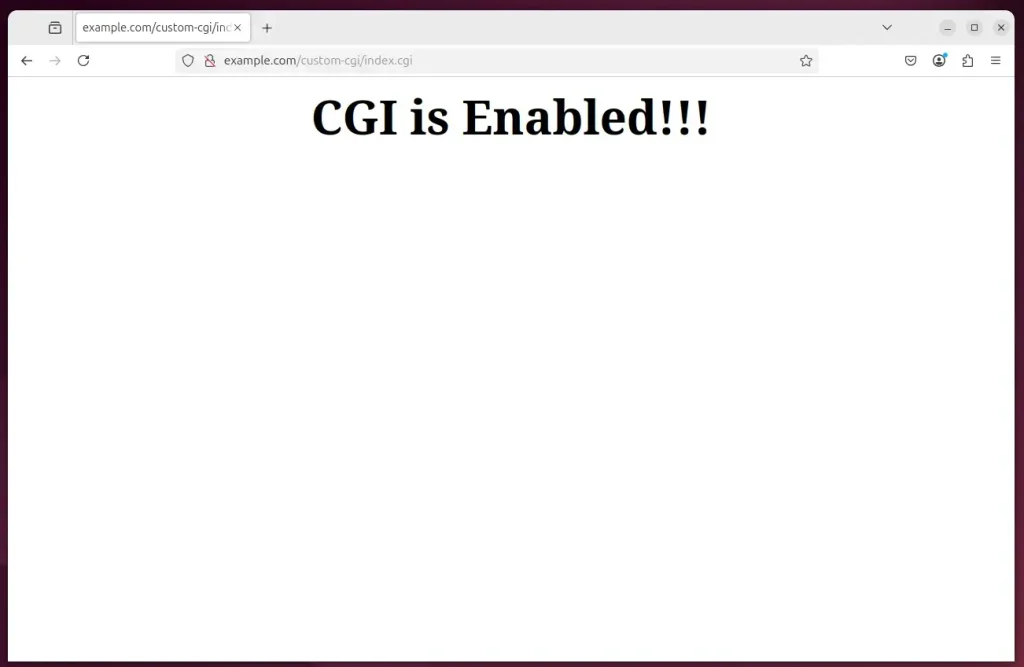
That completes the setup. Apache now runs CGI scripts from the default directory, and from your custom one if you added it.
Conclusion:
Enabling the Apache CGI module on Ubuntu 24.04 lets you build dynamic, interactive web applications. If you follow the steps above, you can run CGI scripts from the default folder or from a directory of your own, and you can check that they work before relying on them.
- CGI scripts add interactive features to websites, such as form handling and database access.
- Enabling the CGI module on Apache takes a couple of simple commands and a restart of the web server.
- The default CGI script directory is
/usr/lib/cgi-bin, but you can create custom directories with your own configuration file. - Knowing how Apache configuration files work is essential for customizing your CGI setup.
- Test your CGI setup with a simple script before deploying to a live environment. Make sure the script is executable.
With these steps done, you can use CGI in your web development projects and generate dynamic content through scripts.
Have a question about this guide?
Answered by AI from this guide. Good questions may be added to this page — please don't include personal details.
Did this guide fix your problem?

About the Author
Richard
Tech Writer, IT Professional
Richard is a writer at Geek Rewind who turns complex IT tasks into clear, step-by-step guides. He draws on years of hands-on experience in system administration and enterprise IT operations, focusing on Windows, Linux and WordPress: the problems people actually run into, and the fixes that work. His server and WordPress guides come from systems he runs himself. Richard builds and maintains the platform behind Geek Rewind, from its Ubuntu servers and Nginx configuration to its custom WordPress plugins. Many new tutorials start with readers' questions, and he's always glad to answer them in the comments.
No comments yet — be the first to share your thoughts!