Setting Up Apache WebDAV on Ubuntu 24.04

Apache WebDAV on Ubuntu 24.04 turns your server into a shared network drive. You can open, edit, and move files from anywhere without an FTP program. WebDAV (Web-based Distributed Authoring and Versioning) adds file-sharing methods to ordinary web traffic, so it runs over the same Apache server that already serves your web pages.
Once it is set up, you can treat the remote server like a folder on your own computer. You can drag, drop, and delete files through your file manager, and many desktop apps can open and save files on it directly. This guide covers the server side on Ubuntu 24.04 and then connecting from a Windows PC.
Apache WebDAV on Ubuntu 24.04 turns your server into a shared network drive you can open, edit, and move files on without an FTP program. Install the apache2-utils package with sudo apt install apache2-utils, create the /srv/webdav folder, add a site file at /etc/apache2/sites-available/webdav.conf, then enable it with sudo a2ensite webdav.conf.
Set up Apache WebDAV
The setup has a few parts: install the helper tools, create a storage folder, write a site configuration, add a user, and enable everything. Start with the helper tools. Make sure Apache is already installed and running, then open a terminal and run `sudo apt install apache2-utils`. This package provides the password tool you will use later to protect the shared folder.
You need an account that can use sudo for every server-side step in this guide.
If it is not, read the linked guide below first and come back when Apache is running.
Install Apache on Ubuntu Linux.
- Open a terminal on the Ubuntu server.
- Run the command below to install the Apache utility package.
- Wait for the install to finish. You should be back at the shell prompt with no error messages. If the package is already installed, apt tells you so and changes nothing.
Next, create the folder that will hold the shared files. Apache runs as its own service account, so that account must be able to read and write inside the folder. Without that, you can connect and see the share, but uploads and edits fail with permission errors.
- Create the WebDAV directory at `/srv/webdav`.
- Change the ownership and permissions of the folder so the Apache web server can read and write files in it.
The commands for both steps are in the block below. Run them in order. The `/srv/webdav` folder is the place where all your shared files will live, so pick a different location now if you want one, and use that path consistently in the later steps.
The `webdav.conf` file tells Apache how to handle your WebDAV folder. It holds the instructions that turn on WebDAV and point Apache to the location of the stored files. You create it in the `/etc/apache2/sites-available/` directory, where Ubuntu keeps site definitions that you can switch on and off.
Writing to that directory needs root rights, so open the file with a text editor under sudo.
sudo nano /etc/apache2/sites-available/webdav.conf
- Copy the block below.
- Paste it into the empty file in your editor.
- Save the changes.
Check that any password file path inside the block matches the one you create later in this guide, `/etc/apache2/.htpasswd`. Also check that the folder path matches the `/srv/webdav` folder you created. A mismatch in either path is the most common reason the share returns errors.
Alias /webdav /srv/webdav<Location /webdav> DAV On SSLRequireSSL Options None AuthType Basic AuthName WebDAV AuthUserFile /etc/apache2/.htpasswd <RequireAny> Require method GET POST OPTIONS Require valid-user </RequireAny></Location>
- Exit the editor once the file is saved. You should be back at the terminal prompt.
Nothing in this file is active yet. Apache ignores it until you enable the site, which comes in a later step.
Create user account
Now create a user account for WebDAV. This is a username and password pair that Apache checks whenever someone tries to connect. It is separate from your Linux user accounts, so it never touches your system logins. Use `sudo htpasswd -Bc /etc/apache2/.htpasswd username` to create the password file and add the first user. The B option stores the password with bcrypt, and the c option creates the file.
If you run it again on an existing file, it replaces the file and removes the users already in it. To add more users later, run the same command without c.
Read the post below for more details about Apache's basic authentication.
Set up Apache basic authentication
- Run the command below to create a basic user account.
sudo htpasswd -Bc /etc/apache2/.htpasswd username
- Replace username with the account name you want. Use a name that is easy to recognize, such as the person's first name.
- Enter a new password for the account when prompted, then enter it again to confirm.
Nothing appears on screen while you type the password. That is normal. When both entries match, the tool tells you it added the password for that user.
Now switch everything on. You need to enable two things: the Apache WebDAV module, `mod_dav.so`, and the virtual host file you created earlier, `webdav.conf`. The module teaches Apache to handle WebDAV requests. Enabling the site makes Apache read your configuration. Restart Apache afterward, because it only loads new modules and sites at startup or reload.
- Run the commands in the first block below to enable the module and the site.
- Restart the Apache service to apply the changes.
sudo a2enmod dav dav_fs*sudo a2ensite webdavsudo systemctl restart apache2
Connect to the WebDAV
If Apache fails to restart, there is usually a typo in `webdav.conf` or a wrong path. Apache reports the line it could not parse, and its error log has the details. Fix the file, then restart the service again.
To connect from a Windows PC, you map the server as a network location, so it appears like a normal folder in File Explorer. You need the server's web address, plus the username and password you created earlier. The steps below use the Windows 11 wizard.
Windows is strict about WebDAV. By default it refuses basic authentication over plain HTTP, so a connection that works in a browser may fail here with a credentials error. The proper fix is to serve the share over HTTPS with an SSL certificate. Also, the WebClient service must be running on the PC, and Windows normally starts it when needed.
Add a network location in Windows.
- Open File Explorer and select This PC in the left pane.
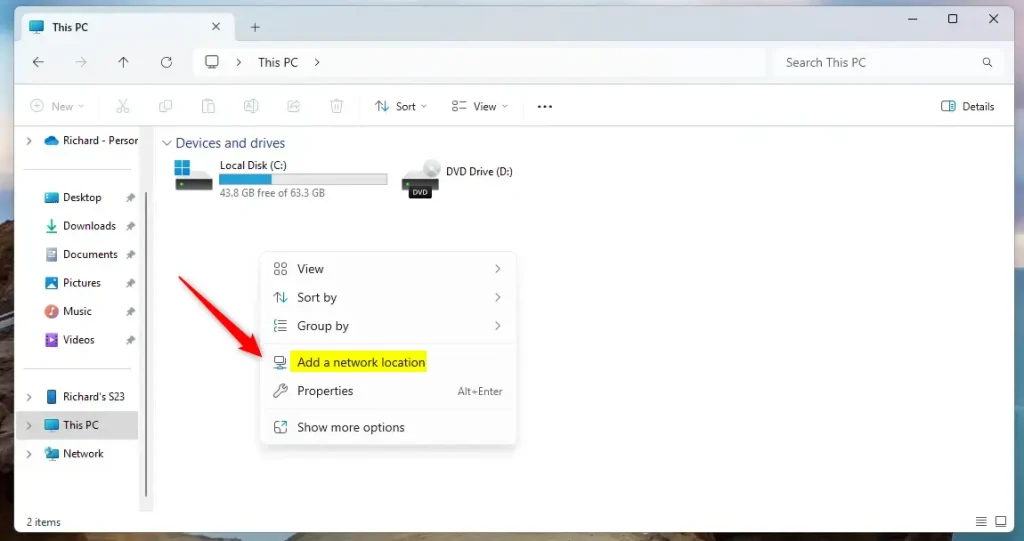
- Right-click an empty area in the main pane and select Add a network location. In Windows 11 you may need to select Show more options first to see the classic menu that holds this entry.
- Click Next on the welcome page, then select Choose a custom network location and click Next again.
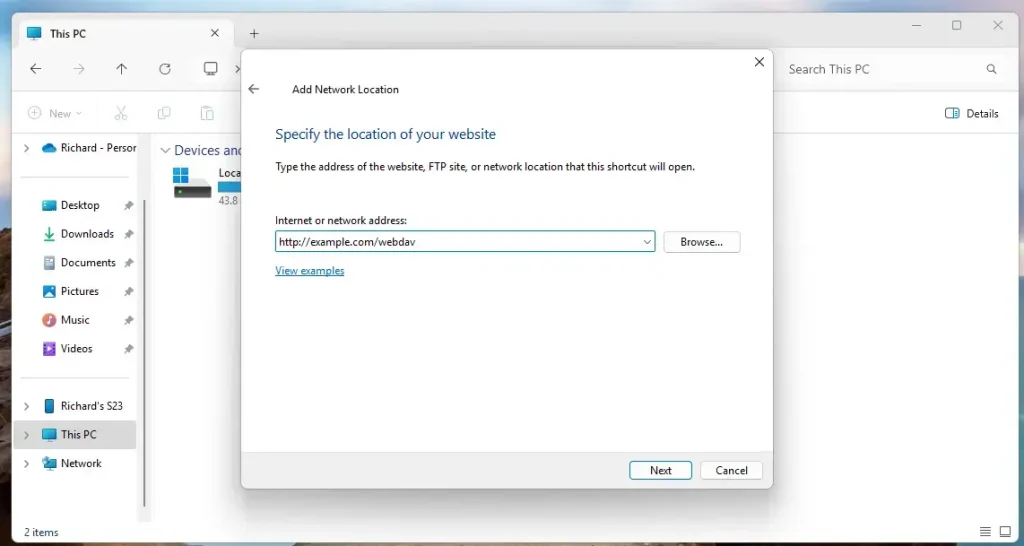
- Type the WebDAV address in the Internet or network address field. Use your server's address plus the path you set up in `webdav.conf`, starting with https:// if you have a certificate.
- Click Next.
https://example.com/webdav
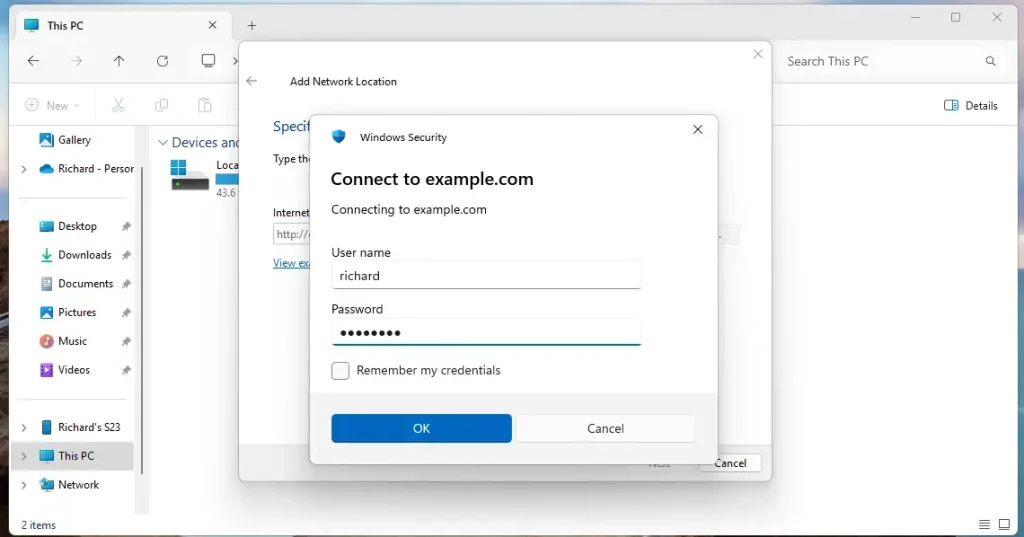
- Enter the username and password you created earlier when Windows prompts for credentials.
- Tick Remember my credentials if you do not want to sign in every time.
If the prompt keeps coming back, check the username and password first. Then check the HTTP versus HTTPS point above, because that is the most common cause.
- Accept the suggested name for the location or type your own, then click Next.
- Click Finish to complete the setup.
The share now appears under This PC as a network location. Open it and try creating a small test file. If that works, read and write access are both in place.
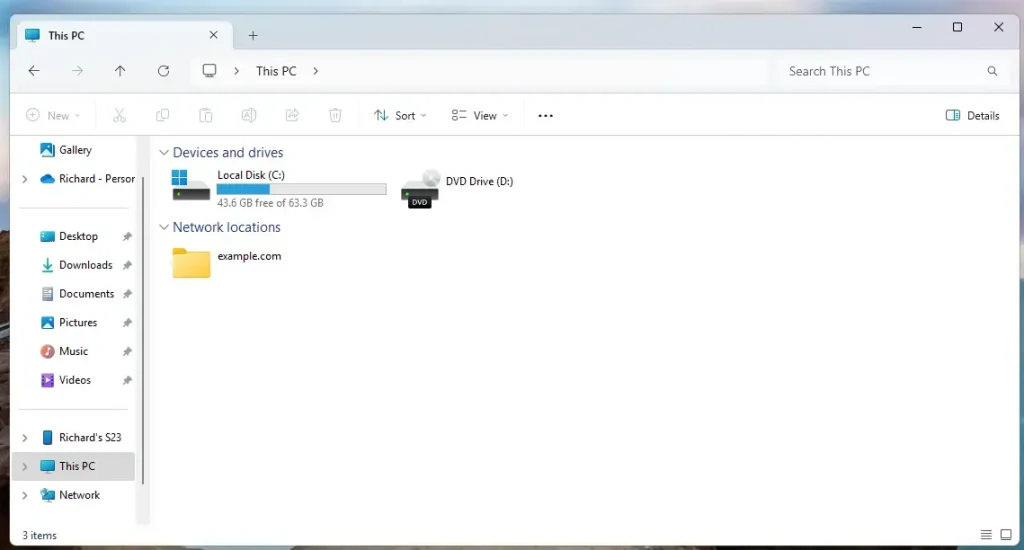
That concludes the configuration. To remove the share from a PC later, right-click the network location in File Explorer and delete it. This does not touch the files on the server.
Conclusion:
Setting up Apache WebDAV on Ubuntu 24.04 gives you a practical way to manage files collaboratively. WebDAV allows remote file management without a separate FTP client. Review the key takeaways below:
- Easy File Management: WebDAV allows direct editing, creation, and deletion of files on the server.
- Authentication: Basic authentication adds username and password protection. Use it over HTTPS so the credentials are not sent in clear text.
- Cross-Platform Compatibility: While Windows requires SSL for WebDAV, workarounds are available.
- Scalability: The setup can be adapted for larger systems as needed by adjusting configurations and permissions.
- Community Resources: Numerous tutorials and guides exist for troubleshooting and expanding WebDAV capabilities.
This setup gives your team a shared space for documents, so people can work on the same files without emailing copies back and forth.
Have a question about this guide?
Answered by AI from this guide. Good questions may be added to this page — please don't include personal details.
Did this guide fix your problem?

About the Author
Richard
Tech Writer, IT Professional
Richard is a writer at Geek Rewind who turns complex IT tasks into clear, step-by-step guides. He draws on years of hands-on experience in system administration and enterprise IT operations, focusing on Windows, Linux and WordPress: the problems people actually run into, and the fixes that work. His server and WordPress guides come from systems he runs himself. Richard builds and maintains the platform behind Geek Rewind, from its Ubuntu servers and Nginx configuration to its custom WordPress plugins. Many new tutorials start with readers' questions, and he's always glad to answer them in the comments.
No comments yet — be the first to share your thoughts!